


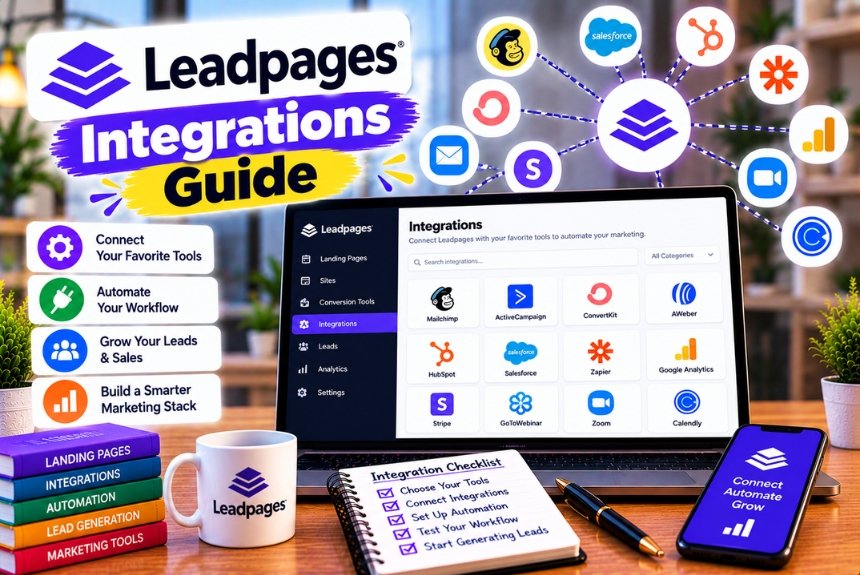
Leadpages Integrations Guide
A landing page is only one part of a successful digital marketing campaign. After a visitor submits a form, the business still needs to store the information, organize the lead, send relevant follow-up messages, measure campaign performance, and move the prospect toward a purchase or another conversion.
Managing these activities manually can become difficult as lead volume increases. Copying form submissions into a spreadsheet, importing contacts into an email marketing platform, or transferring information between a landing page and a customer relationship management system can waste time and create opportunities for errors.
This is where Leadpages integrations become valuable.
Leadpages allows businesses to connect landing pages with supported marketing and business tools. Depending on the integration and setup, these connections can help transfer lead information, add subscribers to email lists, track advertising conversions, send notifications, and support other marketing workflows.
The official Leadpages integrations pages list connections with tools such as HubSpot, Salesforce, Mailchimp, ActiveCampaign, Google Analytics, Google Ads, Stripe, Shopify, Slack, and Google Sheets. Leadpages also provides automation options, including Zapier and webhooks, for connecting additional services. The precise integrations and capabilities available can vary by product, plan, and connection method.
However, having access to integrations is only part of the equation. The real value comes from choosing the right tools for your workflow.
A small business collecting email addresses may need only an email marketing platform and a spreadsheet. A B2B company generating sales enquiries may require a CRM, marketing automation, analytics, and advertising conversion tracking. An ecommerce business may need payment processing, product information, and customer data synchronization.
In this detailed guide, we will explore the most useful Leadpages integrations, explain what each category does, compare common marketing tools, and show how to plan an effective integration workflow.
We will also cover integration setup, troubleshooting, security considerations, common mistakes, and frequently asked questions to help you connect Leadpages to the tools your business already uses.
What Are Leadpages Integrations?
Leadpages integrations are connections between Leadpages and other applications that allow information or actions to move between systems.
For example, imagine a visitor downloads an ebook from your landing page. Without an automated connection, someone might need to export the form submission and manually add the visitor to an email marketing platform.
With a suitable integration, the process can happen automatically. The visitor submits the form, the information is sent to the connected application, and the business can begin its follow-up process.
The exact workflow depends on the integration, the fields collected, and the actions supported by the connected service.
How Leadpages Integrations Work
A typical lead generation workflow looks like this:
- A visitor arrives at a Leadpages landing page.
- The visitor completes a form.
- Leadpages collects the submitted information.
- The connected integration receives the relevant data or event.
- The receiving application performs its configured action.
- The business reviews or follows up on the lead.
For example, a visitor could submit a consultation request and have the information sent to a CRM. The CRM could then assign the lead to a sales representative, while an email marketing platform sends a confirmation message.
Some workflows use a direct integration. Others rely on an automation platform, a webhook, or an API.
It is important to understand that connecting two applications does not automatically configure every business process. You may still need to map fields, select a list or destination, define automation rules, and test the result.
What Can You Do With Leadpages Integrations?
Depending on the available connection and configuration, Leadpages integrations can support several activities.
Lead management: Send form submissions to a CRM or lead management system.
Email marketing: Add contacts to email audiences and trigger follow-up sequences.
Marketing automation: Start workflows based on form submissions or other supported events.
Advertising measurement: Send conversion information to advertising platforms.
Analytics: Measure page visits, conversions, traffic sources, and campaign performance.
Payments: Connect supported payment or ecommerce tools to relevant landing page workflows.
Internal notifications: Alert a sales or marketing team when a new enquiry arrives.
Data organization: Record submissions in a spreadsheet or another data destination.
Custom workflows: Use automation platforms, webhooks, or APIs to connect services that do not have the exact native integration you need.
Leadpages’ official integrations pages describe these types of connections and identify supported services across several marketing categories.
Leadpages Integrations: Quick Overview
The following table summarizes popular tools and the main reasons a business might connect them to Leadpages.
| Integration | Category | Main Purpose | Best Suited For |
| HubSpot | CRM and marketing automation | Organize leads and support follow-up workflows | B2B businesses and growing marketing teams |
| Salesforce | CRM | Manage sales leads and customer records | Larger sales teams and complex sales processes |
| Pipedrive | CRM | Track leads through a sales pipeline | Small sales teams and service businesses |
| Mailchimp | Email marketing | Manage subscribers and email campaigns | Small businesses and content marketers |
| ActiveCampaign | Email marketing and automation | Segment contacts and automate follow-ups | Businesses with more advanced email workflows |
| Kit | Creator email marketing | Manage subscribers and audience communications | Creators, educators, and publishers |
| Klaviyo | Ecommerce marketing | Organize customers and trigger ecommerce marketing flows | Ecommerce brands |
| Google Sheets | Spreadsheet and reporting | Record and organize form submissions | Small businesses and marketing teams |
| Zapier | Automation | Connect Leadpages to supported third-party applications | Businesses with varied software requirements |
| Make | Automation | Build multi-step workflows between applications | Teams managing more complex automation |
| Google Analytics | Analytics | Measure website and landing page behavior | Businesses tracking digital marketing performance |
| Google Ads | Advertising | Measure conversions from paid search campaigns | Search advertisers |
| Meta advertising tools | Advertising | Measure supported campaign events | Businesses advertising on Facebook and Instagram |
| Slack | Team communication | Notify teams about new submissions | Sales and marketing teams |
| Stripe | Payments | Support relevant payment workflows | Businesses selling products or services |
| Shopify | Ecommerce | Connect landing page campaigns with ecommerce workflows | Online stores |
Important: This is a practical selection of integrations, not a guarantee that every listed function is available through a single native connector on every Leadpages product or plan. Confirm the current integration directory and documentation before building a workflow.
1. Leadpages CRM Integrations
A customer relationship management system, commonly called a CRM, stores information about prospects and customers and helps businesses manage their relationships with them.
For companies that generate leads through landing pages, CRM integration can reduce manual data entry and help sales teams respond more efficiently.
Instead of keeping every enquiry in an isolated form submission, a business can connect Leadpages to a CRM and organize contacts within its sales process.
Leadpages lists CRM connections including HubSpot, Salesforce, and Pipedrive on its official integrations pages.
Leadpages and HubSpot Integration
HubSpot provides tools for managing contacts, tracking sales opportunities, and automating parts of the marketing and sales process.
Connecting Leadpages to HubSpot can help a business transfer form submissions into its contact management workflow.
For example, a B2B company might publish a landing page offering a free consultation. When someone submits the form, the submitted information can be passed to HubSpot through a supported integration.
Depending on the configuration, the company may then use HubSpot to:
- Organize incoming contacts.
- Track leads and sales opportunities.
- Assign enquiries to team members.
- Segment contacts by interest.
- Trigger appropriate follow-up workflows.
- Report on marketing and sales activity.
The exact actions available depend on the connection method, field mapping, and HubSpot configuration.
Example: Leadpages and HubSpot Workflow
Imagine a software company promoting a product demonstration.
Its workflow could be:
- A prospect visits the Leadpages demo page.
- The prospect submits a form containing a name, business email, company, and area of interest.
- The integration sends the relevant data to HubSpot.
- HubSpot creates or updates the contact record, depending on the configured behavior.
- A sales representative receives the enquiry or the contact enters an appropriate workflow.
This reduces the need to copy information manually and helps keep the sales process organized.
Best for: B2B businesses, SaaS companies, marketing agencies, consultants, and organizations with structured lead qualification processes.
Official resource: Leadpages Integrations
Leadpages and Salesforce Integration
Salesforce is a CRM platform used to manage sales activity, customer records, and business relationships.
A Salesforce integration can help businesses send landing page enquiries into their sales environment.
For example, a company running a campaign for enterprise software could use a Leadpages landing page to collect requests for a product consultation. The resulting information could be transferred to Salesforce so the sales team can qualify and manage the opportunity.
Potential benefits include:
- Reducing manual lead entry.
- Centralizing lead information.
- Supporting sales follow-up processes.
- Connecting marketing campaigns with sales activity.
- Improving visibility into lead sources, when tracking is configured correctly.
Before implementing the connection, determine how the receiving system should handle duplicate contacts, required fields, lead ownership, and validation rules.
A technically successful form submission can still fail to create the expected CRM record if required fields or permissions are not configured correctly.
Best for: Enterprise sales teams, B2B businesses, and organizations already using Salesforce.
Leadpages and Pipedrive Integration
Pipedrive helps businesses organize sales opportunities and track prospects through a pipeline.
Connecting Leadpages with Pipedrive can be useful for service businesses that generate enquiries through campaign-specific landing pages.
For example, a digital marketing agency could create separate landing pages for SEO, paid advertising, and website development. Form submissions could be directed into the appropriate sales workflow, depending on the available integration and automation setup.
This can help the team organize enquiries and follow up according to the service requested.
Best for: Consultants, agencies, small sales teams, and service businesses that manage opportunities through a defined pipeline.
Which Leadpages CRM Integration Should You Choose?
The best CRM depends on your sales process rather than the landing page builder alone.
| CRM | Best Use Case | Key Consideration |
| HubSpot | Combined contact management and marketing workflows | Review the CRM fields and automation features your workflow needs |
| Salesforce | Complex sales processes and larger organizations | Check required fields, permissions, and record-matching rules |
| Pipedrive | Sales pipeline and opportunity management | Map each enquiry to the appropriate pipeline process |
If you already use a CRM, start by testing the connection with that system. Switching CRMs solely to obtain a landing page integration may create unnecessary migration work.
2. Leadpages Email Marketing Integrations
Email marketing integrations allow businesses to connect landing page forms with systems that manage subscribers, email campaigns, and automated communications.
This is particularly useful for businesses offering downloadable resources, newsletters, webinars, and other lead magnets.
Leadpages lists email marketing connections including Mailchimp, ActiveCampaign, Klaviyo, Kit, MailerLite, and other services in its integration documentation. Availability may vary by product and integration method.
Leadpages and Mailchimp Integration
Mailchimp helps businesses manage email audiences and send marketing communications.
Connecting Leadpages to Mailchimp can help transfer form submissions into a selected audience or list through a supported integration.
For example, an agency could create a landing page offering a free SEO checklist. When a visitor subscribes, the connection could add the contact to the appropriate Mailchimp audience, allowing the agency to send the promised resource and relevant follow-up emails.
A typical workflow might include:
- A visitor submits the landing page form.
- The integration sends the supported contact fields to Mailchimp.
- The contact is added or updated according to the configured behavior.
- Mailchimp sends the appropriate confirmation or welcome message.
- The business tracks subsequent email engagement.
The actual process depends on the list configuration, consent requirements, and automation rules.
Why Connect Leadpages to Mailchimp?
The integration can help businesses:
- Build an email subscriber list.
- Organize contacts by campaign.
- Deliver lead magnets.
- Send welcome emails.
- Support newsletter distribution.
- Reduce manual subscriber imports.
Before launching, test whether the contact is added to the intended audience and whether the correct follow-up message is triggered.
Best for: Small businesses, publishers, creators, agencies, and businesses building email lists.
Leadpages and ActiveCampaign Integration
ActiveCampaign combines email marketing, contact management, and automation capabilities.
Businesses can use it to organize contacts and create follow-up workflows based on supported contact information and events.
For example, a consultant could create separate landing pages for different services. Contacts entering through each page might be tagged or assigned to a relevant segment, depending on how the integration is configured.
The business could then create separate follow-up sequences for each service.
Potential benefits include:
- More relevant follow-up emails.
- Contact segmentation.
- Automated nurture sequences.
- Lead qualification workflows.
- Better organization of campaign-specific subscribers.
The connection does not automatically determine the correct marketing strategy. You still need to define the tags, lists, automations, and messages that match your audience.
Best for: Businesses that rely on segmented email marketing and multi-step follow-up sequences.
Leadpages and Kit Integration
Kit, previously known as ConvertKit, focuses on helping creators and publishers build email audiences and deliver content.
A connection with Leadpages can support newsletter signups, downloadable resources, educational campaigns, and creator-led businesses.
For example, an online educator could publish a landing page offering a free lesson. The submitted contact information could be passed into Kit, where the creator manages subscriber communications and relevant email sequences.
Best for: Course creators, newsletter publishers, authors, educators, and content creators.
Leadpages and Klaviyo Integration
Klaviyo is widely used for ecommerce marketing and customer communication.
For ecommerce businesses, a Leadpages landing page might promote a product launch, a downloadable buying guide, or an exclusive offer.
Depending on the supported integration, contact information can be sent to Klaviyo to support segmentation and follow-up campaigns.
Before connecting the systems, determine whether you need to sync only email addresses or additional information, such as customer interests, product preferences, or campaign identifiers.
Best for: Ecommerce businesses and brands that use customer segmentation and automated marketing flows.
Leadpages and MailerLite Integration
MailerLite offers email marketing and subscriber management tools for businesses and creators.
A Leadpages integration may help send form submissions to a MailerLite subscriber group or another supported destination.
For example, a small business could offer a downloadable guide and use MailerLite to manage the resulting subscribers.
Check the current integration method and verify that custom fields, groups, and consent information are handled correctly.
Best for: Small businesses, publishers, and creators looking for a straightforward email marketing workflow.
Which Email Marketing Integration Is Best?
| Email Platform | Best Suited For | Main Consideration |
| Mailchimp | General email campaigns and audience management | Confirm audience selection and subscription status handling |
| ActiveCampaign | Segmentation and automated follow-up | Plan the tags, fields, and automation logic |
| Kit | Creators and publishers | Organize subscribers around content and audience interests |
| Klaviyo | Ecommerce marketing | Verify the customer and event data your workflow requires |
| MailerLite | Small businesses and newsletters | Confirm group mapping and subscriber management behavior |
The best option is usually the email marketing platform that already supports your business’s communication strategy.
If you have not selected one yet, compare the platforms based on subscriber management, automation, reporting, cost, and the type of campaigns you intend to run.
3. Leadpages and Google Sheets Integration
Google Sheets is a useful destination for businesses that want to record, review, and organize landing page submissions in a spreadsheet.
Leadpages lists Google Sheets among its supported integrations. Automation platforms such as Zapier also document workflows that create spreadsheet rows from new Leadpages form submissions.
Why Connect Leadpages to Google Sheets?
A spreadsheet can provide a simple way to organize enquiries when a business does not need a full CRM.
For example, a local service provider might collect consultation requests through a Leadpages form and record each submission in a spreadsheet.
The spreadsheet could include columns such as:
- Submission date.
- Contact name.
- Email address.
- Phone number, if collected.
- Requested service.
- Campaign source.
- Lead status.
- Follow-up date.
- Assigned team member.
The exact fields should match the information the form collects and the business’s legitimate operational needs.
Example: Leadpages to Google Sheets Workflow
Imagine an agency collecting leads for a free website audit.
The workflow might be:
- A visitor submits the form.
- Leadpages sends the supported data to Google Sheets through a direct integration or automation service.
- A new row is created.
- The team reviews the enquiry.
- A team member assigns a follow-up status.
- The agency uses the sheet to monitor lead progress.
This can reduce manual copying and make new enquiries easier to review.
How to Connect Leadpages to Google Sheets
The exact steps depend on whether a direct integration is available for your account or you use an automation platform.
A general process is:
Step 1: Prepare the spreadsheet.
Create a Google Sheet with clearly labeled column headings. For example, use columns for name, email, service requested, submission date, and lead status.
Step 2: Open the Leadpages integrations area.
Sign in to Leadpages and look for Integrations in the dashboard. The current support documentation describes selecting Integrations, searching for a service, and connecting the desired account.
Step 3: Connect the appropriate service.
If Google Sheets is available as a direct integration, follow the account authorization and configuration instructions. If your workflow uses Zapier or another supported automation platform, create the corresponding connection there.
Step 4: Map the form fields.
Match each Leadpages form field to the appropriate spreadsheet column.
For example, map the submitted email address to the Email column and the requested service to the Service column.
Step 5: Select the destination.
Choose the appropriate spreadsheet and worksheet when prompted by the integration.
Step 6: Submit a test entry.
Complete the landing page form using test information and check whether the expected row appears.
Step 7: Review the results.
Verify that each value appears in the correct column and that the workflow handles empty fields or repeated submissions as expected.
Common Google Sheets Integration Problems
If form submissions do not appear in the spreadsheet, check the following:
- The correct Google account is connected.
- The intended spreadsheet and worksheet are selected.
- The column headings match the field mapping.
- The automation is enabled.
- The connected account has permission to edit the spreadsheet.
- The test submission reached the expected integration.
- Any automation task history or error logs show no failures.
- The integration is compatible with the Leadpages product you use.
Do not assume that receiving a form notification email proves that the spreadsheet integration is working. Email notifications and spreadsheet synchronization are separate processes and should be tested independently.
Best for: Small businesses, lead tracking, campaign reporting, and teams that need a simple data destination.
4. Leadpages and Zapier Integration
Zapier connects applications by using triggers and actions.
A trigger is an event that starts a workflow. An action is something the automation performs after the trigger occurs.
For Leadpages, a common trigger is a new form submission. Zapier can then send the information to another supported application.
Leadpages documents Zapier as an integration option, and Zapier lists a Leadpages trigger for new form submissions. The exact workflow capabilities depend on the current connector and the connected apps.
What Can Leadpages and Zapier Do Together?
Zapier can help connect Leadpages to services that are not available through the exact native integration you need.
Possible workflows include:
- Add a new lead to a CRM.
- Create a row in Google Sheets.
- Send a notification to a communication platform.
- Add a contact to an email marketing service.
- Create a task for a sales representative.
- Forward information to another supported business application.
Available triggers, actions, and field mappings vary by application.
Example: Leadpages to Slack Through Zapier
Imagine a business wants to notify its sales team whenever a visitor requests a consultation.
The workflow could be:
- A visitor submits a Leadpages form.
- Zapier detects the new form submission.
- Zapier sends a message to a designated Slack channel.
- The team reviews the enquiry and assigns follow-up responsibility.
The message could contain the contact’s name, requested service, and a link to the relevant lead record.
Only include information the team needs, and avoid sending sensitive personal details into a channel where they are not required.
Example: Leadpages to a CRM Through Zapier
A company may want to send leads from different campaign pages to different CRM workflows.
A Zap could use a form submission as the trigger, evaluate a supported field or campaign identifier, and send the information to the appropriate destination.
This approach can be useful when the business needs conditional logic that is not available through a basic direct integration.
How to Set Up a Leadpages Zapier Workflow
- Sign in to Zapier.
- Create a new automation.
- Select Leadpages as the trigger application, if supported for the intended workflow.
- Choose the available form submission trigger.
- Connect the appropriate Leadpages account.
- Test the trigger using a sample submission.
- Select the destination application.
- Configure the action and map the required fields.
- Test the full workflow.
- Enable the automation and monitor its task history.
Leadpages’ classic Zapier documentation notes that an additional integration may need to be configured alongside Zapier on the form. Requirements can differ across product versions, so follow the documentation for your current Leadpages account.
Is Zapier Necessary for Every Leadpages Integration?
No. If a direct integration already supports your requirements, using it may be simpler.
Zapier is most useful when you need to connect multiple services, introduce conditional logic, or build a workflow that is not available through the direct connection.
Remember that an automation platform may have its own pricing, usage limits, and task allowances.
Best for: Businesses with multiple applications, custom workflow requirements, and a need to reduce repetitive manual tasks.
5. Leadpages and Make Integration
Make is an automation platform that allows users to build workflows connecting applications and services.
It may be useful when a business needs to move data between several systems or apply conditional logic before passing information to another application.
The available Leadpages connection method depends on the current Make app catalog and the integration approach supported by your accounts. If a direct connector is unavailable or does not provide the necessary action, a webhook or API-based workflow may be possible.
Example: A Multi-Step Lead Processing Workflow
Imagine a marketing agency collects enquiries from several Leadpages campaigns.
The agency wants to:
- Receive a new form submission.
- Check which service the visitor requested.
- Send the information to the relevant CRM destination.
- Record the enquiry in a reporting spreadsheet.
- Notify the responsible team.
- Track the workflow for errors.
A workflow platform can help coordinate these actions when the necessary triggers and connections are supported.
Make vs Zapier for Leadpages
| Consideration | Zapier | Make |
| Main purpose | Connect apps through trigger-and-action workflows | Build visual workflows across connected services |
| Best use case | Straightforward automations and common integrations | Workflows requiring branching and multi-step logic |
| Setup | Often suitable for beginners | Can be useful for more complex visual scenarios |
| Leadpages connection | Officially documented connector and form submission trigger | Verify the current connector or use a supported alternative |
| Cost considerations | Plan and task limits may apply | Plan and operation limits may apply |
Neither platform is automatically better for every workflow.
Start by checking whether the desired trigger and action are supported. Then compare the effort required to build, test, maintain, and troubleshoot the automation.
6. Leadpages and Google Analytics
Google Analytics 4 helps businesses measure how visitors interact with their websites and digital campaigns.
Connecting Leadpages to analytics tools can help marketers understand where visitors come from and whether their landing pages generate the desired actions.
Leadpages lists Google Analytics among its integrations and describes support for connecting marketing analytics and conversion data. The precise setup depends on the current product, analytics configuration, and tracking method.
Why Connect Leadpages to Google Analytics?
Analytics can help answer questions such as:
- How many visitors reached the landing page?
- Which campaign or source brought them there?
- Which pages generate the most conversions?
- How does performance differ between traffic sources?
- Are visitors completing the intended action?
- Which campaigns require further investigation?
For example, a business could compare traffic from paid search, social media, email, and organic search to understand which sources produce the most valuable enquiries.
How to Plan Your Analytics Setup
Before configuring tracking, define what you want to measure.
A basic plan might include:
Page views: Understand how much traffic reaches the page.
Traffic sources: Identify where visitors originate.
Conversion events: Measure form submissions or other important actions where supported.
Campaign parameters: Use consistent UTM parameters to distinguish campaigns and traffic sources.
Lead quality: Where possible, connect marketing data to downstream sales results rather than relying only on form submissions.
Example: Measuring an Ebook Campaign
Suppose an agency promotes an ebook through three channels:
- Google Ads.
- LinkedIn advertising.
- Email marketing.
The agency can use consistent campaign parameters and properly configured analytics to compare traffic and conversions.
If one channel generates many visitors but few downloads, the team can investigate whether the traffic is poorly targeted or the landing page does not match the campaign message.
A low conversion rate alone does not prove the landing page is the problem. Traffic quality, offer relevance, and technical tracking should also be reviewed.
What Should You Check Before Launch?
- Confirm that the analytics property is correct.
- Verify that the tracking code or integration is active.
- Configure the appropriate conversion events.
- Avoid counting the same conversion multiple times.
- Test the thank-you page or event trigger.
- Check that consent and privacy requirements are met.
- Use test traffic to validate the reporting.
Best for: Businesses measuring campaign performance, lead generation, and marketing return on investment.
7. Leadpages and Google Ads
Google Ads allows businesses to advertise across Google’s advertising network, including search results.
A landing page is often the destination for visitors who click a paid search advertisement.
Connecting Leadpages with the appropriate Google Ads tracking setup can help marketers measure whether those visits lead to valuable actions.
Leadpages’ current integrations information lists Google Ads among its supported advertising connections. The exact conversion tracking workflow depends on the current connector, account configuration, and tracking method.
Why Connect Leadpages to Google Ads?
Without reliable conversion tracking, a business may know how many clicks its advertisements receive but have limited visibility into which campaigns generate leads or sales.
A suitable setup can help marketers evaluate:
- Form submissions.
- Consultation requests.
- Product enquiries.
- Purchases, where supported.
- Campaign-level conversion performance.
- Cost per lead.
- Downstream lead quality, when CRM data is available.
Example: Google Ads Lead Generation Campaign
Imagine a company advertising website development services.
The campaign directs visitors to a Leadpages landing page offering a consultation.
The intended workflow is:
- A visitor clicks the advertisement.
- The visitor reaches the landing page.
- The visitor submits the consultation form.
- The relevant conversion event is recorded.
- Google Ads receives the configured conversion information.
- The business evaluates the campaign using conversion and cost data.
The exact event flow must be implemented and tested. Merely connecting an account does not guarantee that every conversion is recorded correctly.
Important Google Ads Tracking Considerations
Use a clear conversion definition. Decide whether a conversion means a form submission, a qualified lead, a booked appointment, or a completed sale.
Avoid duplicate events. A conversion should not be counted twice because both a thank-you page and a separate tracking script fire the same event.
Preserve campaign information where appropriate. Use consistent tracking parameters and verify that the information needed for reporting is available.
Check consent and privacy requirements. Tracking behavior must comply with the applicable laws and platform requirements for your audience.
Test before increasing ad spend. Validate that test submissions and conversions are recorded as expected.
Best for: Businesses using paid search to generate enquiries, sales, or consultation bookings.
8. Leadpages and Meta Advertising
Meta advertising tools support campaigns across Facebook, Instagram, and related placements.
Businesses often use landing pages to collect leads, promote offers, and direct visitors toward a conversion.
Leadpages lists Meta advertising tools among its integration options. The exact configuration and available event functionality should be verified against the current integration documentation.
Why Connect Leadpages to Meta Ads?
A suitable tracking setup can help marketers evaluate how advertising campaigns contribute to lead generation.
Depending on the configured tools, businesses may track events such as:
- Landing page visits.
- Lead form submissions.
- Relevant conversion actions.
- Purchases, where supported.
- Campaign performance and attribution signals.
For example, a course creator might advertise a free webinar on Facebook and Instagram. Visitors click the advertisement, register through a Leadpages landing page, and trigger the appropriate conversion event.
The resulting data can help the business understand whether the campaign is achieving its registration objective.
Best Practices for Meta Advertising Integration
- Confirm that the correct advertising account and tracking asset are connected.
- Verify that the landing page uses the correct event configuration.
- Test events before launching the campaign.
- Avoid duplicate tracking.
- Keep advertising claims consistent with the landing page.
- Use suitable consent and privacy notices.
- Measure the quality of resulting leads, not just the number of submissions.
Best for: Businesses using Facebook and Instagram advertising for lead generation, event registration, and product promotion.
9. Leadpages and Slack
Slack helps teams communicate through channels, direct messages, and other collaboration features.
A Leadpages-to-Slack workflow can notify a team when a new lead arrives.
Leadpages lists Slack among its supported integrations. A supported direct connection or automation platform may be used depending on the workflow you want to create.
Why Connect Leadpages to Slack?
Timely notifications can be useful when a business needs to respond quickly to new enquiries.
For example, a service business could send a notification to a sales channel whenever someone submits a consultation request.
The message might include:
- The campaign or page name.
- The type of enquiry.
- The time of submission.
- A link to the relevant CRM record.
- The team member responsible for follow-up.
Include only the information necessary for the team to act. Avoid sharing sensitive contact information in a broad channel when a restricted system would be more appropriate.
Example: Lead Notification Workflow
- A visitor submits a Leadpages form.
- The configured integration detects the submission.
- A notification is sent to the relevant Slack channel.
- A team member reviews the enquiry.
- The lead is assigned for follow-up.
For reliability, define who owns the lead and what action should happen after the notification.
Best for: Sales teams, agencies, customer service teams, and businesses that want visibility into incoming enquiries.
10. Leadpages and Stripe
Stripe provides payment infrastructure for businesses that accept online payments.
Leadpages lists Stripe among its integration options. The precise checkout functionality depends on the current product, supported payment workflow, and account configuration.
Why Connect Leadpages to Stripe?
Businesses may use campaign pages to promote paid products, services, consultations, memberships, or other offers.
A suitable payment setup can help visitors move from the offer to the transaction without unnecessary steps.
However, the exact experience varies. Before building a payment workflow, confirm whether your chosen Leadpages product supports the required payment method, checkout arrangement, and transaction tracking.
Example: Selling a Digital Product
Imagine a business selling a downloadable business planning workbook.
Its landing page could explain the product, show what it contains, and provide a clear purchase action.
The payment workflow would need to:
- Present the offer and price accurately.
- Direct the visitor to the supported checkout process.
- Process the payment through the configured payment provider.
- Confirm the transaction.
- Deliver the product or provide access.
- Record the purchase correctly.
Each step should be tested before the page is promoted.
Best for: Businesses selling digital products, paid services, and other offers that require online payments.
11. Leadpages and Shopify
Shopify helps businesses build and operate online stores.
Leadpages lists Shopify among its integration options. The available functionality depends on the current connection, selected product, and intended ecommerce workflow.
Why Connect Leadpages to Shopify?
An ecommerce business may want a dedicated campaign landing page for a specific product, collection, seasonal offer, or promotion.
Instead of sending every visitor directly to a general store page, the business can create a focused campaign experience that explains the offer and directs interested visitors toward the appropriate product or checkout process.
Example: Product Launch Campaign
A store launches a new product and promotes it through paid advertising.
The workflow could include:
- An advertisement introduces the product.
- The visitor reaches a dedicated Leadpages campaign page.
- The page explains the product’s features and benefits.
- A clear call to action takes the visitor to the relevant purchase flow.
- The ecommerce system processes the order.
- Analytics are used to evaluate the campaign.
Before implementation, verify how the chosen integration handles products, checkout links, customer information, and conversion tracking.
Best for: Ecommerce brands running product launches, promotions, and campaign-specific landing pages.
12. Leadpages and Other Marketing Integrations
In addition to the integrations covered above, Leadpages lists other services that may support particular business workflows.
The right choice depends on your existing marketing stack and the action you want to automate.
Brevo
Brevo provides email marketing and customer communication tools.
A supported connection can help businesses transfer leads into an email marketing workflow. Verify list mapping, subscriber status, and the availability of the specific integration you need.
GetResponse
GetResponse supports email campaigns and marketing automation.
It may be suitable for businesses that collect subscribers through landing pages and use GetResponse to manage follow-up communications.
Constant Contact
Constant Contact offers email marketing tools for businesses and organizations.
A suitable integration may help transfer contacts from landing page forms into email marketing workflows.
Zoom
Zoom can be relevant to webinars, virtual events, and online consultations.
If your Leadpages account supports the required Zoom connection, you may be able to coordinate landing page registration with your event workflow. Confirm the current integration details rather than assuming that every event action is supported.
Calendly
Calendly helps businesses schedule meetings and appointments.
A consultation landing page can direct visitors to a scheduling workflow or use a supported connection to coordinate booking-related information.
This can help reduce the steps between a visitor expressing interest and scheduling a conversation.
Which Additional Integrations Should You Prioritize?
Choose integrations based on the most important operational gaps in your workflow.
If you frequently lose track of enquiries, prioritize a CRM. If subscribers do not receive follow-up emails, focus on email marketing. If campaign performance is unclear, improve analytics and advertising conversion tracking.
Connecting more tools does not automatically create a better marketing system. A smaller, well-tested stack is often easier to maintain than a large collection of loosely connected applications.
Leadpages Native Integrations vs Zapier, Make, Webhooks, and APIs
Not every business workflow can be handled by a direct integration.
Leadpages supports several connection approaches, and each serves a different purpose.
Native Integrations
A native integration is a connection provided directly by the platform for a supported service.
Advantages:
- Often easier to set up.
- May require fewer configuration steps.
- Can provide a straightforward connection for common use cases.
- May include guided field mapping.
Limitations:
- May support only certain events or actions.
- May have fewer customization options.
- Availability can differ by product or plan.
- May not support every field or workflow you need.
Native integrations are usually a sensible first choice when they meet your requirements.
Zapier
Zapier connects applications through triggers and actions.
It is useful when you need to send data from Leadpages to another application or combine several actions into one workflow.
However, available triggers and actions depend on the current connector, and usage limits or subscription costs may apply.
Make
Make provides a visual automation environment for building workflows across connected applications.
It can be useful when you need branching, conditional logic, data transformation, or multiple steps.
Before selecting Make, verify that your desired Leadpages event and destination action are supported through a direct connector, webhook, or another appropriate method.
Webhooks
A webhook sends data or an event to a specified endpoint when a supported action occurs.
For example, a form submission could trigger a request to a business system that receives the submission and processes it.
Webhooks can support custom workflows, but they require the receiving endpoint to be configured correctly.
You should also consider authentication, request validation, retries, error handling, and data protection.
APIs
An application programming interface, or API, allows software systems to exchange data or perform actions through defined requests.
Leadpages provides developer documentation for its API and other programmatic connection methods. Availability and access requirements depend on the product and plan.
An API-based workflow may be appropriate when a business needs deeper control over its integration than a standard connector provides.
However, it can require technical knowledge, development work, and ongoing maintenance.
Comparison of Integration Methods
| Method | Best For | Technical Complexity | Main Limitation |
| Native integration | Common supported connections | Usually low | May not support every desired action |
| Zapier | Connecting apps through triggers and actions | Low to moderate | Usage limits and connector restrictions may apply |
| Make | Visual multi-step workflows | Moderate | Requires workflow configuration and testing |
| Webhooks | Event-driven connections to supported endpoints | Moderate to high | Receiving system must be configured correctly |
| API | Custom software integration | Moderate to high | Requires technical implementation and maintenance |
Recommendation: Start with a native integration if it supports the required workflow. Use an automation platform when you need additional logic or connections. Consider webhooks or APIs when the business requires more control or the existing connectors do not meet its needs.
How to Choose the Best Leadpages Integrations for Your Business
The best integration stack depends on how your business attracts, qualifies, and converts leads.
You do not need every available integration. Start with the essential activities your team performs after a visitor submits a form.
Step 1: Identify Your Primary Conversion Goal
Decide what your landing page is designed to achieve.
Examples include:
- Email subscriptions.
- Consultation requests.
- Product enquiries.
- Webinar registrations.
- Demo requests.
- Product purchases.
- Downloadable resource requests.
The conversion goal determines which applications need to receive the data.
Step 2: Map the Lead Journey
Write down what should happen after the visitor submits the form.
For example:
Landing page → CRM → Email follow-up → Sales task → Conversion reporting
For an ebook campaign, the workflow might instead be:
Landing page → Email platform → Resource delivery → Follow-up sequence → Lead qualification
This simple exercise can reveal which integrations are essential and which are unnecessary.
Step 3: Choose a CRM or Lead Destination
If you have a sales team, decide where lead records should live.
A CRM may be suitable for managing enquiries and tracking sales opportunities. A spreadsheet may be sufficient for a smaller operation with limited lead volume.
Avoid using multiple disconnected destinations unless there is a clear business reason.
Step 4: Select Your Email Marketing Platform
Determine how you will communicate with subscribers after they submit a form.
You may need a platform that supports:
- Welcome emails.
- Resource delivery.
- Subscriber segmentation.
- Campaign newsletters.
- Follow-up automation.
- Unsubscribe management.
- Consent tracking.
Choose a system that supports your actual email marketing requirements.
Step 5: Configure Analytics and Advertising Tracking
If the landing page receives paid traffic, configure appropriate conversion measurement.
Define which actions count as conversions and verify that the relevant tracking events are recorded correctly.
For businesses that depend on paid campaigns, reliable measurement is essential for understanding the relationship between advertising spend and lead generation.
Step 6: Add Internal Notifications Where Useful
If your team needs to respond quickly to incoming leads, consider a notification workflow.
The notification should identify the type of enquiry and provide a clear next step. Avoid sending every form field to every team channel when a link to the CRM record would be sufficient.
Step 7: Test Every Connection
Do not assume that an integration works simply because it appears connected.
Submit a test form and verify:
- The information reaches the correct destination.
- The fields are mapped correctly.
- The intended automation starts.
- Duplicate records are handled appropriately.
- Any confirmation email or notification arrives.
- Conversion tracking behaves as expected.
- Errors are visible and can be resolved.
Step 8: Review the Workflow Periodically
As the business grows, its integration needs may change.
Review the stack to identify redundant tools, failed automations, unnecessary data transfers, and missing connections.
A well-maintained workflow is more valuable than a long list of integrations that no one actively monitors.
Example: Building a Complete Leadpages Integration Workflow
Consider a digital marketing agency offering a free website consultation.
The agency wants to attract leads through paid advertising, organize enquiries, and follow up with prospects.
A possible workflow could use Leadpages, a CRM, an email marketing platform, analytics, and team notifications.
Stage 1: Capture the Lead
The agency creates a landing page with:
- A clear consultation offer.
- A concise explanation of the service.
- A short enquiry form.
- A primary call to action.
- Relevant trust information.
The page is published and connected to the appropriate domain.
Stage 2: Send the Lead to the CRM
The visitor submits the form.
A supported integration sends the information to the CRM, where the contact can be created or updated according to the configured rules.
The CRM becomes the main place for tracking the enquiry.
Stage 3: Trigger Email Follow-Up
The email marketing platform sends an appropriate confirmation or follow-up message, subject to the configured workflow and the visitor’s consent status.
For example, the visitor could receive a confirmation explaining what happens next.
The business should avoid adding people to marketing campaigns without the necessary permission or legal basis.
Stage 4: Notify the Team
A supported connection sends a notification to the relevant team or sales representative.
The message identifies the enquiry and points to the appropriate record.
Stage 5: Measure the Campaign
Analytics and advertising tracking are configured to measure relevant actions.
The agency can review traffic, conversions, cost per lead, and the quality of the resulting enquiries.
Stage 6: Improve the Workflow
After the campaign has been running, the agency reviews its performance.
It may discover that a particular advertising source generates many enquiries but few qualified leads. The team can investigate targeting, messaging, form fields, or the offer.
The goal is not merely to collect more submissions. It is to build a process that produces useful leads and supports the business’s sales objectives.
Common Leadpages Integration Problems and How to Fix Them
Integrations can fail for several reasons, including incorrect account permissions, field mapping errors, outdated connections, and problems in the receiving application.
If your Leadpages integration is not working as expected, use the following troubleshooting process.
1. Form Submissions Are Not Reaching the Connected Tool
Possible causes:
- The integration is disconnected.
- The wrong account is connected.
- The receiving application has insufficient permissions.
- The integration is configured for the wrong destination.
- A required field is missing.
- An automation is disabled.
- The receiving service has rejected the request.
What to do:
- Open the Leadpages integrations area.
- Confirm that the intended connection is active.
- Review the selected destination and account.
- Check any available error or task history.
- Submit a new test form.
- Confirm whether the receiving system records the event.
If the integration uses an automation platform, inspect its task history separately from Leadpages.
2. Leads Are Reaching the Wrong CRM Fields
Possible causes:
- The form field names do not match the destination fields.
- The integration mapping is incorrect.
- A custom field has not been created in the receiving application.
- The CRM requires a field that the form does not collect.
What to do:
Review each field mapping individually.
For example, ensure that the visitor’s business email maps to the intended email field rather than a general text field.
Test the workflow using sample data before accepting live leads.
3. Google Sheets Is Not Recording Submissions
Possible causes:
- The wrong spreadsheet or worksheet is selected.
- The integration account lacks editing permission.
- The automation is disabled.
- Column mapping is incorrect.
- The automation service reports an error.
- The selected integration method is incompatible with your product version.
What to do:
Open the connection settings, verify the spreadsheet destination, check the field mappings, and submit a new test form.
If you use Zapier, inspect the relevant task history. If you use a direct connection, review the available integration status and error information.
Do not assume that a form notification email means the Google Sheets connection is functioning correctly.
4. Email Subscribers Are Not Being Added
Possible causes:
- The wrong email audience or list is selected.
- A required field is missing.
- The email platform rejects the submission.
- The contact already exists and is being handled according to different rules.
- Consent or subscription status affects the process.
What to do:
Check the destination list, required fields, existing-contact behavior, and any error messages.
Verify the result directly in the email marketing platform rather than relying only on the Leadpages confirmation page.
5. Advertising Conversions Are Missing or Duplicated
Possible causes:
- The tracking event is not configured.
- The wrong advertising account or tracking property is connected.
- Multiple scripts are recording the same conversion.
- A thank-you page is triggering an event incorrectly.
- Consent settings prevent certain tracking actions.
- Testing is being performed in a way that does not match the production setup.
What to do:
Review the conversion definition, inspect the tracking configuration, and test a complete conversion journey.
Use the relevant platform’s diagnostics and test tools to confirm whether the intended event is recorded.
6. The Integration Stops Working After an Account Change
Possible causes:
- A password or authorization change invalidates the connection.
- The connected account loses permission.
- The destination application changes its access requirements.
- An integration token or authorization expires.
What to do:
Reconnect the relevant account if necessary, confirm permissions, and submit a new test form.
If the problem continues, consult the current Leadpages documentation and the receiving application’s support resources.
Security and Privacy Considerations for Leadpages Integrations
Integrations can make marketing workflows more efficient, but they also move information between applications.
Before connecting services, consider what information you collect, where it goes, who can access it, and how long it needs to be retained.
Collect Only Necessary Information
Avoid collecting sensitive or unnecessary details in a landing page form.
For a simple newsletter signup, an email address may be sufficient. A consultation request may need additional information, but every extra field should have a clear purpose.
Review Access Permissions
Connect only the accounts required for the workflow.
Where possible, use appropriate access controls and avoid granting broad permissions to tools or team members that do not need them.
Protect API Credentials
If you use APIs or webhooks, store credentials securely and restrict access to authorized systems.
Do not place secret keys in public page content or expose them through client-side scripts.
Verify Webhook Requests
For custom webhook workflows, use the security features supported by the sending and receiving systems.
Validate incoming requests, protect endpoints, and implement appropriate error handling.
Follow Consent and Privacy Requirements
Depending on your audience and jurisdiction, you may need to provide privacy information, collect consent, and honor marketing preferences.
A successful technical connection does not automatically mean that the resulting marketing activity complies with applicable privacy laws.
Define Data Retention Practices
Decide how long you need to retain lead information and how it should be handled when it is no longer required.
Review the data stored in connected CRMs, email platforms, spreadsheets, and automation services.
Leadpages Integrations: Pricing and Plan Considerations
Integration access and usage limits can affect the total cost of your landing page setup.
Leadpages’ published pricing information has listed different active-integration allowances by plan. For example, its support documentation lists five active integrations for Grow, ten for Optimize, and twenty-five for Scale. The platform’s integration marketing pages and other product documentation may present different limits as product offerings evolve.
Because Leadpages documentation can vary across product versions and pages, confirm the exact allowance for the plan and product you intend to use.
What Should You Check Before Purchasing?
Review the following:
- The number of active integrations included in the selected plan.
- Whether the connections you need are native.
- Whether automation platforms are required.
- Whether webhooks or API access are included.
- Whether the plan limits the number of pages, domains, or team members.
- Whether the receiving applications require paid subscriptions.
- Whether an automation service has its own task or operation limits.
- Whether the integration supports your required fields and events.
Example: Estimating Integration Costs
Imagine a business needs:
- A landing page builder.
- A CRM.
- An email marketing platform.
- Analytics.
- Advertising conversion tracking.
- A workflow automation service.
The cost of the full system includes more than the Leadpages subscription.
The CRM and email platform may have their own pricing tiers. An automation service may charge based on task volume. Analytics may be free for the required setup, while other specialist tools may require a paid subscription.
Create a cost table before purchasing:
| Component | Cost to Review | Key Question |
| Leadpages | Subscription price | Does the plan include the required publishing and integration features? |
| CRM | Subscription and contact limits | Can it handle the expected lead volume? |
| Email marketing | Subscriber and sending limits | Does the plan support the required follow-up workflow? |
| Automation platform | Tasks or operations | Is automation necessary, and what volume is expected? |
| Analytics | Tool and implementation costs | Can the required conversions be measured reliably? |
| Advertising platforms | Media spend and tracking setup | Are the correct conversion events configured? |
| Custom development | Initial and maintenance costs | Is an API or webhook necessary? |
This approach helps you understand the total cost of the workflow rather than focusing only on the landing page subscription.
Leadpages Integrations: Final Verdict
Leadpages integrations can help businesses connect landing page activity with the systems they use to manage leads, send emails, measure campaigns, coordinate teams, and support sales.
For many businesses, the most useful starting points are straightforward.
A small business building an email list may benefit from connecting Leadpages to an email marketing platform. A B2B company may prioritize a CRM. A paid advertising team may need reliable conversion tracking. A business that wants a simple lead log may find Google Sheets sufficient, while a more complex workflow may benefit from Zapier, Make, webhooks, or APIs.
The right integration stack depends on your business model, existing tools, lead volume, and the actions you want to automate.
Our recommendation: Begin with the smallest set of integrations that supports your complete lead journey. Connect your primary lead destination, configure the appropriate follow-up process, and set up analytics or advertising tracking where necessary. Test each connection before launching a campaign and monitor it periodically to catch failures.
Do not add integrations simply because they are available. Select tools that solve a real operational problem, reduce unnecessary manual work, and help your team turn landing page submissions into meaningful business outcomes.
To review the current list of supported connections, visit the official Leadpages integrations directory.
Explore: Leadpages Integrations
Frequently Asked Questions
1. What integrations does Leadpages support?
Leadpages lists integrations with tools including HubSpot, Salesforce, Pipedrive, Mailchimp, ActiveCampaign, Klaviyo, Google Analytics, Google Ads, Stripe, Shopify, Slack, and Google Sheets. It also supports automation and programmatic connection methods. The current directory should be checked for the latest availability.
2. Does Leadpages integrate with HubSpot?
Yes. Leadpages lists HubSpot as a supported integration. Depending on the available connection and configuration, form submissions can be sent into a HubSpot contact management workflow.
3. Can I connect Leadpages to Mailchimp?
Leadpages lists Mailchimp as a supported email marketing integration. The connection can help send landing page subscribers to a selected Mailchimp audience, subject to the available features and configuration.
4. Does Leadpages work with Salesforce?
Yes. Leadpages lists Salesforce among its CRM integrations. Before launching the workflow, confirm the field mappings, permissions, required fields, and handling of duplicate records.
5. Can Leadpages send leads to Google Sheets?
Leadpages lists Google Sheets as an integration option, and automation services such as Zapier document workflows for adding new Leadpages form submissions to a spreadsheet. Verify the connection method supported by your current account.
6. Does Leadpages integrate with Zapier?
Yes. Leadpages documents a Zapier integration, and Zapier lists a trigger for new Leadpages form submissions. Available actions depend on the destination application and the current connector.
7. Can I connect Leadpages to ActiveCampaign?
Leadpages lists ActiveCampaign among its email marketing and automation integrations. The connection can support contact synchronization and follow-up workflows, depending on the configured fields and actions.
8. Does Leadpages integrate with Klaviyo?
Leadpages lists Klaviyo among its supported integrations. Ecommerce businesses should verify which contact fields, events, and automation workflows are available for their chosen connection.
9. Can I connect Leadpages to Google Analytics?
Leadpages lists Google Analytics among its integration options. The appropriate setup depends on your analytics property, tracking configuration, and the events you want to measure.
10. Does Leadpages work with Google Ads?
Leadpages lists Google Ads among its advertising integration options. Verify the conversion tracking setup and test the relevant events before using the data to evaluate campaign performance.
11. Can I connect Leadpages to Facebook and Instagram advertising?
Leadpages lists Meta advertising tools among its integration options. Confirm the current configuration requirements and test the relevant events to ensure that campaign conversions are measured correctly.
12. Does Leadpages integrate with Slack?
Leadpages lists Slack as a supported integration. A suitable connection can help notify a team when a visitor submits a form, depending on the workflow and available configuration.
13. Can Leadpages accept payments through Stripe?
Leadpages lists Stripe among its integrations. The exact payment experience depends on the current product, supported checkout workflow, and account configuration. Confirm that the setup meets your payment and transaction-tracking requirements.
14. Does Leadpages integrate with Shopify?
Leadpages lists Shopify among its integrations. Ecommerce businesses should confirm the exact product, checkout, and customer data capabilities supported by the selected connection.
15. Can Leadpages connect to applications without a native integration?
Potentially. Depending on the required workflow, you may be able to use an automation platform, webhook, or API. Check the current Leadpages documentation and the receiving application’s capabilities before choosing an implementation method.
16. What is the difference between a native integration and Zapier?
A native integration is a direct connection provided for a supported service. Zapier connects applications through triggers and actions. A native integration may be simpler for a common workflow, while Zapier can be useful when you need to connect multiple applications or introduce additional logic.
17. Do I need coding skills to use Leadpages integrations?
Many standard integrations use guided setup and account authorization, so coding may not be necessary. More complex workflows involving APIs, custom webhooks, or specialized data processing may require technical knowledge.
18. Why are Leadpages form submissions not appearing in my CRM?
Possible causes include a disconnected integration, incorrect field mapping, missing required fields, permission problems, or errors in the receiving application. Review the connection settings, check available error logs, and submit a new test form.
19. Why are Leadpages submissions not appearing in Google Sheets?
Check that the correct account, spreadsheet, worksheet, and field mappings are configured. If you use an automation platform, review its task history for errors. Submit a test entry and verify the result directly in the spreadsheet.
20. Can Leadpages send leads to multiple applications at once?
Depending on your setup, you may be able to send lead information to multiple supported destinations through direct integrations or automation workflows. Test each destination independently and ensure that data is sent only to systems that need it.
21. Are Leadpages integrations included in the subscription price?
Some integrations are included, but the number of active connections and available features may vary by plan and product. Other services, such as CRM platforms or automation tools, may require separate subscriptions.
22. How many integrations can I use with Leadpages?
The allowance depends on the product and plan. Leadpages’ published support documentation lists different active-integration limits for Grow, Optimize, and Scale. Check the current pricing and integration documentation for the plan you intend to purchase.
23. Is Make compatible with Leadpages?
Make may be usable through a supported connector or an appropriate automation method, depending on the workflow. Check the current Make app catalog and Leadpages documentation before relying on a specific trigger or action.
24. How can I keep Leadpages integrations secure?
Use appropriate account permissions, protect API credentials, validate webhooks, restrict access to lead data, and collect only the information needed for your workflow. Follow applicable privacy and marketing consent requirements.
25. Which Leadpages integrations should I set up first?
For most lead generation workflows, start with the primary lead destination, such as a CRM or email marketing platform. Then configure the appropriate follow-up process and analytics or advertising tracking. Add other integrations only when they solve a specific operational need.
Leave a Reply