


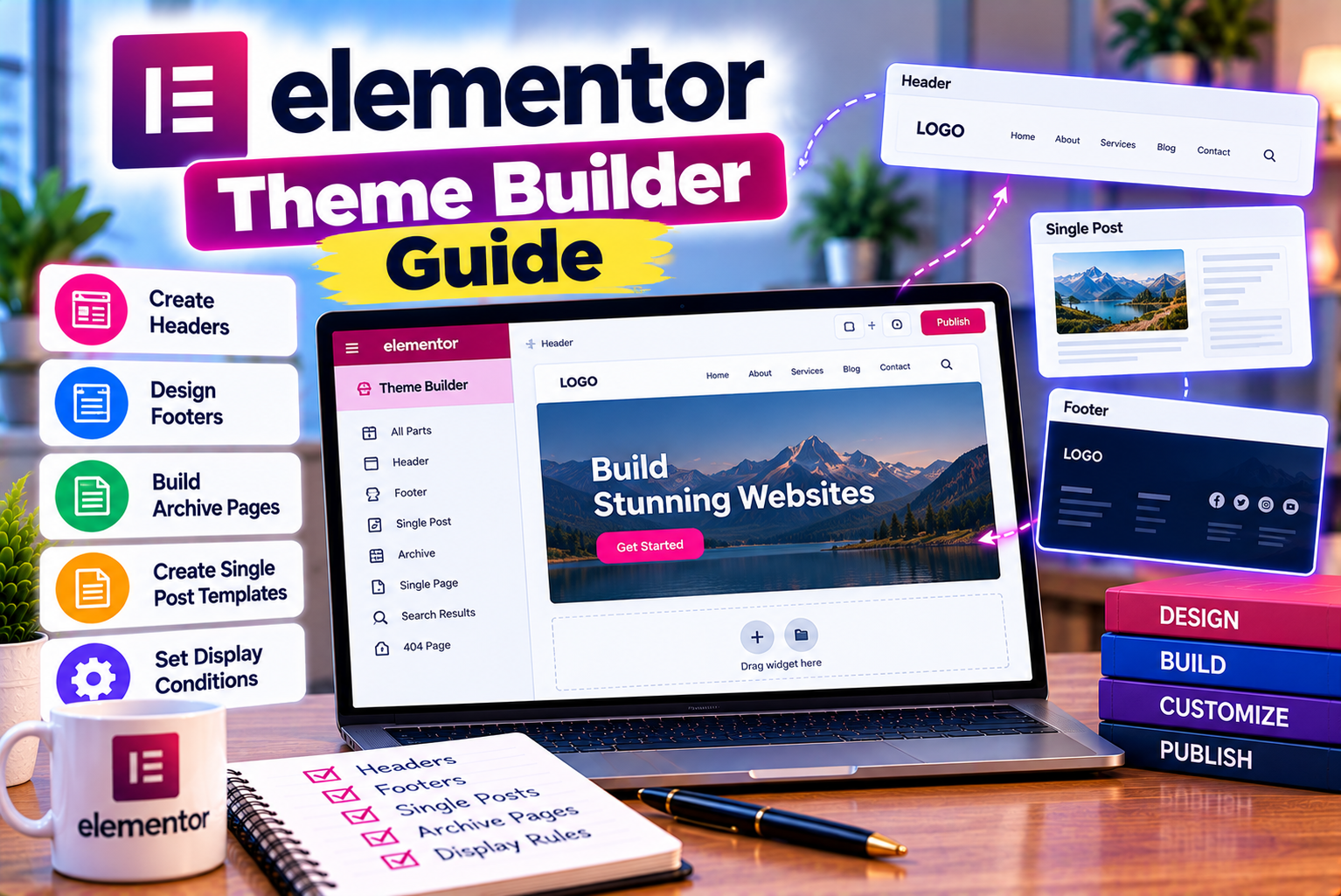
Elementor Theme Builder Guide: Features, Templates and Customization Options
Building a WordPress website involves more than designing individual pages. A complete website also needs a consistent header, footer, blog layout, archive pages, navigation system, and other reusable design elements. When these components are managed separately, maintaining a consistent appearance across the website can become time-consuming.
This is where Elementor Theme Builder becomes useful. It allows website owners, designers, bloggers, and developers to customize key parts of a WordPress website through a visual editor rather than relying entirely on their theme’s default layouts or writing custom code.
With Elementor Theme Builder, you can create a custom header for your website, design a reusable layout for blog posts, customize category archives, and build product page templates for compatible WooCommerce setups. Instead of designing every post or product page individually, you can establish a template that automatically displays the appropriate content.
However, Theme Builder is not the same as the regular Elementor page editor. Understanding the difference is important before choosing a plan, creating templates, or changing your existing website design.
In this guide, we will explain what Elementor Theme Builder is, how its main features work, which templates you can create, how display conditions control template placement, and how to use it to build a consistent WordPress website.
We will also cover its advantages, limitations, pricing considerations, SEO implications, performance considerations, common mistakes, and frequently asked questions.
What Is Elementor Theme Builder?
Elementor Theme Builder is a visual website customization feature that allows users to design reusable templates for important sections of a WordPress website.
Instead of being restricted to the layouts provided by your active WordPress theme, you can use Theme Builder to create custom designs for supported site components.
These components can include:
- Website headers
- Website footers
- Single blog post layouts
- Single page templates
- Archive and category layouts
- Search result layouts
- WooCommerce product pages
- WooCommerce product archives
- Other supported site parts, depending on the available template types and configuration
For example, imagine you operate a business website with 100 published blog posts. You want every post to display a featured image, title, author information, publication date, article content, related posts, and a call-to-action section.
Without a reusable template, maintaining this design across individual posts could require considerable manual work.
With Theme Builder, you can create one single-post template and use dynamic content to display information from each post. The template controls the layout, while WordPress supplies the relevant post information.
The same principle applies to headers, footers, archives, and compatible WooCommerce templates.
Elementor explains that Theme Builder templates can override corresponding parts of a compatible WordPress theme’s template hierarchy. The exact behavior depends on the template type, display conditions, active theme, and page settings.
How Does Elementor Theme Builder Work?
Theme Builder combines three main concepts: templates, dynamic content, and display conditions.
- Templates
A template defines the structure and design of a website component.
For example, a header template might contain a logo, navigation menu, search icon, and contact button.
- Dynamic content
Dynamic content allows a template to retrieve information from WordPress rather than relying exclusively on fixed text and images.
For example, a single-post template can display the title, featured image, author, publication date, and content of whichever post is being viewed.
- Display conditions
Display conditions determine where a template should appear.
For example, you might display one header across the entire website, use a different header on a landing page, or apply a particular blog template only to posts in a selected category.
Together, these features allow you to build reusable layouts while keeping the underlying content separate from its presentation.
Elementor Theme Builder vs Elementor Page Builder
One of the most common sources of confusion is the difference between Elementor’s regular page editor and Theme Builder.
Both use a visual editing experience, but they serve different purposes.
| Feature | Elementor Page Editor | Elementor Theme Builder |
| Main purpose | Design individual pages and content layouts | Design reusable website templates |
| Landing pages | Yes | Can influence supported site-wide components used on those pages |
| Homepage design | Yes | Can control supported global components surrounding the homepage |
| Header customization | Not its primary purpose | Yes, through supported header templates |
| Footer customization | Not its primary purpose | Yes, through supported footer templates |
| Single blog post template | Individual post content can be edited | Reusable post layout can be created |
| Category archive design | Individual pages can be designed | Reusable archive layouts can be created |
| Dynamic post information | Depends on available features and configuration | A core use case for single and archive templates |
| Display conditions | Not the primary workflow | Determines where templates are applied |
| WooCommerce templates | Individual content can be designed where supported | Compatible product and archive templates can be created |
| Best use case | Unique page layouts and landing pages | Consistent designs across multiple pages or content items |
When Should You Use the Regular Elementor Editor?
Use the regular editor when you want to create a specific page with its own content and layout.
Examples include:
- A homepage with a unique hero banner
- A contact page with a form and business information
- A service page explaining a particular offering
- A campaign landing page
- An about page introducing your company
- A page promoting an event or product launch
These pages often contain unique information that should not automatically be repeated across your entire website.
When Should You Use Elementor Theme Builder?
Use Theme Builder when you want to establish a reusable design for multiple pages or content items.
Examples include:
- One consistent header across the website
- A common footer with contact details and important links
- A reusable layout for all blog articles
- A different post design for a particular category
- A custom product layout for WooCommerce
- A standardized archive layout for categories and tags
The practical distinction is simple: use the page editor for individual content and Theme Builder for reusable website structures.
You can use both together to build a complete website.
Key Features of Elementor Theme Builder
Elementor Theme Builder includes several capabilities that make website design and maintenance more flexible.
The features available to you can depend on your Elementor version, subscription, active theme, installed plugins, and the type of template you are creating.
1. Custom Header Builder
The header is one of the most visible parts of a website. It commonly contains the logo, primary navigation, contact details, search functionality, and important calls to action.
A theme may provide limited header customization options. Elementor Theme Builder gives you a visual way to design a supported header layout.
You can create a header containing:
- A company logo
- A primary navigation menu
- A dropdown navigation structure
- A search icon or search field
- A contact button
- Social media icons
- Account or cart elements where appropriate
- Additional text or promotional elements
For example, a digital marketing agency might use a header with its logo on the left, navigation in the center, and a contrasting consultation button on the right.
An online store might instead prioritize product categories, account access, search, and a shopping cart.
Sticky Headers and Responsive Navigation
Depending on the widgets and features available in your setup, you can configure a header to remain visible while users scroll.
This is commonly called a sticky header.
Sticky navigation can make important links easier to access, especially on longer pages. However, it should not consume excessive screen space or obscure page headings.
You should also design the header separately for desktop, tablet, and mobile viewing. A desktop navigation menu may need to become a compact mobile menu on smaller screens.
Why the Header Builder Matters
A reusable header helps maintain consistency across your website.
If you need to update your logo, change a navigation label, or replace a contact button, editing one shared template can be easier than modifying individual pages.
Before publishing a replacement header, check how it interacts with your active theme. If the theme’s original header remains visible, the site may display two headers simultaneously.
Elementor’s compatibility documentation recommends considering how the header and footer work together when replacing theme components.
2. Custom Footer Builder
The footer appears at the bottom of a page and often contains information that visitors may need after reading the main content.
A footer might include:
- Company information
- Contact details
- Address and business hours
- Important navigation links
- Privacy policy and terms links
- Social media profiles
- Newsletter subscription forms
- Copyright information
- Additional calls to action
A business website could use a multi-column footer with company details, service links, and contact information.
A blog could use a simpler layout containing category links, a newsletter form, and legal information.
An online store might include customer support links, shipping information, return policies, and payment-related information.
Can You Create Different Footers for Different Pages?
Where the available template conditions support the required targeting, you can create multiple footer templates and apply them to different areas of your website.
For example:
- A standard footer for most pages
- A simplified footer for a focused landing page
- A store-specific footer for selected commerce pages
However, the conditions must be configured carefully. Overlapping templates or conflicting theme settings can lead to unexpected results.
Elementor provides a dedicated workflow for creating and managing footer site parts through Theme Builder.
3. Single Post Template Builder
The Single Post template is particularly useful for bloggers, publishers, content marketers, and businesses that regularly publish articles.
A single-post template determines how an individual blog post is presented.
For example, your article layout might contain:
- Breadcrumb navigation
- Featured image
- Post title
- Author name
- Publication date
- Main article content
- Table of contents
- Related articles
- Newsletter signup
- Author information
- Social sharing links
- A relevant call to action
You do not need to manually recreate this entire structure for every article.
Instead, you can build a template and use dynamic widgets to retrieve information from the post being displayed.
Example: A Blog Website
Suppose your website publishes articles about SEO, website development, hosting, email marketing, and artificial intelligence.
You want all articles to share the same basic design, but each should display its own title, image, content, and publication details.
A single-post template can provide the common structure.
When a visitor opens an article about website hosting, the template displays that article’s information. When another visitor opens an article about email marketing, the same layout can display the second article’s information.
The design remains consistent without requiring the content to be identical.
Can You Create Multiple Single Post Templates?
Yes. You can create different templates for different types of posts and use display conditions to control where each template appears.
For example:
- A standard template for general blog posts
- A specialized template for tutorials
- A different layout for case studies
- A more visual layout for interviews
This can be useful when your website contains several content categories with different presentation requirements.
Elementor’s official documentation describes single-post templates as reusable designs that display dynamic information rather than content that must be manually added to the template itself.
4. Single Page Templates
Single-page templates provide a reusable design for supported WordPress pages.
Although pages and posts are both WordPress content types, they are commonly used for different purposes.
Pages typically contain relatively permanent information, such as:
- About Us
- Contact
- Services
- Privacy Policy
- Terms and Conditions
- Company information
A single-page template can help establish a consistent layout for selected pages.
For example, you might create a standard content layout containing a page title, introductory section, main content, related links, and a contact call to action.
However, not every page needs to use the same structure.
A homepage, contact page, and conversion-focused landing page may need distinct layouts. You should use display conditions and page layout settings carefully so that a reusable template does not unintentionally interfere with a page designed to be unique.
5. Archive Template Builder
An archive is a page that displays a collection of related content.
WordPress archives can include:
- Blog category pages
- Tag archives
- Author archives
- Date-based archives
- Custom post type archives
- Search result pages
- WooCommerce product archives
The default archive design is often controlled by the active theme. With Elementor Theme Builder, you can create custom archive layouts for supported archive types.
For example, a category archive might contain a heading, short introduction, grid of articles, featured images, publication dates, and pagination.
Example: SEO Blog Category
Imagine your website has a category called SEO and Marketing.
You want its archive page to display:
- A heading introducing the category
- A short description explaining the topic
- A grid of recent articles
- Article thumbnails
- Publication dates
- Excerpts
- Links to individual articles
- Pagination for older content
Instead of manually creating a separate page for every category, you can use an archive template to establish the design and let WordPress supply the relevant posts.
Why Archive Templates Are Important for SEO
Archive pages help organize content and provide navigation between related articles.
A well-designed category archive can make it easier for users to discover relevant resources. It can also help establish clear relationships between categories and the articles they contain.
However, an attractive archive design alone does not guarantee higher rankings.
You should also consider the usefulness of the category description, internal linking, content quality, crawlability, indexation settings, and whether the archive provides a meaningful experience for visitors.
Elementor’s archive documentation explains how archive templates standardize the presentation of groups of posts and other supported content collections.
6. WooCommerce Product Templates
For an online store, Elementor Theme Builder can help customize product page layouts through its WooCommerce Builder functionality, when included in your plan.
A product page typically needs to communicate what the product is, how much it costs, what options are available, and how customers can purchase it.
Using compatible WooCommerce widgets, a product template can include:
- Product title
- Product images and gallery
- Product price
- Product rating
- Short description
- Product stock information
- Product variations and add-to-cart controls where supported
- Product metadata
- Product data tabs
- Related products
- Upsells
- Additional product information
- Breadcrumb navigation
You can organize these elements into a layout that suits your store’s design and customer journey.
For example, an electronics store might place product images on the left and product information on the right. A fashion store might prioritize a large image gallery, size options, product descriptions, and related items.
WooCommerce still manages the underlying commerce functionality. Elementor primarily provides a way to customize the presentation of supported product information and shopping components.
You must have WooCommerce installed to use its product data and related widgets. Eligible Elementor plans are also required for the relevant WooCommerce Builder features.
7. WooCommerce Product Archive Templates
Product archive templates control the presentation of product collections.
These collections can include the main shop page, product category pages, product tag pages, and other supported product archives.
For example, a clothing store could create a product archive with:
- Category title
- Category description
- Product grid
- Product images
- Product names
- Prices
- Ratings
- Add-to-cart controls where supported
- Sorting options
- Pagination
- Appropriate product filtering functionality
The template defines the layout, while WooCommerce provides the products and their information.
A well-organized product archive can make it easier for customers to compare products and navigate the store.
However, adding more design elements does not automatically improve the shopping experience. Keep the layout focused, ensure product images are optimized, and test sorting, filtering, pagination, and product links.
Elementor documents the use of Theme Builder for customized WooCommerce shop and product category archive layouts.
8. Dynamic Content and Dynamic Tags
Dynamic content is one of the most important concepts in Elementor Theme Builder.
It allows a template to display information from WordPress or compatible integrations without requiring you to enter that information as fixed content in every template.
Depending on the widget, template type, and available integrations, dynamic content can retrieve information such as:
- Post title
- Post content
- Featured image
- Publication date
- Author information
- Excerpts
- Page titles
- Featured media
- Custom field values
- Taxonomy information
- Other supported WordPress data
Static Content vs Dynamic Content
Consider a template that displays a blog article heading.
With static content, you might manually type:
“How to Improve Website Performance”
That text remains the same wherever the static element appears unless you edit it.
With a dynamic post-title element, the template retrieves the title of the post being viewed.
When a visitor opens a different article, the heading changes automatically to match that article.
This distinction is essential when creating reusable templates.
| Requirement | Static Content | Dynamic Content |
| Fixed company slogan | Suitable | Usually unnecessary |
| Individual blog post title | Requires manual updates if reused | Automatically retrieves the post title |
| Featured image for each article | Must be manually assigned if used as fixed content | Can retrieve the relevant post’s featured image |
| Author information | Can be entered manually | Can retrieve supported author data |
| Product title and price | Not ideal for a reusable product template | Can retrieve supported WooCommerce product data |
| Custom field information | Requires manual content unless connected dynamically | Can retrieve supported fields through compatible integrations |
Using Dynamic Content With Custom Fields
Some websites need more than standard WordPress fields.
For example, a property website might store information about room capacity, amenities, check-in times, or property features in custom fields.
A directory website might store addresses, prices, contact numbers, or service categories.
Dynamic content can help display structured information in reusable layouts when the relevant fields and integrations are supported by the installed Elementor plan and plugins.
Elementor’s documentation distinguishes native WordPress dynamic fields from integrations with custom-field solutions, which may require an eligible plan.
9. Display Conditions
Display conditions determine where a Theme Builder template is used.
They are important because creating a template is only part of the process. You also need to specify which pages or content items should use it.
For example, you might want:
- A header across the entire website
- A single-post template for all blog posts
- A specialized template for posts in one category
- An archive template for selected categories
- A product template for WooCommerce products
Display conditions help connect the template to the appropriate area of the site.
Example: Creating a Specialized Blog Template
Suppose your website publishes tutorials and product reviews.
You want tutorials to use a standard article layout, while product reviews should include a comparison table, product highlights, and a review summary.
You could create separate single-post templates and configure their display conditions to target the relevant content.
The exact condition options available depend on the template type and your WordPress configuration.
Why Display Conditions Matter
Incorrect display conditions can create several problems:
- A template appears on the wrong pages.
- The expected template does not appear.
- Two templates compete for the same content.
- A specialized design replaces a general design unexpectedly.
- An original theme component remains visible alongside the new template.
After publishing a template, test both the pages where it should appear and pages where it should not appear.
Elementor’s Theme Builder documentation describes display conditions as the mechanism that determines where templates are implemented across a website.
10. Global Design and Consistency
A consistent website design helps users understand how to navigate your content.
Theme Builder can support this consistency by letting you reuse layouts and shared design elements.
You can establish a design system that includes:
- Brand colors
- Heading styles
- Body typography
- Button styling
- Navigation patterns
- Content widths
- Spacing rules
- Image proportions
- Section layouts
For example, a business might use the same primary button style in its header, blog templates, service pages, and footer.
A blog might maintain the same article width, heading hierarchy, featured image treatment, and author information across all posts.
However, global styling and Theme Builder templates serve related but different purposes. Global colors and typography help standardize styling, while templates establish the structure and placement of website components.
For the best results, decide on your basic design system before creating many templates.
11. Responsive Customization
A template that looks excellent on a desktop computer may not work well on a phone.
Responsive customization helps you adapt layouts for different screen sizes.
For example, a desktop header might display a horizontal navigation menu, while the mobile version uses a compact menu.
A desktop blog layout might place the article content beside a sidebar. On mobile, the sidebar may need to move below the article or be removed from that template.
When designing responsive templates, review:
- Heading sizes
- Navigation behavior
- Button dimensions
- Image scaling
- Section spacing
- Column stacking
- Content width
- Sidebar placement
- Form usability
- Touch-friendly navigation
- Horizontal overflow
Do not assume that a template is responsive simply because the editor displays a mobile preview option.
Test the published website on actual phones and tablets when possible. Check the full user journey, including navigation, forms, search, and shopping interactions.
Elementor supports responsive design controls in its visual editor, although the precise controls and features available can vary by element and plan.
12. Template Preview and Reusable Design
When creating a dynamic template, the editor needs an example of the content that will appear in the finished design.
For example, a single-post template should be previewed using an existing post with a representative title, featured image, and content length.
This helps you identify design problems before publishing.
Consider previewing several different content items, including:
- A short post title
- A long post title
- A post with a large featured image
- A post with no featured image
- An article with a long body
- An article containing lists and tables
- A post with several categories or tags
This is especially important when a template will be used across hundreds of posts.
A layout that looks perfect with one sample article may behave differently with longer titles, missing images, or unusually long content.
13. Importing, Exporting, and Reusing Templates
Reusable templates can make website development more efficient, especially when you manage multiple WordPress websites.
Elementor provides template import and export workflows that can help you transfer supported templates and website content between installations.
For example, you might create a standard blog layout on a staging website and then transfer the template to another site.
However, importing a template does not guarantee that every dependency will be available on the destination website.
Before transferring templates, check:
- Whether Elementor is installed
- Whether the required Elementor subscription is active
- Whether the same widgets are available
- Whether required third-party plugins are installed
- Whether custom fonts and images are available
- Whether global colors and typography have been transferred appropriately
- Whether display conditions need to be configured again
- Whether dynamic fields exist on the destination site
Also remember that transferring a template is different from exporting a complete WordPress theme as a conventional installable theme ZIP. Elementor’s Theme Builder documentation explains the distinction between its templates and traditional WordPress themes.
Elementor Theme Builder Pricing: Do You Need Elementor Pro?
Whether you need a paid Elementor plan depends on the features you want to use.
The free Elementor plugin supports visual page editing, but Elementor identifies Theme Builder as a Pro feature. Its subscription options and included features can change over time, so you should verify the current plan details before purchasing.
Which Plan Should You Choose?
The right plan depends on your website requirements, not simply the number of available widgets.
| Website Requirement | What to Check Before Choosing a Plan |
| Basic website with a custom header and footer | Confirm that the selected plan includes the required Theme Builder features |
| Blog with reusable single-post layouts | Check Theme Builder and dynamic-content capabilities |
| Website using custom fields | Verify support for the specific custom-field integrations you need |
| WooCommerce store | Confirm that the plan includes WooCommerce Builder features |
| Agency managing multiple websites | Compare site allowances, collaboration features, and subscription terms |
| Website requiring custom CSS or code | Verify that the plan includes the relevant advanced customization options |
Elementor’s published plan documentation has listed Theme Builder under its Essential and higher Pro offerings, while certain advanced integrations and WooCommerce capabilities depend on the selected tier. The current pricing page should be treated as the final authority for purchasing decisions.
Is Elementor Pro Worth Buying for Theme Builder?
Elementor Pro may be worth considering if you want to customize your website’s global layout instead of relying on your theme’s built-in options.
It can be particularly useful when you need to:
- Create custom headers and footers
- Standardize blog post layouts
- Design archive templates
- Build specialized templates for different content categories
- Use dynamic content in reusable designs
- Customize compatible WooCommerce product layouts
However, buying Pro solely for one small design change may not be necessary if your current theme already provides the customization options you need.
Before purchasing, list the exact features you want to use and compare them against the current plan specifications.
For a broader discussion of features, limitations, and value, read our related article, Elementor Pro Review: Is the Paid Version Worth Buying?
How to Use Elementor Theme Builder: Step-by-Step Guide
If you are new to Theme Builder, begin with one reusable template rather than attempting to redesign the entire website at once.
A single-post template or a simple header and footer can be a useful starting point.
Step 1: Prepare Your WordPress Website
Before making changes, confirm that:
- WordPress is updated to a compatible version.
- Elementor is installed and activated.
- Your required Elementor subscription is active.
- Your active theme is compatible with the intended template functionality.
- Any required plugins are installed.
- You have a recent backup.
- You can test the changes on a staging website if one is available.
If your website already has a custom header or footer, identify how it is currently generated.
It might come from the theme, a header builder plugin, Elementor, or custom code.
Understanding the existing setup will help you avoid duplicate components.
Step 2: Open Theme Builder
Log in to your WordPress dashboard.
Navigate to:
WordPress Dashboard → Elementor → Theme Builder
Depending on your Elementor version and interface, you may also be able to open Theme Builder from within the Elementor editor.
The Theme Builder dashboard provides access to supported site parts and allows you to create or manage templates.
If you are using Elementor Free, you may see which template features are available through the Pro version rather than being able to create every type of Theme Builder template.
Step 3: Choose the Template Type
Select the site part you want to customize.
For example:
- Header
- Footer
- Single Post
- Single Page
- Archive
- Single Product
- Product Archive
The available options depend on your installation and the relevant features enabled by your plan.
For a first project, choose one template type that solves a clear problem.
If your blog posts currently have inconsistent layouts, begin with a Single Post template.
If your header is difficult to customize, start with a Header template.
Step 4: Create or Select a Template
Create a new template and give it a descriptive name.
Examples include:
- Main Website Header
- Standard Blog Article
- SEO Category Archive
- WooCommerce Product Layout
- Corporate Landing Page Footer
If a suitable pre-designed template is available in the template library, you can use it as a starting point.
Otherwise, create your layout from scratch.
Using a starter template can save time, but you should still review its structure, spacing, colors, fonts, and responsive behavior before publishing.
Step 5: Design the Layout
Use the visual editor to arrange the relevant widgets and containers.
For a single-post template, you might create the following structure:
Article Header
- Featured image
- Post title
- Publication date
- Author information
Article Body
- Post content
- Optional table of contents
- Optional author information
Related Content
- Related posts
- Relevant category links
- Newsletter signup or contact CTA
Use dynamic widgets for information that should change from one post to another.
Use static elements for information that should remain consistent, such as a fixed promotional message or a general call to action.
For a header, focus on logo placement, navigation, spacing, and mobile behavior.
For a footer, prioritize readability and easy access to important links.
Step 6: Configure Dynamic Content
If you are building a template for posts, pages, or products, identify which information should be retrieved dynamically.
For a blog article, this could include:
- Post title
- Featured image
- Author
- Publication date
- Main content
For a product page, it could include:
- Product title
- Price
- Product images
- Product description
- Stock information
Make sure each dynamic element is connected to the appropriate source.
If a title or image appears identical across multiple items when it should change, check whether you have inserted a static element instead of a dynamic one.
Also confirm that the underlying content actually contains the information you want to display.
Step 7: Set the Display Conditions
After designing the template, configure the conditions that determine where it should appear.
For example, a standard blog template might target all posts.
A specialized template might target a particular category.
A header could be applied across the website, while a different template could target a specific section where supported.
Before saving, read the conditions carefully.
If you create several templates, document their intended purpose and where each should appear. This will make future maintenance easier.
Step 8: Preview the Template
Preview the template using real content from your website.
For a blog template, test different posts.
For a product template, test products with different prices, images, descriptions, stock states, and variations where relevant.
For a header, review both pages with long navigation labels and pages with simpler menus.
Look for:
- Missing information
- Incorrect images
- Unexpected spacing
- Overlapping elements
- Incorrect headings
- Poor mobile layouts
- Duplicate headers or footers
- Incorrect template targeting
Do not publish a template simply because it looks good in the editor.
Step 9: Publish the Template
When you are satisfied with the design and conditions, publish the template.
Then open the actual website in a separate browser tab and test the relevant pages.
Check both logged-in and logged-out views when appropriate, because caching or access-related behavior can sometimes affect what you see.
If the template does not appear, verify its display conditions, page layout settings, theme compatibility, and any conflicting templates.
Step 10: Test the Website After Publishing
A template can affect many pages at once, so post-publication testing is essential.
Check:
- Desktop layout
- Tablet layout
- Mobile layout
- Navigation links
- Buttons and forms
- Internal links
- Images
- Dynamic fields
- Product interactions
- Archive pagination
- Search results
- Page loading behavior
If your website uses caching, clear the relevant caches after making major template changes.
You should also review important pages individually to confirm that unique landing pages have not been unintentionally changed.
Practical Example: Creating a Reusable Blog Post Template
To understand the practical value of Theme Builder, consider a website that publishes educational articles about SEO, WordPress, web hosting, digital marketing, and AI tools.
The website contains 200 articles, but their layouts are inconsistent.
Some articles display a featured image above the title, while others place it below the introduction. Author information is missing from several posts, and the call-to-action section appears in different locations.
A reusable single-post template can help standardize the experience.
Recommended Template Structure
| Section | Recommended Element | Purpose |
| Breadcrumbs | Breadcrumb navigation | Helps users understand their location |
| Article introduction | Dynamic post title and featured image | Establishes the article topic |
| Metadata | Author and publication date | Provides useful article context |
| Main content | Dynamic post content | Displays the actual article |
| Related resources | Related posts or relevant internal links | Encourages further reading |
| Conversion section | Relevant CTA | Supports the website’s business goals |
| Footer | Shared footer template | Maintains site-wide consistency |
What Should Be Dynamic?
The article title, featured image, author information, date, and main content should generally come from the individual post when the corresponding dynamic widgets are available.
The overall layout, typography, spacing, and shared design elements can remain consistent.
A call-to-action section can be static if the same message applies to every article. Alternatively, you might use different templates or supported dynamic rules when different categories require different offers.
What Is the Main Benefit?
The main benefit is easier maintenance.
If you later decide to change the article title spacing, featured image width, or author section, you can update the shared template rather than editing every article individually.
However, you should not assume that a shared template will automatically fix poorly structured article content. Individual posts still need useful headings, well-formatted paragraphs, descriptive images, and appropriate internal links.
Advantages of Elementor Theme Builder
Elementor Theme Builder offers several benefits for websites that need reusable layouts and visual customization.
1. Greater Control Over Website Design
Theme Builder gives you more control over supported theme components than a basic setup that relies entirely on the theme’s default layouts.
This can be useful for businesses with specific branding requirements or websites that need specialized page structures.
2. Less Repetitive Design Work
Reusable templates reduce the need to recreate the same layout for every post or product.
Once you establish a template, you can use it for multiple compatible content items.
3. More Consistent Branding
A shared header, footer, and content structure can make the website feel more unified.
This is especially valuable for larger websites with many pages and multiple content categories.
4. Dynamic Content Support
Dynamic content allows templates to display information from WordPress and supported integrations.
This makes Theme Builder suitable for websites that publish content regularly or use structured information across multiple pages.
5. Flexible Content Layouts
Different categories or content types may need different layouts.
With appropriate display conditions, you can use specialized templates for articles, archives, and supported commerce pages.
6. Visual Editing
Users can build supported layouts through the visual editor without having to write every component manually.
Some advanced requirements may still require custom CSS, code, compatible plugins, or developer assistance.
7. Useful for Agencies and Freelancers
Agencies and freelance designers can create reusable layout systems for client websites.
This can improve workflow efficiency when similar components need to be maintained across multiple pages or projects.
Limitations of Elementor Theme Builder
Although Theme Builder is flexible, it is not the best solution for every website or every design requirement.
1. Some Features Require a Paid Plan
Theme Builder is a Pro feature, so users relying exclusively on Elementor Free cannot assume they can create all the same global templates.
Before upgrading, confirm which features your selected plan includes.
2. Theme Compatibility Can Vary
Elementor works with WordPress themes that follow compatible standards, but the interaction between Theme Builder and a specific theme can vary.
Some themes provide their own header builders, footer builders, and archive customization tools.
Using multiple systems to control the same component can create conflicts.
3. Too Many Templates Can Become Difficult to Manage
Creating a separate template for every small design variation may make the website harder to maintain.
Instead, establish a small set of clearly named templates and use display conditions to target the appropriate content.
4. Dynamic Content Requires Proper Setup
Dynamic templates depend on the availability and correct configuration of their underlying content.
If a featured image, custom field, or product value is missing, the template may display incomplete information.
5. Performance Still Requires Attention
Theme Builder does not automatically make a website fast.
Page speed can be affected by image sizes, fonts, plugins, JavaScript, CSS, hosting, caching, third-party integrations, and the complexity of the page.
A visually complex template may introduce unnecessary elements or increase the amount of work required to render a page.
Use only the widgets and design effects that serve a clear purpose, optimize media, and test important pages after major changes.
6. Advanced Requirements May Need Additional Tools
Some websites require advanced custom post types, complex conditional logic, membership restrictions, specialized filtering, or integrations with external systems.
These requirements may need additional plugins, custom development, or a different architecture.
Do not assume that every possible website function is built directly into Theme Builder.
Elementor Theme Builder and SEO
Elementor Theme Builder can support an SEO-friendly website structure, but using it does not automatically improve search rankings.
Its SEO value comes from how you use it to organize content, maintain consistency, improve navigation, and implement a technically sound website.
1. Maintain a Clear Heading Hierarchy
Use headings to organize the content logically.
A blog article will usually have one main H1 heading followed by H2 sections and H3 subsections where appropriate.
Make sure the template does not accidentally add an unnecessary H1 above the article’s own H1.
The correct structure depends on the page’s content and the widgets used.
2. Display Useful Content
Archive templates should help visitors discover relevant content.
Use meaningful category titles, useful descriptions, descriptive article links, and readable layouts.
Avoid creating archive pages that contain only a heading and a large grid of images without enough context for users.
3. Keep Internal Links Accessible
Headers, footers, article templates, and archive templates can all provide useful internal links.
For example, an article template might include links to related resources, while the footer could provide access to important service pages.
However, avoid filling every template with excessive links. Prioritize links that help users navigate the website.
4. Optimize Images
Use appropriately sized images and compress them where necessary.
Add descriptive alternative text when an image conveys meaningful information.
Decorative images may require different treatment from informative images.
Also check that dynamic featured images are displayed at suitable dimensions and do not cause avoidable layout shifts.
5. Review Mobile Usability
Search engines need to be able to access and understand the content presented to users.
Ensure that important content and navigation remain available on mobile devices.
Avoid hiding essential information on smaller screens simply to simplify the design.
6. Check Indexation Settings
Theme Builder is not a substitute for an SEO plugin or a technical SEO audit.
Review your WordPress and SEO plugin settings to ensure that important pages can be indexed as intended.
Check archive indexation, canonical URLs, redirects, sitemap inclusion, and any noindex rules according to your site’s strategy.
7. Test Structured Data Separately
If your website uses structured data, verify that it is valid and appropriate for the page.
Do not assume that creating a visually attractive template automatically produces the structured data required for rich search results.
Your theme, SEO plugin, WooCommerce, and other tools may contribute structured data, so check for missing or duplicate markup.
Does Elementor Theme Builder Improve SEO Rankings?
Not directly.
Theme Builder provides design and layout controls that can support a better user experience and a more consistent website structure.
Search performance still depends on many factors, including content quality, search intent alignment, technical accessibility, internal linking, site performance, competition, and other search engine systems.
Use Theme Builder to improve the usefulness and consistency of your website rather than treating it as a standalone ranking tool.
Elementor Theme Builder and Website Performance
Website performance matters because visitors expect pages to load and respond efficiently.
Theme Builder can simplify site-wide design maintenance, but performance depends on the complete website configuration.
Factors That Can Affect Performance
Important factors include:
- Image dimensions and file sizes
- Number of page elements
- Font loading
- Animation effects
- Third-party scripts
- Plugin conflicts
- Hosting quality
- Caching configuration
- CSS and JavaScript delivery
- WooCommerce extensions
- Dynamic queries and external integrations
For example, a header with a logo, a simple navigation menu, and one CTA may require fewer resources than a complex header containing multiple animations, video backgrounds, several third-party widgets, and multiple interactive elements.
The exact performance impact depends on how the elements are implemented.
How to Keep Templates Efficient
Follow these practices:
- Use only the widgets you need.
- Compress and resize images appropriately.
- Avoid unnecessary animations and effects.
- Limit redundant third-party plugins.
- Use a suitable hosting environment.
- Configure caching carefully.
- Test mobile and desktop performance.
- Check the site after major template changes.
- Review the effect of fonts and external scripts.
- Avoid adding custom code unless it serves a clear purpose.
You can use tools such as Google PageSpeed Insights to identify performance issues and prioritize improvements.
Important: Do not judge performance solely by how fast a page appears on your own computer. Test representative pages under repeatable conditions and review both field data, when available, and diagnostic results.
Elementor Theme Builder vs Traditional WordPress Theme Customization
WordPress themes provide the basic framework for displaying website content.
Some themes include extensive controls for headers, footers, typography, colors, blog layouts, and archive pages. Others offer more limited customization.
Elementor Theme Builder adds a visual template workflow for supported website components.
| Consideration | Traditional Theme Customization | Elementor Theme Builder |
| Basic site structure | Provided by the theme | Works with supported theme locations and templates |
| Header and footer | Depends on theme features | Visual template customization |
| Blog layouts | Depends on theme options | Reusable single-post templates |
| Archive layouts | Depends on theme options | Reusable archive templates |
| Dynamic content | Depends on theme and plugins | Supported dynamic template workflows |
| Coding requirements | May require code for advanced changes | Many common layout changes can be made visually |
| Theme dependence | Closely tied to the active theme | Still depends on compatibility and theme integration |
| Additional subscription | Depends on the theme | Theme Builder requires an eligible Elementor Pro offering |
| Best suited for | Users satisfied with the theme’s controls | Users who need more visual control over supported layouts |
Which Option Is Better?
Traditional theme customization may be sufficient if your theme already provides the layouts and controls you need.
Elementor Theme Builder is more attractive when you want a visual workflow for reusable templates and need greater control over supported site components.
You should also consider maintenance, subscription costs, plugin compatibility, and the difficulty of changing your setup in the future.
The best solution is the one that meets your requirements without introducing unnecessary complexity.
Elementor Theme Builder vs Other WordPress Page Builders
Elementor is not the only way to customize WordPress layouts.
Depending on your theme and requirements, you may consider:
- Native WordPress block and site editing tools
- Themes with built-in header and footer builders
- Other visual page builders
- Specialized template and custom-field plugins
- Custom theme development
The right option depends on how much design control you need, whether you prefer the WordPress block editor, and which features are included in your existing setup.
If you are comparing Elementor with Divi, evaluate the overall workflow, template capabilities, pricing structure, theme dependence, performance, and long-term maintenance requirements.
For a detailed comparison, read our related article: Elementor vs Divi: Which WordPress Page Builder Should You Choose?
Common Elementor Theme Builder Problems and How to Fix Them
Even a correctly designed template can behave unexpectedly after publication.
The following troubleshooting steps address common issues.
Problem 1: Header Appears Twice
Possible causes:
- The active theme’s header is still enabled.
- Two header templates have overlapping display conditions.
- A separate header plugin is active.
- The theme and Elementor are both trying to control the same component.
How to troubleshoot:
- Open Theme Builder and review your header templates.
- Check their display conditions.
- Inspect the active theme’s header settings.
- Check for other header builder plugins.
- Test the result on a staging site if possible.
Do not immediately delete the original theme header. First establish which component is responsible for displaying it.
Problem 2: Header or Footer Is Missing
Possible causes:
- The template has no applicable display condition.
- The template is assigned to the wrong area.
- The page uses a special layout that excludes theme components.
- The active theme does not integrate with the relevant template location as expected.
- A plugin or custom code is interfering.
How to troubleshoot:
- Verify that the template is published.
- Review its display conditions.
- Check the page’s layout settings.
- Test another page using the default layout.
- Review theme compatibility.
- Check for plugin conflicts.
Elementor’s layout documentation distinguishes the Default, Canvas, and Full Width options. Canvas removes the header, footer, content, and sidebar supplied by the theme layout, whereas Full Width retains the header and footer while expanding the content area. This distinction can explain why a header or footer is absent on some pages.
Problem 3: Single Post Template Does Not Appear
Possible causes:
- The display conditions do not target the post.
- The post uses a layout that bypasses the expected template.
- Another template is taking precedence.
- The template was not published successfully.
How to troubleshoot:
- Confirm that the post matches the template’s display conditions.
- Check the post’s page layout settings.
- Confirm that the template is published.
- Test a different post.
- Check whether another template targets the same content.
Elementor notes that its Single Post template applies to posts using the Default template setting; posts using Canvas, Full Width, or another non-default template may not receive the expected Single Post template. Check the current documentation and the behavior of your installed version before changing individual posts.
Problem 4: Dynamic Content Is Not Displaying
Possible causes:
- A static widget was used instead of a dynamic widget.
- The relevant field is empty.
- A custom-field integration is not configured.
- The widget is not compatible with the selected data source.
- The content being previewed does not contain the required information.
How to troubleshoot:
- Open the template in Elementor.
- Inspect the relevant widget.
- Confirm that the correct dynamic source is selected.
- Check the underlying post, page, product, or custom field.
- Preview a different content item.
- Verify that the necessary integrations are active.
Problem 5: Template Looks Different on Mobile
Possible causes:
- Desktop-specific spacing or widths were used.
- A column does not stack correctly.
- Text is too large for the screen.
- The mobile navigation has not been configured.
- Images are not scaling appropriately.
- Custom CSS overrides the responsive settings.
How to troubleshoot:
- Open the responsive preview.
- Check the layout at common mobile widths.
- Review padding, margins, typography, and column widths.
- Test the published page on an actual phone.
- Inspect any custom CSS that affects the template.
Do not hide essential content simply because it does not fit the desktop layout. Redesign the mobile presentation so that the information remains accessible.
Problem 6: Changes Do Not Appear on the Live Website
Possible causes:
- Browser caching
- WordPress caching
- Hosting-level caching
- A content delivery network cache
- Editing the wrong template
- Another template overriding the expected design
How to troubleshoot:
- Confirm that you edited the correct template.
- Save or publish the changes.
- Clear the relevant caches.
- Open the page in a private browser window.
- Check the display conditions.
- Test another page that should use the template.
If the issue continues, investigate the theme, plugins, and any optimization tools before making further changes.
Problem 7: Archive Template Displays Unexpected Content
Possible causes:
- The archive query is targeting the wrong content type.
- The template condition is too broad or too narrow.
- The archive widget settings are incorrect.
- The category or taxonomy configuration is different from what you expected.
How to troubleshoot:
- Review the archive template’s display conditions.
- Check which archive type is being previewed.
- Confirm that the relevant posts or products belong to the expected category.
- Review the archive widget’s query and layout settings.
- Test several archive pages.
Problem 8: WooCommerce Template Is Not Working
Possible causes:
- WooCommerce is inactive.
- Your Elementor plan does not include the required feature.
- The template is not assigned to the correct product or archive type.
- Another plugin or theme component is interfering.
- The product does not contain the information required by the template.
How to troubleshoot:
- Confirm that WooCommerce is installed and activated.
- Verify your plan’s WooCommerce Builder eligibility.
- Review the template’s display conditions.
- Test multiple products.
- Check for plugin or theme conflicts.
- Test cart and checkout functionality separately.
Remember that a visual template is only one part of an online store. Payment gateways, inventory management, shipping rules, taxes, and order processing must also be configured correctly.
Best Practices for Using Elementor Theme Builder
To get the most value from Theme Builder, focus on maintainability as well as appearance.
1. Plan the Website Structure Before Designing
Identify which components should be global and which should be unique.
For example, your website may need one shared header, one footer, two article templates, and several archive layouts.
Planning first reduces the risk of creating unnecessary templates.
2. Keep Template Names Descriptive
Use names that explain the purpose of each template.
Examples:
- Global Header
- Main Footer
- Standard Blog Post
- Tutorial Post Layout
- Product Review Layout
- General Category Archive
Descriptive names make it easier to identify and update templates later.
3. Use Dynamic Widgets for Changing Information
If the content should change from one post or product to another, use the appropriate dynamic source wherever supported.
This reduces repetitive editing and helps prevent incorrect information from appearing across multiple pages.
4. Avoid Overlapping Display Conditions
Before publishing a new template, check whether an existing template already targets the same pages.
Keep a record of which templates apply to which sections of your website.
5. Test Representative Content
Preview templates using real examples rather than relying on a single sample.
Check long titles, missing images, long content, unusual product information, and other variations that occur on your website.
6. Maintain a Backup and Staging Workflow
Changes to global templates can affect many pages simultaneously.
Back up your website before making major changes and use a staging environment when possible.
This is especially important for business websites and online stores.
7. Prioritize Usability Over Visual Effects
Animations, overlays, and decorative effects can be useful, but they should not make navigation difficult or slow down the page unnecessarily.
Ensure that visitors can easily read content, use forms, navigate menus, and complete important actions.
8. Review Your Templates Periodically
As your website grows, some templates may become outdated.
Review them periodically to ensure that they still match your brand, support your current content structure, and work correctly on mobile devices.
Is Elementor Theme Builder Worth Using?
Elementor Theme Builder can be valuable if you want greater control over reusable website layouts without building every component manually.
It is especially useful for:
- Bloggers who want consistent article layouts
- Businesses that need customized headers and footers
- Agencies managing multiple website projects
- Publishers with many categories and archive pages
- Website owners who use dynamic content
- WooCommerce stores that need supported product and archive customization
Its value is lower if your existing theme already provides everything you need or if your website requires only a few simple, individually designed pages.
You should also consider the subscription cost, theme compatibility, maintenance requirements, and the potential impact of additional plugins and widgets.
Final Verdict
Elementor Theme Builder is worth considering when reusable design, dynamic content, and control over global website components are important to your WordPress workflow.
Its greatest advantage is not simply the ability to create attractive layouts. It is the ability to establish a consistent design system that can be reused across many pages, posts, archives, and supported product templates.
For a growing website, this can make design changes easier to maintain and reduce repetitive work.
However, Theme Builder should be treated as part of a broader website strategy. A well-built website still needs useful content, clear navigation, responsive design, appropriate SEO settings, good performance, and reliable hosting.
Before investing in a paid plan, identify the specific templates and features you need, verify their availability in the current subscription options, and test your planned workflow on a staging website if possible.
Frequently Asked Questions About Elementor Theme Builder
1. What is Elementor Theme Builder?
Elementor Theme Builder is a visual tool for creating reusable templates for supported WordPress website components, including headers, footers, single posts, archives, and compatible WooCommerce layouts.
2. Is Elementor Theme Builder free?
Elementor identifies Theme Builder as a Pro feature. The free plugin supports page editing, but access to the complete Theme Builder functionality requires an eligible paid offering. Check the current plan comparison before purchasing.
3. Do I need Elementor Pro to customize my header and footer?
For Elementor’s Theme Builder workflow, you need a plan that includes the relevant Pro functionality. Some WordPress themes and separate plugins provide their own header and footer customization tools, so Elementor Pro is not the only possible approach.
4. Can I use Elementor Theme Builder with any WordPress theme?
Elementor Theme Builder can work with compatible WordPress themes, but integration can vary. Themes that follow WordPress coding standards may support many of its features, although some site components may require additional compatibility work.
5. What is the difference between Elementor and Theme Builder?
The regular Elementor editor is commonly used to design individual pages and content layouts. Theme Builder is used to create reusable templates for supported website components and determine where those templates should appear.
6. Can I create a custom header using Elementor Theme Builder?
Yes. You can create a supported header template containing elements such as a logo, navigation menu, buttons, search functionality, and other widgets available in your installation.
7. Can I create a custom footer using Elementor Theme Builder?
Yes. You can design a reusable footer with company information, contact details, important links, social icons, and other supported elements.
8. What is a Single Post template in Elementor?
A Single Post template controls the reusable design of individual blog posts. It can display dynamic information such as the post title, featured image, author, publication date, and main content.
9. Can I create different templates for different blog categories?
Yes, where the available template conditions support your intended targeting. You can create multiple templates and configure their display conditions so that different content groups use different layouts.
10. What are display conditions in Elementor Theme Builder?
Display conditions determine where a template is applied. For example, they can control whether a header appears across the website or a single-post template applies to particular posts or categories.
11. What is dynamic content in Elementor?
Dynamic content retrieves information from WordPress or supported integrations and displays it within a template. This can include post titles, featured images, author information, publication dates, and supported custom fields.
12. Can Elementor Theme Builder display custom fields?
It can display supported custom-field information when the necessary features and integrations are available and correctly configured. The exact capabilities depend on your Elementor plan, custom-field plugin, and website setup.
13. Can I use Elementor Theme Builder for WooCommerce?
Yes. Eligible Elementor plans provide WooCommerce Builder functionality that can be used to customize supported product pages and product archives. WooCommerce must also be installed and configured.
14. Can Elementor Theme Builder customize the shop page?
Yes. With the relevant WooCommerce Builder features, you can create a custom product archive layout for the main shop page and supported product category or tag archives.
15. Can I use Elementor Theme Builder to create a 404 page?
Elementor supports 404 page templates in its Theme Builder workflow where the relevant feature is available. You can create a custom error page that helps visitors return to useful sections of your website.
16. Does Elementor Theme Builder improve SEO?
Not automatically. It can support a more consistent content structure, better navigation, and a useful user experience, but search performance also depends on content quality, technical accessibility, internal linking, performance, and other factors.
17. Does Elementor Theme Builder slow down a website?
Not necessarily. Performance depends on the template’s complexity, widgets, images, scripts, plugins, hosting, caching, and other technical factors. Test your website after making major design changes and remove unnecessary elements.
18. Can I create a sticky header with Elementor?
Sticky header behavior depends on the features available in your installation and how the header is configured. Where supported, a sticky header can remain visible while visitors scroll. Test it on mobile devices to avoid obstructing content.
19. Why is my Elementor header appearing twice?
A duplicate header can occur when both the theme and Elementor display a header, when two templates have overlapping conditions, or when another plugin controls the same component. Check the active theme, template conditions, and other header-building tools.
20. Why is my Elementor Theme Builder template not appearing?
Check whether the template is published, whether its display conditions match the page, whether the page uses a compatible layout, and whether another template or theme component is taking precedence.
21. Can I export an Elementor Theme Builder template?
Elementor provides export workflows for supported templates. After importing a template into another website, check its widgets, images, fonts, dynamic data sources, plugin dependencies, and display conditions.
22. Can I use Elementor Theme Builder without coding?
Many common template designs can be created visually without writing code. Advanced functionality, custom integrations, or specific theme compatibility requirements may still require custom CSS, development work, or additional plugins.
23. Can I use Theme Builder and the WordPress block editor together?
Yes, they can be part of the same WordPress workflow, depending on your theme and setup. You can use different editing approaches for different content types, but plan your template structure carefully to avoid conflicts.
24. Should I create a separate template for every page?
Usually not. Use reusable templates for content that shares a common structure and create unique page designs only when they serve a clear purpose. Too many templates can make maintenance and display-condition management more complicated.
25. Is Elementor Theme Builder worth it for a small business website?
It can be worthwhile if you need customized global layouts, reusable content templates, or more control than your existing theme provides. If your theme already meets your requirements, its built-in customization tools may be sufficient.
Official Elementor Resources
The following official resources can help readers verify features and follow the relevant workflows:
- Elementor Theme Builder overview: https://elementor.com/help/the-elementor-theme-builder/
- Creating a Single Post template: https://elementor.com/help/single-post-site-part/
- Creating or modifying archive templates: https://elementor.com/help/archive-site-part/
- Creating or modifying a footer: https://elementor.com/help/footer-site-part/
- WooCommerce Single Product Builder: https://elementor.com/help/woocommerce-single-product-builder/
- WooCommerce archive templates: https://elementor.com/help/creating-a-woocommerce-archive-template/
- Dynamic content and post types: https://elementor.com/help/intro-to-dynamic-content/
- Elementor Pro plans and subscriptions: https://elementor.com/help/elementor-pro-plans-subscriptions-2/
- Theme Builder compatibility considerations: https://elementor.com/help/considerations-for-theme-builder-compatibility/
Leave a Reply