


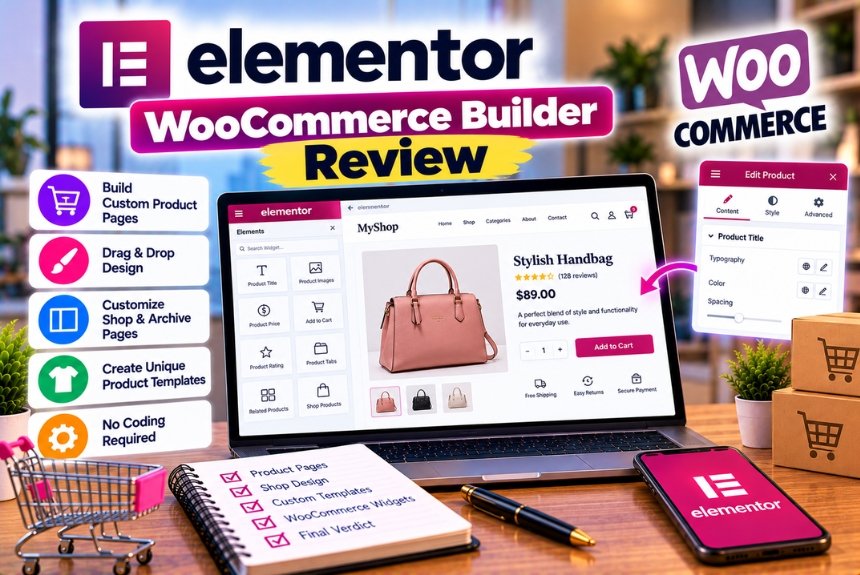
Elementor WooCommerce Builder Review
Building an online store involves more than uploading products and enabling payments. A successful eCommerce website needs clear product information, attractive product pages, intuitive navigation, a reliable shopping cart, and a checkout process that customers can complete without confusion.
WooCommerce provides the core eCommerce functionality for WordPress websites, including product management, orders, inventory, and integrations with supported payment gateways. However, store owners sometimes want more control over how their products, categories, cart, and checkout appear.
This is where Elementor WooCommerce Builder becomes useful.
Elementor is a visual website builder for WordPress. When combined with WooCommerce, it allows users to create customized store layouts through a visual editing interface rather than manually coding every component.
Depending on the Elementor subscription plan, users can customize supported product templates, product archives, cart layouts, checkout pages, customer account pages, and other store components.
But is Elementor WooCommerce Builder worth paying for? Does it make building an online store easier? Can it improve the shopping experience, and is it suitable for small businesses as well as growing eCommerce brands?
In this review, we examine its features, practical benefits, limitations, pricing considerations, performance implications, and suitability for different types of online stores.
Quick verdict: Elementor WooCommerce Builder is worth considering if you want extensive visual control over your store’s design and need reusable templates for products, archives, cart, and checkout. However, WooCommerce can operate without Elementor, and a suitable theme or the native WordPress editing tools may already provide everything a smaller store needs.
For current product information, consult the official Elementor WooCommerce resources and Elementor pricing page.
What Is Elementor WooCommerce Builder?
Elementor WooCommerce Builder is a set of website-building features that lets users visually customize supported WooCommerce store layouts.
It combines Elementor’s drag-and-drop design interface with WooCommerce’s product and store data.
Instead of relying entirely on the default layouts supplied by a WordPress theme, eligible Elementor users can create their own templates and control how supported store elements appear.
For example, a store selling clothing might want product pages with larger images, prominent prices, size-selection controls, product descriptions, and related items.
A store selling electronics might prefer a different layout, with technical specifications, product ratings, availability information, warranty details, and clear purchase buttons.
Elementor helps users customize the presentation of supported elements to match those requirements.
How Elementor and WooCommerce Work Together
The two products serve different purposes.
WooCommerce manages the store’s core functionality.
This includes products, orders, inventory, customer information, shipping settings, taxes, coupons, and supported payment integrations.
Elementor controls the visual presentation of supported website components.
It helps users design layouts, arrange product information, customize styling, and create reusable templates.
Consider a simple example.
A WooCommerce product may contain a name, description, price, featured image, gallery, stock status, and product attributes.
Elementor can use supported WooCommerce widgets to display that information within a customized product-page template.
When the underlying product information changes, the template can display the updated data without requiring the store owner to redesign the page manually.
This separation is important because Elementor is not a replacement for WooCommerce. It extends the design capabilities available to the store owner.
Elementor’s official documentation confirms that WooCommerce must be installed to use its WooCommerce widgets and related features.
Key Features of Elementor WooCommerce Builder
Elementor offers several tools that can help store owners customize their websites. The exact feature set depends on the subscription plan and current product configuration.
1. Custom WooCommerce Product Pages
Product pages are among the most important parts of an online store.
Customers use them to understand what an item offers, compare alternatives, check prices, and decide whether to buy.
WooCommerce themes provide default product layouts, but these may not always match a business’s branding or conversion goals.
Elementor’s Single Product Builder allows eligible users to create reusable product-page templates.
These templates can incorporate supported elements such as:
- Product titles.
- Product images and galleries.
- Product prices.
- Product ratings.
- Short descriptions.
- Product stock information.
- Add-to-cart controls.
- Product metadata.
- Product data tabs.
- Additional product information.
- Related products.
- Upsell products.
- Breadcrumb navigation.
These elements can be arranged and styled through the visual editor.
Example: Designing a Clothing Product Page
Imagine an online clothing store selling shirts, trousers, jackets, and accessories.
The owner wants a product page that includes:
- A large product gallery.
- The product name and price.
- Available sizes and colors.
- A short product description.
- Stock information.
- An add-to-cart button.
- Shipping and return information.
- Related products.
Using Elementor, the store owner can design a reusable template that follows the same structure across the catalog.
The individual product data remains managed through WooCommerce, while the template controls its presentation.
This approach helps maintain a consistent design across many products.
Is Custom Product Design Worth It?
Custom product layouts can be valuable when your current theme limits your ability to present product information clearly.
However, a highly customized page is not automatically better than a simple one.
Customers should be able to identify the product, understand its price, select the required options, and find the purchase button without unnecessary distractions.
The objective should be to improve clarity and usability, not simply add more design elements.
2. Shop and Product Archive Customization
A product archive displays collections of products, such as the main shop page, category pages, or other supported product listings.
These pages help customers browse a catalog and discover relevant products.
A standard WooCommerce archive may use the layout supplied by your theme. Elementor’s Archive Builder allows eligible users to customize supported archive templates.
You can use supported widgets to control the appearance of product collections, archive titles, descriptions, and related elements.
Potential customization options include:
- Product grid layouts.
- Product image presentation.
- Product titles and prices.
- Archive headings.
- Product spacing.
- Number of columns.
- Typography.
- Colors and backgrounds.
- Responsive layouts.
Example: An Electronics Store
An electronics retailer may organize products into categories such as laptops, cameras, headphones, and accessories.
The owner wants a consistent archive layout that displays product images, names, prices, and purchase-related information.
A reusable archive template can help maintain the same visual structure across eligible product categories.
The store can then focus on managing products and category information rather than manually designing every archive page.
Why Archive Design Matters
An archive page should make product discovery straightforward.
If products are poorly arranged, images are inconsistent, or important information is difficult to scan, visitors may struggle to compare options.
However, product filters, sorting, search functionality, and specialized product attributes may require WooCommerce features, theme functionality, or additional plugins.
Elementor’s design tools should not be confused with a complete product-discovery or filtering system.
Our assessment: Archive customization is particularly useful for stores with large catalogs or a strong need for consistent branding.
3. Product Grid and Product Display Widgets
Product grids are useful for displaying products on the homepage, category pages, promotional landing pages, and other parts of a website.
Elementor’s WooCommerce-related widgets can help users display products and control supported aspects of their appearance.
Depending on the widget and configuration, users can create product sections featuring images, titles, prices, and other product information.
For example, a homepage could include:
- Best-selling products.
- New arrivals.
- Featured collections.
- Seasonal products.
- Products associated with a promotion.
- Related items.
These sections can help visitors discover products without navigating through multiple category pages.
However, the exact product-selection and filtering capabilities depend on the available widgets, WooCommerce configuration, and any additional extensions.
If you need advanced filtering by brand, size, material, availability, or technical specifications, confirm that the relevant functionality is supported before purchasing additional tools.
Is it worth it?
Product display widgets are useful when you want greater design control over how products appear across your website.
They are less important if your current theme already provides an effective product grid.
4. Cart Page Customization
The cart page shows customers the items they intend to purchase before completing their orders.
It typically displays product names, quantities, prices, totals, and controls for updating or removing items.
Elementor provides a WooCommerce Cart widget that allows eligible users to customize the cart’s layout and appearance.
Its documented options include layout choices, styling controls, typography, colors, and customization of supported field labels and placeholders.
Why Customize the Cart Page?
A well-designed cart should make it easy for customers to review their purchases and proceed to checkout.
Useful design considerations include:
- Clear product names and images.
- Readable prices.
- Visible quantity controls.
- Easy removal of unwanted items.
- Clearly displayed totals.
- A prominent checkout button.
- Responsive layout on mobile devices.
- Useful shipping or return information.
A poorly designed cart may create uncertainty about costs or make it difficult to change quantities.
However, design changes should not interfere with WooCommerce’s underlying cart functionality.
Is Elementor Cart Customization Worth It?
It can be worthwhile if you want a branded cart experience and your current theme provides limited styling options.
For stores with a simple cart layout that already works well, extensive customization may provide little additional value.
5. Checkout Page Customization
Checkout is one of the most sensitive parts of an online store.
Customers provide the information needed to complete their purchases, select available shipping methods, and choose payment options.
A confusing or malfunctioning checkout can prevent orders from being completed.
Elementor offers a Checkout widget through its eligible paid functionality. It allows users to customize supported checkout-page layouts and styling through the visual editor.
Depending on the available features and configuration, users can customize aspects such as:
- Checkout layout.
- Field presentation.
- Typography.
- Colors.
- Spacing.
- Form styling.
- Order-summary presentation.
- Section headings.
- Supporting content.
Example: A Branded Checkout Page
Imagine a business selling skincare products.
The company wants its checkout page to match the rest of the website, with consistent typography, colors, and spacing.
It also wants the order summary to remain clear and the payment section to be easy to understand.
Elementor can help customize the supported presentation while WooCommerce and compatible payment gateway plugins handle the underlying order and payment processes.
Important Checkout Considerations
Checkout customization should be approached carefully.
Before publishing changes, test:
- Required billing fields.
- Shipping address handling.
- Shipping method selection.
- Coupon application.
- Tax calculations.
- Payment gateway availability.
- Validation and error messages.
- Order totals.
- Order confirmation.
- Mobile usability.
If your store uses Stripe, PayPal, or another payment gateway, test the integration using the gateway’s supported test mode where available.
Elementor’s own checkout guidance recommends testing checkout behavior and payment workflows before making customized pages live.
Our assessment: Checkout customization can be valuable, but reliability should always take priority over decorative design.
6. WooCommerce My Account Page
WooCommerce provides a customer account area where users can access supported account functions.
Depending on the store configuration, this may include:
- Viewing orders.
- Reviewing order details.
- Managing addresses.
- Editing account information.
- Changing account credentials.
- Accessing other supported customer functions.
Elementor’s WooCommerce-related features can help customize supported My Account page layouts.
This is particularly useful for stores that want their customer account area to match the rest of their website.
For example, a subscription business may want a consistent design across its account navigation, order history, and supporting content.
However, membership management, subscription controls, and specialized account functionality may require additional WooCommerce extensions or services.
Is it worth it?
My Account customization can help create a more cohesive brand experience, but it is not essential for every small store.
7. Menu Cart Widget
A menu cart allows visitors to access their cart from different parts of a website without navigating through the main menu or leaving the current page.
Elementor provides a Menu Cart widget that can display cart-related information and open a cart interface.
This can be useful when customers browse product pages, category archives, or other parts of the website.
For example, a clothing store may include a cart icon in the header so customers can quickly check their current selection.
The exact display and interaction options depend on the available widget settings and configuration.
A menu cart can improve convenience, but it should not distract from the primary navigation or take up excessive space on mobile devices.
8. Dynamic Product Data
Dynamic content is one of the most useful aspects of building reusable product templates.
Instead of manually entering every product name, price, image, and description into a separate design, Elementor can use supported WooCommerce widgets to display information from the underlying product.
For example, a product template may include a title widget connected to the product title, a price widget connected to the product price, and an image widget connected to the product gallery.
The same template can then display the appropriate information for different products.
This makes it easier to maintain consistent layouts across a large catalog.
Benefits of Dynamic Templates
- Reduced repetitive design work.
- Consistent product presentation.
- Easier site-wide design changes.
- Less manual duplication.
- A more scalable template workflow.
- Better separation between product data and page design.
However, dynamic templates require correct configuration and assignment conditions.
You should test templates with different products, including items with long titles, sale prices, multiple images, stock changes, and different product types.
Our assessment: Dynamic templates are especially valuable for stores with many products or recurring product-page structures.
Elementor WooCommerce Builder: Free vs Paid Features
A common question is whether you need Elementor Pro to build a WooCommerce store.
The answer depends on what you want to customize.
WooCommerce can operate without Elementor. Elementor Free can also be used to design general website pages, such as a homepage or informational landing page.
However, Elementor’s advanced WooCommerce Builder functionality requires an eligible paid plan.
The official plan documentation identifies WooCommerce Builder functionality as unavailable under Essential and available under Advanced Solo, Advanced, Expert, and Agency.
Feature Comparison
| Feature | WooCommerce Alone | Elementor Free | Eligible Elementor Paid Plan |
| Manage products | Yes | Requires WooCommerce | Requires WooCommerce |
| Manage orders | Yes | Requires WooCommerce | Requires WooCommerce |
| Configure shipping | Yes | Requires WooCommerce | Requires WooCommerce |
| Configure supported payment gateways | Yes | Requires WooCommerce and gateway plugins | Requires WooCommerce and gateway plugins |
| Build general website pages visually | Theme and block editor dependent | Yes | Yes |
| Customize single-product templates | Theme or other compatible tools | Not through Elementor’s Pro WooCommerce Builder | Yes |
| Customize product archives | Theme or other compatible tools | Not through Elementor’s Pro WooCommerce Builder | Yes |
| Customize supported cart layouts | Theme, WooCommerce, or other tools | Not through Elementor’s Pro WooCommerce Builder | Yes |
| Customize supported checkout layouts | Theme, WooCommerce, or other tools | Not through Elementor’s Pro WooCommerce Builder | Yes |
| Customize supported My Account layouts | Theme or other tools | Not through Elementor’s Pro WooCommerce Builder | Yes |
| Use additional Elementor professional widgets | No | No | Yes |
Important: The table compares general capabilities, not every possible plugin configuration. WooCommerce and WordPress themes provide their own design options, and additional extensions can add functionality. The precise Elementor features available depend on the paid plan.
When Is Elementor Free Enough for WooCommerce?
Elementor Free may be sufficient if you only need to customize general pages such as:
- Homepage.
- About page.
- Contact page.
- Promotional landing pages.
- Informational content.
- Other supported general page layouts.
Your theme can continue to control the default product, archive, cart, and checkout templates.
For example, a small store with 20 products might use a theme that already provides a clean product layout, a functional cart, and an easy checkout.
In that case, the additional WooCommerce Builder functionality may not be necessary.
When Do You Need a Paid Plan?
Consider an eligible paid plan if you need greater visual control over:
- Single-product templates.
- Product archives.
- Cart pages.
- Checkout pages.
- Customer account layouts.
- Additional WooCommerce widgets.
- Reusable store-wide templates.
If these features are central to your design requirements, a paid plan may save time and reduce dependence on separate design extensions.
Elementor WooCommerce Builder Pricing
The cost of using Elementor WooCommerce Builder depends on the subscription plan and the features you need.
Elementor offers multiple Editor Pro subscriptions, and WooCommerce Builder functionality is restricted to eligible plans.
The exact prices can change according to the subscription, billing terms, region, currency, promotions, and applicable taxes.
For the latest pricing, visit the official Elementor pricing page.
Which Elementor Plan Should a Store Owner Choose?
The most important distinction is between a basic website plan and a plan that includes eCommerce features.
Essential
This plan is intended for basic professional websites. Elementor’s current plan comparison identifies eCommerce features as unavailable under Essential.
A store owner who only needs general page-building features may still use Elementor Free or Essential alongside WooCommerce’s default templates, but should not assume that Essential includes the full WooCommerce Builder.
Advanced Solo
This plan is designed for one advanced professional or eCommerce website.
It may be suitable if you operate a single store and need advanced customization features.
Advanced
This plan is designed for users building up to three professional websites and includes eCommerce-related capabilities.
It may suit business owners or freelancers who manage a few websites.
Expert
This plan is intended for professional web creators managing up to 25 websites.
It may suit freelancers and developers maintaining multiple client stores.
Agency
This plan is designed for larger web creators managing a substantially larger portfolio of websites.
It may be appropriate for agencies that build and maintain many WooCommerce stores.
These descriptions follow Elementor’s published subscription documentation. Confirm the latest feature list, site allowance, and licensing conditions before purchasing.
How to Calculate the Real Cost
Do not evaluate Elementor’s subscription in isolation.
A functioning online store may also require:
- Domain registration.
- WordPress hosting.
- WooCommerce.
- A payment gateway.
- Shipping integrations.
- Security and backup services.
- SEO tools.
- Email marketing software.
- Specialized product extensions.
- Tax or accounting integrations.
WooCommerce itself is available as a free plugin, but extensions, payment processing, hosting, and other services may involve additional costs.
If Elementor replaces several design-related plugins, it may simplify your setup. However, it does not automatically replace every eCommerce tool.
Is the Paid Plan Worth the Price?
It can be worth the cost when the included design features support your business requirements.
For example, if you need custom product pages, branded checkout layouts, reusable templates, and greater control over the cart experience, a paid plan may provide meaningful value.
However, if your theme already offers the required store functionality, you may not need Elementor’s advanced WooCommerce features.
Our recommendation: Choose the lowest-cost plan that includes the specific WooCommerce functionality you need, rather than buying a higher-tier subscription simply because it offers more features.
Advantages of Elementor WooCommerce Builder
Elementor WooCommerce Builder offers several benefits for store owners who want greater control over their website’s presentation.
1. Greater Design Flexibility
You can customize supported store layouts to match your branding.
This is useful when your theme’s default layouts do not provide the design flexibility you need.
2. Reusable Product Templates
Reusable templates help maintain consistent product-page designs across a catalog.
You can make a change to a shared template rather than manually redesigning every product page.
3. Visual Editing
Many design changes can be completed through the visual editor without writing custom code.
This can make common layout adjustments easier for business owners and designers.
4. Better Brand Consistency
You can align product pages, archives, cart layouts, and other supported components with your site’s colors, typography, spacing, and visual style.
A consistent presentation can make the store feel more professional.
5. Flexible Product Presentation
Different stores need different ways of presenting product information.
Elementor helps users arrange supported product elements according to their design requirements.
6. Integration With WordPress
Because Elementor and WooCommerce operate within WordPress, users can work with the broader WordPress ecosystem.
This allows stores to combine page-building features with compatible SEO, marketing, analytics, and other tools.
7. Useful for Non-Developers
Users can make many visual changes without manually writing PHP templates or extensive CSS.
However, complex stores may still require technical expertise for integrations, custom functionality, or troubleshooting.
8. Suitable for Growing Catalogs
Dynamic templates can reduce repetitive work when a store adds more products.
This is especially valuable for businesses with many products that share similar structures.
Disadvantages of Elementor WooCommerce Builder
Despite its flexibility, Elementor WooCommerce Builder is not the best choice for every store.
1. Paid Features Are Required
The full WooCommerce Builder requires an eligible paid plan.
If you only need a basic store layout, the additional subscription may not provide enough value.
2. More Design Controls Can Increase Complexity
A highly customized store can become difficult to maintain if it uses too many templates, widgets, or conditional rules.
A simpler layout may be easier to manage and troubleshoot.
3. Performance Requires Attention
Complex layouts, large images, excessive animations, and unnecessary scripts can affect website speed.
Using Elementor does not guarantee that your store will load quickly.
4. WooCommerce Still Handles Core Store Functionality
Elementor focuses on visual presentation.
You still need WooCommerce and compatible extensions for functions such as inventory management, shipping, taxes, subscriptions, and other specialized business requirements.
5. Some Features May Require Additional Plugins
Advanced product filters, wishlists, product comparison tools, specialized product options, and certain checkout functions may require dedicated extensions.
Check the availability of each required feature before assuming it is included.
6. Compatibility Issues Can Occur
WordPress websites often combine themes, plugins, payment gateways, and custom code.
Updates or configuration changes can occasionally cause conflicts.
Testing changes on a staging website is particularly important for stores that process live orders.
7. Migration Can Be Difficult
If you later switch away from Elementor, some layouts may need to be rebuilt.
Product data and order records are managed through WooCommerce, but Elementor-specific design components may not transfer directly to another builder.
8. Customization Can Distract From Usability
Adding more design elements does not automatically improve conversions.
The most important goal is to make it easy for customers to understand products, choose options, and complete their purchases.
Elementor WooCommerce Builder and Website Performance
Performance is an important factor for every online store.
Customers may abandon a page if it takes too long to load, if product images appear slowly, or if interactive elements behave unpredictably.
Elementor WooCommerce Builder can be used to create efficient layouts, but performance depends on how the website is implemented.
Factors That Influence Store Speed
Important factors include:
- Hosting quality.
- Server response times.
- Product image dimensions.
- Image file sizes.
- Number of products displayed.
- Third-party scripts.
- Fonts and icons.
- Caching configuration.
- Plugin overhead.
- Database performance.
- Page complexity.
- JavaScript execution.
- WooCommerce extensions.
A store with a few optimized product images may perform differently from a store that loads dozens of large images and multiple promotional scripts on every page.
Practical Ways to Improve Elementor Store Performance
- Optimize product images
Use appropriate image dimensions and compressed formats. Avoid uploading oversized originals when smaller images are sufficient.
- Limit unnecessary animations
Animations can add visual polish, but excessive motion can distract visitors and increase rendering work.
- Use a suitable hosting environment
Choose hosting that matches your catalog size, traffic, and operational requirements.
- Review installed plugins
Remove unused plugins and avoid overlapping tools that perform the same function.
- Keep templates focused
Use only the widgets and sections required to support the shopping experience.
- Test mobile performance
Check product pages, cart interactions, and checkout behavior on mobile devices and slower connections.
- Use caching appropriately
Configure caching carefully, ensuring that dynamic cart and checkout functionality continues to work correctly.
- Monitor Core Web Vitals
Use performance testing tools to identify loading delays, layout shifts, and responsiveness problems.
Google’s PageSpeed Insights can help identify potential performance issues.
Can Elementor WooCommerce Builder Slow Down a Store?
It can contribute to performance problems when layouts are overly complex or poorly optimized, but installing Elementor does not automatically make a store slow.
A well-configured store with optimized images, appropriate hosting, and a carefully selected plugin stack can deliver a good user experience.
The important point is to test your actual website rather than assume that a particular builder is always faster or slower.
Is Elementor WooCommerce Builder Good for SEO?
Elementor WooCommerce Builder can support SEO-friendly store layouts, but it does not automatically improve search rankings.
An eCommerce website needs useful product information, logical category structures, descriptive titles, appropriate metadata, internal links, and accessible product pages.
How Elementor Can Support eCommerce SEO
- Consistent product layouts
Reusable templates help maintain a predictable structure across product pages.
- Clear product information
You can arrange product titles, descriptions, prices, and other supported information in a logical order.
- Category-page design
Customized archive templates can help present product collections clearly.
- Responsive layouts
Mobile-friendly layouts help visitors navigate and use the store on smaller screens.
- Internal navigation
You can create visual sections that connect customers with relevant categories, products, and other pages.
However, these capabilities do not replace the need for a comprehensive SEO strategy.
eCommerce SEO Best Practices
To support organic search performance:
- Write unique and helpful product descriptions.
- Use descriptive product titles.
- Optimize product images and alt text.
- Create useful category descriptions.
- Add relevant internal links.
- Manage duplicate product URLs appropriately.
- Use structured data correctly.
- Maintain logical navigation.
- Optimize mobile usability.
- Monitor indexation and technical errors.
- Avoid thin category and product pages.
- Review page performance regularly.
If you use an SEO plugin, configure its settings carefully and avoid duplicating metadata or structured data unnecessarily.
Our assessment: Elementor can help with presentation and layout, while eCommerce SEO still depends on content quality, technical implementation, and the overall shopping experience.
Elementor WooCommerce Builder vs the Default WooCommerce Theme
One of the most important decisions is whether you need Elementor’s advanced store customization at all.
WooCommerce can operate with a compatible WordPress theme without Elementor’s WooCommerce Builder.
The theme may already provide product layouts, archive pages, cart styling, and checkout functionality.
Comparison Table
| Factor | Default WooCommerce Theme Layouts | Elementor WooCommerce Builder |
| Initial setup | Often simpler | Requires additional configuration |
| Product page customization | Depends on theme | More visual control through supported widgets |
| Product archive customization | Depends on theme | Customizable through eligible archive features |
| Cart design | Theme and WooCommerce dependent | Customizable through eligible features |
| Checkout design | Theme and WooCommerce dependent | Customizable through eligible features |
| Reusable custom templates | Depends on theme and WordPress setup | Supported through eligible template features |
| Design flexibility | Varies by theme | Extensive control over supported elements |
| Additional subscription | Not necessarily required | Requires an eligible paid Elementor plan |
| Maintenance | Depends on theme and plugins | Requires maintaining Elementor alongside WooCommerce |
| Best suited for | Stores satisfied with their existing layouts | Stores requiring more advanced visual customization |
When Should You Keep the Default Layouts?
You may not need Elementor WooCommerce Builder if:
- Your theme already provides attractive product pages.
- Your cart and checkout work reliably.
- You have few design requirements.
- You want to minimize additional plugins.
- You prefer a simpler maintenance workflow.
When Should You Use Elementor WooCommerce Builder?
It may be worthwhile if:
- Your theme has limited customization options.
- You want reusable product templates.
- You need a more distinctive brand experience.
- You want to customize supported cart and checkout layouts.
- Your store requires more control over product archives.
- You want to reduce dependence on separate design-related extensions.
The choice should be based on actual requirements rather than the assumption that a custom layout is always better.
Elementor WooCommerce Builder vs Other Store-Building Options
Elementor is not the only way to customize a WooCommerce store.
Depending on your project, you can consider several approaches.
1. WordPress Block Editor and a Compatible Block Theme
The native WordPress Block Editor and compatible block themes can provide page and site customization without requiring a separate visual builder.
WooCommerce also provides its own blocks and store functionality.
This approach may be suitable for store owners who want to reduce dependence on an additional page-builder plugin.
However, advanced customization requirements may still require a compatible theme, additional blocks, or other extensions.
2. Theme-Specific WooCommerce Customization
Some WordPress themes include extensive eCommerce customization options.
These may be enough for stores that want to adjust product layouts, colors, typography, archive displays, and other visual elements.
The advantage is that the functionality may already be integrated into the theme.
The limitation is that customization options vary between themes.
3. Specialized WooCommerce Extensions
Dedicated WooCommerce plugins can provide functionality such as advanced product filters, wishlists, product comparison, custom product options, and checkout enhancements.
These extensions may be more appropriate when you need a specific store feature rather than broad visual customization.
However, each additional plugin introduces another component to maintain and test.
4. Hosted eCommerce Platforms
Hosted platforms such as Shopify provide a different approach to store building.
They typically combine hosting, product management, checkout infrastructure, and a theme or app ecosystem in one managed service.
Elementor and WooCommerce provide greater flexibility within WordPress, but they require the store owner to manage hosting, plugin compatibility, updates, and more of the technical configuration.
Choose the approach that fits your operational requirements, not simply the one with the most customization options.
Elementor WooCommerce Builder vs Shopify
Although Elementor WooCommerce Builder is a WordPress-based solution, some users compare it with hosted platforms such as Shopify.
The two approaches differ in how they handle website management and customization.
| Factor | Elementor + WooCommerce | Shopify |
| Platform | WordPress-based | Hosted eCommerce platform |
| Hosting | Arranged separately or through a compatible hosting service | Hosting is included in the hosted platform |
| Store functionality | WooCommerce and compatible extensions | Shopify’s built-in features and apps |
| Design customization | Elementor, themes, and WordPress plugins | Shopify themes, editor, and apps |
| Technical maintenance | More responsibility for the store owner | More infrastructure is managed by the platform |
| Plugin ecosystem | Broad WordPress ecosystem | Shopify app ecosystem |
| Custom functionality | Flexible, but may require development | Depends on the platform and available apps |
| Store management | WordPress and WooCommerce administration | Shopify administration |
| Best suited for | Users who want WordPress flexibility and control | Users who prefer a managed eCommerce platform |
Which Is Better?
Elementor and WooCommerce may suit businesses that want control over their WordPress website and access to its broader plugin ecosystem.
Shopify may be more convenient for businesses that prefer a hosted platform with less responsibility for infrastructure maintenance.
However, total costs depend on hosting, subscriptions, apps, payment processing, and other requirements.
Our recommendation: Choose Elementor and WooCommerce when WordPress flexibility is important to your business. Consider Shopify if a managed store platform better matches your operational needs.
How to Build a WooCommerce Store With Elementor
If you decide to use Elementor WooCommerce Builder, follow a structured process.
Step 1: Set Up WordPress
Install WordPress on suitable hosting and configure the basic website settings.
Choose a theme that is compatible with Elementor and WooCommerce.
You can use a lightweight theme or a theme that already provides the design features you need.
Step 2: Install WooCommerce
Install and activate the WooCommerce plugin.
Complete the essential store configuration, including:
- Store address.
- Currency.
- Product settings.
- Shipping configuration.
- Tax settings where applicable.
- Payment gateway setup.
- Customer account options.
- Order-related settings.
The exact requirements depend on your business model and location.
Step 3: Install Elementor
Install Elementor Free if you want to create general pages visually.
If you need advanced WooCommerce Builder features, purchase and activate an eligible Elementor paid subscription.
Confirm the plan includes the store customization features you intend to use.
Step 4: Add Products
Create your WooCommerce products.
Depending on the product type, add:
- Product title.
- Description.
- Price.
- Images.
- Categories.
- Stock information.
- Product attributes.
- Variations.
- Shipping details.
- Downloadable files or other relevant settings.
Ensure the information is accurate before building templates around it.
Step 5: Design a Single Product Template
Open Elementor’s Theme Builder and create a Single Product template.
Add the required product widgets and arrange them into a clear layout.
For example, you may include:
- Breadcrumbs.
- Product images.
- Product title.
- Price.
- Rating, where available.
- Short description.
- Product options.
- Add-to-cart control.
- Stock information.
- Additional product information.
- Related products.
The exact widget set depends on the product type and your configuration.
Step 6: Design the Product Archive
Create a reusable archive template if your plan includes the relevant feature.
Arrange product grids, archive titles, and descriptions according to your catalog structure.
Test the template on multiple categories to ensure that it displays the correct information.
Step 7: Customize Cart and Checkout
If your plan supports the required widgets, customize the cart and checkout layouts.
Keep the design simple and prioritize usability.
Do not publish checkout changes until you have tested order calculations, shipping, taxes, payment methods, and validation.
Step 8: Configure Mobile Layouts
Check every important store page on desktop, tablet, and mobile devices.
Pay particular attention to:
- Product image sizing.
- Variation selectors.
- Add-to-cart buttons.
- Cart controls.
- Checkout fields.
- Order summaries.
- Navigation.
- Popups.
- Touch targets.
Step 9: Test the Complete Purchase Journey
Place test orders using the supported testing process for your payment gateway.
Verify that customers can:
- Find a product.
- Open its product page.
- Select required options.
- Add the product to the cart.
- Update cart quantities.
- Enter checkout information.
- Select shipping and payment methods.
- Complete the order.
- Receive the expected confirmation.
- View the order in WooCommerce.
Step 10: Optimize and Publish
Compress images, review caching, remove unnecessary plugins, and test performance.
Confirm that important store pages work correctly before directing customers to the live website.
For detailed setup guidance, consult the official Elementor WooCommerce resources.
Common Mistakes to Avoid When Using Elementor WooCommerce Builder
Mistake 1: Buying the Wrong Subscription
Not every Elementor plan includes advanced WooCommerce customization.
Check the feature comparison before purchasing.
Mistake 2: Assuming Elementor Replaces WooCommerce
Elementor controls the presentation of supported store components. WooCommerce remains responsible for the underlying eCommerce functionality.
Mistake 3: Overdesigning Product Pages
Too many sections, animations, and decorative elements can distract customers.
Prioritize product information, clear purchase controls, and readability.
Mistake 4: Ignoring Mobile Checkout
A checkout that works on a desktop may still have usability problems on a phone.
Test the complete purchase journey on mobile devices.
Mistake 5: Skipping Payment Testing
A checkout page can look correct but still contain configuration problems.
Test payment gateways, shipping, taxes, validation, and order confirmation before going live.
Mistake 6: Using Too Many Plugins
Installing several plugins for overlapping functionality can increase maintenance and compatibility risks.
Choose extensions based on clear requirements.
Mistake 7: Ignoring Performance
Large product images, unnecessary scripts, and complex layouts can affect loading times.
Optimize the website and test actual pages rather than relying on assumptions.
Mistake 8: Failing to Test Dynamic Templates
A template may look correct with one product but break when used with another.
Test products with different image counts, long titles, sale prices, variations, and stock statuses.
Is Elementor WooCommerce Builder Worth It?
Elementor WooCommerce Builder can be a valuable addition to a WordPress store when advanced visual customization is important.
Its main strengths are reusable product templates, customizable archive layouts, supported cart and checkout widgets, and the ability to maintain a consistent design across the shopping experience.
It can be particularly useful for businesses that want their store to look different from the default theme design without manually coding every template.
However, the tool is not essential for every WooCommerce website.
If your current theme already provides attractive product pages, a functional cart, and an effective checkout, you may not need an additional subscription.
You should also consider the broader cost of running a store, including hosting, payment processing, shipping integrations, security, and other plugins.
Our Final Verdict
Elementor WooCommerce Builder is worth considering for stores that need more control over their product, archive, cart, and checkout layouts.
It is especially suitable for:
- Businesses with distinctive branding requirements.
- Stores with large product catalogs.
- Freelancers building customized WooCommerce websites.
- Agencies managing client eCommerce projects.
- Store owners who need reusable product templates.
- Businesses that want a more tailored shopping experience.
It may be unnecessary for:
- Small stores with simple design requirements.
- Businesses satisfied with their existing theme.
- Store owners who want to minimize additional plugins.
- Websites that do not need advanced store customization.
Before purchasing, identify the store components you want to customize and verify that the selected plan includes the necessary features.
The best eCommerce website is not necessarily the one with the most elaborate design. It is the one that presents products clearly, performs reliably, and makes it easy for customers to complete their purchases.
Frequently Asked Questions About Elementor WooCommerce Builder
1. What is Elementor WooCommerce Builder?
Elementor WooCommerce Builder is a set of visual design features that allows eligible Elementor users to customize supported WooCommerce product pages, archives, cart, checkout, and other store layouts.
2. Is Elementor WooCommerce Builder free?
The full WooCommerce Builder requires an eligible paid Elementor plan. Elementor Free can be used for general page design, while WooCommerce and your theme provide the underlying store functionality.
3. Do I need Elementor Pro for WooCommerce?
No. WooCommerce works without Elementor Pro. However, you need an eligible paid Elementor plan if you want to use Elementor’s advanced WooCommerce Builder features.
4. Can I build an online store using Elementor?
Yes. You can build the visual pages of a WordPress online store using Elementor and use WooCommerce to manage products, orders, inventory, and supported payment integrations.
5. Can Elementor customize WooCommerce product pages?
Yes. Eligible plans support Single Product templates that use widgets for product titles, images, prices, descriptions, purchase controls, and other supported elements.
6. Can Elementor customize WooCommerce category pages?
Elementor’s eligible Archive Builder features can be used to customize supported product archive layouts, including product collections and category-related displays.
7. Can Elementor customize the WooCommerce cart page?
Yes. Eligible Elementor plans include a Cart widget that allows users to customize supported cart layouts and styling.
8. Can Elementor customize the WooCommerce checkout page?
Yes. Elementor’s eligible Checkout widget allows users to customize supported checkout layouts and design settings. You must still test the payment and order-processing functionality.
9. Can Elementor customize the WooCommerce My Account page?
Eligible Elementor features support customization of the My Account page layout. Additional account or membership functionality may require compatible plugins.
10. Does Elementor WooCommerce Builder support product variations?
WooCommerce supports variable products, and Elementor can be used with compatible WooCommerce product templates. The availability and presentation of variation selectors depend on the product configuration and supported widgets. Test variable products carefully before publishing.
11. Can I use Elementor with any WooCommerce theme?
Elementor works with many WordPress themes, but compatibility and the available customization options depend on the theme, plugins, and Elementor features being used. Test your intended configuration before making major changes.
12. Does Elementor WooCommerce Builder support dynamic product information?
Yes. Supported widgets can display product information from WooCommerce, allowing reusable templates to present the relevant data for different products.
13. Is Elementor WooCommerce Builder good for beginners?
It can be suitable for beginners who want visual design controls. However, configuring product templates, display conditions, and checkout layouts may require practice and testing.
14. Can Elementor WooCommerce Builder improve conversions?
It can help you create clearer product layouts and more usable shopping pages, but it does not guarantee higher conversions. Results depend on product quality, pricing, traffic, usability, trust, and the overall customer experience.
15. Can Elementor WooCommerce Builder slow down my store?
Complex layouts, large images, unnecessary scripts, and additional plugins can affect performance. Optimize your store and test actual pages to understand the impact.
16. Does Elementor WooCommerce Builder support mobile design?
Yes. Elementor provides responsive editing controls that help users adjust supported layouts for different screen sizes. Test product pages, cart controls, and checkout forms on mobile devices.
17. Can Elementor replace WooCommerce?
No. Elementor focuses on website design and presentation. WooCommerce provides the core eCommerce functionality, including product management and order processing.
18. Can I use Elementor WooCommerce Builder with payment gateways?
Yes. WooCommerce supports compatible payment gateway plugins, and Elementor can customize supported checkout layouts. Payment processing is handled by WooCommerce and the selected gateway, not by Elementor alone.
19. Does Elementor WooCommerce Builder support subscriptions?
WooCommerce subscriptions require appropriate WooCommerce functionality or a compatible subscription extension. Elementor can help design supported pages, but it does not independently provide every subscription-management feature.
20. Is Elementor WooCommerce Builder suitable for large stores?
It can support stores with large catalogs through reusable templates, but suitability also depends on hosting, database performance, image optimization, product filtering, and the overall plugin stack.
21. Can I migrate an existing WooCommerce store to Elementor?
Yes. You can install Elementor on an existing WordPress and WooCommerce website and redesign supported pages. Back up the website and test the changes before publishing. Product and order data are managed by WooCommerce, while the design may need to be rebuilt.
22. Is Elementor WooCommerce Builder better than a WooCommerce theme?
Neither is universally better. A suitable theme may provide everything a small store needs, while Elementor offers additional visual control for more customized layouts.
23. Is Elementor WooCommerce Builder better than Shopify?
The two approaches serve different needs. Elementor and WooCommerce provide flexibility within WordPress, while Shopify provides a managed eCommerce platform. Choose according to your customization requirements, technical resources, and total operating costs.
24. Which Elementor plan is best for WooCommerce?
Elementor’s published plan comparison identifies Advanced Solo, Advanced, Expert, and Agency as plans that include WooCommerce Builder functionality. Choose based on your feature requirements and website allowance, and verify the current plan details before purchasing.
25. Where can I learn more about Elementor WooCommerce Builder?
Visit the official Elementor WooCommerce resources, the Single Product Builder guide, and the WooCommerce widget documentation.
Official References
Use these official resources to verify product details before publishing.
- Elementor WooCommerce resources: https://elementor.com/help/woocommerce-resources/
- Create a single product template: https://elementor.com/help/woocommerce-single-product-builder/
- WooCommerce product widgets: https://elementor.com/help/what-widgets-are-part-of-woocommerce-products-templates/
- WooCommerce Cart widget: https://elementor.com/help/woocommerce-cart-widget/
- Customize the WooCommerce checkout page: https://elementor.com/blog/customize-woocommerce-checkout-page/
- Elementor pricing: https://elementor.com/pricing/
- Elementor Pro plan documentation: https://elementor.com/help/elementor-pro-plans-subscriptions-2/
- WooCommerce: https://woocommerce.com/
Leave a Reply