

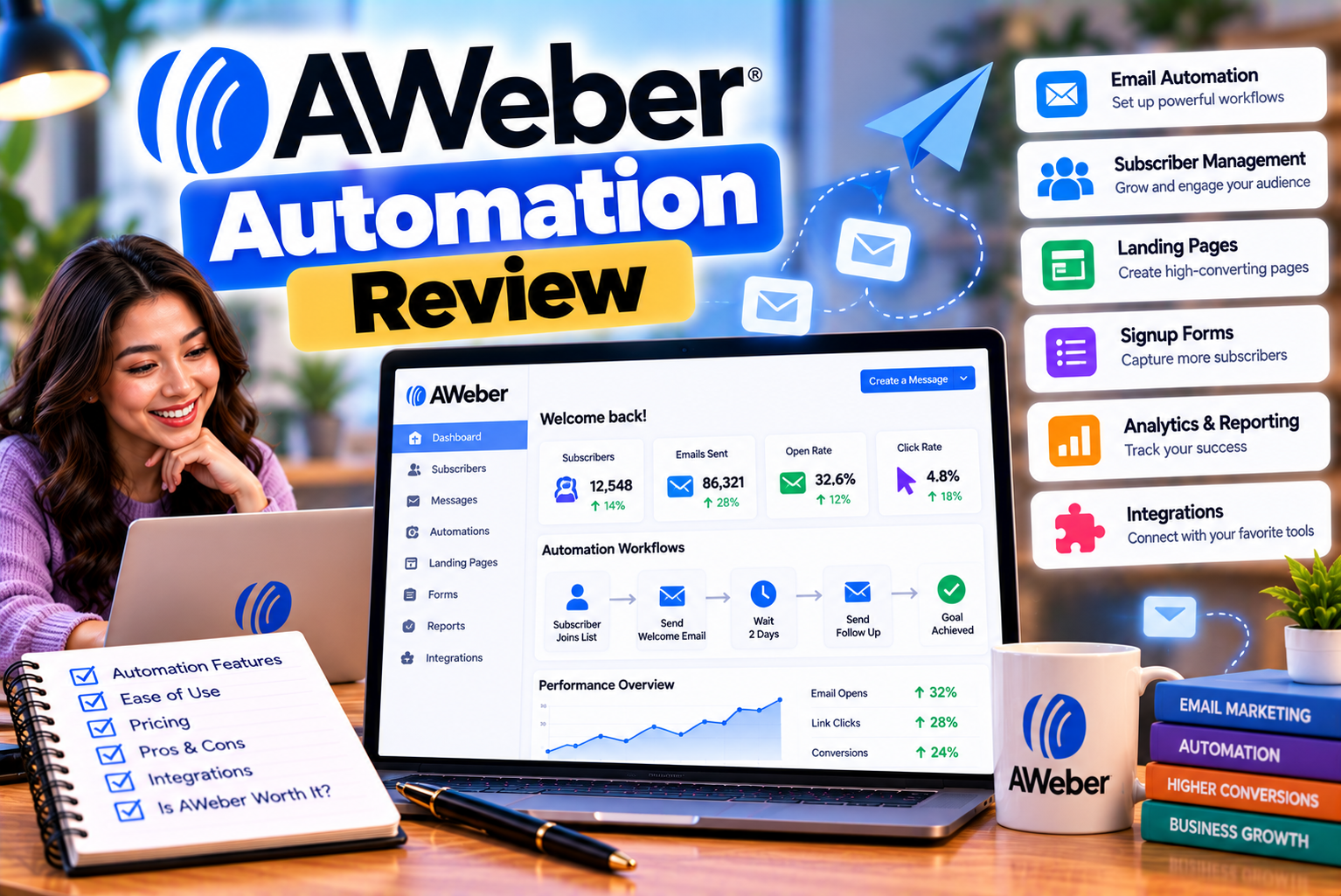
AWeber Automation Review: What Can You Do With Email Marketing Workflows?
Email marketing becomes much easier to manage when businesses can send relevant messages automatically instead of creating every campaign manually. From welcoming new subscribers to delivering downloadable resources, nurturing potential customers, and following up after purchases, automation can reduce repetitive work while keeping communication consistent.
However, effective email automation involves more than scheduling a series of messages. Businesses also need to understand what triggers an email, how subscribers move through a workflow, how their behavior affects subsequent messages, and how to measure the results.
AWeber automation provides tools for creating email workflows that respond to subscriber activity and configured conditions. Its features include automated welcome sequences, lead magnet delivery, subscriber tagging, link-click actions, open-based actions, and more advanced behavioral workflows on eligible plans.
AWeber also supports workflows that can route subscribers along different paths depending on their interests and interactions. This makes it possible to build more personalized email journeys without creating a completely separate campaign for every audience segment.
For example, a consultant could send an introductory email to every new subscriber, provide additional resources to people who click a particular link, and direct interested prospects toward a service offer. An online business could use automation to deliver content, follow up with customers, and re-engage subscribers who have stopped interacting.
The platform’s usefulness depends on the complexity of your marketing strategy, the features available in your subscription, and how well your workflows are designed.
In this guide, we examine AWeber’s automation features, workflow builder, triggers, tagging, practical applications, pricing restrictions, advantages, limitations, and alternatives. We also explain how to create an effective workflow and measure its performance.
What Is AWeber Automation?
AWeber automation is a collection of tools that allows businesses to send emails and perform selected actions automatically according to predefined rules.
Instead of manually sending every message, you create a workflow that determines when a subscriber enters the sequence, what happens next, and how the system responds to supported interactions.
For example, a subscriber might join your mailing list after downloading a free guide. Your workflow could send the guide immediately, wait two days, deliver a useful follow-up email, and then introduce a related product or service.
Once configured and activated, the workflow can run for eligible new subscribers without requiring you to manually send each message.
How AWeber automation works
A typical workflow contains several components:
- Starter: Determines when a subscriber enters the workflow.
- Send Message: Delivers a configured email.
- Wait: Delays the next action for a specified period.
- Apply Tag: Adds a label to help categorize a subscriber.
- Check Feed: Supports feed-related automation use cases.
- Automation rules: Respond to supported subscriber interactions, such as opening an email or clicking a link.
- Workflow paths: Route subscribers through different sequences when supported conditions are met.
AWeber’s official workflow documentation identifies starters, message actions, waits, tagging, and feed checks as core workflow components. Its broader automation tools can also respond to subscriber behavior, depending on the feature and plan.
A simple example
Imagine that you operate a website offering digital marketing resources.
A visitor subscribes to receive a free SEO checklist.
Your workflow could operate as follows:
- Immediately: Send the checklist.
- After two days: Send an email explaining how to use it.
- After four days: Share a useful SEO case study.
- After six days: Introduce a related service.
- After eight days: Send a final educational email or invitation.
This sequence provides useful information while introducing the subscriber to your business gradually.
The important advantage is that the process can continue automatically for new subscribers who meet the workflow’s entry conditions.
AWeber Automation Features at a Glance
AWeber offers several features that support different types of email marketing workflows.
| Feature | What It Does | Practical Use |
| Workflow builder | Creates automated email sequences | Welcome campaigns and lead nurturing |
| Starters | Determines when subscribers enter a workflow | New subscriber onboarding |
| Send Message action | Sends an email at a specified point | Delivering resources or promotions |
| Wait action | Delays the next step | Scheduling follow-up messages |
| Apply Tag action | Adds a subscriber label | Organizing subscribers by interest |
| Open-based automation | Responds to supported email-open activity | Applying engagement tags |
| Click-based automation | Responds to selected link clicks | Identifying product interest |
| Split paths | Routes subscribers based on supported conditions | Different follow-ups for different interests |
| RSS-to-email | Sends updates based on supported feed activity | Blog or content notifications |
| Page-hit automation | Tracks specified website visits when configured | Interest-based follow-up |
| Purchase-related workflows | Supports relevant sales and post-purchase use cases | Customer follow-ups and sales funnels |
| Workflow reporting | Shows available performance metrics | Identifying opportunities for improvement |
Feature availability depends on the selected subscription and the exact automation capability. Some behavioral automation features are not available on the Free plan, and certain advanced features require an eligible paid plan.
1. AWeber Workflow Builder: Creating Automated Email Sequences
The workflow builder is the central component of AWeber’s automation system.
It provides a visual environment where users can arrange actions and determine how subscribers move through an email sequence.
Instead of thinking about each email as an isolated campaign, you can plan the subscriber’s complete journey.
How the workflow builder works
A workflow generally begins with a starter that determines who enters the sequence.
You then add actions, such as sending a message, waiting for a specified period, or applying a tag.
For example, a new subscriber workflow might look like this:
New subscriber joins the list → Welcome email → Wait two days → Educational email → Wait three days → Product introduction
This sequence is relatively simple, but it demonstrates the basic principle.
You can build more elaborate workflows by adding tags, additional messages, supported behavioral rules, and different paths.
Visual workflow components
AWeber’s workflow documentation identifies five key building blocks:
- Starter.
- Send a Message.
- Wait.
- Apply Tag.
- Check Feed.
The available automation rules can then extend the workflow by responding to supported subscriber activity.
Why a visual builder is useful
A visual workflow makes it easier to understand the relationship between messages and actions.
For example, if you plan to send seven emails over two weeks, the builder helps you see their order and timing.
It can also help you identify unnecessary steps, repeated messages, or gaps in the customer journey.
Is the workflow builder suitable for beginners?
It can be suitable for beginners because the core process is straightforward: select a starting condition, add actions, configure timing, and activate the workflow.
However, more complex automation requires careful planning.
You need to understand which subscribers should enter a sequence, what happens when they click a link, how tags are applied, and when a subscriber should stop receiving messages.
The interface may simplify the technical process, but the underlying marketing logic still matters.
2. Welcome Email Automation
Welcome emails are among the most useful applications of email automation.
When someone subscribes to a mailing list, they have expressed interest in receiving information from your business. A welcome sequence allows you to acknowledge that interest and establish expectations.
Instead of manually sending a welcome message to every new subscriber, you can configure a workflow that handles the process automatically.
What can a welcome sequence include?
A well-planned welcome sequence may contain:
Email 1: Welcome and confirmation
Thank the subscriber for joining and explain what they can expect from your emails.
Email 2: Deliver the promised resource
If the signup offer includes a checklist, ebook, or template, provide the resource or explain how to access it.
Email 3: Introduce your expertise
Share a useful article, tutorial, or practical recommendation that helps the subscriber understand your business.
Email 4: Explain your products or services
Introduce a relevant offer without making every message feel like a sales pitch.
Email 5: Encourage the next step
Invite the subscriber to explore a resource, reply with a question, or consider a suitable product.
The sequence should reflect the subscriber’s reason for signing up rather than follow a generic schedule that ignores their interests.
Example: A welcome sequence for a marketing consultant
Suppose you offer a free website SEO checklist.
Your workflow could be:
| Timing | Purpose | |
| Immediately | Welcome and checklist delivery | Fulfil the signup promise |
| Day 2 | Common SEO mistakes | Provide useful education |
| Day 4 | Website optimization guide | Build trust |
| Day 6 | Case study or practical example | Demonstrate expertise |
| Day 8 | Consultation invitation | Introduce the service |
This sequence introduces the business gradually while giving the subscriber something useful at each stage.
Why welcome automation matters
A welcome workflow can help you:
- Deliver resources promptly.
- Establish consistent communication.
- Explain the value of your newsletter.
- Introduce your products or services.
- Reduce repetitive manual work.
- Begin building a relationship with new subscribers.
However, avoid sending too many messages immediately after signup. The frequency and content should match the expectations established on the signup page.
3. Lead Magnet Delivery Automation
A lead magnet is a resource offered in exchange for an email address or another appropriate form of contact information.
Common examples include ebooks, templates, checklists, reports, educational videos, and downloadable guides.
AWeber workflows can automate the delivery and follow-up process for these resources.
How lead magnet automation works
The process generally involves:
- A visitor completes a signup form.
- The subscriber enters the configured workflow.
- AWeber sends an email containing the promised resource or access instructions.
- The workflow waits for the next scheduled action.
- Follow-up emails provide additional information or introduce a relevant offer.
For example, a digital marketing website could offer a free guide to email list building.
After the subscriber receives the guide, the workflow could share a tutorial, explain a related strategy, and introduce a suitable service or product.
Why email delivery is useful
Delivering the resource by email provides a way to maintain contact after the initial conversion.
The subscriber can return to the message later, while the business can continue sharing relevant information through a permission-based marketing relationship.
It also separates the initial offer from the longer-term nurture sequence.
What should you check?
Before activating the workflow, test the entire process.
Confirm that:
- The signup form adds the subscriber to the correct list.
- The intended workflow starts.
- The resource link works.
- The delivery email renders correctly.
- The subscriber receives the correct follow-up messages.
- Subscribers do not receive duplicate delivery emails from overlapping workflows.
A broken download link or incorrect workflow trigger can undermine the entire lead-generation campaign.
4. Behavioral Automation: Responding to Subscriber Activity
Behavioral automation allows your marketing system to respond to what subscribers do rather than treating every subscriber identically.
For example, someone who clicks a product link may have a different level of interest from someone who does not interact with the message.
AWeber provides automation rules that can apply or remove tags based on supported email interactions, including opens and link clicks. Its wider automation features can also use configured website activity in eligible setups.
Open-based automation
An open-based automation can apply or remove tags when a subscriber opens a message, subject to the available tracking and workflow rules.
For example, a business might apply an engagement tag to subscribers who open an introductory message.
That tag could then be used to organize the audience or support a suitable follow-up workflow.
However, email-open tracking is not perfectly reliable. Privacy protections and email-client behavior can generate recorded opens that do not necessarily represent a person’s deliberate engagement.
Use open activity as one signal rather than definitive evidence of interest.
Click-based automation
Click-based automation responds to a subscriber clicking a selected link in a message.
This can provide a more specific indication of interest than an open alone.
For example, a marketing consultant sends an email featuring three topics:
- SEO.
- Email marketing.
- Website design.
If a subscriber clicks the SEO link, the workflow can apply an appropriate tag. That tag can then help identify the subscriber as someone interested in SEO content.
The business can use this information to send more relevant educational material.
Tagging based on activity
Tags provide labels that help categorize subscribers according to selected criteria.
Possible tags include:
- Interested-SEO
- Interested-Email-Marketing
- Downloaded-Guide
- Clicked-Product-Link
- Customer
- Engaged-Subscriber
These are illustrative examples, not predefined AWeber tags.
You decide how to name and apply tags according to your workflow.
Important limitation
AWeber’s documentation states that workflows and tags are specific to individual lists. A tag applied to a subscriber on one list does not automatically appear on another list or trigger a workflow on a different list.
If you want tags to support automation and segmentation across your audience, AWeber recommends maintaining subscribers within one list where appropriate.
This is an important detail when designing your subscriber-management structure.
5. Split Paths: Sending Different Messages to Different Subscribers
A linear automation sequence sends messages in a predetermined order.
A split-path workflow can provide a more personalized experience by directing subscribers through different routes based on supported conditions.
AWeber’s current automation offering describes split paths that can route subscribers according to tags, link clicks, and open behavior.
How split paths work
Imagine that you run a business selling digital marketing resources.
Your workflow sends an email introducing two products:
- An SEO training course.
- An email marketing course.
Subscribers who click the SEO course link can be directed toward SEO-related content.
Subscribers who click the email marketing course link can receive a different sequence.
People who do not click either link can receive another educational email before being presented with a new offer.
This allows the workflow to respond to subscriber activity rather than sending every person the same messages.
Example of a split-path workflow
| Subscriber Activity | Workflow Response |
| Clicks the SEO course link | Apply the SEO interest tag and send relevant content |
| Clicks the email marketing course link | Apply the email marketing interest tag and send relevant content |
| Does not click either link | Send a general educational follow-up |
| Makes a purchase, where supported and configured | Direct the subscriber to an appropriate customer follow-up |
| Remains inactive | Apply the configured re-engagement strategy |
The exact conditions and actions depend on the features available in your account.
Benefits of split-path automation
Split paths can help you:
- Send more relevant messages.
- Avoid promoting unsuitable products.
- Organize subscribers according to interest.
- Reduce unnecessary email volume.
- Create different journeys for prospects and customers.
- Improve the relationship between email content and subscriber needs.
However, personalization only works when the conditions are meaningful.
Creating many complicated branches without a clear purpose can make workflows harder to maintain. Start with a small number of useful paths and expand when the results justify the additional complexity.
6. AWeber Automation for RSS and Content Updates
Businesses that publish content regularly can use email automation to help distribute updates.
RSS-to-email functionality allows supported feeds to be connected to email campaigns so that new content can be shared automatically.
This can be useful for bloggers, publishers, podcasters, and businesses that regularly add resources to their websites.
What is RSS-to-email?
RSS is a format that allows websites to publish structured updates about new content.
An email marketing system can use a supported feed to identify new items and send them to subscribers according to the configured setup.
For example, a business publishing three blog posts each week may want subscribers to receive updates without requiring someone to prepare every email manually.
Example: Automated blog distribution
Suppose you publish articles about SEO, website development, and digital marketing.
An RSS-based email workflow could be configured to distribute new posts according to the available settings.
The message might include:
- Article title.
- Short description.
- Featured image, where supported.
- Link to the complete article.
Subscribers can then visit the website to read the full content.
Why content automation is useful
Automated content distribution can reduce the time required to prepare routine newsletters.
It also provides a consistent way to notify interested readers when new content becomes available.
However, automated messages should still be reviewed periodically to ensure that feed formatting, images, article descriptions, and links are working correctly.
For businesses that publish frequently, this can be a practical way to maintain communication without manually creating every update.
7. AWeber Automation for Abandoned Carts and Sales Follow-Ups
Businesses selling products online often lose potential sales when shoppers leave without completing a purchase.
Abandoned-cart automation can help by sending a follow-up message to eligible shoppers who leave products in their carts.
AWeber lists abandoned-cart recovery among its automation use cases. The actual setup depends on the ecommerce integration, event data, and plan or feature requirements.
How abandoned-cart automation works
A typical process involves:
- A shopper adds a product to a cart.
- The shopper provides an email address or otherwise becomes identifiable through the supported integration.
- The shopper leaves without completing the purchase.
- The ecommerce system records the relevant event.
- The integration or workflow initiates the configured follow-up.
- The email reminds the shopper about the product and provides a path back to checkout.
Not every store or integration supports every step automatically. Verify that your ecommerce platform and AWeber setup can provide the required cart and purchase information.
Example abandoned-cart sequence
| Timing | Purpose | |
| After the configured delay | Cart reminder | Help the shopper return to the checkout |
| Later, if still eligible | Product information or assistance | Address possible questions |
| Final follow-up, where appropriate | Reminder or permitted offer | Encourage completion without excessive messaging |
The timing should reflect your product, customer expectations, and sales process.
A reminder sent too quickly may feel intrusive, while a message sent too late may arrive after the shopper has lost interest.
Important considerations
Make sure the workflow stops or adjusts when the customer completes the purchase.
Otherwise, a shopper could receive a cart reminder after already buying the product.
Also verify consent requirements, tracking configuration, and applicable privacy rules before implementing behavior-based marketing.
8. Post-Purchase Email Automation
The customer journey does not end when someone buys a product.
Post-purchase automation can help businesses provide useful information, support customer success, encourage appropriate repeat purchases, and maintain the relationship.
AWeber lists post-purchase follow-ups among its email automation use cases.
What can a post-purchase workflow include?
A post-purchase sequence might contain:
Order-related information
Provide relevant information about the purchase, access, or next steps through the appropriate system.
Product onboarding
Explain how to use the product or access the purchased service.
Helpful resources
Share tutorials, documentation, or tips that help the customer get value from the purchase.
Feedback requests
Invite customers to share their experience at an appropriate time.
Relevant follow-up offers
Recommend related products or services when they genuinely fit the customer’s needs.
Example: A digital course purchase
Suppose a customer purchases an online SEO course.
A suitable follow-up sequence might be:
- Immediately: Send access instructions through the configured system.
- Day 2: Explain how to begin the first module.
- Day 5: Share a useful implementation tip.
- Day 10: Provide an additional resource.
- Later: Invite feedback or recommend a related advanced course.
The sequence should focus on helping the customer succeed rather than immediately overwhelming them with more sales messages.
Why post-purchase automation matters
A useful post-purchase workflow can reduce repetitive support work, make onboarding more consistent, and help customers get more value from what they purchased.
It can also create opportunities for relevant cross-selling or repeat purchases.
However, transaction confirmations, receipts, and other essential transactional communications may need to be handled by your ecommerce or payment platform. Do not assume that a marketing automation workflow replaces those systems.
9. Re-Engagement Automation for Inactive Subscribers
Over time, some subscribers stop interacting with emails.
They may have lost interest, changed jobs, stopped using the original service, or simply become overwhelmed by their inbox.
A re-engagement workflow can help determine whether these subscribers still want to receive your content.
How re-engagement automation works
A typical re-engagement strategy identifies subscribers who meet defined inactivity criteria and sends them a relevant message.
For example:
- Identify subscribers who have not clicked or otherwise engaged during a chosen period.
- Send a message asking whether they still want to receive updates.
- Provide a clear way to manage preferences or unsubscribe.
- Evaluate the results.
- Adjust future communication based on the response and available data.
AWeber’s automation tools can support tagging and follow-up based on supported subscriber interactions. The exact inactivity detection and workflow logic available to you depends on the current feature set.
Example re-engagement email
A business might send an email explaining that it has not seen much recent activity and asking whether the subscriber still wants to receive its updates.
The message could offer a preference link, a concise summary of the newsletter’s value, or a simple unsubscribe option.
Avoid using misleading subject lines or making unsubscribing unnecessarily difficult.
Why re-engagement matters
A well-designed re-engagement strategy can help you identify subscribers who remain interested and reduce unnecessary communication with people who no longer want your messages.
It also gives your business an opportunity to improve content relevance.
However, do not rely exclusively on email opens to determine inactivity. Privacy features can make open tracking unreliable, so use a combination of engagement signals and business context where available.
10. AWeber Automation Pricing: Which Plan Do You Need?
AWeber includes automation capabilities across its subscription lineup, but the number of workflows and availability of advanced behavioral features vary by plan.
According to AWeber’s current pricing page, the principal standard plan limits are as follows.
| Feature | Free | Lite | Plus |
| Workflow or automation allowance | 1 workflow | 3 automations | Unlimited automations |
| Monthly email sends | 3,000 | Up to 10 times the subscriber allowance | Up to 12 times the subscriber allowance |
| Landing pages | 1 | 3 | Unlimited |
| List profiles | 1 | 1 | Unlimited |
| Custom segments | Limited | 1 | Unlimited |
| Advanced behavioral automation | Restricted | Feature-dependent | Broader access to advanced features |
| Advanced reporting | Limited | Advanced message analytics | Advanced reporting and analytics |
| Remove AWeber branding | No | No | Yes |
Plan names, limits, and feature availability should be checked against AWeber’s current pricing page before publication or purchase.
AWeber Free
The Free plan includes one workflow or autoresponder campaign and supports up to 500 subscribers with 3,000 monthly email sends.
It can be suitable for testing basic automation, such as sending a welcome email or delivering a simple resource.
However, it is not designed for businesses that need several independent automated sequences or advanced behavioral targeting.
AWeber Lite
Lite includes three email automations under the current published plan comparison.
This can be sufficient for a small business with a limited number of customer journeys.
For example, you could use one workflow for new subscribers, another for a lead magnet, and a third for a specific product or service.
If your marketing strategy requires many different workflows, Lite’s limit may become restrictive.
AWeber Plus
Plus includes unlimited email automations, along with unlimited landing pages, list profiles, custom segments, and users under its published feature list.
It is more suitable for businesses with several products, multiple audience segments, or more complex customer journeys.
Plus also includes advanced reporting and other features that may help you monitor and refine campaigns.
Does AWeber charge extra for automation?
AWeber includes automation within its subscription plans rather than advertising it as a separate standalone add-on. However, the number of workflows and availability of advanced features depend on the plan.
Your total cost is therefore influenced by the subscription tier, subscriber allowance, email sending volume, and other features you need.
How should you choose?
Choose Free if you need one simple workflow.
Consider Lite if three automations are enough for your current strategy.
Consider Plus if you need unlimited automations, more advanced behavioral features, or broader segmentation and reporting.
Before upgrading, confirm that the features you need are included in the selected plan.
11. How to Create an Automation Workflow in AWeber
Creating a workflow involves defining the subscriber journey, adding the required actions, setting message timing, and testing the result.
The following process provides a practical starting point.
Step 1: Define the goal
Decide what the workflow should accomplish.
Possible goals include:
- Welcoming new subscribers.
- Delivering a lead magnet.
- Nurturing prospective customers.
- Onboarding new customers.
- Promoting a relevant product.
- Re-engaging inactive subscribers.
Avoid combining unrelated objectives into one complicated workflow.
Step 2: Choose the starter
AWeber workflows begin with a starter that determines which subscribers enter the automation.
The official workflow documentation describes starters such as adding new subscribers who join a list or adding subscribers who receive a specific tag.
Choose the starter that matches the event you want to respond to.
For example, a welcome sequence might begin when someone joins the relevant list.
A product-interest sequence might begin when a specified tag is applied, provided the workflow is configured to use that tag.
Step 3: Add the first message
Create the initial email and make sure it fulfils the expectation established by the signup form or triggering event.
If a subscriber requested a guide, deliver the guide.
If the workflow is a welcome sequence, explain what the subscriber can expect.
Step 4: Add a wait period
Use a wait action to determine when the next step should occur.
For example, you might wait two days before sending an educational follow-up.
Choose timing that gives subscribers enough time to engage with the previous message.
Step 5: Add tags where appropriate
Tags can help organize subscribers and support follow-up workflows.
For example, you might apply a tag when someone enters a lead magnet sequence or clicks a selected product link.
Keep tag names consistent and make sure they are applied to the intended list.
Step 6: Configure automation rules
Where supported, configure actions based on email opens, link clicks, or other available subscriber activity.
For example, a click on a product link might apply a product-interest tag.
That tag can then be used to organize the subscriber or trigger a relevant follow-up.
Step 7: Configure split paths if needed
If the workflow needs to respond differently to subscriber behavior, add the appropriate branching logic where available.
Start with a simple distinction, such as interested versus not yet interested.
Avoid creating branches that do not lead to a meaningful difference in the subscriber experience.
Step 8: Review the message sequence
Check the timing, message content, tags, and exit conditions.
Make sure subscribers will not receive duplicate emails from overlapping workflows.
Step 9: Test the complete journey
Use a test subscriber and verify the workflow from start to finish.
Confirm that:
- The correct starter is triggered.
- The first email arrives.
- Wait periods behave as expected.
- Tags are applied correctly.
- Link-click actions work.
- Split paths behave as intended.
- The subscriber stops receiving messages when appropriate.
Step 10: Activate and monitor the workflow
After testing, activate the workflow.
Monitor its performance and review it whenever your product, audience, or marketing strategy changes.
Automation should reduce manual work, not remove the need for ongoing quality control.
12. Practical AWeber Automation Examples
The best way to understand automation is to examine how it can support different business models.
Example 1: Blogger newsletter automation
A blogger wants to grow a subscriber list and distribute educational content.
The workflow might include:
| Trigger | Action | Purpose |
| New subscriber joins | Send welcome email | Establish expectations |
| Immediate follow-up | Deliver promised resource | Fulfil the signup offer |
| After two days | Share a useful article | Encourage engagement |
| After five days | Introduce a related topic | Build interest |
| Later | Invite the subscriber to explore more content | Encourage website visits |
This workflow helps the blogger maintain communication without manually sending every message.
Example 2: Consultant lead-nurturing automation
A consultant offers a free resource for potential customers.
The workflow can deliver the resource, provide additional educational content, and introduce the consultant’s service.
If the subscriber clicks a service-related link, the workflow may apply an interest tag where the relevant automation is supported.
That tag can help the business organize follow-up communication.
Example 3: Ecommerce automation
An online store wants to encourage repeat purchases.
A possible workflow could welcome new subscribers, introduce the store’s product categories, and send relevant follow-up content.
With the necessary ecommerce integration and supported automation features, the store may also configure purchase-related or abandoned-cart follow-ups.
The business must confirm that purchase and cart events are properly tracked before relying on these workflows.
Example 4: Course creator onboarding
A course creator wants to guide new students through the first stages of a program.
The automation might send introductory instructions, share learning resources, and explain how to get support.
Later messages can provide additional guidance or introduce related resources.
Essential account access and transactional information should remain coordinated with the course delivery platform.
Example 5: Product-interest segmentation
A business sends an email featuring several product categories.
Subscribers who click different links can receive corresponding interest tags, where supported.
The business can then send more relevant messages based on those tags.
This approach helps avoid sending every subscriber the same promotion regardless of interest.
13. AWeber Automation Reporting and Performance Measurement
Creating a workflow is only part of the process. You also need to determine whether it is achieving the intended result.
AWeber provides reporting and workflow performance information, with the depth of analytics depending on the plan and feature.
The platform’s current automation offering describes performance metrics within the workflow builder, allowing users to review performance and identify potential drop-off points.
Important automation metrics
| Metric | What It Measures | Why It Matters |
| Workflow entries | Number of subscribers entering the automation | Indicates how many people qualify |
| Email delivery | Whether messages are successfully delivered | Helps identify delivery problems |
| Open rate | Recorded opens relative to delivered messages | Provides an engagement signal, with tracking limitations |
| Click-through rate | Percentage of recipients who click relevant links | Indicates interest in the content or offer |
| Conversion rate | Percentage completing the desired action | Measures the workflow’s business objective |
| Unsubscribe rate | Percentage of recipients who unsubscribe | May indicate a mismatch in content or frequency |
| Revenue attributed to email | Revenue linked to the campaign where tracking supports it | Helps assess commercial performance |
The exact metrics available directly in AWeber depend on the report, plan, and tracking configuration.
How to interpret automation performance
Suppose a welcome workflow sends an email to 1,000 subscribers.
If the message generates many clicks but few purchases, the problem may not be the email itself. The landing page, offer, pricing, or checkout process may need attention.
If subscribers regularly unsubscribe after the third email, review the content and frequency of the sequence.
If very few subscribers click any links, consider whether the message is relevant, the call to action is clear, and the offer matches the audience’s interests.
Do not rely on open rates alone
Open tracking can be affected by privacy features and automated image loading.
A recorded open does not always mean a person deliberately read the message, and a missing open does not necessarily mean the email was ignored.
Use clicks, conversions, subscriber feedback, and other available signals to make better decisions.
14. AWeber Automation: Advantages and Limitations
AWeber automation offers several benefits, but businesses should also understand its restrictions.
Advantages
- Reduces repetitive work
Once a workflow is configured, eligible messages can be sent automatically without manually launching every email.
- Supports consistent communication
Subscribers can receive messages according to a defined schedule.
- Enables behavior-based follow-up
Supported automation rules can respond to opens, clicks, tags, and other configured activity.
- Supports subscriber segmentation
Tags and custom segments can help businesses organize audiences and deliver more relevant messages.
- Provides a visual workflow builder
The visual interface makes it easier to understand the order of actions and message timing.
- Supports several marketing use cases
Workflows can support welcome sequences, lead magnet delivery, content distribution, sales follow-ups, and re-engagement strategies.
- Integrates with email marketing
Automation works alongside AWeber’s subscriber lists, landing pages, and email campaign tools.
Limitations
- Workflow limits depend on the plan
Free includes one workflow, Lite includes three automations, and Plus provides unlimited automations under the current published plan comparison.
- Advanced behavioral features may be restricted
Some forms of behavioral automation are unavailable on the Free plan, and advanced capabilities depend on the selected subscription.
- Tags are list-specific
AWeber’s documentation states that tags and workflows are tied to individual lists. This matters when planning segmentation across multiple lists.
- Complex workflows require careful planning
A workflow can become difficult to maintain if it contains too many branches, overlapping triggers, or inconsistent tag rules.
- Automation cannot guarantee sales
A workflow can deliver messages automatically, but results still depend on the audience, offer, copy, timing, and overall customer experience.
- Integrations may affect functionality
Ecommerce and website-related automation can depend on third-party integrations, tracking scripts, and event data.
- Reporting has limitations
Available metrics vary by plan and setup. Some forms of revenue attribution or advanced analysis may require additional tracking or integrations.
15. AWeber Automation vs Manual Email Campaigns
Manual campaigns and automated workflows serve different purposes.
A manual broadcast is generally used when you want to send a message to an audience at a particular time. Automation is useful when the timing or content should depend on a subscriber’s entry into a sequence or their subsequent activity.
| Requirement | Manual Email Campaign | Automated Workflow |
| Send a newsletter to the list | Suitable | Possible, but often unnecessary |
| Welcome new subscribers | Requires repeated manual work unless automated | Suitable |
| Deliver a lead magnet | Can be done manually | Suitable |
| Send a timed sequence | Requires repeated scheduling | Suitable |
| Respond to selected link clicks | Limited without automation | Supported through eligible automation rules |
| Follow up based on subscriber tags | Requires manual targeting or separate setup | Suitable when configured |
| Announce a time-sensitive promotion | Suitable | Useful for eligible targeted follow-ups |
| Maintain an onboarding sequence | Requires repeated management | Suitable |
When should you use a manual campaign?
Use a manual broadcast for messages that need to be sent to an audience at a specific time.
Examples include a monthly newsletter, a product announcement, a holiday promotion, or a one-time company update.
When should you use automation?
Use automation when the message should be triggered by a subscriber action or follow a defined journey.
Examples include welcome sequences, lead magnet delivery, onboarding, and behavior-based follow-up.
Many businesses benefit from using both methods rather than choosing one exclusively.
16. Best Practices for Effective AWeber Automation
Automation is most effective when the workflow has a clear purpose and sends relevant messages at appropriate intervals.
The following practices can help improve results.
1. Define one primary goal per workflow
A workflow should have a clear objective.
For example, a welcome sequence may aim to introduce the business and encourage initial engagement.
A separate customer onboarding workflow may focus on helping customers use a product successfully.
Separate workflows can be easier to understand and maintain when the goals differ substantially.
2. Use clear entry conditions
Define exactly who should enter the workflow.
A broad trigger may enroll subscribers who are not interested in the offer, while an overly restrictive trigger may exclude people who should qualify.
Test the starter with sample subscribers before activation.
3. Keep messages relevant
Every email should have a reason to exist.
Avoid sending messages simply because the workflow has an available step.
Provide useful information, answer common questions, or guide the subscriber toward a logical next action.
4. Use tags consistently
Create a simple tagging convention and document what each tag means.
For example, interest tags should represent actual behavior or clearly defined subscriber preferences.
Avoid creating multiple tags with nearly identical meanings.
5. Review workflow timing
Consider how much time subscribers need between messages.
A resource-delivery email may need to arrive immediately, while an educational follow-up can be sent later.
The appropriate timing depends on the offer, audience, and nature of the communication.
6. Include appropriate exit conditions
Subscribers should not continue receiving messages that are no longer relevant.
For example, a prospect-focused workflow may need to stop or change after a purchase, provided the necessary purchase event is available and the workflow is configured accordingly.
Review the conditions that determine when a subscriber should leave a sequence.
7. Test every link and action
A broken link or incorrectly applied tag can send subscribers into the wrong journey.
Test forms, emails, landing pages, tags, and relevant integrations before activation.
8. Monitor unsubscribe rates
An increase in unsubscribes may indicate that the messages are too frequent, irrelevant, or inconsistent with the original signup promise.
Review the workflow when unsubscribe behavior changes noticeably.
9. Respect consent and privacy
Only send marketing messages to people who have a suitable permission basis under applicable laws and platform policies.
Make it easy for subscribers to manage preferences or unsubscribe.
Do not use automation to send unwanted or misleading messages.
10. Review workflows regularly
Products, prices, links, and business priorities change over time.
Review active workflows periodically to make sure their content remains accurate and their actions still work.
17. Common AWeber Automation Mistakes to Avoid
Even a well-designed automation platform can produce poor results when the workflow logic is incorrect.
Mistake 1: Sending too many emails
A workflow with frequent messages may overwhelm subscribers.
Review the entire sequence and consider whether each email adds meaningful value.
Mistake 2: Using unclear tags
If tags are inconsistently named or applied, subscribers may receive the wrong follow-up messages.
Create a clear naming system and test the conditions that apply each tag.
Mistake 3: Ignoring list-specific behavior
AWeber’s documentation explains that tags and workflows are specific to individual lists.
If your workflow depends on a tag, verify that the tag and workflow operate within the intended list.
Mistake 4: Forgetting to test the starter
A workflow may contain well-written messages but never start if the trigger is configured incorrectly.
Use a test subscriber to verify the entry condition.
Mistake 5: Failing to stop irrelevant messages
A customer who has already purchased a product may not need the same prospect-focused emails.
Where supported, use suitable exit conditions or alternative paths to keep communication relevant.
Mistake 6: Relying only on opens
Open tracking can be unreliable because of privacy features and automated image loading.
Use clicks, conversions, and other meaningful signals where available.
Mistake 7: Ignoring integration limitations
A purchase-based or website-based workflow depends on the necessary event data being available.
Verify the integration and tracking configuration before building a process around an event that the system cannot reliably detect.
Mistake 8: Leaving old offers active
An automation may continue promoting a discontinued product or outdated price long after the campaign was created.
Review the content regularly and update or deactivate obsolete messages.
Final Verdict: Is AWeber Automation Worth Using?
AWeber automation can help businesses manage subscriber communication, deliver resources, nurture leads, and respond to supported subscriber interactions.
Its visual workflow builder provides the main building blocks for creating automated sequences, while tagging and behavioral automation help users organize audiences and make follow-up messages more relevant.
The platform can be useful for bloggers, small businesses, consultants, ecommerce operators, and creators who want to reduce repetitive email marketing tasks.
However, the best experience depends on your requirements and subscription.
Choose AWeber Free if you need one basic workflow and are comfortable with its subscriber and sending limits.
Choose AWeber Lite if three automations are sufficient for your current marketing strategy.
Choose AWeber Plus if you need unlimited automations, broader segmentation, advanced reporting, and more flexibility for complex subscriber journeys.
Before upgrading, identify the specific workflow features you need and verify their availability in the current plan comparison.
The most important point is that automation is not simply about sending more emails. It is about sending the right message at the appropriate point in the subscriber journey.
Start with one useful workflow, test the complete process, and measure whether it helps subscribers take the intended action. Once the basic system works reliably, expand it with behavioral rules and additional paths where they provide clear value.
Frequently Asked Questions About AWeber Automation
1. What is AWeber automation?
AWeber automation allows businesses to send emails and perform selected actions automatically based on configured workflow starters, timing, tags, and supported subscriber interactions. It can support welcome sequences, lead magnet delivery, onboarding, and follow-up campaigns.
2. Does AWeber have email automation?
Yes. AWeber provides workflow automation features that allow users to create automated email sequences. The number of workflows and availability of advanced features depend on the subscription.
3. Is AWeber automation free?
The AWeber Free plan includes one workflow or autoresponder campaign. However, some behavioral automation and advanced features are restricted. Check the current plan comparison for exact limits.
4. How many automations can I create with AWeber Lite?
AWeber Lite includes three email automations under its current published pricing comparison.
5. Does AWeber Plus include unlimited automations?
Yes. AWeber’s current pricing page lists unlimited email automations for Plus.
6. What is an AWeber workflow?
A workflow is a sequence of connected actions that determines how subscribers move through an automated process. It can include starters, emails, wait periods, tags, feed checks, and supported automation rules.
7. Can AWeber send welcome emails automatically?
Yes. A workflow can be configured to start when eligible subscribers join a list, allowing you to send welcome messages and follow-up emails automatically.
8. Can AWeber automatically deliver lead magnets?
Yes. You can configure a workflow to send a resource or access instructions after a subscriber joins through the relevant form or trigger. Test the delivery link and workflow before publishing the offer.
9. Can AWeber automation respond to email clicks?
Yes. AWeber supports click-based automation rules that can apply or remove tags when subscribers click selected links in supported messages.
10. Can AWeber automation respond to email opens?
Yes. AWeber supports open-based automation rules for applying or removing tags when supported messages are opened. However, open tracking can be affected by privacy protections and should not be treated as definitive proof of engagement.
11. What are tags in AWeber automation?
Tags are labels used to organize subscribers according to defined criteria, such as interests, signup sources, or campaign activity. They can support segmentation and relevant follow-up workflows.
12. Can AWeber send different emails based on subscriber behavior?
AWeber’s automation offering includes split paths that can route subscribers according to supported conditions, including tags, link clicks, and open behavior. The exact functionality depends on the current account and plan.
13. Can AWeber automate blog updates?
AWeber supports RSS-to-email functionality for eligible content-distribution workflows. This can help businesses send updates when new content becomes available through a supported feed setup.
14. Can AWeber automate abandoned-cart emails?
AWeber lists abandoned-cart recovery among its automation use cases. The exact functionality depends on your ecommerce integration, available event data, and the features supported by your account.
15. Can AWeber automate post-purchase emails?
AWeber supports post-purchase follow-up use cases. You need the appropriate integration and workflow configuration to identify eligible customers and send relevant follow-up messages.
16. Can AWeber automate customer onboarding?
Yes. You can use workflows to send welcome messages, product instructions, educational resources, and other onboarding communication. Essential transactional information may still need to be handled by your ecommerce or course platform.
17. Can AWeber re-engage inactive subscribers?
AWeber can support re-engagement strategies using available subscriber data, tags, and automation rules. The exact way you identify inactive subscribers depends on the tracking and segmentation features available in your account.
18. Does AWeber automation support segmentation?
Yes. AWeber supports tags and subscriber segmentation, with advanced segmentation features depending on the plan. These tools can help organize audiences and deliver more relevant messages.
19. Are AWeber tags shared across different lists?
No. AWeber’s documentation states that tags and workflows are specific to individual lists. A tag applied on one list does not automatically appear on another list or trigger a workflow there.
20. Can I use AWeber automation with WordPress?
AWeber supports integrations with WordPress and other website platforms. The available automation options depend on the integration, form configuration, and subscriber data shared with AWeber.
21. Does AWeber automation include analytics?
AWeber provides reporting and workflow performance information, with available metrics depending on the plan and configuration. Its current automation offering describes performance metrics within the workflow builder.
22. Is AWeber automation suitable for beginners?
It can be suitable for beginners because the visual workflow builder uses straightforward components such as starters, messages, waits, and tags. More complex behavioral workflows still require careful planning and testing.
23. Is AWeber automation better than manual email campaigns?
Neither approach replaces the other. Manual campaigns are useful for scheduled newsletters and announcements, while automation is more suitable for welcome sequences, timed follow-ups, and messages triggered by subscriber activity.
24. Does AWeber charge extra for automation?
AWeber includes automation within its subscription plans. However, workflow limits and advanced capabilities vary by plan, so you may need a higher subscription to access the functionality your business requires.
25. Is AWeber automation worth it?
AWeber automation can be worthwhile if you regularly send welcome messages, educational sequences, lead magnet deliveries, or customer follow-ups. Its value depends on whether the workflows save time, improve communication, and support your marketing goals.
Leave a Reply