


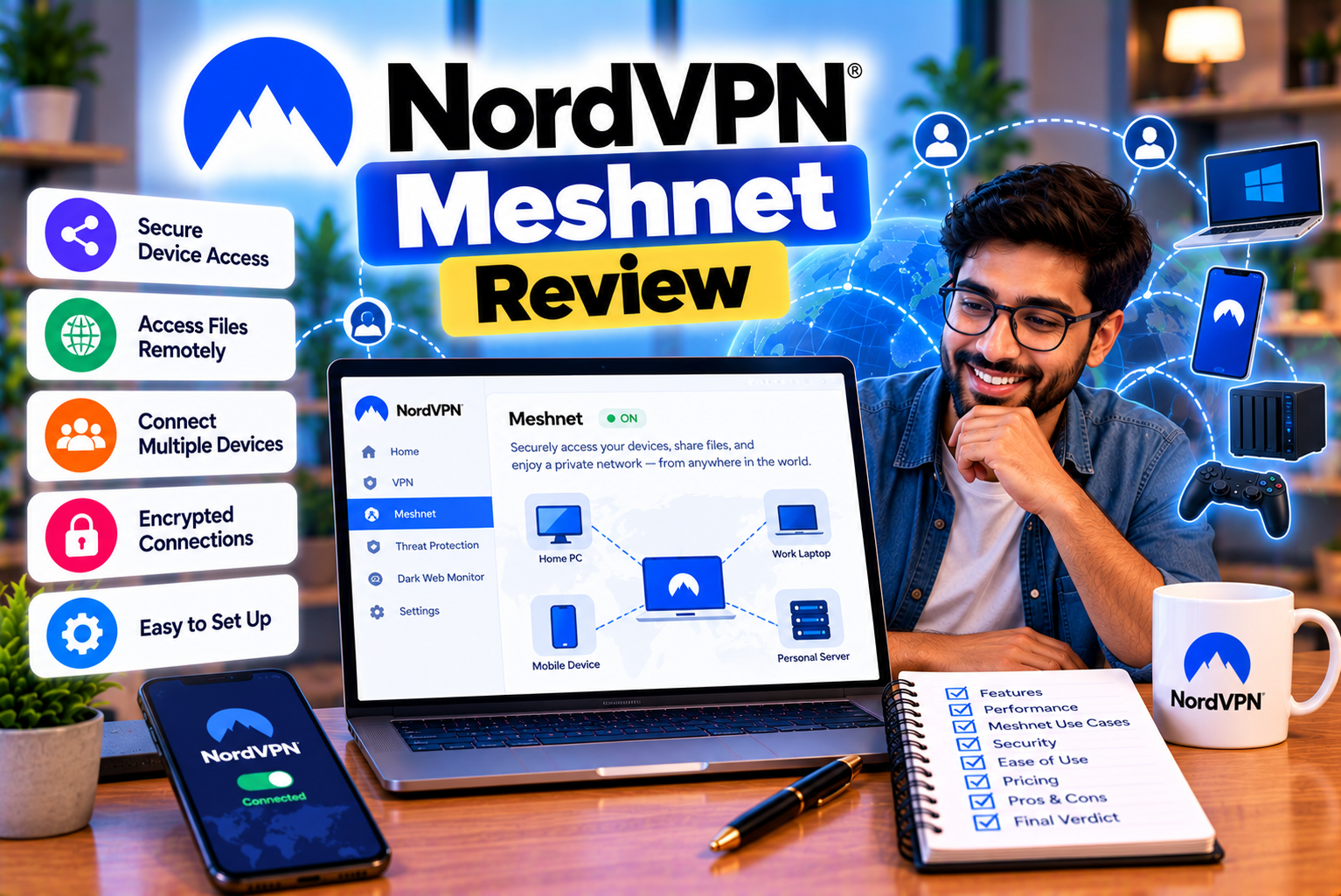
NordVPN Meshnet Review
A traditional VPN helps protect your internet connection by routing traffic through a VPN server. But what if you want to connect directly to your own computer from another location, access files stored on your home device, or play a multiplayer game with friends as if everyone were connected to the same local network?
This is where NordVPN Meshnet becomes useful.
Meshnet is a networking feature developed by NordVPN that allows compatible devices to connect through an encrypted private network, even when they are located in different places. Instead of simply connecting your device to a VPN server operated by a provider, Meshnet allows you to link specific devices and control what they can access.
For example, you could leave your desktop computer at home, travel with your laptop, and use Meshnet to connect to services on that computer. You could also share files with another trusted user, access certain devices on your home network, or route your internet traffic through a compatible computer you control.
One of Meshnet’s most appealing characteristics is its price: Meshnet is available free of charge and does not require a paid NordVPN subscription. Users can set it up through the NordVPN application on supported devices.
However, Meshnet is not a replacement for every VPN service, remote-access application, or cloud-storage platform. Its usefulness depends on what you want to connect, which devices you own, the permissions you configure, and the security measures you follow.
In this comprehensive review, we explain how NordVPN Meshnet works, explore its main features, walk through the setup process, examine practical use cases, and discuss its limitations and security considerations.
What Is NordVPN Meshnet?
NordVPN Meshnet is a virtual networking feature that lets you connect selected devices through an encrypted private network.
Ordinarily, devices on different networks cannot necessarily communicate directly. A computer at your home and a laptop connected to hotel Wi-Fi may be separated by routers, firewalls, network address translation, and other networking restrictions.
Meshnet helps establish connectivity between approved devices without requiring you to configure a traditional private network from scratch.
Once connected, compatible devices can communicate through their Meshnet addresses or device names. Depending on the permissions granted and the services running on each device, you can use that connection for file transfers, remote access, gaming, and other networking tasks.
How does Meshnet work?
Consider a simple example.
You have a desktop computer at home and a laptop that you carry to work. Both devices have the NordVPN application installed, and Meshnet is enabled.
When you configure Meshnet correctly, the devices can become part of the same private network even though they use different internet connections.
You can then use supported networking tools to access services on the home computer from your laptop.
The connection is encrypted, helping protect data while it travels between the devices. However, encryption does not automatically make every application or service running on those devices secure.
You still need to configure access permissions, keep your software updated, and protect the devices themselves.
Meshnet versus a traditional VPN
A traditional VPN generally routes your internet traffic through a VPN server. The websites you visit see the VPN server’s public IP address rather than your normal public IP address, subject to the connection and configuration.
Meshnet focuses on connecting specific devices.
For example:
- A traditional VPN can route your browsing traffic through a server in another country.
- Meshnet can connect your laptop to your own computer at home.
- A traditional VPN can encrypt your connection to the provider’s VPN server.
- Meshnet can establish an encrypted connection between approved devices.
- A traditional VPN usually uses a provider-operated exit server.
- Meshnet can let you route traffic through a compatible device you control.
Meshnet also supports traffic routing, so the two concepts can overlap. When you route traffic through a Meshnet device, your internet connection can use that device’s public IP address.
The key distinction is that a conventional VPN primarily connects you to a VPN service, while Meshnet lets you create a private network between selected devices.
Is NordVPN Meshnet Free?
Yes. NordVPN offers Meshnet as a free feature.
You do not need to purchase a paid NordVPN subscription simply to use Meshnet. You can download the supported NordVPN application, sign in with a Nord Account, and configure the feature on compatible devices.
Meshnet is therefore different from NordVPN’s main paid VPN service.
| Feature | Meshnet | Paid NordVPN service |
| Primary purpose | Connect selected devices privately | Route internet traffic through VPN servers |
| Paid subscription required | No | Yes, for the paid VPN service |
| Private device-to-device networking | Yes | Not the primary purpose |
| File sharing between connected devices | Yes | Not the primary purpose |
| Remote access to compatible devices | Yes, with appropriate permissions and services | Not the primary purpose |
| Route traffic through your own compatible device | Yes | The paid VPN service instead routes traffic through its VPN infrastructure |
| Choose a VPN server in another country | Not its main function | Yes, subject to server availability |
| Additional VPN security tools | Not equivalent to the full paid bundle | Depends on the subscription tier |
Meshnet’s free availability makes it attractive to people who need private device connectivity rather than a full commercial VPN subscription.
However, free access does not mean unlimited functionality across every operating system. Some capabilities depend on device compatibility, application version, and permissions.
Does free Meshnet include NordVPN’s paid security features?
No. Meshnet’s free availability should not be confused with the complete paid NordVPN subscription.
NordVPN’s paid service provides access to its VPN server network and other features, depending on the plan. Meshnet focuses on linking devices.
If you want to browse through international VPN servers, compare paid subscription plans separately.
For more information about those costs, read our related article, NordVPN Pricing Explained: Subscription Plans, Renewals and Extra Features.
NordVPN Meshnet Features Explained
Meshnet provides several capabilities that can be useful for personal networking, collaboration, and remote access.
Let’s examine the most important ones.
1. Secure Connections Between Devices
The central purpose of Meshnet is to connect approved devices through an encrypted private network.
Suppose you own a Windows desktop at home, a MacBook for work, and an Android phone. Depending on application compatibility and your configuration, you can link these devices so they can communicate privately.
This can be useful when you want to access a service on one device from another without exposing that service directly to the public internet.
For example, you might run a development server on your desktop and access it from your laptop while travelling.
Meshnet can help establish the network connection, but the application running on the desktop must still be configured correctly.
Best for: Users who need to connect their own devices across different locations.
2. File Sharing Between Devices
Meshnet supports file sharing between connected devices.
Instead of uploading a file to a cloud-storage provider and then downloading it on another device, you can initiate a transfer between compatible Meshnet devices.
For example, you might transfer:
- Large video files between your desktop and laptop.
- Documents between your personal devices.
- Project assets to a trusted collaborator.
- Images from a computer to another compatible device.
- Files needed for a remote work project.
The recipient may need to accept the transfer, depending on the application and its settings.
File sharing permissions also need to be enabled for the relevant connection.
Meshnet is particularly interesting when you want to transfer files directly between devices without relying on a conventional cloud-storage workflow.
However, it is not a complete replacement for a cloud-storage service. Cloud platforms may offer file versioning, synchronized folders, collaboration tools, backups, and browser-based access that Meshnet does not automatically provide.
Best for: Direct transfers between devices you control or people you trust.
3. Remote Access to Your Computer
Remote access is one of Meshnet’s most practical applications.
Imagine leaving your desktop computer at home while travelling with your laptop. You later need a document, application, or development environment available only on the desktop.
Meshnet can provide a private network connection between the two devices.
You can then use a compatible remote-access tool or connect to a service running on the remote computer.
For example:
- Enable Meshnet on the home computer.
- Configure the appropriate remote-access service.
- Enable the necessary Meshnet permissions.
- Connect the laptop to Meshnet.
- Use the remote computer’s Meshnet address or name in the supported application.
- Authenticate using the remote-access service’s credentials.
Meshnet establishes the networking path, but it does not automatically give you a complete remote desktop interface.
You still need a compatible remote-access application and appropriate configuration.
On Windows, that might involve a supported Remote Desktop setup. On macOS, you may use an appropriate screen-sharing or remote-management solution.
Best for: Remote workers, developers, students, and people who need access to a computer located elsewhere.
4. Traffic Routing Through Your Own Device
Meshnet includes a traffic-routing feature that lets one compatible device act as an internet gateway for another.
For example, suppose you have a computer at home and a laptop you use while travelling.
You can configure the laptop to route its internet traffic through the home computer.
Websites and online services will then generally see the home computer’s public IP address as the connection’s source, rather than the laptop’s original public IP address.
This can be useful when you want to connect through your home internet connection while away.
However, traffic routing requires careful consideration.
The home computer becomes the device through which the routed traffic passes. Its internet connection, security, availability, and network configuration can affect the experience.
You should only enable traffic routing for devices and people you trust.
Best for: Accessing the internet through a device you control, such as a computer at home.
5. Access to Your Home Local Network
Meshnet can also help you reach certain devices on the local network connected to a compatible host computer.
For example, your home network may contain:
- A network-attached storage device.
- A local development server.
- A printer with a network interface.
- A home media server.
- An IP camera.
- Other network-connected equipment.
These devices may not support Meshnet directly.
With the appropriate local-network access configuration, a connected device may be able to reach compatible services on the remote local network through the host computer.
This is different from installing Meshnet on every device.
The host computer acts as a pathway to the local network, so the permissions and security settings on that computer are especially important.
Do not expose sensitive services unnecessarily or enable broad network access for untrusted users.
Best for: People who want to access selected home-network resources while away.
6. Multiplayer Gaming Over a Private Network
Some multiplayer games support local area network connections or depend on network behavior that can be difficult to reproduce across separate internet connections.
Meshnet can help compatible devices communicate over a private network, making certain remote multiplayer setups possible.
For example, a group of friends may want to play a game that supports LAN multiplayer but does not provide a convenient public matchmaking option.
They can explore whether Meshnet provides the necessary connectivity between their computers.
However, success depends on the game, its networking design, firewall settings, operating systems, and the permissions granted.
Meshnet does not automatically make every game compatible with LAN-style multiplayer.
It also cannot guarantee lower latency. The connection may still experience delays caused by distance, internet routing, or congestion.
Best for: Gamers who want to experiment with private networking for compatible multiplayer games.
7. Connecting Devices Belonging to Other People
Meshnet is not limited to devices belonging to a single person.
You can invite trusted users to connect their devices to your Meshnet network, subject to the service’s account and device requirements.
This can help friends, family members, or colleagues collaborate across locations.
For example, a designer could share files with a trusted collaborator, or friends could connect devices for a supported multiplayer gaming session.
NordVPN’s published documentation describes a network capacity of up to 60 devices: up to 10 personal devices and up to 50 external devices.
These are network limits, not a recommendation to grant access to that many people.
The security of your network depends on who you invite and which permissions you enable.
Best for: Small collaborative projects, family file sharing, and private gaming networks.
NordVPN Meshnet Setup: Step-by-Step Guide
Setting up Meshnet is relatively straightforward, but the exact menus may differ between operating systems and application versions.
The following process provides a general setup guide.
Step 1: Check Device Compatibility
Before configuring Meshnet, confirm that the NordVPN application supports the operating systems you plan to connect.
Meshnet documentation covers Windows, macOS, Linux, Android, iOS, and certain Android TV configurations.
However, not every feature is available in exactly the same way on every platform.
Traffic-routing host functionality, in particular, has platform-specific restrictions.
If your goal is to route internet traffic through a remote device, check the relevant documentation before choosing your host.
Step 2: Install the NordVPN Application
Install the official NordVPN application on each device you want to connect.
Download it from the provider’s official website or the relevant official app store.
Avoid downloading VPN applications from unknown third-party websites.
After installation, open the application and sign in with your Nord Account.
Because Meshnet is free, you do not need to purchase a paid VPN subscription simply to enable the feature.
Step 3: Enable Meshnet on Your First Device
Open the NordVPN application on the device you want to make available through Meshnet.
Locate the Meshnet section and enable the feature.
The application may ask you to confirm or configure permissions.
Once Meshnet is enabled, the device should become available to your account’s private network.
For example, if you enable Meshnet on your home desktop, you can then configure another device to connect to it.
Step 4: Enable Meshnet on Your Other Devices
Install and open the application on your second device.
Sign in using the same Nord Account and enable Meshnet.
Devices belonging to the same account should appear in the Meshnet device list once they are configured correctly.
You can then identify the device you want to access.
If the device does not appear immediately, check that both devices are online, the applications are running, and Meshnet is enabled.
Step 5: Invite an External Device if Necessary
If you want to connect to another person’s device, the process differs from adding a device belonging to your own account.
You generally need to send an invitation through the Meshnet interface using the other person’s account details.
The recipient must accept the invitation.
Only invite people you trust. A private network can provide access to resources on connected devices, depending on the permissions granted.
If you are using Meshnet for collaboration, agree on what each person actually needs to access before enabling additional permissions.
Step 6: Review the Device Permissions
Permissions are central to Meshnet’s security.
Depending on the platform and connection, the available controls may include:
- Remote access.
- File sharing.
- Traffic routing.
- Local-network access.
These controls determine what a connected device can do through your device.
For example, allowing file sharing does not necessarily mean you should also permit traffic routing or access to your entire local network.
Enable only the permissions required for your intended task.
Step 7: Connect to the Remote Device
Once both devices are linked, open the Meshnet device list and identify the computer you want to access.
Use the device’s Meshnet address or name in the relevant application.
The next step depends on what you want to do.
For file sharing, initiate a transfer through the supported file-sharing interface.
For remote desktop access, open your remote-access application and connect to the remote computer.
For traffic routing, select the compatible host device and establish the routing connection.
For local-network access, confirm that the appropriate permission is enabled and connect to the required service using its network address.
Step 8: Test the Connection
After configuring Meshnet, test the feature you intend to use.
For example:
- Send a small file before transferring a large folder.
- Confirm that remote desktop access works before travelling.
- Check that a local server is reachable through the Meshnet connection.
- Verify that traffic routing uses the expected public IP address.
- Confirm that only intended users have access to the network.
Testing before relying on the connection can prevent unnecessary troubleshooting later.
Practical NordVPN Meshnet Use Cases
Understanding Meshnet’s features is useful, but its real value becomes clearer when you examine practical scenarios.
Use Case 1: Access Your Home Computer While Travelling
Suppose you use a desktop computer at home for work but carry a laptop when travelling.
The desktop contains files, applications, and project resources that you do not want to move to the laptop.
Meshnet can help connect the two devices privately.
You can then use compatible remote-access software to work with the desktop from another location.
This can be useful for designers, programmers, digital marketers, students, and other people who depend on a particular computer.
However, the home computer must remain powered on and connected to the internet. The remote-access service must also be configured correctly.
If the computer shuts down or loses connectivity, Meshnet cannot make it available.
Use Case 2: Transfer Large Files Without Cloud Storage
Imagine you have a large video file on your desktop and want to move it to your laptop.
A conventional workflow might involve uploading the file to cloud storage, waiting for the upload to finish, and downloading it again.
Meshnet offers another option: a direct transfer between connected devices.
This can be attractive when the devices are under your control and you want to avoid uploading files to a third-party storage service.
However, transfer speed depends on the network connection and the devices involved.
If one device has a slow upload connection, the transfer may take longer than expected.
For particularly large files, test the connection before relying on it for time-sensitive work.
Use Case 3: Build a Private Development Environment
Developers often run applications, databases, or test servers on their own computers.
Meshnet can help connect a laptop to a development environment hosted on another device.
For example, a developer could run a test application on a home computer and access it from a laptop elsewhere.
This can be useful for testing, troubleshooting, or working with resources that are not intended to be publicly accessible.
However, Meshnet does not replace application-level authentication or secure development practices.
Use strong credentials, update the software, and avoid exposing development services to users who do not need access.
Use Case 4: Access Your Home Network Remotely
Suppose your home network contains a file server or another device that does not support Meshnet directly.
You may be able to configure a compatible computer as a gateway to selected local-network resources.
This could let you reach a supported service through the remote connection without exposing it directly to the public internet.
The setup requires careful permission management and may involve additional operating-system or network configuration.
Do not assume that every printer, camera, or network appliance will work automatically.
Use Case 5: Play Compatible Multiplayer Games With Friends
Some games offer local-network multiplayer, while others have specific connection requirements.
Meshnet can help establish private networking between compatible devices, potentially allowing friends to connect for supported gaming sessions.
Before attempting a game, check its networking requirements and make sure the relevant firewall settings permit the necessary traffic.
A private network does not eliminate all compatibility issues or guarantee better latency.
Use Case 6: Route Your Laptop’s Internet Traffic Through Home
Imagine you are using a laptop on a public Wi-Fi network while travelling.
You want your connection to use your home computer’s public IP address.
With Meshnet traffic routing, you may be able to route traffic through a compatible computer at home.
This can be useful when you need to use a known IP address associated with your home internet connection.
However, it is important to understand the difference between routing through your own device and connecting to a commercial VPN server.
Your home connection’s public IP address will generally be visible to the websites you access. Your home internet connection’s upload speed and availability can affect performance.
The host device may also have visibility into aspects of the traffic passing through it, so only use devices and networks you trust.
Use Case 7: Collaborate on a Project With a Trusted Partner
Meshnet can provide a private connection between devices belonging to different users.
For example, two collaborators could use it to transfer project files or access a service running on a compatible device.
This can be useful for small projects that do not require a more extensive business networking solution.
However, Meshnet should not be treated as a complete team collaboration platform.
It does not automatically provide project management, file version control, shared editing, or centralized access governance.
For larger organizations, a managed remote-access solution may be more appropriate.
NordVPN Meshnet Security: Is It Safe?
Meshnet is designed to provide encrypted connections between approved devices, but its security depends on how you configure and use it.
A secure connection is only one part of a secure system.
You must also consider the devices at either end, the applications you expose, and the permissions granted to other users.
Encrypted connections
Encryption helps protect data as it travels between connected devices.
This is important when using public Wi-Fi or connecting across networks that you do not control.
However, encryption does not make a compromised computer safe. If malware has already infected a device, the malware may still access information available to that device.
Keep your operating systems and applications updated, and use appropriate endpoint security.
Device permissions
Meshnet’s permissions determine what another device can do through your connection.
For example, granting file-sharing permission is different from allowing another device to route internet traffic through your computer.
Similarly, local-network access can allow a connected user to reach devices that are not themselves part of Meshnet.
These permissions should be treated as security decisions rather than routine setup steps.
Grant the minimum access required for the task.
Risks of traffic routing
Traffic routing deserves particular attention.
When you allow another device to route traffic through your computer, the other device can use your public IP address for its internet connection.
This creates a potential accountability issue: activity from the remote device may appear to originate from your internet connection.
Your host device may also have visibility into aspects of the routed traffic, depending on the network setup and the applications involved.
For this reason, NordVPN advises users to route traffic only through trusted devices.
Do not grant traffic-routing permissions to strangers or people whose devices you cannot trust.
Risks of remote access
Remote access can make a computer easier to reach, but it also creates additional security considerations.
A remote desktop service with weak authentication may expose sensitive files or applications.
To reduce risk:
- Use strong, unique passwords.
- Enable multifactor authentication where supported.
- Keep remote-access software updated.
- Limit access to the people who need it.
- Disable services you no longer use.
- Avoid granting broad local-network access unnecessarily.
- Review the permissions of linked devices regularly.
Meshnet can help establish private connectivity, but you remain responsible for securing the services running on your devices.
Does Meshnet make you completely anonymous?
No.
Meshnet is a private networking feature, not a guarantee of complete anonymity.
If you use traffic routing through a home computer, websites may see your home connection’s public IP address.
Your accounts, browser fingerprint, cookies, device information, and online behavior can also identify or distinguish you.
If your main goal is to protect browsing traffic through commercial VPN servers, evaluate NordVPN’s paid VPN service separately.
NordVPN Meshnet Limitations
Meshnet offers useful capabilities, but it is important to understand where it may not meet your needs.
1. Not Every Feature Works Identically on Every Device
Meshnet supports several major operating systems, but the available functionality varies.
For example, the ability to act as a traffic-routing host is subject to platform-specific restrictions. The macOS App Store version of the NordVPN application does not provide the required functionality for a device to act as a traffic-routing host.
Check the official documentation for your operating system before planning a particular configuration.
2. Your Devices Must Be Available
Meshnet cannot access a computer that is powered off, disconnected from the internet, or otherwise unavailable.
If you want to reach a home computer while travelling, consider its power settings, internet reliability, and remote-access configuration.
You may also need to prevent the device from entering a sleep state that interrupts the services you depend on.
3. It Does Not Replace Every Cloud Service
Meshnet can transfer files directly between devices, but it is not a full cloud-storage platform.
It does not automatically provide every feature offered by cloud services, such as synchronized folders, version history, online document editing, collaborative comments, or managed backups.
Choose the workflow that fits your actual requirements.
4. Traffic Routing Can Be Slower Than Expected
When you route traffic through a device at home, performance depends partly on that device’s internet connection.
For example, a home connection with limited upload bandwidth may become a bottleneck when you route traffic through it from another location.
The distance between devices and the network conditions at either end can also affect latency.
Meshnet does not guarantee that routing through a home device will be faster than using a commercial VPN server.
5. Security Depends on Permissions
A connected device should not automatically receive every available permission.
If you grant local-network access or traffic-routing access without understanding the consequences, you may create unnecessary security risks.
Use separate permissions for separate tasks and review access when circumstances change.
6. It Is Not a Complete Business VPN Solution
Meshnet can help small groups connect selected devices, but it is not necessarily a replacement for enterprise VPN infrastructure or managed zero-trust access.
Businesses may need centralized identity management, access policies, detailed auditing, compliance controls, and dedicated support arrangements.
Organizations should evaluate whether Meshnet meets their operational and security requirements before relying on it for business-critical systems.
NordVPN Meshnet vs a Traditional VPN
Although Meshnet and traditional VPN services both involve encrypted networking, their purposes are different.
| Comparison factor | NordVPN Meshnet | Traditional commercial VPN |
| Main purpose | Connect selected devices | Route traffic through VPN servers |
| Connection destination | Another approved device | A VPN server operated by the provider |
| Change public IP address | Possible through traffic routing | Yes, when connected through a different VPN exit server |
| Remote device access | A central use case | Not usually the primary function |
| Direct file transfers between devices | Supported | Not generally a core VPN feature |
| Remote access to local-network resources | Possible with suitable configuration | Depends on the VPN service and network setup |
| International server selection | Not its primary purpose | A core feature |
| Paid subscription | Not required for Meshnet itself | Usually required for premium VPN services |
| Best use case | Private device networking | Protecting internet traffic and using VPN exit locations |
Which one should you use?
Use Meshnet when you need to connect specific devices, transfer files, access a remote computer, or establish a private network.
Use a traditional commercial VPN when you want to route internet traffic through a provider’s VPN server network.
Some users may benefit from both, depending on their privacy and networking requirements.
NordVPN Meshnet vs Alternatives
Meshnet is not the only option for private networking and remote access.
Other tools can provide similar capabilities, although their architectures, setup requirements, and pricing differ.
Meshnet vs Tailscale
Tailscale is a networking service built around WireGuard that connects devices into a private network.
Like Meshnet, it can help users access devices and services across different networks.
Tailscale may be worth considering if you need a more configurable private network, especially for developer workflows and self-hosted services.
Meshnet may appeal to users who prefer to configure device connectivity through the NordVPN application they already use.
The best choice depends on your operating systems, access requirements, and preferred workflow.
Meshnet vs ZeroTier
ZeroTier provides virtual networking capabilities that allow devices to communicate across different networks.
It may be suitable for users who want more control over network configuration or need to connect a collection of devices for specialized projects.
Meshnet can be easier to approach if your requirements are relatively straightforward and you want to use NordVPN’s existing application ecosystem.
Meshnet vs Remote Desktop Software
Remote desktop tools focus on controlling a computer from another device.
Meshnet focuses on private networking and does not, by itself, provide every remote-desktop feature.
The two approaches can complement each other: Meshnet can establish the network path, while a remote-access application provides the screen, keyboard, and mouse interaction.
If you only need to access a computer’s screen, a dedicated remote-desktop tool may be sufficient. If you also need private networking between devices, Meshnet may offer additional value.
Meshnet vs Cloud Storage
Cloud-storage platforms are designed to store, synchronize, and share files through a hosted service.
Meshnet supports direct file sharing between connected devices.
Choose cloud storage if you need synchronized folders, version history, collaboration, and access from devices that are not simultaneously connected to your private network.
Choose Meshnet if direct device-to-device transfers better fit your workflow.
Troubleshooting Common NordVPN Meshnet Problems
Meshnet is designed to simplify private networking, but connection problems can still occur.
Here are several common issues and practical ways to investigate them.
Problem 1: My Devices Do Not Appear in Meshnet
Possible causes:
- Meshnet is disabled on one of the devices.
- The application is outdated.
- The device is not connected to the internet.
- The devices are signed in to different accounts when you expect them to share the same account.
- An external invitation has not been accepted.
What to do:
- Open the NordVPN application on both devices.
- Confirm that Meshnet is enabled.
- Check that both devices have internet access.
- Confirm that the correct Nord Account is being used.
- If connecting an external device, verify that the invitation was accepted.
- Update the application and restart it if necessary.
Problem 2: File Sharing Is Not Working
Possible causes:
- File-sharing permission is disabled.
- The recipient has not accepted the transfer.
- The receiving application is not ready to receive files.
- The connection is interrupted.
- The selected file or folder is not supported by the current workflow.
What to do:
Check the permissions for the relevant device and ensure the recipient can accept incoming transfers.
Try sending a small file first. If that works, attempt the larger transfer again.
For shared folders or network-mapped drives, remember that the appropriate workflow may involve remote access rather than Meshnet’s built-in file-transfer function.
Problem 3: Traffic Routing Is Not Available
Possible causes:
- The selected device cannot act as a routing host.
- Traffic-routing permission has not been granted.
- Meshnet is disabled on the host.
- The application version or operating system does not support the required functionality.
- The selected host is not currently available.
What to do:
Check the official traffic-routing documentation for your device and operating system.
Confirm that the host supports traffic routing and that the relevant permission is enabled.
If you are using macOS, check whether you installed the direct-download version of the application or the App Store version, because host functionality differs.
Problem 4: Remote Desktop Does Not Connect
Meshnet can establish the networking connection, but the remote-access service must also be working.
Check that:
- The remote computer is powered on.
- The remote-access service is enabled.
- The correct Meshnet address or device name is being used.
- The relevant Meshnet permission is enabled.
- The operating system firewall allows the required traffic.
- Your remote-access application is configured correctly.
- You are using the correct login credentials.
Do not disable your firewall completely as a troubleshooting shortcut. Instead, review the specific rule required for the service.
Problem 5: The Connection Is Slow
Performance can be affected by the internet connections at both ends, the distance between devices, and the task you are performing.
Try the following:
- Test the internet connection on both devices.
- Confirm that neither device is downloading or uploading large amounts of unrelated data.
- Check the upload speed of the host device.
- Test a different network if possible.
- Restart the application and re-establish the connection.
- Review whether your current setup introduces unnecessary routing stages.
A slow host connection can be a major limitation when routing traffic through a computer at home.
Problem 6: A Connected Device Cannot Reach My Local Network
Local-network access requires the appropriate configuration.
Check that the relevant permission is enabled and that the host can reach the device or service on its own local network.
You should also confirm that the service is running and that its firewall permits connections from the intended network.
Some devices and applications may have compatibility restrictions, so successful Meshnet connectivity does not guarantee that every local-network service will work.
Who Should Use NordVPN Meshnet?
Meshnet can be particularly useful for people who need a straightforward way to connect selected devices across different networks.
Good Fit for Remote Workers
If you regularly need to access a computer or service located at home, Meshnet can help establish the required private network connection.
However, check your employer’s security requirements before using it to access business systems.
Good Fit for Developers
Developers who run local applications, test servers, or development environments on their own computers may benefit from private device connectivity.
Meshnet can help connect a laptop to a development resource hosted elsewhere.
You must still secure the applications and services running on those devices.
Good Fit for Gamers
Meshnet can be worth trying if you play games that support local-network multiplayer and want to connect with friends remotely.
Compatibility and performance depend on the particular game and network configuration.
Good Fit for People Who Transfer Large Files
If you regularly move large files between your own devices, Meshnet provides an alternative to uploading and downloading through cloud storage.
However, transfer speed depends on the internet connections and devices involved.
Good Fit for Technology Enthusiasts
People who enjoy self-hosting applications or managing their own devices may find Meshnet useful for connecting to services without exposing them directly to the public internet.
The amount of configuration required depends on the service and your security requirements.
Who May Not Need Meshnet?
Meshnet is useful for certain networking tasks, but not every user needs it.
You may not need Meshnet if:
- You only want to protect your browsing traffic with a traditional VPN.
- You rarely connect to devices outside your home.
- You already have a remote-access system that meets your needs.
- You primarily share documents through cloud-storage services.
- You do not want to manage device permissions or remote-access security.
- Your organization requires a different approved networking solution.
If your only goal is to connect to a VPN server in another country, focus on NordVPN’s main VPN service rather than choosing Meshnet for that purpose.
Is NordVPN Meshnet Worth Using?
For a free networking feature, Meshnet provides a useful collection of capabilities.
Its main strengths are private device connectivity, file sharing, remote access, and traffic routing through compatible devices. It can also support certain local-network and multiplayer gaming workflows.
The fact that a paid NordVPN subscription is not required makes it especially appealing to users who need these capabilities without wanting to pay for a full commercial VPN service.
However, its usefulness depends on your specific needs.
Meshnet is not a universal replacement for remote desktop software, cloud storage, enterprise networking, or commercial VPN servers. Some features also require additional configuration, and permissions must be managed carefully.
For users who want to connect their own computers, access selected services remotely, or transfer files between devices, Meshnet is worth exploring.
For someone who only wants to protect everyday browsing traffic, a conventional VPN service may be more relevant.
Frequently Asked Questions About NordVPN Meshnet
1. What is NordVPN Meshnet?
NordVPN Meshnet is a feature that lets compatible devices connect through an encrypted private network. It supports use cases such as remote access, file sharing, traffic routing, and certain local-network activities.
2. Is NordVPN Meshnet free?
Yes. Meshnet is available free of charge and does not require a paid NordVPN subscription. You need a Nord Account and compatible application setup to use it.
3. Do I need a NordVPN subscription to use Meshnet?
No. A paid subscription is not required for Meshnet itself. A paid subscription is needed if you also want to use NordVPN’s premium VPN service and the features included with your selected plan.
4. How many devices can I connect to Meshnet?
NordVPN’s published documentation describes support for up to 60 devices in one Meshnet network: up to 10 personal devices and up to 50 external devices.
5. Which operating systems support Meshnet?
Meshnet documentation covers Windows, macOS, Linux, Android, iOS, and certain Android TV configurations. Feature availability varies by operating system and application version.
6. Can I use Meshnet without a paid VPN subscription?
Yes. You can use Meshnet independently of a paid NordVPN subscription. Its networking features are separate from the provider’s premium VPN-server service.
7. Can Meshnet replace a traditional VPN?
Not completely. Meshnet connects approved devices and can route traffic through a compatible device you control. A traditional VPN service routes traffic through the provider’s VPN servers and is designed for broader internet-privacy and location-routing use cases.
8. Can I share files using Meshnet?
Yes. Meshnet supports file transfers between connected devices when the relevant permissions are enabled. Depending on the setup, the recipient may need to accept the transfer.
9. Is Meshnet suitable for large file transfers?
It can be, but transfer speed depends on the internet connections, device performance, and network conditions. Test the connection before relying on it for a time-sensitive transfer.
10. Can I access my home computer remotely using Meshnet?
Yes, provided the devices are connected correctly and the remote computer has an appropriate remote-access service configured. Meshnet provides the networking connection; a compatible application is generally needed for remote desktop control.
11. Can I use Meshnet to access my home network?
Potentially. With a compatible host device and the correct local-network access configuration, you may be able to reach supported services on your home network. The result depends on the host, network, permissions, and target service.
12. Can Meshnet change my public IP address?
It can change the public IP address used for your internet connection when you route traffic through a compatible Meshnet device. In that case, websites will generally see the public IP address of the device acting as the gateway.
13. Is Meshnet safe?
Meshnet is designed to provide encrypted connections between approved devices. However, you must still protect your devices, configure permissions carefully, use strong authentication, and secure the applications accessible through the network.
14. Does Meshnet make me anonymous online?
No. Meshnet is not a guarantee of complete anonymity. Your accounts, browser information, online behavior, and the public IP address used for your connection can still reveal information about you.
15. Can I use Meshnet for gaming?
Yes, Meshnet can support certain multiplayer gaming setups, especially when a game supports LAN-style networking. Compatibility and performance depend on the game, operating systems, firewall rules, and network conditions.
16. Can I use Meshnet with friends?
Yes. You can invite external users to connect their devices, subject to the service’s requirements. You should only invite trusted people and grant the permissions needed for the intended activity.
17. Why is my device not appearing in Meshnet?
Check that Meshnet is enabled on both devices, that the devices are online, and that you are signed in to the expected accounts. If connecting an external user, confirm that the invitation has been accepted.
18. Why is Meshnet file sharing not working?
File sharing may fail if the relevant permission is disabled, the recipient cannot accept the transfer, or the connection is interrupted. Review the device permissions and test with a small file.
19. Can I route internet traffic through my home computer?
Yes, if the computer supports Meshnet traffic routing and the required permissions are enabled. Remember that performance depends on the host’s internet connection and that routed traffic uses the host’s public IP address.
20. Can I use Meshnet on a Mac?
Yes, Meshnet supports macOS. However, the ability to act as a traffic-routing host differs by application version. NordVPN’s documentation specifies that the Mac App Store version does not provide the required functionality for traffic-routing host use.
21. Does Meshnet require port forwarding?
Meshnet is designed to establish connections between devices without requiring users to configure a traditional private network from scratch. However, the application or service you want to access may have its own networking requirements.
22. Can Meshnet replace cloud storage?
Not completely. Meshnet supports file sharing between connected devices, while cloud-storage services may offer synchronized folders, version history, online collaboration, and hosted backups. The better choice depends on your workflow.
23. Is Meshnet good for remote work?
It can be useful for accessing selected personal devices or services remotely. However, employees should follow their organization’s IT and security requirements before using it to access company resources.
24. Is Meshnet better than Tailscale?
Neither is universally better. Meshnet may suit users who want straightforward private device connectivity through NordVPN’s application. Tailscale may be more appropriate for users who need its particular networking and configuration capabilities. Compare your devices, requirements, and preferred workflow.
25. Is NordVPN Meshnet worth using?
Meshnet is worth considering if you need free private networking, direct file transfers, remote access, or traffic routing through compatible devices. If you only need to browse through commercial VPN servers, a traditional VPN service is more directly suited to that purpose.
Leave a Reply