


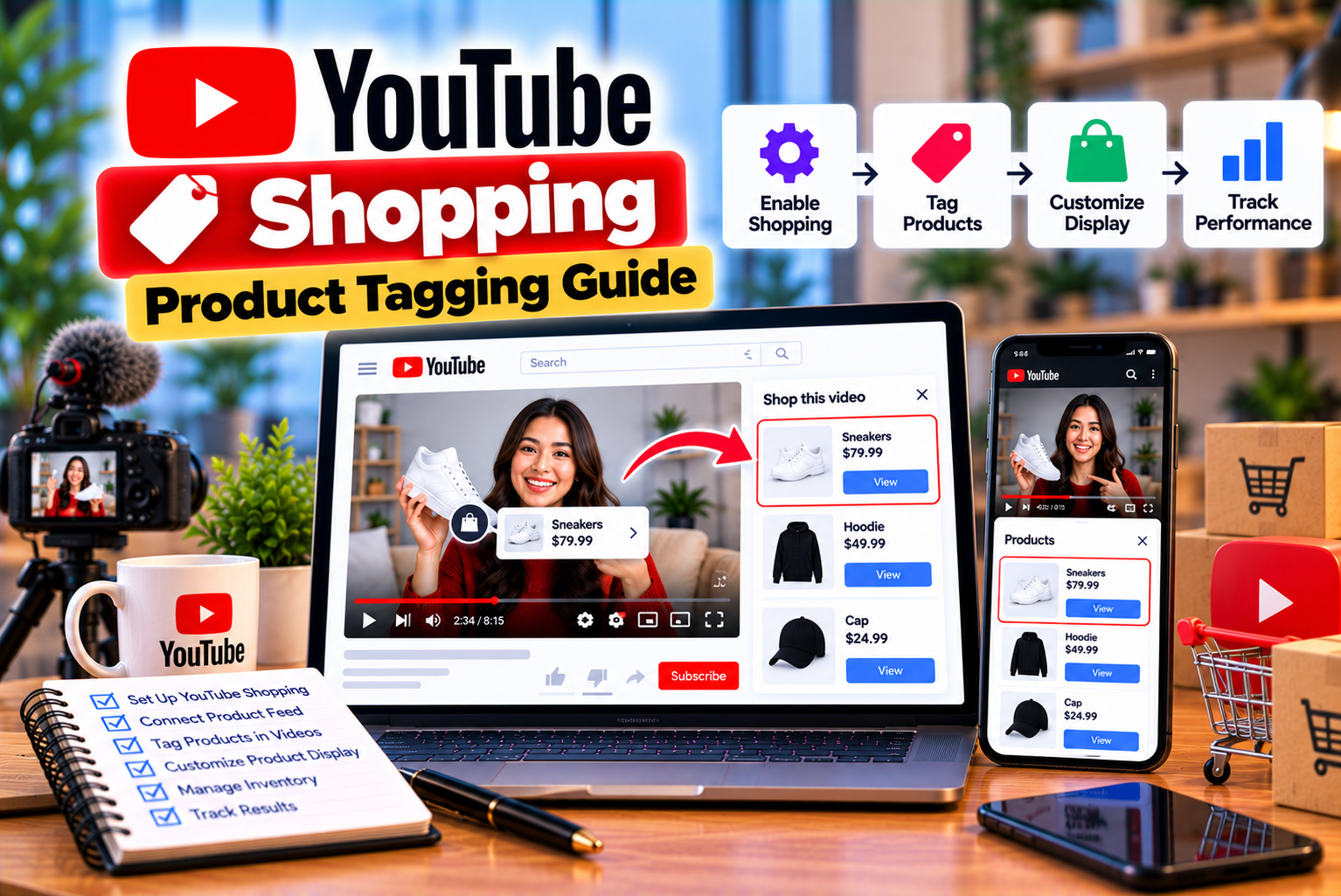
YouTube Shopping Product Tagging Guide
YouTube has become more than a video-sharing platform. It is also a place where viewers discover products, compare alternatives, watch demonstrations, and make purchasing decisions. For creators, this creates an opportunity to connect helpful content with relevant product recommendations through YouTube Shopping.
YouTube Shopping product tagging allows eligible creators to associate products with their content so viewers can discover the items being featured. Instead of searching independently for a product mentioned in a review or tutorial, viewers can use YouTube’s shopping features to explore tagged products and, where available, continue to a participating retailer.
For example, a technology creator reviewing a smartphone can tag the phone and compatible accessories. A beauty creator can tag the makeup products used in a tutorial. A cooking channel can tag a kitchen appliance demonstrated in a recipe video.
Product tagging can also support different content formats, including eligible long-form videos, YouTube Shorts, and live streams.
However, tagging products involves more than searching for an item and adding it to a video. Creators need to select the correct products, follow YouTube’s tagging guidelines, organize products effectively, and review tags after publication. They should also understand features such as timestamps, product stickers, bulk tagging, and automated product detection.
This guide explains how YouTube Shopping product tagging works, how to tag products in different content formats, how to manage existing tags, and how to improve the shopping experience for your audience.
What Is YouTube Shopping Product Tagging?
YouTube Shopping product tagging is a feature that allows eligible creators to connect products with their YouTube content.
When a creator tags products in eligible content, viewers may see a Shopping button, product list, or Shopping product sticker, depending on the format and available features.
Viewers can interact with the shopping interface to explore the tagged items. Depending on the product, retailer, location, and shopping arrangement, they may be able to visit a retailer’s website to review the product or complete a purchase.
Product tagging is available through different YouTube Shopping arrangements.
1. Tagging Products From Other Brands
Eligible creators may tag products from participating retailers through YouTube’s Shopping affiliate program.
When a viewer makes a qualifying purchase through an eligible shopping interaction, the creator may earn a commission under the applicable program terms.
For example, a creator reviewing a camera may tag the camera if it is available in the eligible product catalog.
This arrangement is useful for creators who recommend products without owning the brands or selling the products themselves.
2. Tagging Your Own Products
Eligible creators and businesses may also connect supported stores to YouTube and feature their own products.
For example, a creator who sells clothing, accessories, merchandise, or other products through a supported store may be able to tag those items in eligible content.
This is different from affiliate tagging because the creator is promoting products from their own connected store rather than earning an affiliate commission on another retailer’s product.
The available store integrations and eligibility requirements depend on YouTube’s current supported platforms and policies.
3. Product Tags Across Different Content Formats
YouTube Shopping supports product discovery across eligible content formats.
| Content Format | Shopping Feature | Main Purpose |
| Long-form videos | Shopping button and tagged-product list | Help viewers discover products featured in a detailed video |
| YouTube Shorts | Shopping product sticker and tagged-product list | Make products discoverable in short-form content |
| Live streams | Shopping panel and featured or pinned products | Let viewers explore products during a live demonstration |
| Existing eligible videos | Product tags added or managed in YouTube Studio | Extend shopping functionality to older content |
| Eligible creator stores | Connected-store product features | Showcase products sold by the creator or business |
The exact appearance of shopping features may differ by content format, viewer location, product availability, and channel eligibility.
Who Can Tag Products on YouTube?
Not every YouTube channel automatically has access to every Shopping feature.
Eligibility depends on whether you want to tag products from other brands or products from your own connected store.
Eligibility for Products From Other Brands
To tag products through YouTube’s Shopping affiliate program, creators must satisfy the applicable program requirements.
These may include:
- Being accepted into the YouTube Partner Program.
- Meeting the applicable subscriber threshold.
- Being based in an eligible country or region.
- Meeting channel and content requirements.
- Complying with YouTube’s monetization and Community Guidelines.
- Following the Shopping affiliate program’s terms and product-tagging policies.
YouTube announced an expansion of Shopping affiliate access in March 2026 to eligible YouTube Partner Program creators with at least 500 subscribers.
However, reaching 500 subscribers alone does not guarantee access. Creators must meet the other requirements, and the relevant features must be available to their channels.
Eligibility for Your Own Products
Creators who want to tag products from their own store must meet YouTube’s applicable Shopping requirements and connect a supported store.
The exact requirements depend on the store integration, product type, and Shopping feature being used.
How to Check Whether Product Tagging Is Available
Follow these steps:
- Open YouTube Studio.
- Select the channel you want to manage.
- Open the Earn section.
- Look for the Shopping tab or related Shopping options.
- Review the features and products available to your channel.
If you do not see the relevant options, check your channel eligibility, country availability, and current YouTube Shopping requirements.
Do not assume that access to one Shopping feature automatically provides access to every other Shopping feature.
How to Tag Products in a YouTube Video
Adding product tags to a long-form YouTube video is straightforward once the relevant Shopping tools are available.
You can tag products while uploading new content or add them to eligible existing videos through YouTube Studio.
Step 1: Open YouTube Studio
Sign in to the Google account associated with your eligible YouTube channel.
Open YouTube Studio and select the channel you want to manage.
If you operate multiple channels, make sure you are working on the correct one.
Step 2: Upload a New Video or Open an Existing Video
If you are uploading new content, begin the usual upload process.
If the video has already been published, open the Content section and select the relevant video by clicking its title or thumbnail.
Both workflows allow eligible creators to access product-tagging options.
Step 3: Open the Video Details
On the video’s Details page, locate the description area and look for the Products option.
The interface may change as YouTube updates Studio, but the product-tagging workflow is available through the video details for eligible creators.
Step 4: Search for the Product
Open the product picker and enter the product’s name in the search box.
Depending on the available interface, you may be able to search by product name or use additional product-search options.
For example, a creator reviewing a laptop might search for the exact model rather than entering a broad term such as “laptop.”
A precise search makes it easier to distinguish between similar products.
Step 5: Select the Correct Product
Review the search results carefully.
Check that the selected product matches the item featured in your content.
Pay attention to:
- Product name.
- Brand.
- Model.
- Product image.
- Variant or configuration, where relevant.
- Retailer information.
- Other available product details.
If your video reviews a specific laptop configuration, avoid tagging a substantially different model that has a different processor, display, or other important specifications.
Step 6: Add the Product Tag
Select the correct item and add it to your tagged-product list.
YouTube’s published guidance states that eligible creators can tag up to 60 products in supported videos and Shorts. However, the maximum is a technical limit, not a recommendation to fill every video with as many tags as possible.
Choose products that are genuinely relevant to the content.
Step 7: Arrange the Product List
If you have tagged multiple products, review their order.
Place the most important or central product first when that makes sense for your content.
For example, a smartphone review should generally prioritize the smartphone itself over a secondary accessory.
The ordering of products is particularly important for Shorts because the first product in the tagged list determines which product appears in the Shopping product sticker.
Step 8: Add Timestamps Where Available
For eligible long-form videos, you can add timestamps to tagged products.
A timestamp helps associate a product with the relevant section of the video.
For example, if you demonstrate a camera at the two-minute mark, a product timestamp can help viewers discover it at the appropriate moment.
The timestamping interface is available on a computer and supports eligible long-form videos of at least one minute.
Step 9: Save Your Changes
Review the product selections and save the changes.
If you are uploading a new video, continue the normal publishing process.
If you are editing an existing video, confirm that your changes have been saved before leaving the page.
Step 10: Review the Published Video
After publishing or updating the video, check how the shopping features appear where you can access them.
Confirm that the tagged products are correct and that the shopping interface is behaving as expected.
Remember that shopping features may not appear identically for every viewer or in every country.
How to Tag Products in YouTube Shorts
YouTube Shorts offers a different shopping experience from long-form videos.
Instead of relying only on a product list, eligible Shorts can display a Shopping product sticker that helps viewers discover the featured item.
Step 1: Open the YouTube Mobile App
To add a Shopping product sticker while creating a Short, open the YouTube mobile app and begin uploading your video.
Make sure you are signed in to the correct eligible channel.
Step 2: Open the Sticker Options
During the Shorts creation or upload process, open the sticker options and select Products, where the feature is available.
This opens the product picker.
Step 3: Search for the Product
Enter the name of the product you want to tag.
Choose the correct product from the available results.
Avoid selecting an item solely because its name is similar to the product shown in the video.
Step 4: Add the Product
Select the product and add it to the Short.
YouTube’s published guidance allows eligible creators to tag up to 60 products in supported content.
However, Shorts are brief, so a small number of carefully chosen products may create a clearer experience.
Step 5: Choose Which Product Appears on the Sticker
When multiple products are tagged in a Short, the first product in the tagged list appears as the Shopping product sticker.
If you want a different product to appear on the sticker, rearrange the product list.
For example, if your Short demonstrates a microphone and also mentions a stand and cable, the microphone should generally appear first if it is the main subject.
Step 6: Adjust the Sticker’s Size and Position
YouTube allows eligible creators to adjust the Shopping product sticker’s size and placement in the mobile app.
You can also edit the sticker for existing Shorts through the supported editing workflow.
Keep the sticker positioned so that it does not obscure the main subject, important text, or product demonstration.
Step 7: Publish and Review
Publish the Short and review its appearance.
Check that the sticker highlights the intended product and does not distract from the content.
Can You Add Product Tags to Existing Shorts?
Yes, eligible creators can manage tagged products in existing content through supported YouTube Studio and mobile-app workflows.
For an existing Short, you may be able to edit its tagged products and adjust the sticker’s placement or size through the YouTube mobile app.
The exact options depend on the content and current interface.
How to Tag Products in YouTube Live Streams
Live streams offer a different way to showcase products because creators can demonstrate items and answer questions in real time.
For example, a technology creator could compare two devices, a cooking creator could demonstrate an appliance, or a beauty creator could explain how a product is used.
Eligible creators can tag products before or after a live stream and may be able to manage featured products while streaming.
Step 1: Open YouTube Studio
Sign in to YouTube Studio and select Create, followed by Go Live.
Open the relevant stream in the Live Control Room.
Step 2: Open the Shopping Tab
Depending on the live-stream interface, look for the Shopping tab below the stream preview.
Open the product-tagging controls to manage the items you want to feature.
Step 3: Search for Products
Use the product search field to find the items you want to tag.
Select the appropriate products from the available catalog.
Make sure each item is relevant to the planned live stream.
Step 4: Save the Product List
Add the desired products and save your changes.
The order of the products in the picker determines the order in which they are presented to viewers.
Arrange the list so that the most important items appear first.
Step 5: Pin or Feature Products
Eligible creators may be able to pin products during a live stream.
Pinning helps highlight a particular item while the creator demonstrates it or answers questions.
YouTube also provides a desktop feature that can automatically pin multiple featured products one after another, rotating them at intervals. Availability depends on the current live-stream Shopping interface.
Step 6: Manage Products During the Stream
Where supported, you can add, remove, rearrange, pin, or unpin products while streaming.
However, changes may not immediately appear for every viewer who is already watching.
For the best experience, finalize the product order and remove unwanted items before the stream begins.
Step 7: Update Tags After the Stream
After the live stream ends, you can manage products in the replay through YouTube Studio.
Newly tagged products can appear during the replay, subject to the applicable feature and eligibility requirements.
This is useful if you forgot to tag an item during the broadcast or want to correct a product selection.
How to Add Product Timestamps to YouTube Videos
Product timestamps help viewers discover products at relevant moments in a video.
Instead of presenting every product without context, timestamps associate products with the parts of the video where they are discussed or demonstrated.
Why Are Product Timestamps Useful?
Imagine a 15-minute camera review covering:
- Camera design.
- Image quality.
- Autofocus.
- Battery life.
- Video recording.
- Accessories.
- Final recommendations.
A viewer interested in the camera body may want to explore the product early in the video. Someone interested in accessories may prefer to discover the relevant item when it is demonstrated later.
Timestamps can help connect product discovery with these moments.
Steps to Add Product Timestamps
- Sign in to YouTube Studio on a computer.
- Open the relevant video.
- Go to the Details page.
- Locate the Products section.
- Add the relevant product tags if they are not already present.
- Select Add timestamp beside the product you want to timestamp.
- Use the timestamping interface to select the relevant section.
- Adjust the timing as needed.
- Select Done.
- Save the video details.
YouTube’s published guidance states that product timestamps are available for eligible long-form videos that are at least one minute long.
Best Practices for Product Timestamps
Use the moment when the product becomes relevant. A timestamp should correspond to the part of the video where the item is discussed, demonstrated, or meaningfully featured.
Avoid inaccurate timing. A product should not appear to be associated with a segment where it is not discussed or shown.
Prioritize the main product. If a video includes multiple products, timestamp them according to the relevant sections.
Keep the viewer experience natural. Product discovery should complement the video rather than interrupt its flow.
Review overlapping timestamps. When multiple products are timestamped in one video, follow YouTube’s current timing restrictions to avoid conflicting product displays.
Can You Add Timestamps to Shorts?
The standard product-timestamp workflow described above is for eligible long-form videos.
Shorts use a different Shopping experience centered on product stickers and the tagged-product list.
Use the appropriate tagging features for each format rather than assuming every long-form product-tagging option is available in Shorts.
How to Tag Products Across Multiple YouTube Videos
If your channel has a large library of product reviews, tutorials, and buying guides, adding tags to each video individually can become time-consuming.
YouTube provides a bulk-tagging feature for eligible creators that can help manage products across multiple videos.
What Is Bulk Product Tagging?
Bulk tagging allows eligible creators to review product suggestions for videos and tag relevant items across selected content.
YouTube may identify product suggestions from video descriptions and provide tools to tag individual products or multiple products.
This can be useful for creators who have published many videos that mention products already available in the eligible Shopping catalog.
How to Use Bulk Tagging
- Sign in to YouTube Studio.
- Open the Earn section.
- Select the Shopping tab.
- Find the Tag Products area.
- Review the videos with suggested products.
- Open a suggested product to inspect the recommendation.
- Select TAG next to the relevant product, or use TAG ALL when every suggested item is appropriate.
- Select one or more videos to apply the relevant tags.
- Save or confirm the changes as requested by the interface.
- Review the tagged videos to ensure that the products are accurate.
The available options may vary depending on your channel and the current YouTube Studio interface.
When Should You Use Bulk Tagging?
Bulk tagging may be particularly useful for:
- Technology channels with large review libraries.
- Beauty channels with many product tutorials.
- Home and lifestyle channels with recurring product demonstrations.
- Gaming channels with equipment reviews.
- Educational channels that demonstrate tools or equipment.
Why Should You Review Suggestions Before Tagging?
A product mentioned in a description may not be the main product shown in the video.
For example, a laptop review may mention a different laptop as a comparison. Automatically tagging the mentioned product without reviewing the video could create an inaccurate shopping experience.
Always check whether the suggested product is meaningfully related to the content and whether the tag complies with YouTube’s guidelines.
What Is YouTube Shopping Auto-Tagging?
YouTube has introduced auto-tagging features for eligible creators in its Shopping affiliate program.
Auto-tagging is designed to identify products in content and add or suggest product tags automatically.
Depending on availability, it may also identify relevant timestamps and convert eligible product URLs from participating sellers in video descriptions into product tags.
This can reduce the amount of manual work required to manage product tags across a content library.
How Does Auto-Tagging Work?
YouTube’s published documentation describes an automated system that can analyze information such as:
- Video titles.
- Video descriptions.
- Captions.
- Other relevant content information.
- Product URLs from participating sellers, where supported.
The system uses this information to identify or suggest products from the eligible Shopping affiliate catalog.
YouTube may notify creators through YouTube Studio when auto-tags are applied to new videos.
The feature is being rolled out across markets, so availability can vary by region and channel.
How to Manage Auto-Tagged Products
To review your auto-tagged products:
- Sign in to YouTube Studio.
- Open the Earn section.
- Select the Shopping tab.
- Find the Latest auto-tagged videos section.
- Select View More, where available.
- Choose the video you want to review.
- Open the Products section.
- Add, remove, or edit product tags as necessary.
- Review the auto-tagging setting for the video or channel.
- Save your changes.
The exact menu labels and available controls may change as YouTube updates the feature.
Can Auto-Tagging Make Mistakes?
Yes. Automated product detection can select the wrong product or miss important context.
For example, a video might mention two similar smartphone models. An automated system may identify the wrong model based on the title, description, or captions.
YouTube’s documentation explicitly advises creators to review auto-tags because the system may occasionally make mistakes.
Best practice: Treat auto-tagging as a time-saving assistant, not a replacement for reviewing your product recommendations.
Can Auto-Tagging Replace Products That Are Out of Stock?
YouTube’s published guidance states that when original product tags expire or become unavailable, the system may replace them with relevant, in-stock products from participating affiliate merchants.
Creators are notified about these replacements and can review, edit, replace, or delete automatically added tags.
A replacement product may have a different commission rate from the original product.
This means creators should review replacement tags carefully instead of assuming that the original product and commission terms remain unchanged.
Are All Videos Eligible for Auto-Tagging?
No. YouTube’s documentation identifies certain exclusions, including videos with active product tags, videos subject to third-party claims, videos designated as Made for Kids, certain videos using music outside the Shopping Sounds library, and videos designated as paid partnerships.
Eligibility and exclusions may change as YouTube updates the feature, so review the latest official guidance.
YouTube Shopping Product Tagging Guidelines
Tagging a product is not simply a matter of finding a similar item in a catalog.
YouTube has guidelines intended to keep product recommendations relevant and useful.
1. Tag Products That Are Clearly Featured
The product should be identifiable in your content.
For example, a camera review should clearly feature the camera being discussed rather than briefly showing an indistinguishable object in the background.
YouTube’s guidance recommends that products be featured prominently and mentioned verbally or in text so viewers can identify them.
2. Make Sure the Product Is Relevant
The tagged product should be meaningfully related to the video’s subject.
A cooking tutorial can reasonably feature a kitchen appliance used in the recipe.
A video about smartphone photography can reasonably feature the phone or photography accessories used in the demonstration.
An unrelated product should not be tagged simply because it is available in the catalog.
3. Show Products Clearly
Viewers should be able to understand the product being recommended.
Avoid relying on brief, blurred, obscured, or confusing appearances.
For product demonstrations, use clear shots and explain the item’s relevant features.
4. Demonstrate Products Responsibly
Products should be used according to the manufacturer’s intended use.
For example, a creator demonstrating an electrical appliance should follow the relevant safety instructions rather than showing an unsafe use simply to make the video more dramatic.
5. Follow Paid-Promotion Disclosure Requirements
If your video includes paid product placement, sponsorships, or another commercial relationship, follow YouTube’s applicable disclosure requirements.
Affiliate tagging does not remove the need to disclose other relevant commercial relationships.
6. Keep Product Tags Accurate
The product selected in YouTube Studio should match the product featured in the content.
If a product has multiple versions, check the model, variant, and other identifying details.
7. Follow the Program’s Current Terms
Product-tagging eligibility and link-related rules depend on the Shopping arrangement.
Creators should review the applicable policies before tagging products or distributing affiliate links outside YouTube.
Best Practices for Effective YouTube Product Tagging
Product tagging can make shopping easier for viewers, but effective tagging begins with useful content.
The following practices can help improve the relevance and clarity of your recommendations.
1. Tag the Main Product First
If the video focuses on a single product, make that item the primary recommendation.
For example, a video reviewing a microphone should prioritize the microphone over secondary accessories.
This is particularly important for Shorts because the first product in the tagged list determines which item appears in the Shopping product sticker.
2. Match Tags to the Video’s Purpose
Different types of content require different tagging approaches.
| Content Type | Product-Tagging Approach |
| Product review | Tag the product being reviewed and relevant accessories |
| Buying guide | Tag the products discussed in the recommendations |
| Tutorial | Tag the tools or products demonstrated |
| Product comparison | Tag the products being compared |
| Setup guide | Tag the main equipment and relevant components |
| Cooking demonstration | Tag the appliances or tools featured |
| Fashion tutorial | Tag the relevant clothing or accessories |
| Live product demonstration | Tag products as they are introduced and discussed |
The purpose is to help viewers discover the items that matter to the content.
3. Add Timestamps to Relevant Long-Form Videos
When timestamps are available, use them to associate products with the appropriate sections.
This can make long videos easier to navigate and help viewers discover products at the moment they are discussed.
4. Use Clear Verbal or On-Screen Product Mentions
Do not rely entirely on a tag to explain the recommendation.
Mention the product’s name, show it clearly, and explain why it is relevant.
For example:
“This microphone is the one I’m using for the recording demonstration. I’ve tagged the model so you can review its specifications.”
The recommendation should be natural rather than repetitive.
5. Keep the Tagged Product List Relevant
Although YouTube supports up to 60 product tags in eligible videos and Shorts, you do not need to use the maximum.
A video focused on one smartphone may only need the phone and a few relevant accessories.
A long buying guide covering several products may reasonably require more tags.
Choose the number that makes sense for the content.
6. Review Product Availability
Products may become unavailable, offers may change, and commission rates may be updated.
Review important tags periodically, especially on videos that continue to receive substantial traffic.
If YouTube automatically replaces a product, confirm that the replacement is relevant to the original content.
7. Use Bulk Tagging Carefully
Bulk tagging can save time, but it should not remove the human review process.
Check the suggested products before applying tags across multiple videos.
This is especially important when product names are similar or the same item appears in different contexts.
8. Make Product Recommendations Useful
A viewer should understand why a product is worth exploring.
Explain the product’s features, intended use, limitations, and suitability for different needs.
For example, a budget laptop review could discuss performance, battery life, portability, and the type of user who may benefit from the device.
The more useful the content, the more naturally product tagging fits into the viewer experience.
9. Use Clear Calls to Action
Creators can remind viewers that relevant products are tagged.
Examples include:
- “I’ve tagged the product featured in this demonstration.”
- “Open the Shopping section to explore the products mentioned in this video.”
- “You can find the relevant product in the tagged list.”
- “Check the tagged items for additional details and availability.”
Keep the call to action clear and appropriate to the content.
10. Review Performance Data
YouTube provides Shopping analytics for eligible creators.
Use the available reports to understand which tagged products and videos attract shopping activity.
Look for patterns across several videos rather than making decisions based on one result.
How to Measure YouTube Shopping Product Tagging Performance
Adding product tags is only the beginning. To improve your strategy, you need to understand how viewers interact with the products.
YouTube provides Shopping-related analytics through its creator tools, although the exact metrics and reporting options depend on the feature and account.
Metrics Worth Reviewing
Product interactions: Review the available information about how viewers interact with tagged products.
Product performance: Identify products that appear to attract interest.
Qualifying purchases: Where reported, review purchases attributed to eligible shopping interactions.
Commission earnings: Track available affiliate commission information.
Video performance: Compare shopping activity with the content that features the products.
Product availability: Review whether items remain available and whether their terms have changed.
How to Identify Strong Product-Tagging Opportunities
Suppose you publish three types of content:
- Detailed product reviews.
- Short demonstrations.
- Comparison videos.
Review the available shopping reports to understand which format generates the most useful activity.
A detailed review might attract fewer views but reach viewers who are actively researching a purchase.
A Short might receive more views but generate less shopping activity per viewer.
Neither outcome automatically makes one format better. Compare results in the context of your goals and the effort required to produce each type of content.
Create a Simple Performance Tracking Table
You can maintain a spreadsheet to compare your content and tagged products.
| Video | Content Type | Main Product | Product Tags Reviewed? | Shopping Activity | Notes |
| Video A | Product review | Camera | Yes | Review available reports | Strong search interest |
| Video B | Short demonstration | Microphone | Yes | Review available reports | Clear product demonstration |
| Video C | Comparison | Two laptops | Yes | Review available reports | Multiple products featured |
| Video D | Tutorial | Kitchen appliance | Yes | Review available reports | Useful step-by-step content |
The examples are illustrative. Enter actual figures from your YouTube Studio reports where those metrics are available.
A simple tracking process can help you identify which products and content formats deserve further attention.
Common YouTube Shopping Product Tagging Problems and Solutions
Creators may occasionally encounter problems when searching for products, adding tags, or reviewing their shopping features.
The following troubleshooting steps can help.
Problem 1: The Products Option Is Missing
Possible causes:
- Your channel is not eligible for the relevant Shopping feature.
- You are signed in to the wrong channel.
- The feature is unavailable in your country or region.
- The video or channel does not meet the applicable requirements.
- You are using a different workflow from the one supported for that content type.
What to do:
- Confirm that you selected the correct channel.
- Open the Earn section in YouTube Studio.
- Review the available Shopping features.
- Check the current eligibility requirements.
- Confirm that you are following the correct workflow for videos, Shorts, or live streams.
Problem 2: You Cannot Find a Product in the Catalog
Possible causes:
- The retailer is not participating in the relevant Shopping arrangement.
- The product is not included in the eligible catalog.
- The product name or model is incorrect.
- The product is unavailable or no longer eligible.
- Regional availability differs.
What to do:
- Search using the exact product name.
- Try the model number or brand name.
- Check for similar product listings.
- Review the available retailer filters, if supported.
- Do not tag an unrelated product simply because the correct one is missing.
If the item is not available in the eligible catalog, you may need to choose a different product or review the platform’s available alternatives.
Problem 3: The Wrong Product Was Tagged
Possible causes:
- A similar model was selected.
- A product suggestion was accepted without review.
- An auto-tagging system identified the wrong item.
- The product was replaced after becoming unavailable.
What to do:
- Open the video in YouTube Studio.
- Go to the Products section.
- Review the tagged items.
- Remove or replace the incorrect product.
- Save the changes.
If the incorrect tag was generated automatically, review the auto-tagging settings and other suggested tags.
Problem 4: A Product Tag Is Not Visible to Some Viewers
Possible causes:
- Shopping features are not available in the viewer’s country.
- The product is unavailable in that region.
- The viewer is using a content format or interface with different Shopping behavior.
- The product or retailer is no longer eligible.
What to do:
Review YouTube’s current information about viewer availability and regional Shopping restrictions.
Do not assume that a tag visible to you will appear identically for every viewer.
Problem 5: A Product Becomes Unavailable
Possible causes:
- The retailer has run out of stock.
- The product listing has changed.
- The offer has expired.
- The product is no longer eligible for the relevant Shopping program.
What to do:
- Open the relevant video’s product list.
- Check whether the original product remains available.
- Review any replacement suggested by YouTube.
- Confirm that the replacement is relevant to the video.
- Remove or update the tag if necessary.
If an automatic replacement is applied, review the commission information because the replacement may have different terms.
Problem 6: Auto-Tagging Adds Irrelevant Products
Possible causes:
- The system interpreted a product mention incorrectly.
- The title or description contains multiple product names.
- The video discusses alternatives rather than recommending every mentioned item.
What to do:
Review the auto-tagged products in YouTube Studio and remove inaccurate suggestions.
If necessary, change the relevant auto-tagging setting for the video or channel.
Problem 7: Product Timestamps Are Missing
Possible causes:
- The video does not meet the minimum duration requirement.
- You are using the mobile app instead of the supported computer workflow.
- The product has not been tagged.
- The feature is unavailable for the content or account.
What to do:
Check that the video is an eligible long-form video of at least one minute, open its details on a computer, and review the product-tagging options.
Problem 8: Changes Do Not Appear Immediately
Possible causes:
- The changes were not saved.
- The interface has not refreshed.
- The feature is updating.
- Existing viewers are seeing an earlier state of a live stream.
What to do:
Confirm that your changes were saved, reopen the video details, and check the product list again.
For live streams, YouTube notes that some product changes may not immediately appear for existing viewers. Where possible, finalize product arrangements before going live.
Frequently Asked Questions About YouTube Shopping Product Tagging
1. What is YouTube Shopping product tagging?
YouTube Shopping product tagging allows eligible creators to associate products with supported YouTube videos, Shorts, and live streams so viewers can discover the items featured in the content.
2. How do I tag products in YouTube videos?
Open YouTube Studio, select the relevant video, go to its Details page, and locate the Products option. Search for the product, select the correct listing, add it to the tagged-product list, and save your changes.
3. Can I tag products in YouTube Shorts?
Yes, eligible creators can tag products in supported Shorts. The first product in the tagged list appears as the Shopping product sticker. You can rearrange the list and adjust the sticker’s size and placement through supported mobile-app tools.
4. How many products can I tag in a YouTube video?
YouTube’s published guidance allows eligible creators to tag up to 60 products in supported videos and Shorts. The appropriate number depends on the content; you do not need to use the maximum.
5. Can I tag products in existing YouTube videos?
Yes, eligible creators can add, remove, and rearrange product tags in existing content through YouTube Studio.
6. Can I tag products during a live stream?
Eligible creators can manage products in supported live-stream Shopping tools. They may also be able to pin products during the stream and update tags for the replay afterward.
7. What are YouTube Shopping product timestamps?
Product timestamps associate tagged products with relevant sections of eligible long-form videos. They help viewers discover products when they are being discussed or demonstrated.
8. Can I add product timestamps to Shorts?
The standard timestamping workflow is for eligible long-form videos of at least one minute. Shorts use a different Shopping experience centered on product stickers and tagged-product lists.
9. What is YouTube Shopping auto-tagging?
Auto-tagging is a feature that can identify or suggest products in eligible creator content and add product tags automatically. Depending on availability, it can also create timestamps and convert eligible product URLs in descriptions into tags.
10. Can YouTube auto-tagging make mistakes?
Yes. Automated systems may identify the wrong product or miss context. Creators should review auto-tags in YouTube Studio and correct any inaccurate recommendations.
11. Can I remove an incorrect product tag?
Yes. Open the relevant video in YouTube Studio, go to the Products section, remove or replace the incorrect item, and save your changes.
12. Why can’t I find a product in YouTube Shopping?
The item may not be included in the eligible catalog, the retailer may not participate in the relevant program, or the product may be unavailable in your region. Try searching by the exact model or brand name.
13. Why is the Products option missing in YouTube Studio?
Your channel may not qualify for the relevant Shopping feature, the feature may not be available in your country, or you may be signed in to the wrong channel. Check your eligibility and the Shopping options available in the Earn section.
14. Can I tag products from Amazon?
Only if the relevant Amazon products are available through YouTube Shopping for your channel and region. Retailer participation and product availability can vary by market, so check your current catalog.
15. Can I tag my own products?
Eligible creators and businesses can connect supported stores to YouTube and tag products from their own stores, subject to the applicable requirements.
16. Do I earn money whenever someone clicks a product tag?
No. Clicking a tag does not automatically generate a commission. Earnings depend on qualifying purchases, attribution rules, and the terms of the applicable Shopping program.
17. Do product tags guarantee more sales?
No. Product tags make items easier to discover, but sales depend on factors such as audience interest, product relevance, content quality, price, and purchase intent.
18. Should I tag every product mentioned in a video?
No. Tag products that are clearly featured and meaningfully related to the content. Avoid tagging unrelated products or every item mentioned in passing.
19. Can I use bulk tagging on YouTube?
Eligible creators may use the bulk-tagging tools in YouTube Studio to review suggested products and tag relevant items across selected videos. Review the suggestions before applying them.
20. Can YouTube automatically replace an unavailable product?
YouTube’s published auto-tagging guidance states that it may replace expired or unavailable tags with relevant, in-stock products from participating affiliate merchants. Review any replacement because the product and commission terms may differ.
21. Why does a product tag appear for some viewers but not others?
Shopping features and product availability vary by country and region. Some viewers may not have access to the same products or shopping interface.
22. Can I rearrange product tags?
Yes. Eligible creators can rearrange tagged products through supported YouTube Studio workflows. In Shorts, rearranging the list also determines which product appears on the Shopping product sticker.
23. Are product tags available on every YouTube channel?
No. Access depends on eligibility, channel requirements, country availability, and the relevant Shopping feature.
24. Do I need to disclose affiliate relationships when tagging products?
You must follow the applicable YouTube policies and advertising disclosure requirements. If your content includes sponsorships, paid product placement, or other commercial relationships, use the appropriate disclosures. Affiliate tagging does not remove other disclosure obligations.
25. How can I improve YouTube Shopping product-tagging performance?
Choose relevant products, demonstrate them clearly, prioritize the main item, add timestamps to eligible long-form videos, review auto-tags, use clear calls to action, and analyze the available Shopping reports.
Conclusion
YouTube Shopping product tagging helps eligible creators connect their content with relevant products and make it easier for viewers to discover the items being discussed or demonstrated.
The process includes selecting accurate products, organizing tags, adding timestamps where supported, managing Shopping stickers in Shorts, and reviewing product lists in existing videos and live streams.
Features such as bulk tagging and auto-tagging can reduce repetitive work, but creators should still review their recommendations for accuracy and relevance.
The most effective approach is to tag products that genuinely belong in the content, explain their value clearly, and use YouTube’s available Shopping analytics to refine your strategy over time.
Leave a Reply