


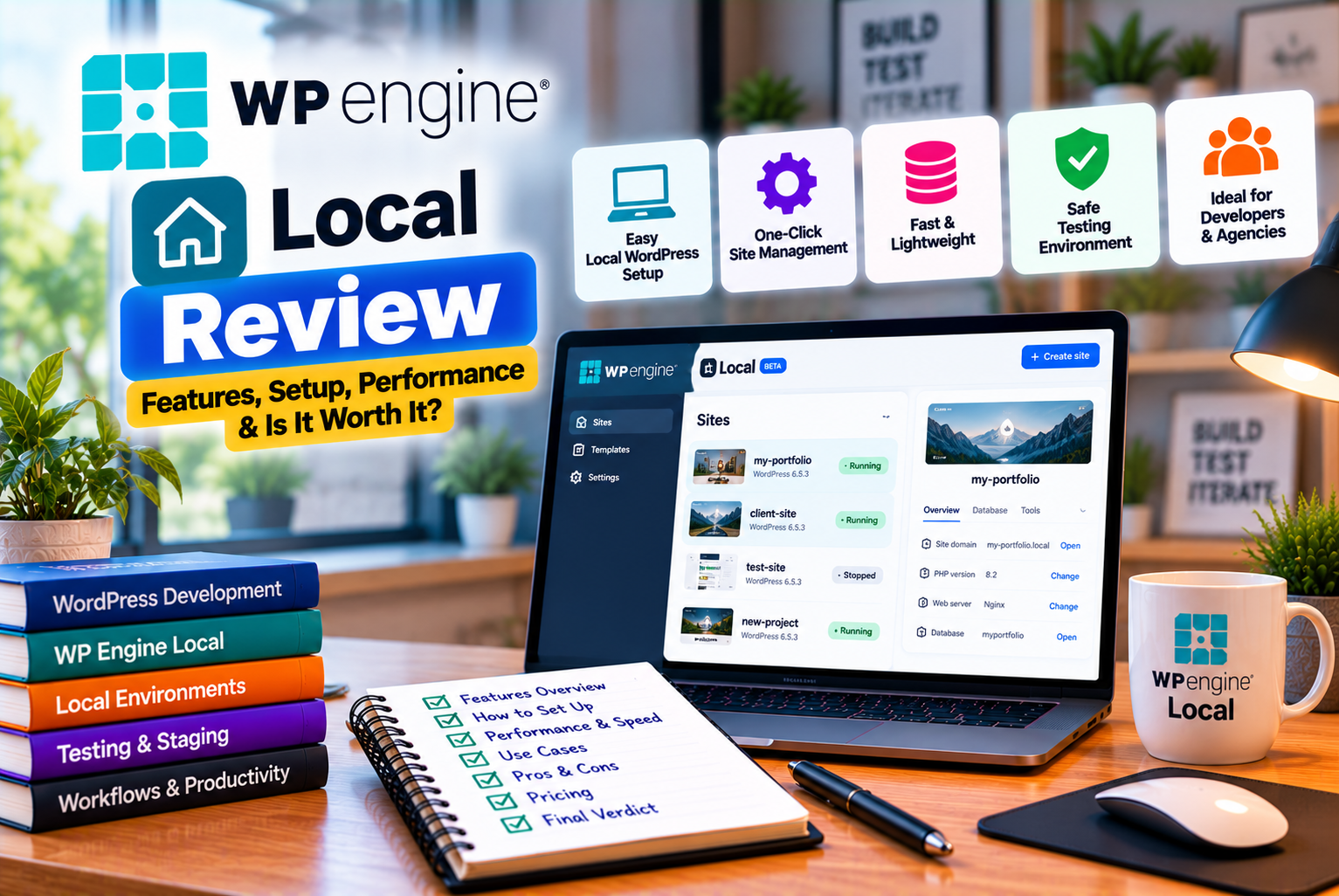
WP Engine Local Review
Building and maintaining a WordPress website involves more than publishing pages and installing plugins. Developers frequently need to test themes, modify layouts, troubleshoot errors, experiment with new features, and check whether updates affect existing functionality.
Making these changes directly on a live website can be risky. A small mistake in a plugin update, custom CSS rule, PHP file, or database configuration could disrupt the user experience or make important pages unavailable.
This is where a local WordPress development environment becomes useful.
Local by WP Engine, commonly called Local or LocalWP, is a desktop application that allows you to create, run, and test WordPress websites directly on your computer. Instead of requiring a separate hosting account for every development project, it provides a local environment for building and experimenting with WordPress websites before deploying them to a live server.
Local is free to download and use. It includes features such as one-click WordPress installation, local SSL, site cloning, import and export, debugging tools, and integration with WP Engine and Flywheel hosting through Local Connect.
For example, if you manage a WordPress website built with Elementor, you can create a local copy, experiment with a new page design, test plugin updates, and check custom CSS without immediately changing the public website.
However, Local is not a complete replacement for live hosting. It runs on your computer, so you still need a hosting provider to make your website publicly accessible.
In this detailed WP Engine Local review, we’ll explore its features, ease of use, development workflow, deployment options, limitations, and alternatives. We’ll also explain who should use Local and whether it is a worthwhile addition to your WordPress toolkit.
What Is WP Engine Local?
Local is a desktop application for developing WordPress websites on a local computer.
It provides the software environment needed to run WordPress without requiring you to configure every component manually. Depending on your setup, that environment includes PHP, a database, and a web server such as NGINX or Apache.
You can create a new WordPress installation, import an existing website, edit files, access the WordPress dashboard, and test changes using your local browser.
Local supports Windows, macOS, and Linux. Its integration with WP Engine and Flywheel makes it particularly convenient for developers who use those hosting providers, although you do not need a WP Engine hosting subscription simply to use Local.
How Does Local Work?
Local creates a self-contained development environment for each WordPress site.
Once a site is created, you can start it from the Local application and access its frontend or WordPress administration dashboard through your browser.
Your development site runs on your computer rather than on a public hosting server.
A typical workflow looks like this:
- Install Local on your computer.
- Create a new WordPress site or import an existing one.
- Start the local environment.
- Open the website in your browser.
- Edit pages, themes, plugins, or code.
- Test changes and troubleshoot problems.
- Export the website or deploy it to a supported hosting environment.
This workflow helps separate development from production.
For instance, if you want to change your website’s header, test a new plugin, or experiment with a custom PHP function, you can work on the local copy first.
After testing, you can transfer the changes to a staging or production environment using an appropriate deployment method.
Is Local the Same as WP Engine Hosting?
No. This distinction is important.
Local is development software, while WP Engine is a managed WordPress hosting provider.
Local allows you to create and test WordPress websites on your computer. WP Engine hosting provides the infrastructure needed to run a website that visitors can access online.
Although Local integrates with WP Engine, you can use the desktop application without purchasing WP Engine hosting.
You can also export a compatible WordPress site and migrate it to another hosting provider, subject to that provider’s requirements.
This means Local can be useful even if your current website is hosted with SiteGround, Bluehost, Hostinger, or another WordPress hosting company.
WP Engine Local Review: Key Features
Local offers a range of tools intended to simplify WordPress development.
Let’s examine the features that matter most when building, testing, and maintaining websites.
1. One-Click WordPress Installation
One of Local’s most useful features is its simplified WordPress installation process.
Normally, setting up WordPress manually can involve preparing a database, configuring server software, downloading WordPress files, creating configuration settings, and completing the installation through a browser.
Local automates much of this setup.
You can create a new site, enter its name, select an environment configuration, and allow Local to prepare the installation.
Once the setup is complete, you can access the website and its WordPress dashboard.
This is useful when you need to:
- Build a new website from scratch.
- Test a WordPress theme.
- Develop a custom plugin.
- Experiment with a page builder.
- Create a demonstration website.
- Practice WordPress development.
- Build reusable website layouts.
For agencies, the ability to create new development sites quickly can reduce repetitive setup work.
For beginners, it provides a simpler way to learn WordPress without immediately purchasing hosting.
2. Local WordPress Development Environment
Local creates a development environment that runs on your computer.
This allows you to work on WordPress without requiring every change to be uploaded to a remote server.
For example, imagine you are developing a business website with several service pages, a blog, contact forms, and a custom header.
Instead of experimenting directly on the public website, you can build or modify the site locally and test the changes before deployment.
Local provides access to the site’s files and database, allowing developers to work with themes, plugins, and other WordPress components.
This is particularly useful for:
- Custom theme development.
- Plugin development.
- Website redesigns.
- Troubleshooting PHP errors.
- Testing WordPress updates.
- Experimenting with database changes.
- Learning how WordPress works.
One important limitation is that local performance does not necessarily represent live-hosting performance. Your computer’s resources, local configuration, network conditions, and production server setup can all affect the results.
Local is best used for development and functional testing, with final performance checks performed in a suitable staging or production environment.
3. Support for PHP Versions and Web Servers
WordPress relies on PHP and a database, so developers often need to check whether a website works correctly with different software configurations.
Local allows developers to switch between supported PHP versions and web server options, including NGINX and Apache. The exact options available depend on the Local version and environment configuration.
This can help you investigate compatibility issues before changing the configuration of a live website.
For example, suppose you manage an older WordPress website and want to test whether its theme and plugins work with a newer PHP version.
You can create a local copy, change the PHP configuration, and test the website.
If an error appears, you can investigate it before applying the change to production.
This is especially useful for developers responsible for older websites, custom plugins, and projects with complex dependencies.
However, local testing cannot guarantee that the same configuration will behave identically on every hosting provider. Server modules, database versions, PHP extensions, and hosting-level settings can differ.
4. Local SSL and HTTPS Testing
Local can create self-signed SSL certificates for local development sites.
This allows you to test a WordPress website over HTTPS instead of relying exclusively on an unencrypted local URL. Local also provides options for trusting its local certificates on supported systems.
HTTPS testing is useful when a website includes:
- Secure-cookie behavior.
- Login forms.
- Redirects.
- HTTPS-dependent integrations.
- JavaScript features that require a secure context.
- Mixed-content issues.
- SSL-related configuration.
For example, if you are developing a website that redirects HTTP requests to HTTPS, testing the behavior locally can help you identify problems before deployment.
Keep in mind that a local self-signed certificate is not the same as a publicly trusted SSL certificate issued for your live domain.
You should still configure and verify the appropriate certificate on your production hosting provider.
5. Site Cloning
Local allows you to clone an existing local WordPress site.
A clone can include the site’s files, database, configuration, and other site-related information. The site’s URL is updated as part of the cloning process.
This is useful when you want to experiment with different versions of a website.
For example, you might clone a business website before redesigning its homepage.
You could keep one version as the original and use the second version to test new layouts, plugins, and functionality.
Cloning can also help agencies create variations of a starter website for different clients.
However, a clone is not automatically an independent, production-ready website. You may need to change branding, domain settings, credentials, integrations, and other configuration values before using it elsewhere.
6. Import and Export WordPress Sites
Local supports importing and exporting WordPress sites.
This makes it easier to move a development project between computers, create backups, or transfer a compatible website to another environment.
The export process can include the site files and database, along with relevant configuration information.
For example, you could export a completed website, store the archive as a backup, and import it later if you need to recover your development environment.
This is also helpful when sharing a project with another developer.
However, exporting a site is not a substitute for testing a migration. A destination host may have different PHP settings, database configurations, file permissions, or server restrictions.
After importing a site into another environment, verify that its URLs, forms, plugins, media files, and important functions work correctly.
7. Local Connect for WP Engine and Flywheel
Local Connect is one of the application’s most valuable features for users who host their websites with WP Engine or Flywheel.
It allows you to connect Local to a supported hosting account and move websites between your computer and remote environments.
Depending on the workflow, you can pull a remote website into Local for development or push local changes to a remote development, staging, or production environment.
Local Connect can also simplify URL updates and cache clearing during supported transfers.
This can reduce the manual work involved in exporting databases, transferring files, configuring SFTP, and updating site URLs.
For example, a developer working on a WP Engine-hosted website could:
- Connect Local to their WP Engine account.
- Select the relevant website and environment.
- Pull a copy of the site to their computer.
- Make changes locally.
- Test the modified website.
- Push the changes to a suitable remote environment.
The workflow can be particularly useful for agencies that maintain multiple WordPress websites.
Important limitation: Local Connect is designed for supported WP Engine and Flywheel connections. It is not a universal one-click deployment system for every hosting provider. For other hosts, you may need a migration plugin, an export/import workflow, or a separate deployment tool.
8. MagicSync and Selective File Deployment
Local includes MagicSync, a deployment feature designed to help users synchronize changes more efficiently.
Instead of treating every deployment as a complete site replacement, MagicSync can identify files that need to be synchronized and give you control over which changes to transfer.
This can be useful when working on themes, plugins, and other development files.
For example, if you modify a custom theme locally, you may want to deploy the theme changes without replacing the entire live database.
Selective deployment can help reduce the risk of overwriting unrelated production content.
However, developers must still understand which files and database records their changes depend on. A deployment that transfers only theme files may not include database settings or content changes required for the feature to work correctly.
Always review the proposed changes before deployment, especially on websites that process customer orders or regularly receive new content.
9. Debugging Tools and Log Access
Debugging is a central part of WordPress development.
When a plugin causes an error or a custom function behaves unexpectedly, developers need information about what happened.
Local provides access to logs associated with components such as PHP, NGINX, Apache, and MySQL. It also supports development tools such as WP-CLI and Xdebug, depending on the available configuration.
These capabilities can help you investigate:
- PHP errors.
- Database problems.
- Plugin conflicts.
- Theme-related issues.
- Incorrect server configuration.
- Unexpected behavior after updates.
- Problems caused by custom code.
For example, suppose a custom PHP function causes a critical error when a WordPress page loads.
Instead of troubleshooting on the live website, you can reproduce the problem locally, examine the relevant logs, and investigate the code.
This can make debugging safer and more efficient.
However, not every problem can be reproduced locally. Issues involving external APIs, production-only configuration, live traffic, or hosting-specific services may require additional testing on a remote environment.
10. Mail Testing With Mailpit
WordPress websites frequently send emails.
These can include contact form notifications, password reset messages, order confirmations, account notifications, and other transactional emails.
Testing email functionality directly on a live website can be inconvenient, especially during development.
Local includes Mailpit to intercept outgoing email messages from local PHP sendmail, allowing developers to inspect them without relying on a real delivery workflow.
This is useful when developing:
- Contact forms.
- Registration systems.
- Password reset flows.
- WooCommerce notifications.
- Membership websites.
- Custom transactional email features.
For example, if you are developing a contact form, you can submit a test entry and inspect the generated email in the local mail interface.
This helps you verify the message content and behavior without repeatedly sending test emails to real recipients.
Mail testing in Local does not prove that a production email will reach the inbox. Live email delivery also depends on the configured SMTP service, sender authentication, domain reputation, and other factors.
11. Site Blueprints
Local supports site blueprints that allow you to save a reusable site setup.
A blueprint can include files, database content, configuration, and Local settings. You can then use it as a starting point for additional projects.
This is particularly helpful for agencies that build similar websites repeatedly.
For example, an agency could create a starter WordPress site containing:
- A preferred theme.
- Standard plugins.
- Common page layouts.
- Reusable design settings.
- Basic configuration.
- A sample homepage.
- A set of development utilities.
Instead of repeating the same setup for every project, the team can create a new site from the saved blueprint and customize it for the client.
However, reusable blueprints should be maintained carefully. Outdated plugins, insecure settings, unnecessary user accounts, and old content can be copied into every new project if the blueprint is not reviewed regularly.
12. Live Links for Sharing Local Sites
Local provides Live Links and related tunnelling functionality that can allow others to access a development website running on your computer.
This can be useful when a client or colleague needs to review a design before it is deployed to a public hosting environment.
For example, you might build a landing page locally and share a temporary or persistent review link with a client.
The client can inspect the page and provide feedback without requiring you to deploy the work to production.
Live Links can also help with testing certain integrations and reviewing a website on another device.
However, a development site should not be treated as a secure production website. Use appropriate access controls, avoid exposing sensitive data, and check the current limits of the Live Links feature before relying on it for collaborative workflows.
WP Engine Local Pricing: Is It Free?
One of Local’s biggest advantages is its price.
Local is available as a free desktop application. Its core WordPress development capabilities do not require you to purchase a WP Engine hosting plan. Local Connect is also available with the free version of Local.
This makes Local accessible to beginners, freelancers, agencies, and developers who want to create WordPress websites without paying for a separate development hosting account.
What Can You Do for Free?
Local’s available features include:
- Creating local WordPress sites.
- Installing WordPress.
- Running development sites on your computer.
- Working with supported PHP and web server configurations.
- Creating local SSL certificates.
- Cloning sites.
- Importing and exporting sites.
- Accessing development logs.
- Using WP-CLI.
- Testing outgoing emails locally.
- Connecting to supported WP Engine and Flywheel hosting accounts.
Feature availability can change as the software evolves, so consult the official feature page for the latest details.
Do You Need to Pay for WP Engine Hosting?
No. You can use Local independently.
However, if you want to publish a website online, you still need a suitable hosting environment.
You can use WP Engine or Flywheel with Local Connect, or transfer your website to another hosting provider using an appropriate migration or deployment method.
The cost of live hosting is separate from the cost of Local.
For example, a developer could build a WordPress website locally for free and later transfer it to a client’s existing hosting account.
This can reduce the need to pay for a separate development hosting plan simply to experiment with a design or test a plugin.
Is Local Good Value for Money?
For most WordPress developers, Local offers strong value because it provides useful development tools without requiring a paid subscription.
The main investment is your computer’s resources and the time needed to learn the workflow.
If you already own a suitable computer, Local can provide a convenient development environment without adding a recurring software subscription.
Ease of Use: Is Local Suitable for Beginners?
Local is designed to simplify the process of creating and managing local WordPress sites.
Its graphical interface removes much of the need to configure server software manually, making it accessible to users who are not experienced server administrators.
However, beginners should distinguish between creating a WordPress site and understanding how to develop, troubleshoot, and deploy one.
What Beginners Can Do Easily
A beginner can use Local to:
- Install the application.
- Create a WordPress site.
- Start the local environment.
- Open the site in a browser.
- Access the WordPress dashboard.
- Install themes and plugins.
- Experiment with pages and layouts.
- Export the website when ready.
This can be a good way to learn WordPress without making immediate changes to a live website.
For example, someone learning Elementor can create a local site and experiment with containers, templates, responsive layouts, and plugins before building a client’s live website.
Where Beginners May Need Help
Some tasks require additional knowledge.
These include:
- Resolving plugin conflicts.
- Understanding PHP errors.
- Editing configuration files.
- Managing database changes.
- Migrating a large website.
- Troubleshooting URL problems.
- Deploying changes safely.
- Matching the local environment to production.
Local makes development easier, but it does not eliminate the technical complexity of WordPress itself.
Ease-of-Use Verdict
Local is a good choice for beginners who want to learn WordPress or build websites in a safe environment.
Its graphical interface simplifies setup, while its debugging and deployment features provide room for more advanced workflows as users gain experience.
WP Engine Local Performance: How Well Does It Work?
Local’s performance depends largely on the computer running the application and the configuration of the development site.
Unlike hosted WordPress platforms, Local does not depend on a remote server for its primary site execution. WordPress runs within the local environment on your machine.
This can make development convenient because you can work without relying on a continuous internet connection for ordinary local editing and testing.
However, the speed of the site depends on several factors:
- Available RAM.
- CPU performance.
- Storage speed.
- The number of local sites running simultaneously.
- Database size.
- WordPress configuration.
- Theme and plugin complexity.
- Background processes on the computer.
A lightweight WordPress site may run smoothly on a modest computer, while a large WooCommerce site with many plugins and an extensive database may require more resources.
Local’s installation documentation recommends at least 4 GB of RAM and 1.5 GB of disk space as general minimum requirements, with additional resources needed for larger projects and more complex environments.
Can Local Make WordPress Development Faster?
Local can reduce the time spent on repetitive development tasks.
For example, you may not need to upload every small CSS change to a remote server before reviewing it. You can make a change, refresh the browser, and inspect the result locally.
Similarly, testing a plugin update locally can be more convenient than repeatedly creating remote staging environments.
This can improve the overall development workflow, even though it does not guarantee that the live website will load faster.
Does Local Replace Performance Testing on Live Hosting?
No.
Local performance is not a reliable substitute for testing the website under realistic production conditions.
A live website may be affected by:
- Hosting resource limits.
- Server-level caching.
- CDN configuration.
- Network latency.
- Real visitor traffic.
- External API response times.
- Database performance.
- Production-specific security settings.
Use Local for development and initial testing, then evaluate important performance changes on staging or production using tools appropriate to your website.
How to Use Local for WordPress Development
If you are new to Local, the following workflow provides a practical starting point.
Step 1: Download and Install Local
Visit the official Local website and download the version compatible with your operating system.
Local supports Windows, macOS, and Linux. Check the current system requirements before installation, particularly if you are using an older computer or operating system.
Install the application and launch it.
Step 2: Create a New WordPress Site
Open Local and select the option to create a new site.
Enter a site name and follow the setup instructions.
Depending on the version and configuration, you may be able to use a preferred environment or customize the software components.
Local will prepare the WordPress installation.
Step 3: Start the Site
Once installation is complete, start the local environment.
You can then open the website in your browser and access the WordPress dashboard.
Use the dashboard to configure the site, install themes, add plugins, and create pages.
Step 4: Build or Import Your Website
There are two common approaches.
Option A: Build from scratch
Create a new website and develop the design, content, and functionality locally.
This approach is useful for new projects, theme development, and learning WordPress.
Option B: Import an existing website
If you want to work on an existing website, import a backup or transfer a copy from a supported hosting environment.
Before importing a live site, make sure you have permission to access its files and database. If the website contains sensitive customer information, consider using sanitized data where practical.
Step 5: Make Changes and Test Them
Once the site is running, you can experiment with:
- Page layouts.
- WordPress themes.
- Elementor designs.
- Plugins.
- Custom CSS.
- PHP code.
- Navigation menus.
- Forms.
- Website settings.
- Database-dependent functionality.
Test the website carefully after making changes.
For example, if you modify a contact form, check that its fields display correctly, validation works, and the expected notification behavior occurs in your local testing environment.
Step 6: Review Errors and Logs
If the site behaves unexpectedly, inspect the available logs and debugging tools.
Look for PHP errors, database problems, plugin conflicts, or other messages that may explain the issue.
If necessary, disable recently installed plugins or revert changes to isolate the cause.
Step 7: Back Up Your Local Site
Local sites are stored on your computer, so they are affected by the same hardware risks as other local files.
Use Local’s export functionality to create a backup archive. Store important backups in a separate location, such as an external drive or an appropriately secured cloud-storage account.
WP Engine’s documentation specifically recommends treating Local site backups like other computer files and exporting the site when you need a complete backup.
Step 8: Deploy to a Live Environment
When development is complete, transfer the site or the relevant changes to a suitable hosting environment.
If you use WP Engine or Flywheel, Local Connect can simplify supported push and pull workflows.
For other hosting providers, use an appropriate migration plugin, export/import method, or deployment workflow.
Before publishing, test the destination site carefully.
Local Connect Review: Is the WP Engine Integration Useful?
Local Connect is especially useful for developers who already use WP Engine or Flywheel.
Its main advantage is that it connects local development with remote hosting environments through the Local application.
Without an integration, a developer may need to export a database, transfer files, configure access credentials, update URLs, and perform additional manual steps.
Local Connect can simplify supported workflows by allowing users to select a remote environment and push or pull a site through the interface.
Advantages of Local Connect
- Less manual migration work
The integration can reduce the number of manual steps involved in transferring a compatible site.
- Easier development from an existing website
Developers can pull a remote site into Local and use it as a starting point for testing.
- More convenient deployment
Local Connect supports pushing local changes to supported remote environments.
- Useful for agencies
Agencies can use the integration as part of a repeatable development and deployment process.
- No separate Local Connect subscription
Local Connect is available in the free version of Local. You still need an appropriate hosting account for any remote hosting services you use.
Limitations of Local Connect
The integration has some important limitations.
- It is designed for WP Engine and Flywheel rather than every hosting provider.
- It requires the appropriate account connection and API access.
- Some site configurations may need manual intervention.
- Database changes require careful handling.
- Local Connect does not replace backups or deployment reviews.
- WP Engine’s documentation notes that Local Connect does not support WordPress multisite configurations.
Is Local Connect Worth Using?
If you develop websites hosted on WP Engine or Flywheel, Local Connect can make the workflow more convenient.
If you host websites elsewhere, Local can still be useful for development, but you may need a different deployment method.
The value of Local Connect depends on your hosting provider. The value of Local itself does not.
Pros and Cons of WP Engine Local
No development tool is perfect for every workflow. Here are the main advantages and limitations to consider.
Pros of Local
- Free to use
Local provides a local WordPress development environment without a mandatory software subscription.
- Simplified WordPress setup
You can create a WordPress site without manually configuring every server component.
- Works across major desktop platforms
Local supports Windows, macOS, and Linux.
- Useful for development and testing
You can experiment with themes, plugins, layouts, and custom code before deploying changes.
- Supports local SSL
HTTPS testing is available through local certificates.
- Includes useful debugging tools
Access to logs, WP-CLI, and supported debugging features can help troubleshoot development problems.
- Supports site import and export
This makes it easier to back up and transfer local projects.
- Includes Local Connect
The integration can simplify supported push and pull workflows with WP Engine and Flywheel.
- Useful for agencies
Site cloning and blueprints can help agencies reuse common website configurations.
- Helps protect live websites during development
You can test many changes without immediately modifying the public website.
Cons of Local
- It is not a hosting provider
Local does not make a website publicly accessible by itself.
- It depends on your computer
Large sites and multiple environments may require significant RAM, CPU, and storage.
- Local Connect supports a limited set of hosting providers
Direct integration is designed for WP Engine and Flywheel.
- Production behavior may differ
A local environment cannot perfectly reproduce every live hosting configuration.
- Some tasks still require technical knowledge
Troubleshooting complex plugin, PHP, and database issues can be challenging.
- Local backups require planning
If your computer fails and you have no independent backup, you may lose your development sites.
- Deployment still requires care
Incorrectly transferring files or databases can break a live website or overwrite important data.
- It is primarily designed for WordPress
It is not a general-purpose local development platform for every type of website or application.
WP Engine Local vs Other WordPress Development Tools
Local is not the only way to develop WordPress websites on your computer.
Depending on your technical experience and project requirements, other tools may be more appropriate.
Local vs XAMPP
XAMPP is a local development stack that bundles components such as Apache, MariaDB, PHP, and Perl.
It can be used to run WordPress locally, but users generally need to perform more of the WordPress installation and configuration themselves.
Local is more specifically focused on WordPress development and provides a graphical interface for creating and managing sites.
| Feature | Local | XAMPP |
| Main purpose | Local WordPress development | General local web development stack |
| WordPress setup | Automated setup | Typically requires more manual setup |
| User interface | WordPress-focused graphical application | Control panel for server components |
| PHP and server configuration | Supported through Local’s environment controls | More direct manual configuration |
| WordPress site cloning | Built-in functionality | Requires an additional workflow |
| Best suited to | WordPress developers and designers | Developers working with PHP and other local web projects |
Verdict: Local is generally more convenient for WordPress-focused work, while XAMPP can be suitable for developers who want a more general-purpose development stack.
Local vs MAMP
MAMP provides a local web development environment and is commonly used for PHP and database-based projects.
It can run WordPress locally, but Local provides more WordPress-specific features, such as simplified site creation, cloning, and Local Connect.
MAMP may appeal to users who prefer its environment or need broader PHP development functionality.
Verdict: Choose Local if you want a WordPress-oriented workflow. Consider MAMP if it better matches your existing PHP development setup.
Local vs Docker
Docker allows developers to package applications and their dependencies into containers.
It can provide greater control over environment configuration and can be useful for teams that need reproducible development environments.
However, configuring a WordPress development stack with Docker may require knowledge of container images, networking, volumes, environment variables, and database configuration.
Local abstracts much of that complexity behind a graphical interface.
Verdict: Local is convenient for many WordPress projects, while Docker may be preferable for teams that need highly customized or reproducible container-based workflows.
Local vs WordPress Playground
WordPress Playground allows users to run WordPress in a browser-based environment.
It can be useful for demonstrations, quick experiments, and learning WordPress without installing a conventional local development stack.
Local is more appropriate when you want a persistent desktop development environment with access to site files, local services, and broader development workflows.
Verdict: Use WordPress Playground for quick experiments and demonstrations. Consider Local for ongoing development projects.
Who Should Use WP Engine Local?
Local is useful for a range of WordPress users, but it provides the greatest value when you regularly build, modify, or troubleshoot websites.
1. WordPress Developers
Developers can use Local to build themes, test plugins, investigate PHP errors, and experiment with database-dependent functionality.
It provides a practical environment for development without requiring every change to be made on a live website.
2. Freelance Web Designers
Freelancers can build client websites locally and share progress through supported review methods.
They can test page layouts, responsive behavior, and plugin configurations before moving the website to its final hosting environment.
3. Digital Marketing Agencies
Agencies often need to create landing pages, update website layouts, and test marketing integrations.
Local can provide a safe environment for those activities, especially when the agency manages multiple WordPress projects.
4. Elementor Users
Elementor users can use Local to build pages, experiment with templates, and test design changes.
For example, if you want to redesign a homepage or create a new landing page, you can work locally and test the layout before deployment.
However, certain integrations and production-specific features may need additional configuration when the site is moved to its live environment.
5. WordPress Beginners
Beginners can use Local to learn WordPress without immediately paying for hosting.
They can practice installing themes, creating pages, configuring menus, and learning how plugins work.
6. Website Maintenance Teams
Maintenance teams can use Local to reproduce problems, test updates, and investigate errors.
This can reduce the risk of disrupting the live website during troubleshooting.
7. Agencies Using WP Engine or Flywheel
Teams using these hosting providers can benefit from Local Connect, which simplifies supported push and pull workflows.
For these users, Local can become part of a structured development process.
Who May Not Need WP Engine Local?
Although Local is useful, not every WordPress user needs a local development environment.
1. Website Owners Who Rarely Make Changes
If you run a small website and only update text or publish occasional blog posts, the WordPress dashboard may be sufficient.
Local becomes more valuable when you need to test changes or work on functionality that could affect the live site.
2. Users Who Prefer Hosted Staging
Some hosting providers offer staging environments directly through their hosting dashboard.
If your hosting plan provides an adequate staging workflow and you do not need local development, you may prefer to work remotely.
However, a remote staging environment and a local development environment are not identical. Each has advantages depending on the task.
3. Developers Working Outside WordPress
Local is designed primarily for WordPress development.
If you primarily build applications using unrelated frameworks, you may need a different development environment.
4. Users With Limited Computer Resources
Large WordPress sites can consume substantial resources.
If your computer has limited memory or storage, running multiple local sites may become inconvenient.
In such cases, consider the project’s requirements before importing large websites or maintaining several environments simultaneously.
Common Problems With Local and How to Avoid Them
Like any development application, Local can encounter technical problems.
Understanding common issues can help you avoid unnecessary disruption.
Problem 1: Local Site Will Not Start
A local site may fail to start because of port conflicts, configuration problems, insufficient resources, or issues with the local services.
What to do:
- Restart Local.
- Close other applications that may be using conflicting ports.
- Check the site’s logs.
- Confirm that your computer meets the current system requirements.
- Review Local’s troubleshooting documentation.
Avoid deleting site files or databases before creating a backup.
Problem 2: WordPress Plugins Behave Differently
A plugin may behave differently locally because of missing API credentials, unavailable external services, or configuration differences.
What to do:
- Check the plugin’s settings.
- Review its error messages.
- Verify the local environment’s PHP configuration.
- Confirm whether the plugin requires an external service.
- Test the plugin again on staging if the issue depends on production infrastructure.
Problem 3: Email Notifications Do Not Reach Real Inboxes
Local’s email-testing functionality is intended to help inspect messages generated by a development site.
It does not automatically configure production email delivery.
What to do:
- Inspect the message in the local mail-testing interface.
- Verify the WordPress email configuration.
- Configure an appropriate SMTP service on the live website.
- Test delivery separately in production or staging.
Problem 4: Website URLs Break After Migration
Moving a WordPress website between environments can involve changes to its domain and URL structure.
If those values are not updated correctly, links, images, redirects, or serialized database data may behave unexpectedly.
What to do:
- Use an appropriate migration workflow.
- Verify the WordPress and site URLs.
- Use WordPress-compatible search-and-replace tools where necessary.
- Check media files and internal links.
- Test redirects and forms after migration.
Avoid performing indiscriminate text replacements directly in a WordPress database because serialized data may be damaged.
Problem 5: The Live Website Changes Unexpectedly After Deployment
This can happen if a deployment includes files or database changes that were not intended for production.
For example, copying a local database over a live WooCommerce database could overwrite recent orders or customer information.
What to do:
- Back up the production environment.
- Review exactly what will be transferred.
- Prefer selective file deployment when appropriate.
- Avoid replacing a production database unless you have a clear reason and a safe migration plan.
- Test the result immediately after deployment.
Problem 6: Local Uses Too Much Memory
Large sites, database-heavy projects, and multiple running environments may consume substantial system resources.
What to do:
- Stop local sites you are not using.
- Avoid running unnecessary applications simultaneously.
- Keep sufficient disk space available.
- Consider upgrading system memory if your workload regularly exceeds available resources.
- Import only the site data needed for development when practical.
Is WP Engine Local Worth It?
For most people who regularly build or maintain WordPress websites, Local is worth considering because it provides a useful development environment without requiring a paid software subscription.
Its greatest advantage is the ability to create, test, and modify WordPress websites locally before deploying changes.
The combination of simplified WordPress installation, local SSL, site cloning, import and export, debugging tools, and hosting integration makes it a practical tool for many development workflows.
However, Local is not a complete replacement for hosting or production testing.
You still need to manage backups, verify deployment changes, check compatibility with the live server, and test important functionality before making changes publicly available.
Our Rating
The following ratings are editorial assessments based on the tool’s documented functionality and intended use. They are not scores from an independent performance benchmark.
| Category | Rating | Reason |
| Ease of setup | 9/10 | Simplifies WordPress installation and environment creation |
| WordPress development | 9/10 | Provides a useful environment for building and testing WordPress sites |
| Debugging tools | 8/10 | Offers log access and supported development utilities |
| Hosting integration | 8/10 | Local Connect simplifies supported WP Engine and Flywheel workflows |
| Beginner friendliness | 8/10 | Easy to start using, although advanced troubleshooting can require technical knowledge |
| Flexibility across hosting providers | 6/10 | Can export sites for other hosts, but direct Local Connect integration is limited |
| Value for money | 10/10 | Core application is free |
| Production performance testing | 5/10 | Local results cannot replace testing on realistic production infrastructure |
Overall editorial verdict: 8.5/10 for WordPress-focused development.
Local is particularly valuable for developers, agencies, and designers who regularly work on WordPress websites. It is less essential for website owners who rarely make technical changes.
Final Verdict: Should You Use WP Engine Local?
Local by WP Engine is a practical development tool for building, testing, and maintaining WordPress websites.
Its free availability makes it accessible to beginners and professionals alike. You can create WordPress sites quickly, experiment with themes and plugins, inspect logs, test email functionality, and prepare changes before deploying them.
For users who host their websites on WP Engine or Flywheel, Local Connect adds another layer of convenience by simplifying supported site transfers.
However, Local should be viewed as part of a broader WordPress workflow rather than a complete hosting solution.
It does not provide public website hosting on its own, and local testing cannot reproduce every production condition. You still need a suitable hosting provider, a reliable backup strategy, and a careful deployment process.
Our Recommendation
Use Local if you build, redesign, or maintain WordPress websites regularly.
It is particularly useful for:
- WordPress developers building custom functionality.
- Freelancers creating client websites.
- Agencies maintaining multiple projects.
- Elementor users testing new designs.
- Businesses that want to test changes before publishing them.
- Developers who use WP Engine or Flywheel and want a streamlined transfer workflow.
If you only publish occasional blog posts or make simple content edits, you may not need a dedicated local development environment.
For users who regularly make technical changes, however, Local can make development more organized, reduce the risks of experimenting on live websites, and simplify many routine tasks.
Frequently Asked Questions
1. What is WP Engine Local?
WP Engine Local, also called Local or LocalWP, is a desktop application for creating and managing local WordPress development environments. It lets you build and test WordPress websites on your computer before deploying them to a live hosting provider.
2. Is Local by WP Engine free?
Yes. Local is available as a free desktop application. Its core development tools and Local Connect functionality are available without requiring a paid Local subscription.
3. Do I need WP Engine hosting to use Local?
No. You can use Local without a WP Engine hosting subscription. However, you need a suitable hosting service if you want your website to be publicly accessible online.
4. Does Local work on Windows?
Yes. Local supports Windows, macOS, and Linux. Check the official installation documentation for current operating system requirements and supported versions.
5. Can I use Local with Elementor?
Yes. You can install Elementor on a WordPress site running in Local and use it to build and test pages. Some integrations may require additional configuration when the website is transferred to staging or production.
6. Can I use Local without an internet connection?
Many core local development tasks can be performed offline once the necessary software and site files are available. However, downloading updates, connecting to remote hosting, accessing external APIs, and using certain cloud-based features may require an internet connection.
7. Does Local provide website hosting?
No. Local runs WordPress on your computer. You need a separate hosting provider to make your website publicly accessible.
8. Can I migrate a website from Local to another hosting provider?
Yes. You can export a compatible website from Local and transfer it to another hosting provider using an appropriate migration or deployment method. Check the destination host’s requirements and test the website after migration.
9. What is Local Connect?
Local Connect is a feature that integrates Local with supported WP Engine and Flywheel hosting accounts. It allows users to push and pull websites between their local computer and supported remote environments.
10. Does Local Connect work with SiteGround?
Local Connect’s direct hosting integration is designed for WP Engine and Flywheel, not SiteGround. You can still use Local to develop a WordPress site and transfer it to SiteGround through an appropriate migration or deployment method.
11. Can Local be used for WordPress plugin development?
Yes. Local provides an environment for installing WordPress, editing plugin files, testing functionality, and investigating errors. Developers can also access logs and use supported debugging tools.
12. Can I test PHP versions with Local?
Yes. Local supports switching between available PHP versions, although the exact options depend on the installed version and environment configuration. Testing different PHP versions can help identify compatibility problems before upgrading a live site.
13. Does Local include SSL?
Local can create self-signed SSL certificates for local sites. This allows you to test HTTPS-related behavior, but you still need an appropriate publicly trusted certificate for your live domain.
14. Can I use Local to clone a WordPress website?
Yes. Local supports cloning sites, making it easier to create copies for development and testing. Always ensure that sensitive data, credentials, and external integrations are handled appropriately.
15. Is Local better than XAMPP?
For WordPress-specific development, Local is generally more convenient because it simplifies site creation and provides WordPress-focused tools. XAMPP can be suitable for developers who want a more general-purpose PHP development stack and are comfortable configuring it manually.
16. Does Local work with WooCommerce?
Yes. You can install WooCommerce on a WordPress site running in Local and use it to test store layouts, settings, and functionality. Payment gateways, external integrations, and other production-dependent features may require additional configuration.
17. How much RAM does Local require?
Local’s documentation recommends at least 4 GB of RAM as a general starting point. Larger websites, complex development environments, and multiple running sites may require more memory.
18. Can I share my local website with a client?
Yes. Local provides Live Links and related tunnelling functionality that can allow others to view a local development site. Check current feature limits and avoid exposing sensitive information or using a development site as a substitute for secure production hosting.
19. Does Local automatically back up my website?
Local provides site export functionality that can be used to create backups. You should still maintain independent copies of important projects because local files are vulnerable to computer failure, accidental deletion, and other data-loss events.
20. Is Local suitable for professional WordPress agencies?
Yes. Agencies can use Local to create websites, test changes, clone projects, reuse site blueprints, and deploy to supported hosting environments. Its usefulness depends on the agency’s development workflow and hosting setup.
21. Can Local replace a staging environment?
Not completely. Local is useful for development and initial testing, while a remote staging environment can help you verify behavior on infrastructure closer to production. Using both can provide a more reliable testing workflow.
22. Does Local work with WordPress multisite?
Local supports WordPress multisite in its local development environment. However, WP Engine’s documentation states that Local Connect does not support multisite configurations. Verify the current documentation before relying on a particular multisite deployment workflow.
23. Can Local make my live WordPress website faster?
Local does not directly improve the performance of your live website. It can help you develop and test performance improvements before deploying them, but actual results depend on your production hosting, code, caching, and configuration.
24. Is Local safe for website development?
Local can make development safer by allowing you to test changes without immediately modifying the live website. You should still back up your work, secure access to development sites, protect sensitive data, and review changes before deployment.
25. Who should use Local by WP Engine?
Local is especially useful for WordPress developers, designers, freelancers, agencies, and businesses that regularly modify websites or test updates. Users who only make occasional content changes may not need it.
Official References
Use these official resources to verify current features, installation requirements, and deployment instructions before publication.
- Local Official Website: https://localwp.com/
- Local Features: https://localwp.com/features/
- Local Connect: https://localwp.com/connect/
- Local Connect Documentation: https://localwp.com/help-docs/local-features/local-connect/
- Install Local: https://localwp.com/help-docs/getting-started/installing-local/
- WP Engine Local Connect Guide: https://wpengine.com/support/local/
- WP Engine Local Connect Overview: https://wpengine.com/local-connect-to-wpengine/
- WP Engine Environment Copy Documentation: https://wpengine.com/support/copy-site/
Leave a Reply