


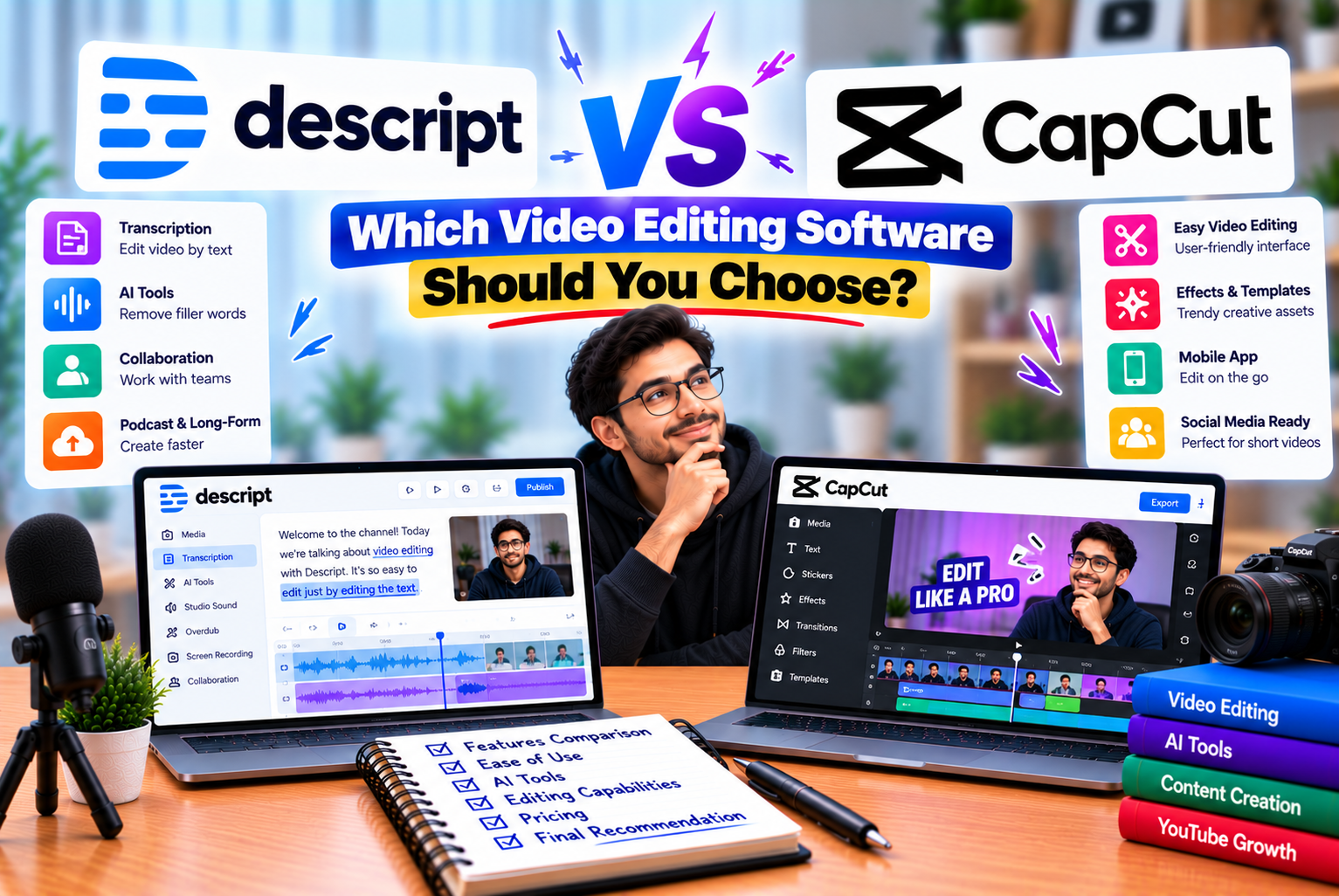
Descript vs CapCut
Choosing the right video editing software can significantly affect how quickly you produce content, how professional your videos look, and how efficiently you manage your publishing schedule.
For creators, the challenge is not simply finding an editor with the most features. It is finding software that matches the type of videos they produce.
Some creators primarily record tutorials, interviews, podcasts, and talking-head videos. Their biggest editing challenges involve removing mistakes, improving audio, generating captions, and organizing spoken content.
Others create Instagram Reels, YouTube Shorts, TikTok videos, promotional clips, and visually engaging social media content. They may prioritize animated captions, transitions, effects, templates, music, and vertical video editing.
Descript and CapCut address these needs differently.
Descript is an AI-powered audio and video editor built around transcription and text-based editing. It lets users edit recordings by modifying the transcript and provides AI tools for audio enhancement, filler-word removal, content repurposing, and other production tasks.
CapCut is a versatile video editor available across mobile, desktop, and web workflows. It emphasizes timeline editing, visual effects, templates, transitions, captions, and tools for creating engaging social media content.
Both platforms offer free access and paid features, but their pricing structures, AI capabilities, and editing workflows differ.
In this guide, we compare Descript vs CapCut across pricing, features, ease of use, audio editing, captions, AI tools, platform support, and practical use cases. By the end, you will understand which editor is better suited to your content creation needs.
Descript vs CapCut: Quick Comparison
Before examining each feature, here is an overview of how the two platforms compare.
| Comparison Factor | Descript | CapCut |
| Primary editing approach | Transcript-based editing with visual editing controls | Timeline-based editing with visual effects and layers |
| Best for | Podcasts, interviews, tutorials, and talking-head videos | Shorts, Reels, TikTok, and visually engaging social content |
| Free plan | Yes, with usage and export restrictions | Yes, with basic editing tools and free templates |
| AI assistance | Underlord AI co-editor and supported AI editing tools | AI-assisted editing, generation, and enhancement tools |
| Text-based editing | A central part of the workflow | Available through supported features, but not the primary workflow |
| Automatic transcription | Yes | Supported speech-to-text and caption features |
| Animated captions | Yes | Yes, with a broad range of visual styles |
| Audio enhancement | Studio Sound and other supported audio tools | Audio editing, noise reduction, and supported voice tools |
| Filler-word removal | Yes, through supported AI features | Not the primary focus of its editing workflow |
| Templates and effects | Layouts, templates, and stock media | Extensive templates, effects, transitions, and filters |
| Short-form content | AI-assisted clip creation | Strong visual editing workflow for short-form content |
| Screen recording | Yes | Available capabilities depend on the platform and workflow |
| 4K exports | Available on eligible paid plans | Available in supported workflows; feature access can vary |
| Mobile editing | More focused on desktop and web workflows | Strong mobile editing support |
| Collaboration | Team-oriented workflows and business features | Collaboration features and Teams plan |
| Best starting point | Creators who edit spoken content | Creators who prioritize visual and social media editing |
Feature availability can change by platform, subscription, region, and product version. Verify the current feature lists before subscribing.
What Is Descript?
Descript is an AI-powered editing platform that combines video editing, audio editing, transcription, recording, and content repurposing.
Its defining feature is text-based editing.
Instead of relying entirely on a traditional timeline, users can edit the transcript of a recording and apply corresponding changes to the audio or video.
For example, suppose you record a 20-minute tutorial and repeat a sentence several times. Descript can generate a transcript that allows you to locate the unwanted words and remove the corresponding sections from the recording.
This can be more convenient than manually searching through the timeline for every mistake.
Key Descript Features
Text-based editing: Edit spoken content by modifying its transcript.
Automatic transcription: Convert supported audio and video recordings into text.
Underlord AI co-editor: Use AI assistance for supported editing and content-production tasks.
Studio Sound: Improve speech clarity and reduce certain forms of background noise.
Filler-word removal: Remove supported filler words and repeated speech.
Automatic captions: Generate and style captions for videos.
AI clip creation: Find and prepare shorter clips from longer recordings.
Screen and remote recording: Capture tutorials, presentations, and supported remote conversations.
AI speech tools: Generate or regenerate speech in supported workflows.
Team features: Use collaboration and brand-oriented tools available under eligible plans.
Who Should Use Descript?
Descript is particularly relevant to:
- YouTubers producing talking-head videos
- Podcasters recording interviews
- Educators creating tutorials
- Businesses producing training videos
- Marketers creating product demonstrations
- Agencies editing spoken-word content
- Teams that need transcription and AI-assisted editing
If most of your editing involves spoken explanations, interviews, or presentations, Descript’s workflow may save considerable time.
Explore the official Descript website for current features and plan information.
What Is CapCut?
CapCut is a video editing platform designed for creators who want to produce polished videos using timeline editing, effects, templates, transitions, captions, and other visual tools.
It is widely used for short-form content, including TikTok videos, Instagram Reels, YouTube Shorts, and promotional social media clips.
CapCut is available through supported mobile, desktop, and web workflows, although individual features can differ across platforms.
Key CapCut Features
Timeline editing: Arrange video clips, audio, text, and visual elements using an editing timeline.
Templates: Start projects using available templates for different video styles.
Transitions and effects: Add visual effects, filters, transitions, and animations.
Automatic captions: Generate captions from speech and customize their appearance.
Text and graphics: Add titles, subtitles, overlays, and other visual elements.
AI-assisted tools: Use supported AI features for tasks such as editing, enhancement, and content generation.
Audio editing: Add music, voiceovers, sound effects, and supported audio-processing features.
Short-form video workflows: Create vertical videos and social media content.
Background editing: Use supported tools to remove or replace backgrounds.
Cross-platform access: Edit using supported mobile, desktop, and browser-based options.
Who Should Use CapCut?
CapCut is particularly suitable for:
- TikTok creators
- Instagram Reels creators
- YouTube Shorts publishers
- Social media marketers
- Influencers
- Beginners learning video editing
- Small businesses producing promotional videos
- Creators who prioritize templates and visual effects
If your workflow involves adding music, captions, transitions, and animated text to short clips, CapCut may be the more convenient option.
Explore the official CapCut website for current platform availability and features.
Descript vs CapCut Pricing in 2026
Pricing is an important factor when choosing between Descript and CapCut.
Both offer free access, but their paid plans are structured differently.
Descript’s plans emphasize media hours, AI credits, export quality, and team-oriented capabilities. CapCut’s plans emphasize premium editing features, templates, storage, and access to supported AI tools.
Descript Pricing
Descript’s published US-dollar pricing includes the following plans.
| Plan | Monthly Billing | Annual Billing Equivalent | Main Allowances |
| Free | $0 | $0 | 1 media hour per month and 100 one-time AI credits |
| Hobbyist | $24/month | $16/month | 10 media hours and 400 AI credits per month |
| Creator | $35/month | $24/month | 30 media hours and 800 AI credits per month |
| Business | $65/month | $50/month | 40 media hours and 1,500 AI credits per month |
| Enterprise | Custom | Custom | Customized usage and organizational features |
The figures above are published US prices. Taxes, regional pricing, promotions, and changes to the product can affect the final cost.
You can verify current prices on the official Descript pricing page.
CapCut Pricing
CapCut offers a free plan and paid options for users who need additional editing features.
Its published US pricing page lists these plans.
| Plan | Published Price | Main Benefits |
| Free | $0 | Basic editing tools and free templates |
| Pro | $19.99/month | Premium features, AI tools, 1,200 monthly AI credits, and 1 TB of storage |
| Ultra | $79/month | Higher AI-credit allowance and additional AI features |
| Teams | $12.49/month per seat | Team-oriented access, AI credits per seat, brand kit, and storage |
CapCut’s displayed prices may be reference prices. Final prices, annual discounts, taxes, and available plans can vary by region and account.
Check the official CapCut pricing page before subscribing.
Which Platform Is Cheaper?
CapCut’s free plan is a useful starting point if you need basic editing and want to experiment with visual tools without paying for a subscription.
Descript’s free plan is useful for testing transcript-based editing, but its media allowance and export restrictions may limit regular production.
At the entry paid level, Descript Hobbyist costs $24 per month with monthly billing or $16 per month as the annual equivalent. CapCut Pro is listed at $19.99 per month on its US pricing page.
These prices are not a direct measure of value because the platforms offer different features.
Descript may be worth the additional cost if transcription and speech editing save you significant time. CapCut may offer better value if your main needs involve templates, visual effects, and short-form content.
Pricing verdict: Choose the plan based on the workflow you need rather than the subscription price alone.
Descript vs CapCut: Editing Workflow
The biggest difference between Descript and CapCut is how you interact with your footage.
Descript emphasizes the transcript, while CapCut emphasizes the visual timeline.
How Descript Editing Works
Descript converts supported recordings into text and connects the transcript to the media.
You can then remove words, shorten sections, and restructure spoken content through the transcript-based interface.
This makes it useful when you need to edit conversations or explanations.
For example, if a presenter repeats the same sentence three times, you can locate the repetition in the transcript and remove the unwanted section.
How CapCut Editing Works
CapCut uses a more traditional visual editing workflow.
You import your footage, arrange clips on a timeline, add transitions, adjust audio, insert captions, and apply effects.
This is useful when visual pacing and presentation are central to the final result.
For example, a 30-second Instagram Reel might combine multiple video clips, animated captions, music, transitions, and visual effects.
CapCut’s timeline approach gives you a direct way to arrange those elements.
Which Editing Workflow Is Easier?
The answer depends on the task.
| Task | Better Starting Point | Reason |
| Removing repeated spoken sentences | Descript | Transcript-based editing |
| Editing an interview | Descript | Easier navigation through spoken content |
| Adding transitions between clips | CapCut | Visual timeline workflow |
| Creating a music-driven Reel | CapCut | Effects and visual pacing |
| Editing a tutorial with extensive dialogue | Descript | Transcript and speech-editing tools |
| Creating a visually complex short video | CapCut | Templates, effects, and layered editing |
Both applications offer additional editing controls, so these recommendations reflect their primary strengths rather than absolute limitations.
Winner for speech-heavy editing: Descript.
Winner for visual, timeline-driven editing: CapCut.
Descript vs CapCut AI Features
Both platforms use AI to reduce editing time, but their AI capabilities serve different purposes.
Descript’s AI tools are closely connected to spoken content, transcription, audio enhancement, and editing assistance.
CapCut’s AI tools support a broader visual editing workflow, including effects, captions, enhancement, and supported generative features.
Descript AI Features
Descript offers AI-assisted features such as:
- Underlord editing assistance
- Automatic transcription
- Filler-word removal
- Studio Sound
- Eye Contact
- Green Screen
- AI-assisted clip creation
- AI speech generation and regeneration
- Supported translation and dubbing workflows
These tools can help creators reduce repetitive work during editing and content preparation.
For example, a podcast editor can use transcription to find a specific statement, remove unwanted sections, clean up audio, and prepare clips from the finished recording.
CapCut AI Features
CapCut’s available AI features can include:
- Automatic captions
- AI-assisted video editing
- Background removal
- Speech-related tools
- Visual enhancement
- AI effects
- Supported AI image and video generation
- Templates and automated editing workflows
Feature availability varies by device, region, and subscription.
These tools can help creators produce visually engaging content with less manual work.
For example, a social media marketer can combine footage, automatic captions, visual effects, and supported AI tools to create a short promotional video.
Which Has Better AI Tools?
There is no universal winner.
Descript is better aligned with AI-assisted editing of spoken content. Its transcript-based workflow, Studio Sound, and filler-word removal are particularly relevant to interviews and tutorials.
CapCut is better aligned with visual editing and social media content. Its templates, effects, and AI-assisted visual tools can be useful for short-form videos.
The right choice depends on which tasks consume the most time in your workflow.
Descript vs CapCut for YouTube Videos
Both platforms can be useful for YouTube creators, but the best choice depends on the format of your videos.
Descript for YouTube
Descript is particularly useful for:
- Talking-head videos
- Educational tutorials
- Software demonstrations
- Interviews
- Product reviews
- Podcasts
- Commentary videos
- Training content
Its transcript-based workflow can help you remove mistakes, shorten explanations, generate captions, and repurpose longer recordings.
For example, a creator recording a 25-minute tutorial about website SEO can use Descript to remove repeated explanations and refine the video’s structure.
CapCut for YouTube
CapCut is particularly useful for:
- YouTube Shorts
- Gaming highlights
- Product promotions
- Animated text videos
- Music-driven content
- Travel montages
- Visual storytelling
- Social media clips
Its timeline editor and visual effects can help creators produce dynamic videos.
For example, a travel creator can combine destination footage, music, transitions, captions, and color adjustments to create a short highlight video.
Which Is Better for YouTube?
Choose Descript if your videos contain substantial spoken explanations and you want to edit dialogue efficiently.
Choose CapCut if your videos depend heavily on visuals, effects, transitions, and short-form presentation.
For channels that publish both long tutorials and short promotional clips, using both tools can be practical.
Descript vs CapCut for TikTok, Instagram Reels, and YouTube Shorts
Short-form video has different editing requirements from long-form educational content.
Creators often need to produce multiple clips quickly, maintain a fast pace, add captions, and adapt videos to vertical formats.
CapCut is particularly well suited to this type of editing.
Why CapCut Works Well for Short-Form Content
CapCut provides a visual editing workflow that supports:
- Vertical video projects
- Animated captions
- Transitions and effects
- Templates
- Music and sound effects
- Text overlays
- Visual filters
- Supported AI-assisted editing
These features are useful when the presentation itself is a major part of the video’s appeal.
Where Descript Helps With Short Videos
Descript can also support short-form content, especially when the clips originate from interviews, podcasts, webinars, or tutorials.
Its AI-assisted clip creation and transcript-based editing can help identify useful sections and remove unnecessary speech.
For example, a 40-minute interview may contain several short explanations that can be adapted into individual clips.
Descript can help prepare the spoken segments, while CapCut can be used to add more elaborate visual effects and social media styling if needed.
Which Is Better for Reels and Shorts?
CapCut is generally the better starting point for creators who primarily produce visually driven short-form content.
Descript becomes particularly useful when those short videos originate from longer spoken recordings.
Descript vs CapCut for Podcast Editing
Podcasters need to manage speech, remove mistakes, improve audio quality, and produce content that is easy to listen to.
Descript is particularly relevant because it is designed around transcription and spoken-word editing.
Descript for Podcasts
Descript supports workflows involving:
- Automatic transcription
- Text-based editing
- Speaker detection
- Filler-word removal
- Audio enhancement
- Caption generation
- AI-assisted clip creation
These features can help reduce the time required to edit interviews and prepare podcast episodes for publication.
CapCut for Podcasts
CapCut can be useful for video podcasts, particularly when creators want to add visual effects, captions, transitions, and social media clips.
However, its primary editing workflow is more visually oriented than Descript’s transcript-focused approach.
Which Is Better for Podcasters?
Descript is the stronger starting point for editing speech-heavy podcasts and interviews.
CapCut may be useful when you need to turn podcast footage into visually engaging clips for social media.
For some creators, the two tools can complement each other.
Descript vs CapCut for Audio Editing
Audio quality affects how professional a video or podcast feels.
Even when the visuals are strong, distracting background noise or unclear speech can make content difficult to follow.
Descript Audio Tools
Descript offers Studio Sound and other supported audio-editing tools designed to improve spoken recordings.
It can help with:
- Reducing certain types of background noise
- Improving speech clarity
- Removing filler words
- Editing dialogue
- Correcting selected speech through supported AI features
These tools are particularly useful for interviews, tutorials, and recordings made outside professional studios.
CapCut Audio Tools
CapCut offers audio-editing capabilities for video projects, including supported noise-reduction and voice-related features.
It also provides tools for arranging music, adjusting sound, and synchronizing audio with visual elements.
These capabilities are useful when audio is part of a broader visual editing workflow.
Which Has Better Audio Editing?
Descript is generally the better choice when dialogue editing and speech enhancement are central to the project.
CapCut is useful when you need to edit audio alongside video clips, music, effects, and transitions.
Neither platform can reliably repair every poor-quality recording. Good microphone placement and a quiet recording environment remain important.
Descript vs CapCut for Captions and Subtitles
Captions help viewers follow spoken content, particularly when watching without sound or when they benefit from reading along.
Both Descript and CapCut provide caption-related features.
Descript Captions
Descript can generate captions from its transcripts and offers styling options for video content.
Its transcript-based workflow also makes it easier to correct spoken words before exporting captions.
This is useful for educational videos, interviews, and talking-head content.
CapCut Captions
CapCut supports automatic captions and offers a wide range of visual styling options.
Creators can use supported caption styles, animations, and text treatments to make subtitles part of the visual design.
This can be especially useful for short-form social media content.
Which Is Better for Captions?
Descript is particularly useful when you want accurate transcript editing integrated with the editing process.
CapCut is particularly useful when you want captions to become a prominent visual element.
In both cases, review automatic captions before publishing. Names, numbers, technical terminology, and accents can affect transcription accuracy.
Descript vs CapCut Templates and Visual Effects
Templates and visual effects can reduce the time required to create engaging videos.
However, the amount and style of creative control differ between the platforms.
Descript Templates and Layouts
Descript offers layouts, templates, stock media, and other resources for supported editing workflows.
These can help creators produce consistent educational videos, presentations, and branded content.
Its emphasis is on simplifying production and making spoken content easier to package.
CapCut Templates and Effects
CapCut offers a broad collection of templates, transitions, effects, filters, and text animations.
These resources can be useful when you want to create content in a particular visual style or follow a recurring social media format.
Availability can differ by device, account, region, and subscription.
Which Has Better Templates and Effects?
CapCut is generally the stronger choice for creators who prioritize a wide range of visual effects, transitions, and template-driven editing.
Descript is more relevant when the main challenge is editing and packaging spoken content efficiently.
Descript vs CapCut: Ease of Use
Both platforms are designed to make video editing more accessible, but they have different learning curves.
Is Descript Easy to Use?
Descript can feel intuitive for users who are comfortable editing text.
Its transcript-based workflow makes it easier to locate and remove spoken mistakes without relying entirely on a timeline.
However, users still need to learn how to manage media, review AI edits, adjust layouts, and export their projects.
Is CapCut Easy to Use?
CapCut is accessible to beginners who want to create videos using clips, templates, captions, and effects.
Its mobile interface is especially useful for creators who prefer editing on a phone.
However, more advanced timeline editing and complex projects can still require practice.
Which Is Easier for Beginners?
Choose Descript if your primary task is editing spoken content and you prefer working through text.
Choose CapCut if you want to assemble visual clips, add effects, and create social media videos.
Neither platform is automatically easier for every project. The best option is the one whose editing workflow matches the way you think about your content.
Descript vs CapCut: Platform Compatibility
The devices you use can influence your choice of editing software.
CapCut supports mobile editing alongside desktop and web workflows, making it convenient for creators who switch between devices.
Descript is more focused on desktop and web-based production workflows for recording, transcription, and editing.
Descript Compatibility
Descript is designed for creators who want a connected editing environment for speech-heavy content.
Before installing it, review the current system requirements and supported operating systems on its official website.
CapCut Compatibility
CapCut offers supported applications for mobile devices, desktop computers, and browser-based editing.
This makes it useful for creators who want to edit on a phone while traveling or work on a computer when handling more complex projects.
Which Is Better for Mobile Editing?
CapCut is the stronger choice for creators who want to edit videos directly on a smartphone or tablet.
Descript is better suited to users who prefer editing on a desktop or supported web workflow.
Descript vs CapCut for Businesses and Marketing Teams
Businesses often need to produce multiple types of content, including product demonstrations, tutorials, promotional clips, training videos, and social media posts.
The best platform depends on which tasks dominate the workflow.
Descript for Business Content
Descript can help businesses produce:
- Software tutorials
- Product demonstrations
- Training videos
- Recorded presentations
- Customer interviews
- Educational content
- Internal communications
Its transcript-based editing and audio tools can help teams refine spoken content efficiently.
Descript also provides team-oriented and brand-related capabilities on eligible plans.
CapCut for Business Content
CapCut can help marketing teams produce:
- Social media advertisements
- Promotional clips
- Product highlights
- Short-form campaign videos
- Visual announcements
- Brand-focused social media content
Its templates and effects can support quick production of visually engaging videos.
However, businesses should review the applicable commercial-use and licensing terms for templates, music, stock assets, and other included resources.
Which Is Better for Marketing Teams?
Descript is particularly useful for teams producing spoken tutorials, interviews, and educational content.
CapCut is particularly useful for social media teams that need visually engaging promotional content.
Some organizations may benefit from using Descript for dialogue editing and CapCut for final visual packaging.
Descript vs CapCut: Pros and Cons
A practical comparison should consider both platforms’ strengths and limitations.
Descript Pros
- Text-based editing makes speech-heavy content easier to revise.
- Automatic transcription supports editing and repurposing.
- Underlord provides AI-assisted editing capabilities.
- Studio Sound can improve certain recordings.
- Filler-word removal can reduce repetitive manual work.
- Captioning is integrated into the editing workflow.
- AI clip creation can help repurpose long recordings.
- Suitable for tutorials, interviews, podcasts, and talking-head videos.
Descript Cons
- Media hours and AI credits restrict usage on standard plans.
- Higher-resolution exports require eligible plans.
- It may be less convenient for complex visual effects.
- Transcription errors require manual correction.
- AI edits must be reviewed.
- Paid subscriptions may be unnecessary for occasional users.
- The desktop-oriented workflow may not suit creators who edit primarily on a phone.
CapCut Pros
- Free access is available for basic editing.
- Mobile editing is a major strength.
- Templates and visual effects simplify social media production.
- Timeline editing supports visual storytelling.
- Automatic captions can speed up subtitle creation.
- Music, text, transitions, and effects can be combined in one workflow.
- Suitable for Reels, Shorts, TikTok, and promotional videos.
- Paid plans provide access to additional features and AI allowances.
CapCut Cons
- Some premium templates and AI features require a paid plan.
- Feature availability can vary by region and platform.
- Complex projects can still require substantial manual editing.
- AI-generated content may need careful review.
- Speech-heavy editing may be less efficient than a transcript-focused workflow.
- Commercial-use rights and licensing should be checked for applicable assets.
- Premium pricing and AI allowances may change.
Can You Use Descript and CapCut Together?
Yes. Using both tools can be practical when your content includes long spoken recordings and visually engaging short-form videos.
Rather than treating the platforms as complete replacements for one another, consider assigning each tool a specific role.
Example Workflow: Podcast to Social Media Clips
Suppose you publish a weekly podcast.
You can use Descript to:
- Import and transcribe the recording.
- Remove mistakes and repeated statements.
- Improve the audio.
- Identify useful sections for short clips.
- Prepare the dialogue and captions.
You can then use CapCut to:
- Arrange the selected clips on a timeline.
- Add visual effects and transitions.
- Customize animated captions.
- Add appropriate music or sound effects.
- Export versions for supported social media formats.
This workflow allows each platform to handle the tasks for which it is particularly useful.
Example Workflow: Educational YouTube Channel
A creator producing long tutorials and short promotional clips might use Descript to edit the main explanation, remove mistakes, and prepare captions.
CapCut could then be used to create short teasers or visually engaging clips from the finished material.
However, using two subscriptions increases cost and introduces additional steps. Test the combined workflow before committing to both paid plans.
Which Should You Choose: Descript or CapCut?
Your decision should begin with the type of content you produce most frequently.
Choose Descript If You:
- Produce podcasts or interviews.
- Create talking-head YouTube videos.
- Record tutorials and presentations.
- Need transcript-based editing.
- Frequently remove filler words or repeated speech.
- Want AI-assisted audio enhancement.
- Need to turn long spoken recordings into shorter clips.
Choose CapCut If You:
- Primarily create TikTok videos.
- Publish Instagram Reels or YouTube Shorts.
- Want mobile video editing.
- Frequently use visual effects and transitions.
- Prefer templates and animated captions.
- Create music-driven videos.
- Need a visual timeline workflow.
Consider Both If You:
- Produce long-form and short-form content.
- Record interviews and repurpose them for social media.
- Need efficient dialogue editing and advanced visual packaging.
- Can justify the combined subscription costs.
Final Verdict: Descript vs CapCut
Descript and CapCut are both useful video editing platforms, but they solve different problems.
Descript is particularly valuable for creators who spend significant time editing spoken content. Its text-based workflow, transcription, audio enhancement, filler-word removal, and AI-assisted editing can simplify the production of tutorials, podcasts, interviews, and talking-head videos.
CapCut is particularly valuable for creators who prioritize visual storytelling and social media production. Its timeline editor, templates, transitions, captions, effects, and mobile support make it a strong option for Reels, Shorts, TikTok videos, and promotional content.
Pricing should be evaluated alongside the features you actually use. CapCut’s free plan may be sufficient for basic editing, while Descript’s paid plans may justify their cost when transcript-based editing saves significant time.
Our recommendation:
- Choose Descript for podcasts, interviews, tutorials, and speech-heavy YouTube videos.
- Choose CapCut for visually engaging short-form videos, social media content, and mobile editing.
- Consider both if you regularly produce long recordings and need a separate workflow for polished short-form clips.
Ultimately, the best video editor is the one that helps you produce the content your audience expects with the least unnecessary effort.
Frequently Asked Questions
1. Is Descript better than CapCut?
Neither is universally better. Descript is particularly suited to transcript-based editing, podcasts, interviews, and talking-head videos. CapCut is particularly suited to visual editing, short-form social media content, templates, and effects.
2. Is CapCut better than Descript for YouTube?
It depends on your video format. CapCut is a strong choice for YouTube Shorts and visually driven content. Descript may be better for long-form tutorials, interviews, and educational videos that require extensive dialogue editing.
3. Which is cheaper, Descript or CapCut?
Both offer free access. Descript Hobbyist is listed at $24 per month or $16 per month billed annually in the US, while CapCut Pro is listed at $19.99 per month on its US pricing page. Actual costs depend on billing, region, and applicable offers.
4. Is Descript free?
Yes. Descript offers a Free plan with limited media processing, AI credits, and export capabilities. It is useful for testing text-based editing before upgrading.
5. Is CapCut free to use?
Yes. CapCut offers a free plan with basic editing tools and free templates. Some premium features, templates, and AI capabilities require a paid subscription or additional credits.
6. Which tool is better for podcast editing?
Descript is generally the stronger starting point for podcast editing because of its transcription, text-based editing, audio enhancement, and filler-word removal features. CapCut may be useful for turning video podcasts into visually engaging social media clips.
7. Which tool is better for TikTok videos?
CapCut is generally the better starting point for TikTok content because of its visual editing workflow, templates, effects, captions, and mobile support.
8. Which tool is better for Instagram Reels?
CapCut is particularly well suited to Instagram Reels because it supports vertical video editing, captions, effects, transitions, and other visual elements used in short-form content.
9. Can Descript edit videos using text?
Yes. Descript’s transcript-based editing lets users remove words or sentences from a transcript and apply the corresponding changes to the recording. This can make editing spoken content more efficient.
10. Does CapCut support automatic captions?
Yes. CapCut supports automatic captions and offers styling options. Availability and restrictions may vary by platform, region, and subscription.
11. Which platform has better AI features?
Descript is particularly strong for AI-assisted speech editing, audio enhancement, and transcript-based workflows. CapCut is particularly useful for visual editing, templates, effects, and supported generative tools. The better option depends on your use case.
12. Can Descript remove background noise?
Descript offers Studio Sound, which is designed to improve speech clarity and reduce certain types of background noise. Results depend on the quality of the original recording.
13. Does CapCut support 4K video editing?
CapCut supports 4K workflows on eligible devices and configurations, but availability can depend on the platform, export settings, and subscription. Check the current official documentation for your device.
14. Is Descript suitable for beginners?
Yes. Its transcript-based workflow can make spoken-content editing more approachable. Beginners should start with a short recording and review AI-generated edits before publishing.
15. Is CapCut suitable for beginners?
Yes. CapCut provides accessible editing tools and templates that can help beginners create videos. More advanced timeline editing and visual effects may still require practice.
16. Can I use Descript and CapCut together?
Yes. You can use Descript to edit spoken content, clean up audio, and prepare clips, then use CapCut to add visual effects, transitions, and social media styling.
17. Which platform is better for marketing teams?
Descript may be better for product tutorials, training videos, interviews, and educational content. CapCut may be better for promotional clips and social media campaigns. The choice depends on the team’s production requirements and licensing needs.
18. Which platform is better for audio editing?
Descript is particularly useful for dialogue editing, transcription, and speech enhancement. CapCut is useful for editing audio alongside video clips, music, and effects.
19. Does CapCut offer team features?
Yes. CapCut offers a Teams plan with team-oriented features. Available capabilities, seat pricing, and collaboration options should be checked on the current official pricing page.
20. Which video editing software should I choose?
Choose Descript if spoken content and transcript-based editing are central to your workflow. Choose CapCut if you prioritize visual effects, templates, mobile editing, and short-form videos. Consider using both if your production process requires both types of editing.
External References
- Descript Official Website — Product features and editing workflows.
- Descript Pricing — Current plans, media allowances, AI credits, and export restrictions.
- Descript vs CapCut — Official feature comparison.
- CapCut Official Website — Product information and editing features.
- CapCut Pricing — Current free and paid plans.
Leave a Reply