


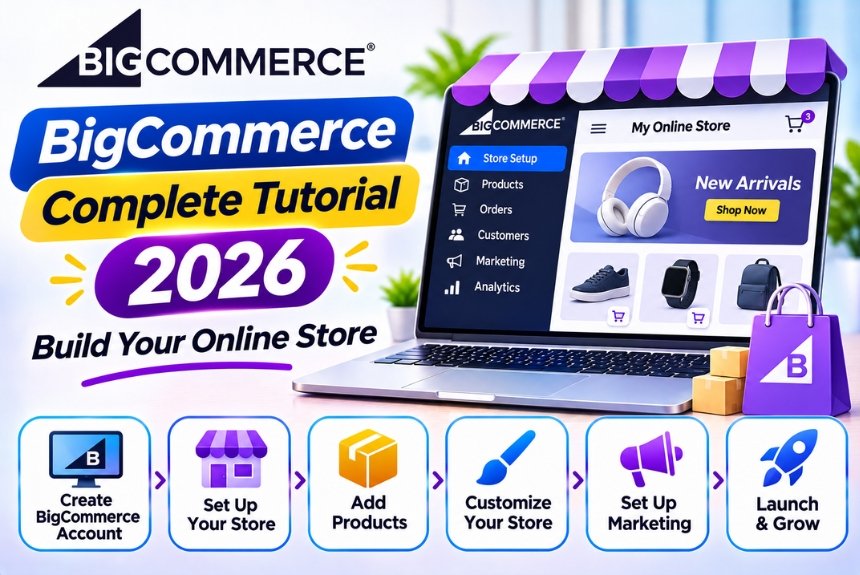
BigCommerce Complete Tutorial 2026 – Build Your Online Store
Building an online store has become an important opportunity for businesses, entrepreneurs, and creators looking to sell products online. However, launching an ecommerce website involves more than uploading products. You need a platform that helps you manage inventory, payments, shipping, customer orders, marketing, and the overall shopping experience.
This is where BigCommerce comes in.
BigCommerce is a hosted ecommerce platform that allows businesses to create, customize, and manage online stores without having to maintain their own ecommerce infrastructure. It offers tools for product management, storefront design, payment processing, order management, marketing, and integrations.
Whether you want to launch a small online business, build a brand, or manage a growing ecommerce operation, BigCommerce provides features designed to support your business at different stages.
In this complete BigCommerce tutorial, we will explain how to create an account, set up your store, customize its design, add products, configure payments and shipping, optimize your website for SEO, and prepare your store for launch.
What Is BigCommerce?
BigCommerce is a Software-as-a-Service (SaaS) ecommerce platform that helps businesses build and operate online stores.
Unlike self-hosted ecommerce solutions that require separate hosting and ongoing technical maintenance, BigCommerce provides a hosted environment where businesses can manage most ecommerce operations through a centralized dashboard.
The platform includes essential ecommerce functionality such as:
- Online storefront creation
- Product and catalog management
- Inventory tracking
- Shopping cart and checkout
- Payment gateway integrations
- Shipping and tax configuration
- Order management
- Customer management
- Marketing and promotional tools
- SEO features
- Third-party integrations
- Multichannel selling
BigCommerce also supports different storefront development approaches, including its traditional Stencil framework and headless commerce solutions such as Catalyst.
Official website: https://www.bigcommerce.com/
Why Choose BigCommerce for Your Online Store?
Before learning how to build a store, it is important to understand what makes BigCommerce a suitable ecommerce platform.
1. Hosted Ecommerce Infrastructure
BigCommerce manages the underlying hosted platform, reducing the need to handle server maintenance, software updates, and core ecommerce infrastructure independently.
This allows business owners to focus more on products, customers, and marketing.
2. Flexible Store Customization
You can customize your storefront using themes, design settings, page builders, and supported development tools.
Businesses with technical expertise can also customize storefront experiences through APIs and headless development.
3. Built-in Ecommerce Features
BigCommerce provides many essential ecommerce capabilities without requiring businesses to install separate plugins for every basic function.
These include product management, promotions, checkout, and order processing.
4. Multiple Sales Channels
The platform supports connections to marketplaces and social commerce channels, allowing businesses to expand their reach beyond their own websites.
5. Scalability
BigCommerce offers plans and capabilities designed for businesses at different stages of growth, from new stores to high-volume ecommerce operations.
6. No Additional Platform Transaction Fees With Embedded Payment Providers
BigCommerce offers zero additional platform transaction fees for orders processed through its supported Embedded Payment Providers. Payment processor charges still apply.
Fees may apply when using other payment providers, depending on your subscription plan.
BigCommerce Account Setup: Step-by-Step Tutorial
Let’s begin by creating your BigCommerce account.
Step 1: Sign Up for BigCommerce
Visit the official BigCommerce website:
https://www.bigcommerce.com/get-started/
Click Start Free Trial.
BigCommerce offers a 15-day free trial, allowing you to explore its platform and begin building your store. A credit card is not required to start the trial.
During registration, you may need to provide:
- Your email address
- Your name
- Business information
- Store name
- Password
After completing registration, you will be redirected to your BigCommerce control panel.
Step 2: Understand the BigCommerce Dashboard
The BigCommerce dashboard is the central location for managing your ecommerce store.
Here are some important sections you should understand.
| Dashboard Section | Purpose |
| Home | Store overview and important updates |
| Products | Add, edit, and organize products |
| Orders | Manage customer purchases |
| Customers | View and manage customer information |
| Storefront | Customize website appearance and content |
| Marketing | Manage promotions and marketing activities |
| Analytics | Review store performance |
| Apps | Discover and install integrations |
| Settings | Configure payments, shipping, taxes, and store preferences |
Understanding these sections will make it easier to manage your store as you continue building it.
Step 3: Configure Your Store Settings
Before adding products, configure your basic store information.
Navigate to your store settings and review the following:
| Setting | What to Configure |
| Store Name | Your business or brand name |
| Store Address | Business location |
| Currency | Currency used for product pricing |
| Time Zone | Your local business time zone |
| Contact Information | Customer support email and phone |
| Store Logo | Your brand logo |
| Domain | Your custom website address |
| Tax Settings | Applicable tax configuration |
| Order Notifications | Email notifications for orders |
Make sure your store information is accurate before accepting customer orders.
How to Choose and Customize a BigCommerce Theme
Your storefront design influences how customers perceive your brand and interact with your products.
BigCommerce offers a theme-based storefront system called Stencil, which allows businesses to customize their website using available themes.
Step 1: Explore BigCommerce Themes
Navigate to the Storefront section of your dashboard.
Open the theme marketplace or theme management section to explore available designs.
You can choose between free and paid themes depending on your requirements.
When selecting a theme, consider:
- Mobile responsiveness
- Product page design
- Navigation structure
- Category page layouts
- Homepage customization
- Loading performance
- Brand compatibility
- Customization flexibility
Step 2: Apply Your Theme
After selecting a suitable theme, install or apply it to your storefront.
Preview the theme before publishing to ensure that it displays correctly.
Step 3: Customize Your Store Design
Depending on the theme, you can customize elements such as:
| Design Element | Customization |
| Header | Logo, navigation, search, and account links |
| Homepage | Hero banner, promotional sections, and featured products |
| Colors | Brand colors and background styles |
| Typography | Font styles and text appearance |
| Product Pages | Product images, descriptions, and purchase buttons |
| Category Pages | Product grids and category layouts |
| Footer | Contact details, policies, and social links |
Step 4: Create Your Homepage
Your homepage should communicate what your business sells and why customers should choose it.
A well-structured ecommerce homepage generally includes:
- Brand logo and navigation
- Main promotional banner
- Featured product categories
- Best-selling products
- Unique selling propositions
- Customer testimonials or reviews
- Promotional offers
- Newsletter signup
- Footer with important information
Avoid adding unnecessary sections that make it difficult for visitors to find products.
How to Add Products to BigCommerce
Product management is one of the most important parts of setting up an ecommerce store.
BigCommerce allows you to create products individually or import large product catalogs using supported file formats.
Step 1: Navigate to Products
Open your BigCommerce dashboard.
Navigate to Products and select the option to add a product.
Step 2: Enter Product Information
Provide the necessary product details.
| Product Field | Description |
| Product Name | Name of the product |
| SKU | Unique product identification code |
| Price | Selling price |
| Description | Detailed product information |
| Product Images | Photos showing the product |
| Category | Product classification |
| Inventory | Available stock quantity |
| Weight | Product weight for shipping |
| Brand | Product manufacturer or brand |
| Variants | Size, color, or other options |
Step 3: Write an SEO-Friendly Product Description
A good product description should explain what the product is, what it does, and why customers should purchase it.
Include:
- Product benefits
- Main features
- Materials or specifications
- Available sizes or variations
- Usage instructions
- Warranty or return information, where relevant
Avoid copying manufacturer descriptions without modification. Unique product content can help provide a better shopping experience and support SEO.
Step 4: Upload Product Images
Upload clear and high-quality product images.
Best practices include:
- Use consistent image dimensions.
- Maintain a clean background where appropriate.
- Show products from multiple angles.
- Use descriptive image filenames.
- Add relevant alt text.
- Optimize image file sizes.
- Ensure images display correctly on mobile devices.
Step 5: Configure Inventory
Enable inventory tracking where required.
Enter the available quantity and configure stock-related settings.
Inventory tracking helps prevent overselling and keeps product availability accurate.
Step 6: Save and Publish Your Product
Review the product information and save your changes.
Depending on your configuration, you can make the product visible in your storefront or keep it unavailable until your store is ready to launch.
How to Organize Products Into Categories
Product categories help customers navigate your store and discover relevant products.
For example, a clothing store might organize products into:
- Men’s Clothing
- Women’s Clothing
- Accessories
- Footwear
- Seasonal Collections
Creating Product Categories
- Navigate to the Products section.
- Open the Categories area.
- Create a new category.
- Enter the category name.
- Add a category description if needed.
- Configure the category image and other available settings.
- Assign relevant products.
- Save the category.
Category Organization Best Practices
| Practice | Benefit |
| Use clear category names | Helps customers find products |
| Avoid excessive categories | Keeps navigation manageable |
| Use relevant subcategories | Improves product discovery |
| Add category descriptions | Provides context and SEO opportunities |
| Maintain logical hierarchy | Improves website usability |
How to Set Up Payment Gateways in BigCommerce
Customers need a secure and convenient way to pay for their orders.
BigCommerce supports several payment providers, allowing businesses to select suitable payment processing options.
Step 1: Navigate to Payments
Open your BigCommerce dashboard.
Navigate to the payment settings section.
Review the available payment providers and select the option that best suits your business.
Step 2: Choose a Payment Provider
Available options may include:
- BigCommerce Payments
- PayPal
- Stripe
- Adyen
- Braintree
- Square, where supported
- Other supported regional payment providers
Provider availability varies by country and business eligibility.
Step 3: Connect Your Payment Account
Follow the provider’s instructions to connect your account.
You may need to provide business verification information, banking details, and other required documentation.
Step 4: Configure Payment Methods
Depending on the provider, you may be able to accept:
| Payment Method | Description |
| Credit Cards | Visa, Mastercard, and other supported cards |
| Debit Cards | Eligible debit card transactions |
| Digital Wallets | Apple Pay, Google Pay, and other supported wallets |
| PayPal | PayPal-based payments |
| Buy Now, Pay Later | Eligible installment payment providers |
| Local Payment Methods | Country-specific payment options |
Step 5: Test Your Checkout
Before launching your store, review the payment configuration.
Verify that the checkout displays available payment options correctly and that the order process functions as expected.
Important: Payment processing fees, eligibility requirements, and additional BigCommerce fees depend on the provider and subscription plan.
How to Configure Shipping in BigCommerce
Shipping configuration determines how customers receive their purchases and how shipping costs are calculated.
BigCommerce supports different shipping methods and integrations depending on your business requirements.
Step 1: Open Shipping Settings
Navigate to the shipping configuration section in your BigCommerce dashboard.
Configure your shipping origin and delivery destinations.
Step 2: Define Shipping Zones
Shipping zones determine where your business delivers products.
For example:
| Shipping Zone | Example |
| Domestic | Customers within your country |
| Regional | Selected neighboring countries |
| International | Customers in other supported countries |
| Local Delivery | Customers within a specific city or region |
Step 3: Configure Shipping Methods
BigCommerce supports different shipping options.
| Shipping Method | Description |
| Flat Rate | Fixed shipping cost |
| Free Shipping | No shipping charge for eligible orders |
| Weight-Based Shipping | Shipping calculated based on product weight |
| Price-Based Shipping | Shipping calculated according to order value |
| Real-Time Carrier Rates | Shipping rates provided by supported carriers |
| Pickup | Local pickup, where supported |
Step 4: Configure Shipping Rules
You can create shipping rules based on your business requirements.
Examples include:
- Free shipping above a minimum order value
- Different shipping charges for different regions
- Weight-based shipping rates
- Special shipping conditions for selected products
Step 5: Test Shipping Calculations
Before publishing your store, test shipping rates using different delivery addresses and shopping cart combinations.
Make sure the shipping charges are accurate and clearly displayed to customers.
How to Configure Taxes in BigCommerce
Tax configuration is an important part of running an ecommerce business.
BigCommerce provides tax settings and integrations to help businesses manage tax calculations.
Steps to Configure Taxes
- Navigate to your store’s tax settings.
- Select your preferred tax configuration method.
- Enter relevant business and tax information.
- Configure applicable tax zones and rates.
- Review product tax settings.
- Test tax calculations during checkout.
Tax requirements vary by country, state, and business type.
Important: Consult a qualified tax professional to ensure your store complies with the applicable tax regulations in the regions where you operate.
How to Manage Orders in BigCommerce
Once customers begin purchasing products, you can manage orders through the BigCommerce dashboard.
Step 1: Navigate to Orders
Open the Orders section in your dashboard.
You will find information about customer purchases and order statuses.
Step 2: Review Order Details
An order generally contains information such as:
- Order number
- Customer details
- Purchased products
- Product quantities
- Payment status
- Shipping address
- Shipping method
- Order total
Step 3: Update Order Status
Depending on your fulfillment process, you can update order statuses as the order moves through different stages.
| Order Status | Meaning |
| Pending | Order is awaiting further processing |
| Awaiting Payment | Payment has not been completed |
| Awaiting Fulfillment | Order needs to be prepared for shipping |
| Partially Shipped | Some items have been shipped |
| Shipped | Order has been dispatched |
| Completed | Order fulfillment is complete |
| Cancelled | Order has been cancelled |
| Refunded | Payment has been refunded |
Actual status options and transitions depend on your store’s configuration.
Step 4: Manage Fulfillment
Prepare the products, arrange shipping, and enter tracking information when available.
Customers should receive appropriate order updates throughout the fulfillment process.
How to Manage Customers in BigCommerce
BigCommerce provides customer management functionality that allows businesses to review and organize customer information.
Customer Management Features
- Customer profiles
- Contact information
- Order history
- Customer groups
- Account management
- Customer segmentation
- Marketing-related information
Why Customer Management Matters
Organized customer data helps businesses understand purchasing behavior, provide better customer support, and develop relevant marketing strategies.
For example, you can identify repeat customers and develop appropriate loyalty campaigns using supported integrations and marketing tools.
BigCommerce Marketing Features
Building a store is only the beginning. You also need to attract visitors and encourage purchases.
BigCommerce provides several features and integrations to support ecommerce marketing.
1. Coupons and Discounts
You can create promotional offers to encourage purchases.
Common discount types include:
- Percentage discounts
- Fixed amount discounts
- Free shipping offers
- Product-specific promotions
- Category-based discounts
- Order-value-based promotions
- Coupon codes
Use discounts strategically to increase conversions without unnecessarily reducing profit margins.
2. Abandoned Cart Recovery
Abandoned cart recovery helps businesses reconnect with shoppers who leave before completing their purchases.
Depending on your plan and configuration, BigCommerce provides abandoned cart functionality and related tools.
A typical recovery strategy includes:
- Identify eligible abandoned carts.
- Send a reminder email.
- Wait for a defined period.
- Check whether the customer completed the purchase.
- Send an additional reminder if appropriate.
- Stop the sequence when the order is completed.
3. Email Marketing Integrations
BigCommerce can connect with email marketing platforms to help businesses manage newsletters, promotional campaigns, and customer communication.
Popular email marketing integrations include tools such as ActiveCampaign, Mailchimp, and Klaviyo.
These integrations can help synchronize customer data and support automated marketing workflows.
4. Social Media and Marketplace Selling
BigCommerce supports integrations with selected sales channels and marketplaces.
Businesses can connect their stores with supported channels such as:
- Amazon
- eBay
- Walmart
- Facebook and Instagram
- Google Shopping
- TikTok
Availability and integration requirements depend on the channel, region, and configuration.
How to Optimize Your BigCommerce Store for SEO
Search engine optimization helps customers discover your products through organic search.
BigCommerce includes several SEO-friendly capabilities, but effective optimization still requires a well-structured website and high-quality content.
1. Optimize Product Page Titles
Your product title should clearly describe the item and include relevant keywords naturally.
Example:
Instead of:
“Premium Product”
Use:
“Men’s Lightweight Running Shoes – Breathable Sports Footwear”
Avoid keyword stuffing or overly long titles.
2. Write Unique Meta Descriptions
Meta descriptions provide a concise summary of your product or category page.
A good description should explain the page’s value and encourage users to click.
Example:
“Shop lightweight men’s running shoes designed for comfort, breathability, and everyday performance. Explore styles and find your perfect fit.”
3. Optimize Product URLs
Use descriptive and readable URLs.
Example:
/mens-running-shoes/
Avoid unnecessarily long URLs containing random parameters or repeated keywords.
4. Optimize Image Alt Text
Add descriptive alt text to product images.
Example:
“Black men’s lightweight running shoes with breathable mesh upper”
Alt text should accurately describe the image rather than simply repeating keywords.
5. Improve Website Navigation
Create a clear category structure.
Your navigation should help visitors reach important products and categories within a few clicks.
6. Optimize Website Performance
A fast website improves the shopping experience and can support search performance.
Consider:
- Compressing product images
- Using optimized image formats
- Avoiding unnecessary third-party scripts
- Reviewing theme performance
- Minimizing excessive apps
- Testing mobile performance
7. Create Helpful Content
Use the built-in blog or supported content capabilities to publish relevant content.
Examples include:
- Product buying guides
- Comparison articles
- Product tutorials
- Industry-related educational content
- Frequently asked questions
- Product care guides
Helpful content can attract visitors who are researching products before purchasing.
BigCommerce Pricing 2026
BigCommerce offers different subscription plans depending on business size, sales volume, and required features.
Following its 2026 pricing structure, the main plans are Core, Growth, Scale, and Performance.
BigCommerce Pricing Table
| Plan | Monthly Billing | Annual Billing | Best For |
| Core | $39/month | $29/month | New and smaller businesses |
| Growth | $105/month | $79/month | Growing businesses |
| Scale | $399/month | $299/month | High-volume stores |
| Performance | Custom pricing | Custom pricing | Enterprise and high-volume businesses |
Annual prices reflect the advertised 25% discount. Performance pricing is customized and may start around $1,499 per month with annual billing.
Important Pricing Considerations
BigCommerce plans include sales-volume thresholds based on trailing 12-month gross merchandise volume (GMV).
As your store grows, your subscription may automatically move to a higher plan when you reach the applicable threshold.
BigCommerce also introduced an Open Payment Provider Fee for eligible orders processed through payment providers outside its Embedded Payment Provider program on self-service plans.
| Plan | Open Payment Provider Fee |
| Core | 2.0% |
| Growth | 1.0% |
| Scale | 0.6% |
| Performance | No fee under contracted terms |
Orders processed through supported Embedded Payment Providers are not subject to this additional fee, although the payment processor’s own charges still apply.
Check current pricing and terms: https://www.bigcommerce.com/pricing/
BigCommerce Advantages and Disadvantages
Before choosing BigCommerce, evaluate its strengths and limitations.
Advantages
- Comprehensive Ecommerce Features
BigCommerce provides many essential ecommerce tools within its core platform.
- Hosted Infrastructure
Businesses do not need to manage their own hosting environment for the traditional hosted storefront.
- Flexible Customization
Themes, supported integrations, and development tools provide customization options.
- Multiple Sales Channels
Businesses can expand beyond their websites through supported marketplace and social integrations.
- SEO-Friendly Capabilities
The platform supports important SEO elements such as customizable URLs, metadata, and content publishing.
- Scalability
BigCommerce offers plans designed for growing businesses and higher-volume operations.
- No Additional Platform Transaction Fees With Embedded Providers
Eligible payment providers can help businesses avoid additional platform transaction fees on processed orders.
Disadvantages
- Learning Curve
Beginners may need time to understand store configuration and advanced ecommerce features.
- Pricing Can Increase as Sales Grow
Subscription costs and plan requirements may change as a business reaches higher sales-volume thresholds.
- Theme Customization Limitations
Some advanced design changes require technical knowledge of the Stencil framework.
- App Costs
Although BigCommerce includes many features, additional functionality may require third-party applications with separate subscription costs.
- Payment Provider Fees
Payment processor charges apply, and additional platform fees may apply to eligible Open Payment Providers on self-service plans.
- Not Completely Free
The platform offers a trial rather than a permanent free plan.
BigCommerce vs. Shopify
BigCommerce and Shopify are two popular hosted ecommerce platforms. Both help businesses build online stores, manage products, and accept payments.
However, they differ in their approach to ecommerce features and customization.
| Feature | BigCommerce | Shopify |
| Hosted Platform | Yes | Yes |
| Storefront Themes | Yes | Yes |
| Product Management | Advanced built-in capabilities | Extensive capabilities |
| Marketing Tools | Built-in tools and integrations | Built-in tools and integrations |
| App Ecosystem | Extensive | Extensive |
| Customization | Themes, APIs, and headless options | Themes, apps, and APIs |
| Learning Curve | Moderate | Beginner-friendly |
| Best For | Businesses seeking extensive native ecommerce functionality | Businesses seeking an accessible ecommerce ecosystem |
Which Platform Should You Choose?
Choose BigCommerce if you want extensive built-in ecommerce capabilities, flexible product management, and a platform designed to support growing operations.
Choose Shopify if you prefer a beginner-friendly store-building experience and a broad ecosystem of apps, themes, and ecommerce resources.
The right choice depends on your technical requirements, budget, business model, and preferred workflow.
BigCommerce Best Practices for Beginners
If you are launching your first online store, follow these recommendations.
1. Start With a Clear Product Catalog
Organize your products, categories, pricing, and inventory before building your storefront.
2. Choose a Responsive Theme
Make sure your store works smoothly on mobile devices, as many shoppers browse and purchase through smartphones.
3. Keep Navigation Simple
Use clear categories and avoid unnecessarily complicated menus.
4. Configure Payments and Shipping Early
Test payment methods, shipping rates, and checkout before launching.
5. Optimize Product Pages
Write unique product descriptions, upload quality images, and include relevant product specifications.
6. Set Up Store Policies
Create clear policies for:
- Shipping
- Returns and refunds
- Privacy
- Terms and conditions
- Customer support
7. Test the Entire Customer Journey
Place test orders and review the process from product discovery to checkout and order confirmation.
8. Monitor Store Performance
Use analytics to understand traffic, sales, conversion rates, and customer behavior.
Frequently Asked Questions About BigCommerce
1. Is BigCommerce suitable for beginners?
Yes. Beginners can build an online store using BigCommerce themes and its dashboard. However, some advanced customization and configuration may require technical knowledge.
2. Does BigCommerce offer a free trial?
Yes. BigCommerce offers a 15-day free trial that allows users to explore its features and build a store before selecting a paid plan.
3. Can I build an online store without coding?
Yes. You can create a traditional BigCommerce storefront using themes and built-in customization tools without writing code. Advanced customization may require development skills.
4. Does BigCommerce include hosting?
Yes. BigCommerce provides hosted infrastructure for its traditional storefront, including core platform hosting and security features.
5. Can I sell digital products using BigCommerce?
Yes. BigCommerce supports digital products and downloadable items, subject to your store configuration and applicable product requirements.
6. Does BigCommerce support dropshipping?
BigCommerce can support dropshipping through compatible third-party integrations and apps. You need to configure your suppliers, product synchronization, and order fulfillment process.
7. Can I migrate from Shopify to BigCommerce?
Yes. Businesses can migrate products, customers, orders, and other supported data using migration tools, applications, APIs, or specialized migration services. The exact process depends on the size and complexity of your store.
8. Is BigCommerce better than Shopify?
BigCommerce may be preferable for businesses seeking extensive built-in ecommerce functionality, while Shopify is often attractive for its accessible interface and broad app ecosystem. The best choice depends on your requirements.
9. Does BigCommerce support SEO?
Yes. BigCommerce includes SEO-friendly features such as customizable URLs, metadata, redirects, and content publishing capabilities. Effective SEO still requires ongoing optimization and high-quality content.
10. Can BigCommerce integrate with WordPress?
Yes. BigCommerce provides a WordPress integration that allows businesses to use WordPress as their content-focused frontend while BigCommerce manages commerce functionality.
Conclusion
BigCommerce is a comprehensive ecommerce platform that helps businesses create, customize, and manage online stores without maintaining their own core ecommerce infrastructure.
Its product management, payment integrations, shipping configuration, marketing features, SEO capabilities, and scalability make it a strong option for businesses looking to establish or expand their online presence.
However, selecting the right plan, understanding payment-related fees, and evaluating customization requirements are important before committing to the platform.
If you are building your first online store, start with a simple product catalog, choose a responsive theme, configure payments and shipping, and test your checkout carefully.
Ready to build your online store? Explore more ecommerce tutorials, software reviews, and business growth guides on NextBloggers to discover the tools and strategies that can help you succeed online.
Leave a Reply