


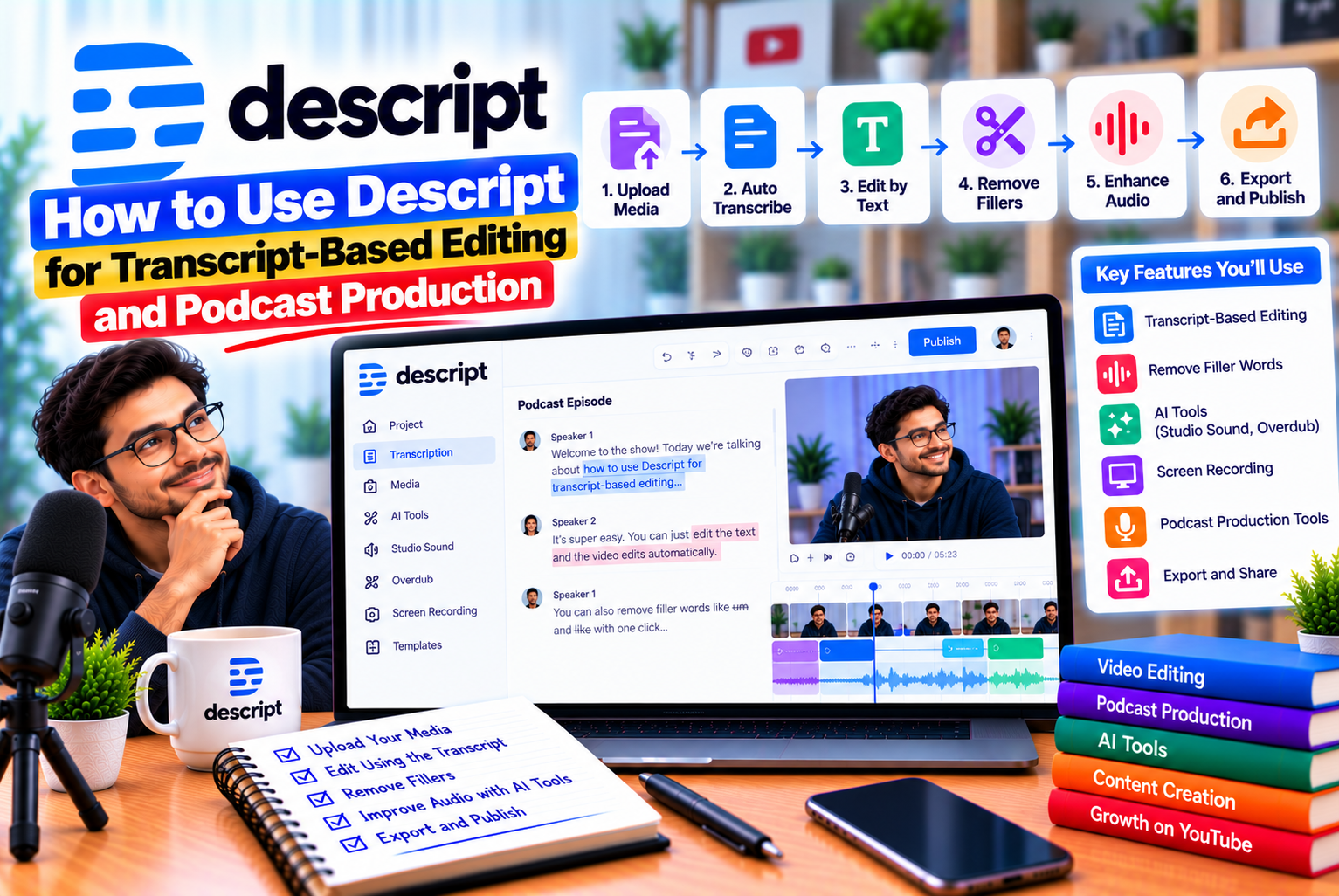
Use Descript for Transcript-Based Video
Editing videos and producing podcasts can be time-consuming, especially when a recording contains mistakes, long pauses, repeated sentences, background noise, or sections that do not contribute to the final content. Traditional editing often requires creators to navigate a timeline, locate individual moments, cut unwanted footage, and repeat the process until the recording feels polished.
For creators who regularly work with interviews, tutorials, presentations, and spoken-word content, this process can become a significant part of their production workload.
Descript offers an alternative approach by connecting a recording to its transcript. Instead of relying exclusively on a traditional editing timeline, you can edit much of your audio and video by modifying the text generated from your recording.
For example, imagine recording a 40-minute podcast interview. After importing the recording, Descript generates a transcript that corresponds to the spoken conversation. You can locate a sentence, remove an unnecessary explanation, rearrange sections, and eliminate certain filler words. The corresponding media changes alongside the transcript.
This makes transcript-based editing particularly useful for creators who spend more time refining conversations than producing complex visual effects.
Descript also provides tools for transcription, audio enhancement, captions, screen recording, and content repurposing. Depending on your plan and available features, you can use these capabilities to streamline several stages of podcast and video production.
However, getting good results requires more than uploading a file and allowing AI to process it. You still need to review the transcript, make sensible editorial decisions, check audio transitions, verify captions, and export the final content in the correct format.
This guide explains how to use Descript step by step, from creating your first project to producing a polished podcast episode and repurposing it into shorter videos.
What Is Transcript-Based Video Editing?
Transcript-based video editing is a workflow in which the text generated from spoken content becomes an editing interface for the underlying audio or video.
In a conventional video editor, you usually work with a timeline containing video clips, audio tracks, and other visual elements. You locate a moment, position the playhead, make a cut, and adjust the surrounding clips.
In Descript, the transcript provides another way to perform many of these editing tasks.
When you import a recording and Descript transcribes it, the text is linked to the underlying media. Deleting a sentence from the transcript removes the corresponding section from the edited composition. Cutting and pasting text can move the associated media as well.
How Transcript-Based Editing Works
Consider this example from a fictional podcast recording:
Today, we’re discussing content marketing. Um, before we begin, I want to explain why consistency matters. Actually, let me start with an example from a recent campaign.
The recording contains a filler word and a change in direction. You might decide that the introduction sounds clearer without the filler and that the example should appear before the general explanation.
Using transcript-based editing, you can:
- Locate the filler word in the transcript.
- Remove it if it does not contribute to the conversation.
- Select the sentence about the example.
- Cut and paste that sentence into the preferred position.
- Play the edited section to check whether the conversation still flows naturally.
The corresponding audio or video updates as you edit the text.
You do not have to make every edit this way. Descript also provides other editing controls, and a combination of transcript editing and timeline adjustments can be useful for more detailed projects.
Transcript-Based Editing vs Traditional Timeline Editing
| Feature | Transcript-Based Editing | Traditional Timeline Editing |
| Main editing interface | Transcript or script | Timeline with media tracks |
| Removing spoken mistakes | Select and delete text | Locate the section and cut it |
| Rearranging dialogue | Cut and paste transcript text | Move or rearrange media clips |
| Finding a particular statement | Search or read the transcript | Navigate through the recording |
| Editing visual effects | Additional editing controls may be required | Usually handled directly in the timeline |
| Best suited to | Interviews, podcasts, tutorials, talking-head videos | Complex visual sequences, effects, and detailed production |
Neither method is universally better.
Transcript-based editing can be faster for spoken content, while a conventional timeline offers direct control over visual timing and complex arrangements. Descript is especially useful because it combines transcript editing with additional media-editing capabilities.
Why Use Descript for Video Editing and Podcast Production?
Descript is designed to bring several common production tasks into one editing environment.
Instead of treating transcription, spoken-content editing, and audio refinement as completely separate processes, it connects them through a shared project.
1. Edit Spoken Content More Efficiently
Long recordings frequently contain repeated ideas, unnecessary explanations, and mistakes.
Transcript-based editing allows you to review the conversation as text and identify sections that need attention without repeatedly searching the recording manually.
This is particularly helpful when editing interviews, educational videos, product demonstrations, and podcast discussions.
2. Correct Transcription Errors
Automated transcription is useful, but it is not perfect.
Names, technical terms, accents, overlapping speech, and poor recording conditions can result in mistakes. Correcting the transcript helps you maintain an accurate written record and improves the reliability of captions or exported transcripts.
It is important to distinguish between correcting text and changing the media. Correcting a misspelled word in the transcript does not necessarily mean changing what was spoken. Deleting text, by contrast, can remove the corresponding media from the composition.
3. Remove Unnecessary Filler Words
Words such as “um” and “uh” can make some recordings feel less polished, especially when they occur frequently.
Descript can identify filler words and provide tools for removing them. However, not every hesitation needs to disappear. Some pauses and conversational expressions help preserve the speaker’s natural delivery.
4. Improve Dialogue Quality
Audio quality is essential for podcasts and spoken-word videos.
Descript’s Studio Sound feature is designed to enhance dialogue and reduce distracting background noise. The result depends on the source recording, so listen carefully after processing rather than assuming every recording will sound professional automatically.
5. Create Captions and Repurpose Content
A single interview can produce several deliverables, including a full-length video, an audio podcast, captioned clips, and a written transcript.
Descript provides tools that can support these workflows, reducing the need to rebuild the same content from scratch for every format.
The amount of automation available depends on the features and subscription plan you use.
Step 1: Create a New Descript Project
The first stage is setting up a project for your video or podcast.
Before starting, decide whether you are editing an existing recording or creating new content. The initial workflow differs slightly depending on your source material.
If You Already Have a Recording
Prepare your source files before importing them.
These may include:
- A video recording of the host.
- Separate audio recordings for the host and guests.
- A video interview recorded remotely.
- A screen recording for a tutorial.
- Existing footage that needs narration.
- An audio-only podcast recording.
Organise the files using descriptive names. For example, Podcast_Episode_12_Host.wav is more useful than Recording_Final_New2.wav.
Clear file names make it easier to identify the correct source material as the project grows.
Next, open Descript and create a new project. Import your recording using the available import controls or drag the file into the project.
Descript will process the media and generate a transcript when supported by the file and selected workflow.
If You Want to Record Directly in Descript
Descript also supports recording workflows, including screen recording and remote recording through its Rooms feature.
These capabilities can be useful when you want to capture a conversation, presentation, or tutorial without starting in another recording application.
For a remote interview, make sure each participant understands the recording process and uses suitable audio equipment. Test microphones and cameras before beginning the main session.
A short test recording can reveal problems such as incorrect microphone selection, echo, low volume, or an unsuitable camera angle.
Choose the Right Project Structure
For a simple solo video, one recording may be sufficient.
For a multi-person podcast, separate tracks can provide more flexibility when adjusting individual speakers. If your source recordings contain separate audio and video tracks, organise them before making substantial edits.
Keep a copy of your original recordings. This allows you to return to the source if an edit removes something important or an export needs to be recreated.
Practical tip: Start with a short test project before editing a full-length episode. This gives you an opportunity to learn the interface, check transcription quality, and understand the editing workflow without risking hours of work.
Step 2: Generate and Review the Transcript
Once your recording is imported, the next task is reviewing the generated transcript.
Descript links the transcript to the underlying media, making it possible to use the text to navigate and edit the recording.
However, the transcript should be treated as a draft that requires review, particularly when the content includes technical terminology, proper names, or detailed explanations.
Review the Transcript From Beginning to End
Start by reading the transcript while listening to the recording.
Look for:
- Misspelled words.
- Missing or duplicated words.
- Incorrect speaker labels.
- Misunderstood technical terminology.
- Sentences that appear incomplete.
- Incorrect punctuation.
- Sections where speakers interrupt one another.
For example, if your video discusses search engine optimisation, an automated transcript might misinterpret an unfamiliar product name or technical phrase.
Correcting these errors before editing makes the rest of the process more reliable.
Correct Text Without Removing Media
Suppose the recording contains the sentence:
“We used the Search Console report to identify indexing problems.”
The transcript mistakenly displays “Search Control.”
You should correct the transcript to match the spoken words. There is no need to remove or regenerate the sentence if the audio itself is correct.
Descript distinguishes transcript correction from removing content from the composition. This is important because a spelling correction should not accidentally cut the corresponding media.
Check Speaker Labels
Speaker identification can be useful for interviews and panel discussions.
However, automated speaker labels should be checked manually. If two participants have similar voices or speak over one another, a section may be attributed to the wrong person.
Correct speaker labels before exporting a transcript or preparing captions that identify individual speakers.
Why Transcript Accuracy Matters
An inaccurate transcript can create problems throughout the production process.
If the transcript misrepresents what someone said, you may remove the wrong section, misunderstand the intended meaning, or publish captions containing incorrect information.
A reliable transcript improves editing efficiency because it allows you to make decisions based on what was actually recorded.
Step 3: Edit Your Video by Editing the Transcript
This is the central part of the Descript workflow.
Once the transcript is accurate, you can use it to remove mistakes, eliminate unnecessary sections, and improve the overall structure of your video.
Remove Unnecessary Sentences
Imagine that a 20-minute tutorial contains a 90-second explanation that repeats information already covered.
In a conventional editing workflow, you would locate the section on the timeline, identify its boundaries, and remove the corresponding media.
In Descript, you can locate the relevant text in the transcript, select the unnecessary sentence or paragraph, and delete it.
The corresponding media is removed from the composition as well.
After deleting the section, play the surrounding footage.
Check that the previous sentence connects naturally to the following one. A grammatically correct transcript does not always guarantee that the edited recording sounds natural.
Remove Mistakes and Retakes
People often repeat sentences when recording content.
For example:
“Today, we will discuss five methods to improve your website performance. Let’s start again. Today, we will discuss five ways to improve your website performance.”
If the first attempt was a retake, remove the unwanted version.
Listen to the transition between the preceding and following sections. If the cut sounds abrupt, you may need to adjust the edit or retain a little surrounding audio.
Rearrange Spoken Content
Transcript-based editing can also help you restructure a conversation.
Suppose a speaker introduces a problem after already discussing its solution. Moving the explanation earlier might make the video easier to follow.
You can select the relevant text, cut it, and paste it into the preferred position. Descript moves the associated media with the text.
However, rearranging spoken content requires editorial judgement.
Check that the new sequence remains accurate and does not make the speaker appear to say something they did not intend.
For interviews, maintain the context of each answer. Avoid rearranging statements in a way that changes their meaning.
Shorten Long Explanations
A speaker might explain the same concept in several different ways before reaching the main point.
You do not necessarily need to remove the entire explanation. Sometimes, retaining the strongest sentence and removing repeated material is enough.
For example:
Original version:
“One important thing that you need to remember when you’re creating videos is that you should always make sure that the sound quality is good, because people may stop watching if they cannot understand what you’re saying.”
Edited version:
“Always prioritise clear audio because viewers may stop watching if they cannot understand you.”
The shorter version communicates the main idea more directly.
However, preserve important qualifications, examples, and context. Editing should improve clarity without making the content misleading.
Use Non-Destructive Editing Carefully
Descript’s editing workflow allows removed media to be restored in supported situations. This can be useful if you decide that an earlier cut was too aggressive.
Even so, keep a separate copy of your source files and avoid assuming that every export or external file operation can be reversed.
Practical tip: Make substantial edits first, then listen to the entire recording. It is easier to evaluate the overall flow once the major structural changes are complete.
Step 4: Remove Filler Words and Long Pauses
After improving the structure, review the recording for unnecessary filler words and distracting gaps.
Descript offers tools for detecting filler words and shortening long pauses. These features can reduce repetitive manual editing, but they should be used selectively.
What Are Filler Words?
Filler words are expressions people use while thinking, hesitating, or connecting ideas.
Common examples include:
- Um.
- Uh.
- You know.
- I mean.
- Sort of.
- Kind of.
- I guess.
These expressions are not automatically mistakes. They can make a conversation sound natural and sometimes communicate uncertainty or emphasis.
The goal is to remove distractions, not eliminate every sign of natural speech.
How to Remove Filler Words in Descript
A typical workflow is:
- Open the transcript for the recording.
- Find the filler-word tools in the editor.
- Review the filler words identified by Descript.
- Choose which words or phrases to remove.
- Apply the changes.
- Listen to the edited sections and correct any unnatural transitions.
Descript’s filler-word tools can identify and remove supported words or phrases from recordings. Depending on the available options, you may be able to delete the filler, retain a gap, ignore it, or remove it from the transcript without changing the media.
The exact interface may change as Descript updates its editor.
Should You Remove Every Filler Word?
No.
Consider a podcast interview in which a guest pauses before answering a difficult question.
Removing every hesitation may make the guest sound unnatural or change the emotional quality of the response.
A better approach is to remove repetitive fillers that distract from the message while preserving pauses that contribute to the conversation.
For a formal tutorial, you might remove more filler words than you would from a relaxed interview.
Shorten Long Pauses
Long periods of silence can make a video feel slow, especially when the speaker is recording a tutorial or presentation.
Descript provides a Shorten Word Gaps tool for reducing pauses across a recording. You can adjust how much silence to retain, depending on the tool’s available settings.
Do not eliminate every pause automatically.
Natural breathing, dramatic pauses, and moments of reflection can improve delivery. Listen to the result to ensure that the conversation does not become unnaturally fast.
Check for Abrupt Audio Transitions
Removing speech changes the timing of the surrounding media.
After deleting fillers or shortening pauses, listen for:
- Words that sound cut off.
- Unnatural jumps in the speaker’s voice.
- Missing breaths that make speech sound rushed.
- Sudden changes in background noise.
- Audio that begins or ends too abruptly.
Small adjustments can make the difference between an automated edit and a polished final recording.
Step 5: Improve Audio Quality With Studio Sound
Clear audio is one of the most important requirements for a successful podcast or talking-head video.
Viewers may tolerate basic visuals when the information is valuable, but difficult-to-understand speech can quickly become frustrating.
Descript’s Studio Sound feature is designed to enhance dialogue and reduce distracting background noise. It can be useful for interviews, home recordings, voiceovers, and other spoken-word content.
When Should You Use Studio Sound?
Consider testing Studio Sound when your recording contains:
- Mild background noise.
- Room ambience.
- Dialogue that sounds less clear than expected.
- Audio captured in a home office.
- A remote guest recording with less-than-ideal microphone quality.
The feature may improve some recordings, but it cannot guarantee perfect results.
Clipped audio, severe distortion, overlapping speakers, and extremely poor recordings can remain problematic.
How to Improve Audio in Descript
A sensible workflow is:
- Finish the major dialogue edits.
- Locate the audio-enhancement controls.
- Apply Studio Sound to the appropriate media.
- Listen to the processed recording.
- Compare the result with the original.
- Adjust the effect strength if controls are available.
- Check whether the speaker still sounds natural.
Processing the audio after making the major edits can help you focus on the sections that will remain in the final composition.
Avoid Overprocessing
AI audio enhancement can sometimes make voices sound unnatural, overly smooth, or metallic.
This is particularly noticeable when the original recording contains difficult background noise or unusual microphone characteristics.
Always compare the processed audio with the source. If the enhancement makes the voice less natural, reduce the effect or consider a different approach.
Additional Audio Editing Tips
For better results:
- Use consistent volume levels between speakers.
- Remove distracting noises where possible.
- Check for clipping or distortion.
- Keep background music below the dialogue.
- Avoid sudden volume changes between sections.
- Listen with headphones before exporting.
If your podcast includes several guests, pay particular attention to differences in microphone quality and loudness.
Step 6: Edit the Visuals and Refine the Video
Transcript-based editing handles spoken content efficiently, but a polished video often needs additional visual work.
Depending on the project, you may need to insert supporting footage, add titles, adjust framing, or refine the arrangement of visual elements.
Descript provides additional editing controls alongside its script-based workflow. The exact capabilities depend on the editor version and the tools available to your plan.
Add Supporting Footage
Supporting footage, commonly called B-roll, can make a video more informative and visually engaging.
For example, a tutorial about website speed might show:
- A website loading in a browser.
- A performance report.
- A person working at a computer.
- A close-up of the relevant settings.
- A comparison between two results.
These visuals help viewers understand the explanation without relying entirely on a talking-head shot.
Choose footage that supports the spoken information. Decorative visuals that do not contribute to the explanation can distract viewers.
Improve the Structure of a Talking-Head Video
If your video consists primarily of a person speaking to the camera, small visual improvements can help maintain attention.
Consider adding:
- An opening title.
- Section headings.
- Relevant screenshots.
- Brief text callouts.
- Supporting images.
- A closing screen or call to action.
Avoid displaying too much text at once. On mobile devices, large and readable text is usually more useful than dense paragraphs.
Keep Visuals Consistent
For a branded YouTube channel or business podcast, use a consistent visual style.
This may include:
- A consistent font family.
- Brand colours.
- Similar title treatments.
- Consistent caption styling.
- Standardised intro and outro sequences.
Templates can help maintain consistency across recurring content. Descript includes templates among its broader editing capabilities.
Use the Timeline When Necessary
Transcript editing is not a replacement for every form of visual editing.
If you need precise control over footage timing, layered media, transitions, or complex visual arrangements, use the relevant timeline or visual editing controls.
A practical workflow combines transcript editing for dialogue with more detailed editing controls for the final presentation.
Step 7: Add Captions and Subtitles
Captions can make videos easier to follow, particularly when viewers watch without sound or need additional support understanding the dialogue.
They are also useful for educational content, interviews, product demonstrations, and social media videos.
Descript can generate time-synchronised captions from a transcript and provides tools for editing caption text and timing.
How to Generate Captions
A typical workflow involves:
- Review and correct the transcript.
- Open the caption or subtitle controls.
- Generate or display captions using the transcript.
- Review the text for spelling and punctuation errors.
- Check the timing against the spoken dialogue.
- Adjust the presentation and formatting.
- Preview the captions before exporting.
The available controls and exact steps may differ between versions.
Correct Caption Errors
Automatic captions can misinterpret names, abbreviations, numbers, technical expressions, and regional accents.
For example, a video about digital marketing may contain terms such as “canonical URL,” “schema markup,” or “conversion rate optimisation.”
If these terms are transcribed incorrectly, viewers may misunderstand the information.
Review captions in context rather than checking the text alone.
Make Captions Easy to Read
Good captions should be readable without overwhelming the video.
Follow these principles:
- Use clear, legible text.
- Avoid excessive words on each line.
- Keep captions within safe areas.
- Use sufficient contrast against the background.
- Avoid covering important visual information.
- Maintain consistent formatting.
- Check readability on mobile screens.
If your video uses a busy background, a suitable caption background or outline can improve legibility.
Captions vs Exported Subtitle Files
Burned-in captions are permanently visible in the exported video.
Separate subtitle files, such as SRT, can allow compatible video players and publishing platforms to display subtitles independently.
The appropriate choice depends on where the video will be published and how you want viewers to access the captions.
If you publish on several platforms, consider retaining both a captioned video and a separate subtitle file when your workflow supports them.
Step 8: Produce a Podcast Episode in Descript
Descript can support much of the editing process for a podcast episode, from importing the recording to preparing the finished audio or video.
A consistent workflow helps reduce editing time and makes it easier to maintain quality across episodes.
Stage 1: Prepare the Recording
Before editing, organise the files and confirm that the recording is complete.
If you have separate host and guest recordings, make sure they are correctly identified and synchronised where necessary.
Keep an untouched copy of the original media.
Stage 2: Review the Transcript
Read the transcript while listening to the recording.
Correct speaker labels, proper names, and transcription errors. Mark sections that need to be removed, shortened, or rearranged.
For an interview, pay particular attention to the context of each answer.
Stage 3: Edit the Conversation
Remove unnecessary repetitions, failed takes, and irrelevant digressions.
Rearrange sections only when doing so improves clarity and preserves the intended meaning.
For recurring podcast formats, consider using a consistent structure:
- Introduction.
- Episode overview.
- Main discussion.
- Supporting examples.
- Key takeaways.
- Closing remarks.
Not every podcast needs all six sections, but a repeatable format can make production easier.
Stage 4: Refine the Audio
Use appropriate audio-enhancement tools and adjust volume levels.
Remove distracting noises where possible and check that the host and guest can be heard clearly.
If the recording includes music, ensure that it supports rather than competes with the conversation.
Stage 5: Add the Introduction and Outro
A podcast introduction may contain the show name, a brief episode description, or a short music cue.
The outro might summarise the episode, invite listeners to subscribe, or direct them to a relevant resource.
Keep these elements concise. A long introduction can delay the start of the main discussion.
Make sure you have the appropriate rights or permissions to use any music or other media in your episode.
Stage 6: Review the Full Episode
Listen to the entire episode before exporting.
Check for:
- Abrupt edits.
- Missing sentences.
- Uneven volume.
- Unnatural pauses.
- Incorrect speaker labels.
- Background noise.
- Repeated sections.
- Misleading edits.
- Incorrect captions.
A final review is especially important after automated cleanup because removing a word or pause can change the rhythm of a conversation.
Stage 7: Export the Episode
Choose the output format according to the intended use.
For an audio podcast, use an audio format supported by your hosting service. For a video podcast, select suitable video settings.
Confirm the export quality, filename, and destination before publishing.
Descript provides publishing and export options, although available formats and plan restrictions can vary.
Step 9: Turn Long Recordings Into Short Videos
Repurposing is one of the most useful strategies for creators who publish across several platforms.
A single podcast episode may contain multiple insights, stories, or explanations that can stand alone as shorter clips.
Instead of recording separate content for every platform, you can identify suitable sections of the original episode and prepare them for different audiences.
Identify Strong Moments
Look for sections that contain:
- A useful answer to a common question.
- A surprising insight.
- A practical recommendation.
- A short explanation of a difficult concept.
- A memorable story.
- A clear before-and-after example.
A good clip should make sense to someone who has not watched the full episode.
Select a Self-Contained Section
Suppose a 35-minute podcast contains a two-minute explanation of how to improve website performance.
That section may work as a standalone educational clip if it introduces the topic, explains the key point, and ends with a useful takeaway.
If the section begins halfway through a sentence or depends on a long explanation from earlier in the episode, add the missing context or choose a different moment.
Edit the Clip
Use the transcript to locate and refine the relevant section.
Remove unnecessary pauses and repetitions, but retain enough context to make the message understandable.
Then review the visual presentation, add captions if appropriate, and prepare the clip for its destination platform.
Descript provides tools for creating clips and repurposing recordings, although the available automation and usage allowances depend on the current plan.
Prepare Platform-Specific Versions
A long-form YouTube video and a vertical social media clip have different presentation requirements.
For short-form content, consider:
- Vertical framing where appropriate.
- Large, readable captions.
- A clear opening.
- A focused message.
- Minimal unnecessary pauses.
- A strong closing point.
Do not assume that every moment from a long recording will work equally well as a short clip.
Create a Repurposing Workflow
For each podcast episode, you could prepare:
| Content Asset | Purpose |
| Full video episode | Main YouTube or website content |
| Audio-only episode | Podcast distribution |
| Short educational clip | Social media engagement |
| Quote clip | Highlight a memorable statement |
| Written transcript | Accessibility and editorial reference |
| Article or summary | Extend the content into a written format |
Each asset should be reviewed separately. A transcript may provide useful source material for an article, but it will normally need editing to read naturally as written content.
Step 10: Export Your Final Video or Podcast
After completing the edits, review the project and export the final media.
The correct export settings depend on your publishing destination, the type of content, and the requirements of the platform.
Choose the Appropriate Format
For video, MP4 is commonly used for online publishing.
For audio podcasts, MP3 is widely supported by podcast distribution services, while WAV may be useful when you need an uncompressed audio file for further production.
Check the specifications of your hosting service before finalising your export settings.
Check Resolution and Frame Rate
For video content, consider the resolution and frame rate used in the original recording and required by the destination platform.
A higher resolution can preserve more detail, but it also increases file size and does not automatically improve footage that was recorded at a lower quality.
Select settings appropriate to the source material and intended use.
Review Captions and Audio
Before exporting, verify that:
- The final transcript reflects the edited content.
- Captions match the spoken words.
- Speaker names are correct.
- The audio is clear and consistent.
- The video does not contain unwanted sections.
- The opening and ending feel complete.
- The file has the correct name and destination.
Check Plan Restrictions
Descript’s plan limits can affect media processing, transcription allowances, AI usage, and export quality.
Its current pricing information lists a free plan with limited media hours and 720p watermarked exports, while paid plans provide higher allowances and additional capabilities. Review the official pricing page before planning a large production workload.
Example: Editing a 30-Minute Video Podcast in Descript
To understand how the workflow fits together, consider a fictional creator who records a 30-minute interview every week.
The creator wants to publish a full-length video, an audio podcast, and three short social media clips.
Before Editing
The recording contains:
- A 30-minute conversation.
- Several repeated sentences.
- A few filler words.
- Two long pauses.
- One section that repeats an earlier explanation.
- A guest whose audio is quieter than the host’s.
The creator also needs captions for the video.
Editing Workflow
First, import the recording.
Create a project and allow Descript to generate the transcript.
Second, correct the transcript.
Review the names, technical terms, speaker labels, and punctuation.
Third, make structural edits.
Remove the repeated explanation and unnecessary retakes. Listen to the surrounding sections to confirm that the conversation still makes sense.
Fourth, refine the dialogue.
Remove distracting filler words and shorten excessive pauses where appropriate.
Fifth, improve the audio.
Test audio enhancement and balance the host and guest levels.
Sixth, add captions.
Correct the caption text and check its timing.
Seventh, prepare the final video.
Review the visual presentation and export the finished episode.
Eighth, create short clips.
Identify three self-contained moments, refine their openings and endings, and prepare versions suitable for the intended social platforms.
Ninth, prepare the audio podcast.
Export the audio in the format required by the podcast hosting service.
Finally, review the deliverables.
Listen to the audio episode and watch the video and clips before publishing.
What Does This Workflow Achieve?
The main benefit is that the creator can use the same source recording and transcript throughout much of the process.
Instead of separately locating every spoken mistake on a timeline, the creator can review the text, edit the conversation, and then prepare additional assets from the revised recording.
The actual time saved depends on transcript accuracy, the complexity of the project, and how much manual visual editing is required.
For a simple interview, the improvement may be substantial. For a production involving complex animations, multiple cameras, and elaborate visual effects, additional editing work will still be necessary.
Best Practices for Getting Better Results With Descript
Descript can make spoken-content editing more efficient, but a consistent workflow is still important.
The following practices help maintain quality as your production volume grows.
1. Record Good Audio From the Beginning
A clear recording reduces the amount of cleanup required later.
Use a suitable microphone, minimise background noise, and test the recording setup before starting.
If you are interviewing guests remotely, ask them to use headphones where appropriate and select a quiet recording location.
2. Correct the Transcript Before Making Major Edits
Transcript errors can lead to confusion during editing.
Correct names, technical terminology, and speaker labels before deleting or rearranging large sections.
This makes the transcript more reliable as an editing interface.
3. Avoid Removing Every Pause
Natural speech contains pauses, breaths, and moments of reflection.
Removing too much silence can make a speaker sound rushed or unnatural.
Focus on unnecessary delays rather than trying to eliminate all pauses.
4. Review AI Edits Manually
Automated tools can speed up repetitive work, but they cannot replace editorial judgement.
Always listen to sections affected by filler-word removal, silence reduction, and audio enhancement.
5. Keep Original Media Files
Maintain backups of your source recordings and any separate tracks.
This makes it easier to recover material, rebuild a project, or create a new version later.
6. Create Templates for Recurring Content
If you publish a podcast or video series regularly, use a consistent structure.
Templates can help standardise titles, branding, captions, and recurring visual elements.
This reduces repetitive work and helps your content maintain a recognisable style.
7. Establish a Repeatable Quality Check
Use the same final review process for every episode.
Check the transcript, audio, captions, visual presentation, export settings, and file names before publishing.
A consistent checklist is particularly useful when multiple people contribute to production.
Common Mistakes to Avoid When Using Descript
Deleting Content Without Checking the Context
A sentence may appear unnecessary when read in isolation but provide important context for the next statement.
Before removing a section, consider how it affects the overall argument and the meaning of the surrounding conversation.
Trusting Automated Transcription Without Review
Automated transcription can misinterpret names, technical expressions, accents, and overlapping speech.
Correct these errors before relying on the transcript for editing or captions.
Removing Too Many Filler Words
Excessive cleanup can make a conversation sound unnatural.
Retain expressions and pauses that contribute to the speaker’s personality or the meaning of the discussion.
Applying Audio Enhancement Without Listening
AI audio processing may improve some recordings but produce unwanted artefacts in others.
Compare the processed audio with the original and use the version that sounds more natural.
Ignoring Visual Continuity
Removing spoken content can shorten a video, but it can also create visual jumps.
Watch the edited footage and check that transitions, framing, and supporting visuals remain coherent.
Exporting Without Checking Captions
Even a well-edited video can look unprofessional if its captions contain errors or appear at the wrong time.
Review captions in the exported video, especially when using technical terminology or proper names.
Assuming Every AI Feature Is Unlimited
Descript separates media usage allowances from AI usage allowances. The amount available depends on your plan, and different tools may consume these resources differently. Check your account’s usage information before processing large amounts of media.
Frequently Asked Questions
1. What is transcript-based editing in Descript?
Transcript-based editing allows you to edit audio or video by changing the text generated from the recording. When you delete or rearrange transcript content, the corresponding media changes in the composition.
2. How do I start editing a video in Descript?
Create a project, import your recording, allow the transcript to generate, and review its accuracy. You can then remove unwanted sentences, correct mistakes, rearrange sections, and refine the video using the available editing controls.
3. Can I edit a podcast by editing its transcript?
Yes. Descript links the transcript to the recording, allowing you to remove or rearrange spoken sections by modifying the text. You should still listen to the result to check that the conversation flows naturally.
4. Does Descript automatically transcribe audio and video?
Descript provides automatic transcription for supported audio and video workflows. Accuracy depends on recording quality, pronunciation, background noise, language support, and other factors. Review the transcript before publishing.
5. Can I correct transcript mistakes without changing the audio?
Yes. Correcting a transcription error is different from deleting spoken content. If the recording contains the correct word but the transcript displays it incorrectly, correct the text rather than removing the corresponding media.
6. How do I remove filler words in Descript?
Use the filler-word tools available in the editor, review the detected words, and choose which ones to remove. Listen to the result because removing too many fillers can make a speaker sound unnatural.
7. Can Descript remove long pauses automatically?
Descript provides a Shorten Word Gaps tool that can reduce long pauses across a recording. Review the result to ensure that meaningful pauses and natural speech rhythms are preserved.
8. What is Studio Sound in Descript?
Studio Sound is an audio-enhancement feature designed to improve dialogue and reduce distracting background noise. Results depend on the source recording, so listen to the processed audio before using it in the final project.
9. Can I use Descript to edit video podcasts?
Yes. Descript supports audio and video editing, making it suitable for many interview and video podcast workflows. Complex productions may still require additional visual editing.
10. Can I record a podcast directly in Descript?
Descript supports recording workflows, including screen recording and remote recording through Rooms. Check the current product documentation and your plan to confirm the features and allowances available for your setup.
11. Can I create captions in Descript?
Yes. Descript can generate captions from the transcript and provides tools for correcting caption text and timing. Review the final captions for spelling, readability, and synchronisation.
12. Can I create short videos from a long podcast?
Yes. You can identify useful sections of a podcast and prepare them as shorter clips. Descript also offers clip-creation tools, with availability and usage depending on the current plan.
13. Is Descript suitable for beginners?
Descript can be approachable for beginners because transcript-based editing resembles working with a text document. However, users still need to learn how to review transcripts, make appropriate cuts, improve audio, and prepare final exports.
14. Can I edit audio-only podcasts in Descript?
Yes. Descript supports audio editing as well as video editing. It can be useful for removing unwanted sections, improving dialogue, and preparing an audio episode for publishing.
15. Can Descript replace a traditional video editor?
Descript can handle many editing tasks, particularly those involving spoken content. However, complex visual effects, advanced compositing, and detailed timeline work may be better suited to a specialised professional editor.
16. Does Descript support multiple speakers?
Descript provides speaker detection and supports workflows involving multiple speakers. You should review speaker labels and check separate tracks where applicable, particularly when participants interrupt each other or have similar voices.
17. How accurate is Descript transcription?
Descript’s transcription accuracy depends on factors such as recording quality, accents, pronunciation, background noise, and the language involved. The company advertises accuracy of up to 95% for its audio-to-text tools, but that should not be treated as a guarantee for every recording. Review the transcript manually.
18. Can I use Descript for YouTube videos?
Yes. Descript can support editing spoken content, improving dialogue, adding captions, and preparing videos for online publishing. Creators producing complex visual sequences may want to combine it with a more specialised video editor.
19. What should I check before exporting a Descript project?
Review the transcript, audio quality, captions, visual continuity, export format, resolution, and file name. Confirm that the final output meets the requirements of your publishing platform and that your plan supports the desired export settings.
20. How can I make Descript editing faster?
Prepare organised source files, correct the transcript early, learn the relevant editing shortcuts, use automated tools selectively, and establish a repeatable quality-check process. For recurring content, templates and a standard episode structure can also reduce repetitive work.
Final Thoughts
Descript can make video editing and podcast production more manageable by connecting the transcript directly to the underlying media.
Instead of locating every spoken mistake manually on a timeline, you can review the transcript, remove unnecessary content, rearrange dialogue, and refine the recording through a more text-oriented workflow.
The most effective approach is to combine this convenience with careful editorial judgement.
Start by importing your recording and reviewing the transcript. Make the major structural edits before removing filler words or shortening pauses. Improve the audio, refine the visual presentation, add captions, and prepare the final export.
For podcast creators, the same recording can provide the foundation for a full episode, an audio-only version, and several shorter clips. For YouTubers and educators, transcript-based editing can simplify the process of refining explanations, removing mistakes, and making videos easier to follow.
Nevertheless, automated tools should support the editing process rather than replace the final review. Check the meaning of every edited section, listen to the processed audio, and verify the captions before publishing.
By building a repeatable workflow, you can use Descript to spend less time on repetitive editing tasks and more time creating useful, engaging content.
Leave a Reply