


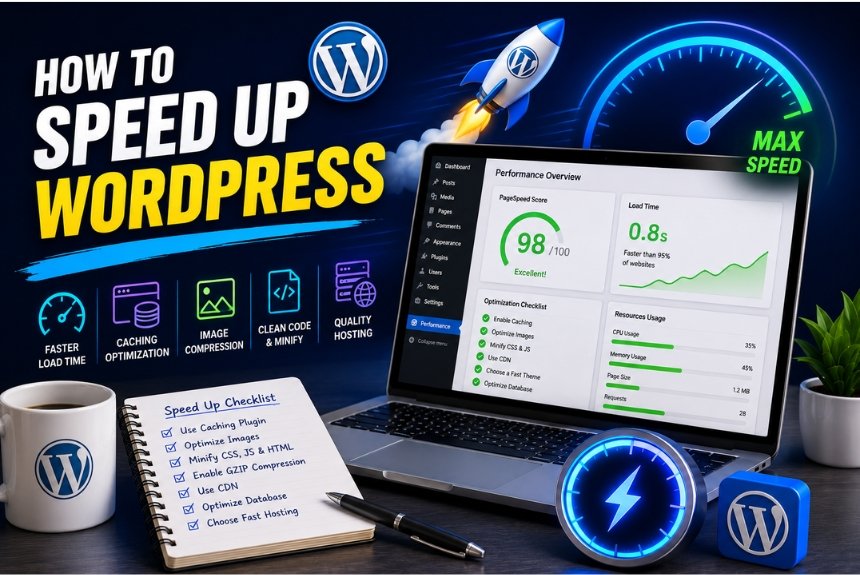
How to Speed Up WordPress: Complete Performance Guide
Introduction
A fast website is no longer just a luxury—it’s a necessity. Whether you run a personal blog, an online store, a business website, or a portfolio, visitors expect pages to load almost instantly. If your WordPress website takes too long to load, users may leave before they even see your content.
Google also considers website speed as an important ranking factor, especially through Core Web Vitals. A slow website can reduce search engine rankings, increase bounce rates, lower conversion rates, and negatively affect user experience.
The good news is that you don’t need to be a developer to improve your website’s performance. By following a few proven optimization techniques, you can significantly speed up your WordPress website.
In this guide, you’ll learn practical methods such as choosing better hosting, optimizing images, enabling caching, using a CDN, cleaning your database, removing unnecessary plugins, and testing your site’s performance.
Why Website Speed Matters
Website speed impacts almost every aspect of your online success. Faster websites keep visitors engaged, improve SEO performance, and increase sales or conversions.
1. Better User Experience
Visitors expect websites to load within just a few seconds. If pages are slow, many users leave without exploring further.
Benefits include:
- Faster page loading
- Better browsing experience
- Higher visitor satisfaction
- More page views
- Longer session duration
A smooth experience encourages visitors to stay longer and interact with your content.
2. Improved SEO Rankings
Google prioritizes websites that provide a good user experience. Page speed is one of the factors used to rank websites.
A faster WordPress website can help you:
- Rank higher in search results
- Improve Core Web Vitals
- Get indexed more efficiently
- Increase organic traffic
- Reduce bounce rate
Even if your content is excellent, slow loading times can hold back your rankings.
3. Higher Conversion Rates
Every second of delay can reduce conversions.
For example:
- Online stores may lose customers before checkout.
- Bloggers may get fewer newsletter sign-ups.
- Businesses may receive fewer inquiries.
- Service providers may lose potential clients.
Improving speed can directly increase sales and lead generation.
4. Lower Bounce Rate
Bounce rate measures how many visitors leave after viewing only one page.
Slow websites often have:
- Higher bounce rates
- Lower engagement
- Fewer returning visitors
A faster website encourages users to explore more pages.
5. Better Mobile Performance
Most users now browse on smartphones. Mobile networks are often slower than desktop internet connections.
Optimizing speed ensures:
- Faster mobile loading
- Better usability
- Improved mobile SEO
- Higher engagement on all devices
6. Reduced Server Load
Optimized websites consume fewer server resources.
Benefits include:
- Lower CPU usage
- Reduced bandwidth consumption
- Better handling of traffic spikes
- Improved overall server stability
7. Increased Revenue
For eCommerce websites, speed has a direct impact on revenue.
A faster website can lead to:
- More completed purchases
- Higher average order value
- Better customer retention
- Increased repeat visitors
Key Benefits of a Fast WordPress Website:
- Better user experience
- Higher Google rankings
- More organic traffic
- Faster page loading
- Increased conversions
- Lower bounce rate
- Improved Core Web Vitals
- Better mobile performance
- Higher customer satisfaction
- Increased revenue
Use Caching
Caching stores a ready-made version of your web pages so the server doesn’t have to generate them from scratch every time someone visits. This reduces loading times and improves overall performance.
Why Caching Is Important
Without caching, WordPress processes PHP code, queries the database, and builds each page for every visitor. This takes time and increase server load
With caching enabled, visitors receive a pre-generated version of the page, resulting in:
- Faster page loading
- Reduced server usage
- Better handling of traffic spikes
- Improved user experience
- Better Core Web Vitals
Types of Caching:
1. Page Caching
Stores a static HTML version of your web pages.
Benefits:
- Fast page delivery
- Lower CPU usage
- Improved performance for most visitors
2. Browser Caching
Allows a visitor’s browser to store files like images, CSS, and JavaScript locally.
On future visits, these files don’t need to be downloaded again.
Benefits:
- Faster repeat visits
- Reduced bandwidth usage
- Improved user experience
3. Object Caching
Stores frequently accessed database queries in memory.
Benefits:
- Faster database performance
- Reduced server load
- Ideal for dynamic websites and WooCommerce stores
4. Opcode Caching
Stores compiled PHP code in memory so it doesn’t need to be recompiled for every request.
Benefits:
- Faster PHP execution
- Improved server efficiency
Best Caching Plugins for WordPress
Some popular caching plugins include:
- LiteSpeed Cache
- WP Rocket
- W3 Total Cache
- WP Super Cache
- WP Fastest Cache
Choose one that works well with your hosting environment, and avoid using multiple caching plugins at the same time.
Caching Best Practices
- Enable page caching.
- Enable browser caching.
- Minify CSS and JavaScript if supported.
- Clear cache after making website changes.
- Exclude dynamic pages (like cart and checkout) from caching if you run an online store.
CDN Setup
A Content Delivery Network (CDN) is a network of servers located around the world. It stores copies of your website’s static files and serves them from the server closest to each visitor.
Why Use a CDN?
If your server is located in one country and visitors access your website from another, data has to travel a longer distance, increasing loading times.
A CDN shortens this distance by serving content from nearby locations.
Benefits include:
- Faster global loading speeds
- Reduced server load
- Improved security against some attacks
- Lower bandwidth usage
How a CDN Works
- A visitor requests your website.
- The CDN checks if it already has the required static files.
- If available, it serves them from the nearest CDN server.
- If not, it retrieves them from your origin server and caches them for future requests.
This process speeds up content delivery for users around the world.
What Files Does a CDN Deliver?
A CDN typically delivers:
- Images
- CSS files
- JavaScript files
- Fonts
- Videos (depending on the provider)
- Other static assets
Dynamic content usually continues to come from your main hosting server.
Popular CDN Providers
Some widely used CDN services include:
- Cloudflare
- Bunny.net
- Amazon CloudFront
- KeyCDN
- Fastly
Choose a CDN based on your audience, budget, and hosting setup.
Steps to Set Up a CDN
- Create an account with a CDN provider.
- Add your website to the CDN.
- Update your DNS or connect through your hosting provider.
- Enable CDN integration in WordPress (if needed).
- Test your website to ensure assets are loading from the CDN.
CDN Best Practices
- Cache static assets such as images, CSS, and JavaScript.
- Use HTTPS across your website.
- Regularly clear the CDN cache after major updates.
- Monitor CDN performance using speed testing tools.
- Choose a CDN with servers close to your target audience.
Database Optimization
As your WordPress website grows, the database accumulates unnecessary data such as post revisions, spam comments, expired transients, and unused tables. Cleaning and optimizing the database, along with removing unnecessary plugins, can significantly improve your website’s speed.
Your WordPress database stores almost everything on your website, including posts, pages, comments, settings, users, and plugin data. Over time, this database can become cluttered, causing slower page loading and increased server response times.
Why Database Optimization Matters
A well-maintained database helps WordPress retrieve information more efficiently, resulting in:
- Faster page loading
- Quicker admin dashboard performance
- Reduced server load
- Better website responsiveness
- Improved overall stability
Common Database Clutter
Over time, your database may contain:
1. Post Revisions
WordPress automatically saves multiple versions of posts and pages.
While useful during editing, hundreds of revisions can unnecessarily increase database size.
2. Spam Comments
Spam comments occupy database space even if they are never approved.
Deleting them regularly keeps the database clean.
3. Trashed Posts and Pages
Deleted posts remain in the trash until permanently removed.
Emptying the trash frees up valuable database space.
4. Expired Transients
Transients are temporary pieces of data stored by WordPress and plugins.
Expired transients are no longer needed and should be removed.
5. Orphaned Plugin Data
Some plugins leave database tables and settings behind even after being uninstalled.
Removing unused plugin data helps reduce database bloat.
How to Optimize Your Database
Regular database maintenance should include:
- Delete old post revisions
- Remove spam and trashed comments
- Empty the trash
- Delete expired transients
- Optimize database tables
- Remove orphaned plugin data
- Schedule regular cleanups
Database Optimization Plugins
Several WordPress plugins can automate database cleanup and optimization, making ongoing maintenance easier.
Best Practices
- Back up your website before optimizing the database.
- Clean the database monthly or quarterly.
- Limit the number of stored post revisions.
- Remove unused themes and plugins.
- Avoid installing plugins that create unnecessary database tables.
Remove Unused Plugins
Plugins add functionality to WordPress, but installing too many—or leaving inactive ones on your site—can negatively affect performance.
Why Too Many Plugins Slow Down Your Website
Every plugin may load additional PHP code, CSS files, JavaScript, or database queries.
Having unnecessary plugins can lead to:
- Slower loading times
- Higher memory usage
- More database queries
- Increased security risks
- Plugin conflicts
Identify Unused Plugins
Review your installed plugins and ask:
- Is this plugin still needed?
- Does another plugin already provide the same feature?
- Is it actively maintained and updated?
- Is it affecting website speed?
If the answer is “no” to the first question, consider removing it.
Deactivate vs Delete
Deactivate
- Stops the plugin from running.
- Plugin files remain on the server.
Delete
- Removes plugin files completely.
- Frees up storage.
- Reduces security risks.
- Keeps WordPress clean.
If you’re certain a plugin won’t be used again, deleting it is usually the better option.
Replace Multiple Plugins with One
Instead of using several plugins for small tasks, consider using a single, well-optimized plugin that combines multiple features. This reduces resource usage and simplifies maintenance.
Keep Essential Plugins Updated
Only keep plugins that are:
- Regularly updated
- Compatible with your WordPress version
- Trusted by the community
- Necessary for your website’s functionality
Outdated plugins can slow your site and create security vulnerabilities.
Plugin Management Best Practices
- Delete plugins you no longer use.
- Keep only essential plugins installed.
- Update plugins regularly.
- Avoid installing plugins with overlapping features.
- Test website speed after installing a new plugin.
- Remove inactive plugins instead of leaving them disabled.
Performance Testing Tools
After optimizing your WordPress website, it’s important to measure its performance. Speed testing tools help identify bottlenecks, monitor Core Web Vitals, and provide recommendations for further improvements.
Why Test Website Performance?
Regular performance testing helps you:
- Measure page load time
- Identify slow-loading resources
- Improve Core Web Vitals
- Detect server issues
- Monitor website health after updates
It’s a good practice to test your website before and after making optimization changes.
Popular Performance Testing Tools
1. Google PageSpeed Insights
Google PageSpeed Insights analyzes your website for both mobile and desktop devices. It provides performance scores and recommendations based on Core Web Vitals.
Key Features:
- Performance score
- Core Web Vitals analysis
- Optimization suggestions
- Mobile and desktop reports
2. GTmetrix
GTmetrix offers detailed reports on page loading speed, page size, requests, and waterfall analysis to help identify performance bottlenecks.
Key Features:
- Load time analysis
- Waterfall charts
- Performance grades
- Historical tracking
3. Pingdom Website Speed Test
Pingdom measures page load time from different locations and highlights large files or slow requests.
Key Features:
- Load time
- Performance grade
- File size analysis
- Request breakdown
4. WebPageTest
WebPageTest allows advanced testing from multiple global locations, browsers, and connection speeds.
Key Features:
- Multi-location testing
- Waterfall reports
- Video comparison
- Core Web Vitals insights
Key Metrics to Monitor
Focus on these performance indicators:
- Page Load Time: Aim for under 2–3 seconds.
- Largest Contentful Paint (LCP): Ideally under 2.5 seconds.
- Interaction to Next Paint (INP): Lower values indicate better responsiveness.
- Cumulative Layout Shift (CLS): Keep below 0.1 for visual stability.
- Time to First Byte (TTFB): Lower server response times improve user experience.
Frequently Asked Questions (FAQs)
1. What is the fastest way to speed up a WordPress website?
The quickest improvements usually come from upgrading to quality hosting, enabling caching, optimizing images, and using a CDN.
2. Does website speed affect SEO?
Yes. Faster websites provide a better user experience and can improve search rankings, especially through Google’s Core Web Vitals.
3. Can too many plugins slow down WordPress?
Yes. Excessive or poorly coded plugins can increase server load, database queries, and page loading times.
4. Should I use a CDN for a small website?
Yes. Even small websites can benefit from faster content delivery, improved security, and reduced server load.
5. How often should I optimize my WordPress database?
A monthly cleanup is sufficient for most websites. High-traffic websites may benefit from more frequent optimization.
Final Speed Optimization Checklist
Use this checklist to keep your WordPress website running at its best:
- ✅ Choose a fast and reliable hosting provider.
- ✅ Keep WordPress, themes, and plugins updated.
- ✅ Compress and resize images before uploading.
- ✅ Use modern image formats like WebP or AVIF where possible.
- ✅ Enable page and browser caching.
- ✅ Set up a Content Delivery Network (CDN).
- ✅ Minify CSS, JavaScript, and HTML (if supported).
- ✅ Optimize your WordPress database regularly.
- ✅ Remove unused themes and plugins.
- ✅ Limit unnecessary third-party scripts.
- ✅ Monitor Core Web Vitals.
- ✅ Test website performance regularly using trusted tools.
- ✅ Back up your website before major optimizations.
Following this checklist consistently will help maintain a fast, secure, and user-friendly website.
Conclusion
Speed optimization is an ongoing process rather than a one-time task. By combining fast hosting, image optimization, caching, a CDN, regular database maintenance, and careful plugin management, you can significantly improve your WordPress website’s performance.
A faster website enhances user experience, supports better SEO rankings, increases conversions, and prepares your site to handle future growth. Regular testing and maintenance ensure that your website continues to perform at its best.
Ready to Speed Up Your WordPress Website?
Ready to speed up your WordPress website?
Start by evaluating your current hosting, optimize your images, enable caching, and implement a CDN. Then, use performance testing tools to measure your progress and identify further improvements.
A faster WordPress website not only delights your visitors but also strengthens your SEO and helps your website achieve long-term success.
Leave a Reply