

Create AI Avatar Videos with Synthesia
Creating professional videos traditionally requires several resources, including a camera, recording equipment, presenters, video-editing software, and time for filming and post-production. When businesses need to update a video or produce versions in multiple languages, the process can become even more complicated.
AI video creation platforms offer an alternative. They allow users to create presenter-led videos using written scripts, synthetic voices, digital avatars, visual assets, and automated production tools.
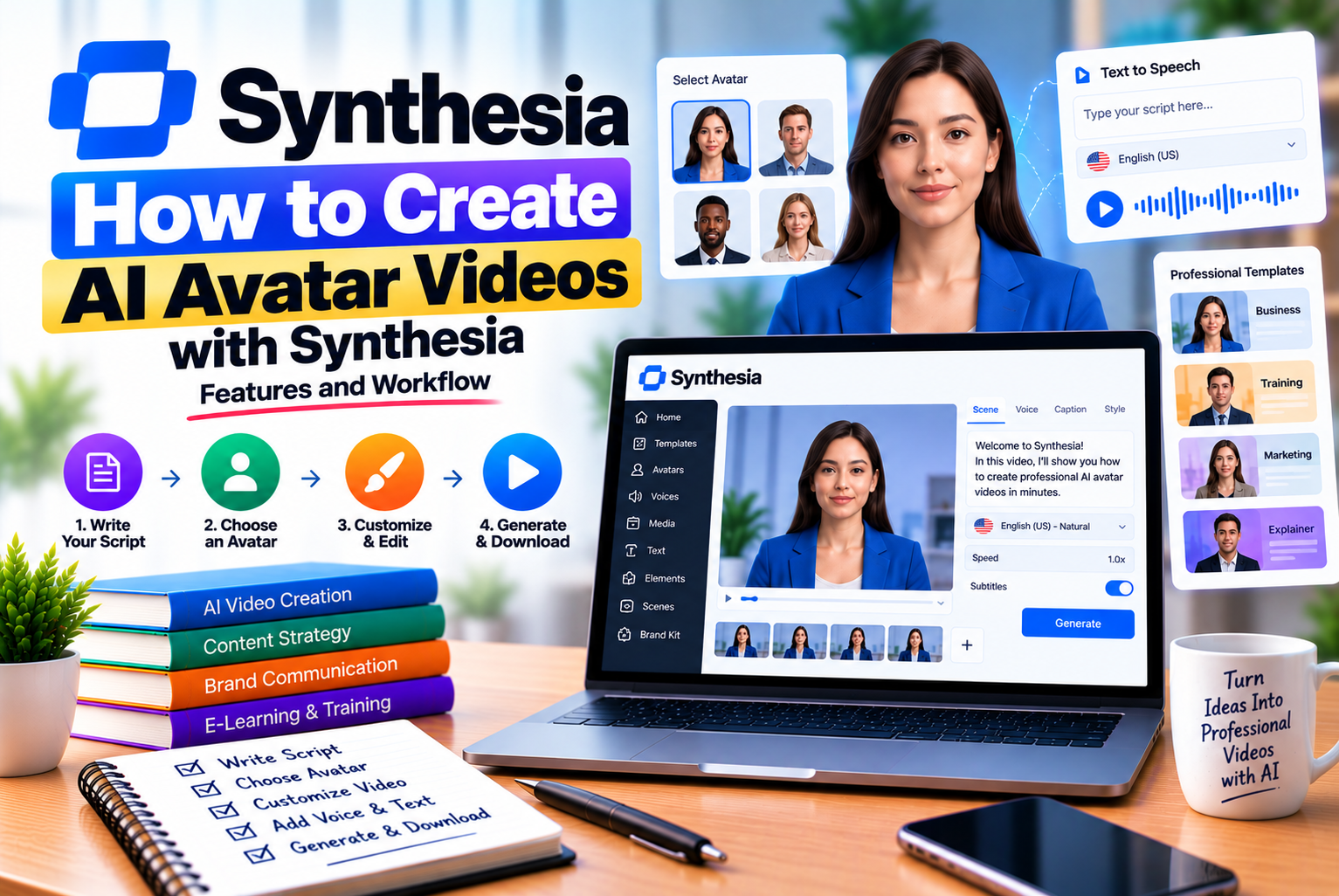
Synthesia is one such platform. It helps businesses, educators, marketers, and content creators produce videos without arranging a conventional filming session for every piece of content. Users can start with a prompt, an existing script, a presentation, a supported document, or a template, then combine AI presenters with voiceovers, visuals, and other elements.
However, creating a useful AI avatar video involves more than choosing a digital presenter and clicking Generate. The quality of the final video depends on the script, avatar selection, voice, scene structure, visual design, and review process.
Understanding the workflow can help you avoid common mistakes, reduce unnecessary regeneration, and produce videos that communicate information clearly.
This guide explains how to create AI avatar videos with Synthesia, covering the complete process from planning and scripting to editing, generating, and distributing the finished video. It also explores personal avatars, multilingual production, advanced features, pricing considerations, and practical ways to improve video quality.
What Is Synthesia and How Does It Create AI Avatar Videos?
Synthesia is an AI video communication platform designed to help users create presenter-led videos using AI avatars and other generated or uploaded media.
Instead of recording a person delivering every line on camera, you can write a script, select an appropriate avatar, choose a voice, and arrange the content into scenes. Synthesia then generates the video using the selected avatar, audio, visual elements, and animations.
The platform supports several ways to start a project, including prompts, scripts, files, PowerPoint presentations, templates, and a blank canvas. The available starting methods depend on the plan and workflow.
How AI Avatar Video Creation Works
The general process involves five stages.
- Content preparation
You decide what the video should explain and prepare the script or source material.
- Avatar and voice selection
You choose a stock presenter, an eligible personal avatar, or a custom avatar created with Avatar Builder. You then select the voice and language appropriate for the audience.
- Scene creation
You divide the video into scenes and add supporting visuals, text, backgrounds, and other media.
- Video generation
Synthesia renders the scenes, combining the avatar’s performance with the selected voice, visuals, and animations.
- Review and distribution
You inspect the generated video, correct errors, make any necessary revisions, and share or download the finished output according to your plan.
Each stage affects the final result. A realistic avatar cannot compensate for a confusing script, while a well-written script can still produce a weak video if the visuals are cluttered or the voice sounds inappropriate for the audience.
What Can You Create with Synthesia?
Synthesia can support a range of video formats, depending on your plan and the features you use.
| Video Type | Example | Main Benefit |
| Training videos | Workplace safety procedures | Repeatable instructional content |
| Employee onboarding | Company policies and introductions | Consistent communication for new employees |
| Product explainers | How a software feature works | Clear, presenter-led demonstrations |
| Educational videos | Lessons and tutorials | Structured delivery of information |
| Marketing videos | Service introductions | Presenter-led promotional content |
| Internal announcements | Policy changes and company updates | Faster production of routine communications |
| Multilingual videos | Localized customer instructions | Adaptation for different language audiences |
| Interactive learning | Scenario-based practice | Opportunities for learner participation |
| Presentation videos | Narrated business presentations | Turning existing information into video |
| Personal-brand videos | Videos featuring your own AI avatar | A reusable digital presenter |
The best format depends on the audience, the complexity of the topic, and the amount of interaction required.
For instance, a short product announcement may need only a presenter, a script, and a few visuals. A detailed training module may require several scenes, diagrams, examples, and interactive elements.
What You Need Before Creating a Synthesia Video
Preparing a few essential details before opening the editor can make the creation process easier.
1. Define the Video’s Purpose
Start by identifying the main objective.
Ask yourself:
- What should viewers understand after watching?
- Who is the intended audience?
- What problem does the video address?
- What information must be included?
- What should viewers do after watching?
For example, a video introducing a new software feature should explain what the feature does, why it matters, and how users can access it.
A training video may need a different structure, beginning with the learning objective and then demonstrating the correct process.
A clear objective prevents the script from becoming a collection of unrelated facts.
2. Prepare Your Source Material
Depending on your workflow, you may need a written script, an outline, a presentation, or supporting documents.
If you already have an approved script and want Synthesia to use the wording exactly, use the script-import workflow.
If you want Synthesia to generate a new script from source material, use an appropriate prompt or file-import workflow instead. These approaches are not identical: importing a file for script generation may produce a rewritten script rather than preserve every sentence from the original document.
Before uploading internal documents, make sure you have permission to use them and that they do not contain sensitive information that should not be processed by an external service.
3. Choose the Video Length
Video length should be determined by the amount of information the audience needs, not simply by how much content you can generate.
As a general planning estimate, spoken narration often falls around 120–150 words per minute, although actual delivery varies by voice, language, pauses, and presentation style.
| Approximate Duration | Estimated Script Length |
| 30 seconds | 60–75 words |
| 1 minute | 120–150 words |
| 2 minutes | 240–300 words |
| 3 minutes | 360–450 words |
| 5 minutes | 600–750 words |
| 10 minutes | 1,200–1,500 words |
These figures are planning estimates, not Synthesia limits. Preview the script and adjust the length according to the subject and intended delivery.
For social media, a concise script may be preferable. For a detailed instructional video, a longer format may be appropriate if the content is divided into manageable sections.
4. Identify Your Brand Requirements
If the video represents a business, decide which brand elements must remain consistent.
These may include:
- Logo.
- Brand colors.
- Typography.
- Background style.
- Presenter appearance.
- Terminology.
- Call-to-action wording.
- Introductory and closing scenes.
Preparing these elements in advance can reduce repeated editing across a series of videos.
Brand Kit availability and other brand-management features depend on the subscription. Check the current plan requirements before building your workflow around a particular feature.
Step-by-Step: How to Create AI Avatar Videos with Synthesia
The following workflow covers the main stages of creating a video in Synthesia. Interface labels and available options may change as the platform updates.
Step 1: Sign In and Start a New Video
Open the official Synthesia website and sign in to your account.
Go to the video-creation area and start a new project. Depending on your account and the interface, you may be able to choose among options such as:
- Start with a prompt.
- Start with a template.
- Import a script.
- Import a file.
- Import a PowerPoint presentation.
- Start from a blank canvas.
These options provide different ways to begin.
Start with a prompt when you want assistance creating the script and visual structure.
Start with a template when you need a pre-designed layout for a common type of video.
Import a script when you already have approved wording that should be preserved.
Import a file when you want Synthesia to use source material to generate a new script and video.
Import a PowerPoint when you want to adapt an existing presentation into a narrated video.
Start from blank when you want to design the scenes and content manually.
Choose the option that best matches the material you already have.
Step 2: Write or Generate the Video Script
The script determines what your AI avatar says. It should therefore be clear, accurate, and appropriate for spoken delivery.
You can write the script yourself or use Synthesia’s Assistant, where available, to generate and refine a draft.
Synthesia Assistant can help develop scripts, select templates, establish a delivery style, and update video content through a chat-based workflow. Its availability depends on the subscription.
When using AI to draft a script, provide specific instructions.
For example, instead of entering:
“Create a video about digital marketing.”
Use a more detailed prompt:
“Create a two-minute introductory video for small business owners explaining how search engine optimization improves website visibility. Use simple English, a professional and approachable tone, three main points, and a short conclusion encouraging viewers to review their website content.”
The second prompt gives the system a clearer audience, duration, topic, tone, and structure.
A Simple Script Structure
A useful presenter-led video can follow this sequence:
- Opening: Introduce the subject and explain why it matters.
- Context: Describe the problem or situation.
- Main explanation: Present the key information.
- Example: Show how the information applies in practice.
- Summary: Reinforce the most important points.
- Call to action: Explain what the viewer should do next, if applicable.
For a product demonstration, the main explanation might be replaced by a step-by-step walkthrough.
For employee training, it might include a procedure, an example of correct behavior, and a short knowledge check.
Tips for Writing Scripts for AI Avatars
Use conversational language. Write as if a presenter is explaining the subject to a real person.
Keep sentences manageable. Very long sentences can be difficult to follow when spoken aloud.
Spell out unfamiliar abbreviations when appropriate. This can help avoid pronunciation problems.
Check names and technical terminology. AI voices may pronounce specialized words incorrectly.
Add pauses where needed. Break up complex information into shorter sections.
Avoid unnecessary repetition. Every scene should contribute something useful.
Review the generated script carefully. AI-generated content can include inaccurate claims, missing context, or wording that does not match your brand.
The final script should be approved before you invest time in detailed visual editing.
Step 3: Select an AI Avatar
Once your project is ready, choose the avatar that best fits the video.
In the Synthesia editor, the avatar-selection controls let you choose an available presenter and add it to a scene. You can then reposition the avatar on the canvas as needed.
Depending on the workflow, you may choose from stock avatars, personal avatars, or avatars created using Avatar Builder.
Stock AI Avatars
Stock avatars are pre-created digital presenters.
They can be suitable when you want a professional presenter without creating a custom digital likeness.
When choosing one, consider:
- The subject and formality of the video.
- The intended audience.
- The presenter’s appearance and delivery style.
- The background and layout.
- The language and voice options available.
- Whether the avatar is permitted for the intended content.
A presenter used in a corporate training module may need a different appearance and delivery style from one used in a casual product explainer.
Personal AI Avatars
A personal avatar can represent you or another person who has completed the required creation and consent process.
Synthesia documents personal-avatar workflows based on video footage and a photo-based option. Photo-based avatars require a live consent video from the person being represented. The person must meet the applicable age requirements and provide the required consent.
Personal avatars can be useful for:
- Business leaders who deliver recurring announcements.
- Educators creating instructional videos.
- Trainers who frequently update learning material.
- Creators who want a reusable digital presenter.
Only create an avatar of yourself or another person when the necessary permissions and consent requirements are satisfied.
Custom Avatars with Avatar Builder
Synthesia’s Avatar Builder allows users to create a stylized or lifelike avatar by choosing a concept, adjusting its appearance, and refining it through available controls or prompts.
According to the official help documentation, Avatar Builder is available on Basic and higher plans, although an Enterprise administrator may disable it for a workspace.
This can be useful when none of the existing stock avatars fits your desired visual identity.
Remember that a custom avatar built from a description is not the same as a personal avatar representing a real person. Follow the platform’s rules concerning real-person likenesses and consent.
Step 4: Choose the Voice and Language
The voice determines how the script is delivered.
Synthesia provides AI voice options in multiple languages. The available voices and capabilities depend on the platform’s current features and your chosen workflow.
When selecting a voice, consider:
- Language.
- Accent.
- Speaking speed.
- Tone.
- Pronunciation.
- Audience expectations.
- The formality of the subject.
For a professional training video, a clear and measured delivery may work better than an overly energetic style.
For a short promotional video, a more enthusiastic delivery may be appropriate.
How to Improve Voice Quality
Read the script aloud before generating the video.
If a sentence is difficult to say naturally, simplify it.
If the script contains an abbreviation, product name, or unfamiliar term, test the pronunciation in the generated output.
Use punctuation to support natural pauses, but do not rely on punctuation alone to correct every pronunciation issue.
Always review the spoken result. A grammatically correct script can still sound unnatural when delivered by a synthetic voice.
Step 5: Divide the Video into Scenes
Scenes organize the script and visuals into manageable sections.
Synthesia uses scene-based scripts, meaning each scene has its own spoken text. Longer scripts can be divided into multiple scenes, with scene breaks providing natural pauses in the presentation.
For example, a three-minute video about website security might use the following structure:
| Scene | Content | Suggested Visual |
| 1 | Introduce website security | Presenter with title |
| 2 | Explain common security risks | Simple risk diagram |
| 3 | Discuss SSL certificates | Website security illustration |
| 4 | Explain strong passwords and access controls | Checklist |
| 5 | Summarize key practices | Three-point recap |
| 6 | Encourage viewers to review their website | Closing slide and call to action |
This structure makes the video easier to follow and simplifies future updates.
If the SSL certificate section changes, you may be able to revise the relevant scene rather than restructuring the entire video.
However, if the change affects the script, voice, avatar performance, or visual layout, you may need to preview or regenerate the affected content.
Step 6: Add Visuals and Supporting Media
A presenter should not necessarily occupy the entire video.
Supporting visuals can make abstract information easier to understand and reduce the feeling that viewers are watching a long monologue.
Depending on the available tools and plan, Synthesia supports visual elements such as:
- Text and headings.
- Images.
- Icons and graphics.
- Shapes.
- Backgrounds.
- Charts and diagrams.
- Stock media.
- AI-generated images and video clips.
- On-screen captions and other text elements.
Synthesia also supports AI-generated media and avatar B-roll workflows. Availability and credit consumption vary by feature and plan.
When to Use Supporting Visuals
Use a diagram when explaining a process.
Use a screenshot when showing a software interface.
Use a comparison table when presenting several options.
Use a short checklist when explaining a procedure.
Use a relevant image when introducing a product, location, or concept.
Use B-roll when additional footage helps illustrate an action or environment.
Avoid adding visuals merely to fill empty space. Each element should help the viewer understand the subject.
Maintain Visual Consistency
Use consistent fonts, colors, spacing, and layout patterns throughout the video.
If the video represents a company, apply the brand’s visual identity where appropriate.
Avoid overcrowding the scene with too much text. Viewers should be able to listen to the presenter and understand the visual information without having to read several paragraphs simultaneously.
Step 7: Customize the Layout and On-Screen Text
The layout determines how the avatar and supporting content appear together.
Depending on the project, you might position the presenter to one side and place a diagram or text beside them.
For a simple announcement, the presenter might occupy the center of the screen.
For a software tutorial, a screen recording or screenshot may need more space than the avatar.
Consider the following design principles:
Keep the main message prominent. The viewer should quickly understand the purpose of the scene.
Use readable text. Avoid small labels that become difficult to read on mobile screens.
Limit competing elements. Too many animations, text blocks, and decorative graphics can distract from the narration.
Check safe margins. Keep important text away from the edges of the video.
Use transitions consistently. Avoid changing animation styles without a clear reason.
Check the final aspect ratio. Make sure the content is suitable for the platform where it will be published.
For example, a training video designed for a desktop learning platform may use a landscape layout, while a short social video may require a portrait format.
Step 8: Preview the Video
Before generating the final video, review the script, scene sequence, timing, and visuals.
Synthesia provides preview options for scenes and full videos. Its standard editor preview does not animate the avatar itself, so the final generated output should still be checked for avatar performance.
Use the preview stage to check:
- Whether the scenes appear in the correct order.
- Whether the text is readable.
- Whether the visuals match the script.
- Whether transitions feel natural.
- Whether the content contains spelling errors.
- Whether the overall duration is appropriate.
- Whether the call to action is clear.
If your plan and workflow support a rendered scene preview, you can use it to examine the avatar’s performance more directly.
The official documentation notes that changes to the script, voice, or avatar framing can invalidate an existing scene performance and require another preview. Plan these checks before making final changes.
Step 9: Generate the Final Video
When the project is ready, select the Generate option in the editor.
Synthesia’s documented workflow allows you to enter a video title and description where required, enable burned-in captions if needed, review chapters, and start generation.
The generation process can include moderation, queueing, preparation, rendering, assembly, and finalization. The time required varies with the project and processing conditions.
After generation, review the actual output rather than assuming the preview represents every detail of the final result.
Check the avatar’s performance, speech, scene timing, visuals, captions, and final duration.
If you find a problem, make the smallest necessary correction and determine whether the affected scene needs to be regenerated.
Step 10: Download, Share, or Publish the Video
After reviewing the finished video, choose an appropriate distribution method.
Depending on your plan and the available sharing options, you may be able to download the video or share it through a supported link.
Before publishing, verify:
- Video resolution.
- Aspect ratio.
- Audio and captions.
- Branding and watermark restrictions.
- Commercial-use rights.
- Permissions for uploaded assets and avatars.
- Privacy requirements for internal or customer-facing content.
For business training, consider whether the video should be embedded in an internal knowledge base or delivered through a learning management system.
For marketing, make sure the final video meets the requirements of the intended social or advertising platform.
How to Create a Personal AI Avatar in Synthesia
A personal avatar allows you to create videos featuring a digital representation of yourself or another consenting person.
This can be useful when the same presenter needs to deliver many videos over time.
Synthesia documents both video-based and photo-based personal-avatar workflows. The available options and allowances depend on the subscription and avatar type.
Option 1: Create a Personal Avatar from Video
The video-based process generally involves these steps:
- Open the Avatars section.
- Select the option to create a personal avatar.
- Choose the supported video-based avatar workflow.
- Record a new video or upload eligible footage.
- Review the recording and follow the on-screen instructions.
- Complete the required live consent recording.
- Confirm the applicable biometric-consent requirements.
- Submit the recording for processing.
- Wait for the avatar to finish generating.
- Select the avatar when creating a video.
Synthesia’s published instructions specify that uploaded footage should be a single continuous take, between one and five minutes long, with only one person in the foreground. The supported upload formats and file-size limits are documented in its help article.
Tips for Recording a High-Quality Personal Avatar
Use suitable lighting. Make sure your face is clearly visible.
Frame yourself properly. Avoid placing the camera too close to your face.
Speak naturally. Use a comfortable pace and volume.
Record continuously. Follow the platform’s instructions instead of combining multiple clips.
Avoid competing voices. Keep other people from speaking during the recording.
Keep your hands away from your face. This can help the platform capture your appearance more clearly.
Follow the consent process. The person represented by the avatar must complete the required consent recording.
A clean source recording helps the system capture your appearance and voice more consistently.
Option 2: Create a Personal Avatar from a Photo
Synthesia also documents a photo-based personal-avatar workflow.
The process includes:
- Open the Avatars section.
- Select the personal-avatar creation option.
- Choose the supported photo-based avatar workflow.
- Upload a clear photo or use the webcam option.
- Record a voice sample if you want to use the supported voice-cloning option.
- Complete the required live consent recording.
- Submit the request.
- Wait for the avatar to generate.
- Add the avatar to a video project.
The official guide recommends a clear, well-lit photo showing one person, ideally framed from the waist up. It also notes that a live consent video from the same person is required.
Video-Based Avatar vs. Photo-Based Avatar
| Factor | Video-Based Personal Avatar | Photo-Based Personal Avatar |
| Source material | Recorded video | A single photo |
| Voice | Captured through the supported recording process | Voice sample may be optional, depending on the workflow |
| Consent | Required | Required |
| Best preparation | Clear, continuous recording | Clear, well-lit photo |
| Processing | May take longer | Often generated within minutes, subject to review |
| Main consideration | Recording quality and framing | Photo quality and the generated avatar’s appearance |
Processing times and supported capabilities may change. Review the current instructions before starting either workflow.
Can You Create an Avatar of Another Person?
Only do so when the person has given the required permission and the creation process meets the platform’s consent and identity-verification requirements.
Do not create or publish an avatar that imitates another person without authorization.
For workplace use, establish a clear process for collecting consent, managing access, and deciding what happens to the avatar if the person leaves the organization or withdraws permission where applicable.
How to Create a Video from a PowerPoint Presentation
PowerPoint-to-video workflows can be useful when a business already has training slides, educational presentations, or product decks.
Synthesia supports importing PowerPoint presentations as one of its video-creation starting points.
Step-by-Step PowerPoint Workflow
- Prepare the presentation and remove outdated or unnecessary slides.
- Review the text for accuracy.
- Sign in to Synthesia.
- Start a new project using the PowerPoint import option.
- Follow the import instructions.
- Review the generated scenes and script.
- Select an appropriate avatar and voice.
- Add supporting visuals where necessary.
- Preview the video.
- Generate and review the finished output.
Tips for Better Presentation Videos
Simplify crowded slides. A slide that works during a live presentation may contain too much text for a video.
Add narration thoughtfully. Not every visible bullet needs to be read word for word.
Use visuals to support the message. Add examples or diagrams when they improve understanding.
Check the slide sequence. Make sure the generated video follows a logical progression.
Review the generated script. The conversion process may require edits to improve spoken delivery.
PowerPoint import can save preparation time, but it should not be treated as a guarantee that the presentation will become a polished video without review.
How to Create Multilingual AI Avatar Videos with Synthesia
Multilingual video production allows businesses to adapt content for people who speak different languages.
For example, a company may need an onboarding video in English, Hindi, Spanish, and French. Instead of recording each version separately, it can use supported translation and dubbing workflows to create localized versions.
Synthesia offers AI dubbing and translation features, including lip-synchronization capabilities in supported workflows. Available languages and functions depend on the feature and plan.
Step-by-Step Localization Workflow
- Complete and approve the original video.
- Identify the target languages.
- Choose the available translation or dubbing workflow.
- Select the required target language.
- Generate the translated or dubbed version.
- Review the spoken output.
- Check names, technical terminology, and industry-specific vocabulary.
- Review lip synchronization where available.
- Check captions and on-screen text.
- Obtain approval from a competent reviewer before publication.
Why Human Review Matters
AI translation can produce fluent language while still changing the intended meaning.
This is particularly important for:
- Legal information.
- Workplace safety procedures.
- Medical instructions.
- Financial information.
- Product specifications.
- Technical documentation.
- Regulatory or compliance training.
A qualified reviewer should confirm that the translated video preserves the original message and uses appropriate terminology.
How to Keep Multilingual Videos Consistent
Create an approved source script before generating translations.
Maintain a glossary of product names, technical terms, and preferred translations.
Use a consistent visual template for every language version.
Record which versions have been reviewed and approved.
When the source script changes, identify the affected translations and update them systematically.
This process can help prevent different language versions from communicating inconsistent information.
Advanced Synthesia Features for Better AI Avatar Videos
Beyond basic presenter-led videos, Synthesia offers additional capabilities that can improve production workflows.
The exact features available depend on the plan, workspace settings, and selected product.
AI Video Assistant
Synthesia Assistant is a chat-based tool that can help create and refine videos.
It can turn prompts and supporting files into a draft, write or improve scripts, and update visuals within the editor.
It can be useful when you need a starting point for a new video or want to revise an existing draft.
However, generated content should still be reviewed for accuracy, tone, and suitability.
AI-Generated B-Roll
B-roll is supplementary footage used to illustrate or support the main narration.
Synthesia provides workflows for generating AI video clips, including clips involving an avatar performing an action or footage showing a space without the avatar. The available models and options depend on the workflow and plan.
For example, a video about a workplace process might use supporting footage to illustrate the environment being discussed.
B-roll should reinforce the narration rather than distract from it.
Interactive Videos
Interactive videos can allow viewers to respond to prompts, select options, or follow different paths through the content.
Potential applications include:
- Training scenarios.
- Product education.
- Knowledge checks.
- Customer onboarding.
- Guided learning experiences.
If you need interactive content, verify which elements are available in your subscription and whether the platform supports your intended distribution method.
Roleplay Sessions
Roleplay-oriented learning can help users practise conversations and decision-making.
For example, a sales team might practise responding to a customer objection, while a support team might practise handling a difficult service interaction.
The scenario, evaluation criteria, and feedback should be designed carefully. AI-generated feedback should be reviewed if it influences formal employee assessment.
Interactive Avatars and API Workflows
Synthesia also provides an Interactive Avatars API for developers building real-time conversational avatar experiences.
This is different from generating a finished, downloadable video. The Interactive Avatars API is intended for real-time avatar sessions, while the Video API supports asynchronous generation of finished video files.
Businesses considering these features should evaluate API access, usage costs, technical requirements, privacy, and integration effort before committing to an implementation.
How Much Does It Cost to Create AI Avatar Videos with Synthesia?
The cost depends on your subscription, generation volume, and the features you use.
Synthesia’s current self-serve pricing structure includes a Basic plan, paid Starter and Pro plans, higher-volume Pro tiers, and an Enterprise option.
Synthesia Pricing Overview
| Plan | Displayed Price | General Use Case |
| Basic | Free | Testing the platform |
| Starter | $29/month with monthly billing | Individuals and small teams |
| Starter | $18/month equivalent with annual billing | Regular users seeking a lower effective monthly price |
| Pro | $89/month with monthly billing | More advanced and frequent production |
| Pro | $64/month equivalent with annual billing | Regular production with advanced features |
| Higher-volume Pro tiers | Depends on the selected tier | Larger monthly generation requirements |
| Enterprise | Custom | Organizational and enterprise requirements |
Prices reflect the published information checked on October 22, 2026. Verify current pricing, taxes, billing terms, and feature availability before subscribing.
Understanding Synthesia Credits
Synthesia uses a combination of included allowances and credits for supported activities.
Its October 2026 self-serve structure includes a monthly allowance of 10 minutes of video creation or dubbing, three survey responses, and 500 credits. Paid plans provide additional credits.
The official credit documentation lists indicative consumption rates such as:
| Activity | Approximate Credit Cost |
| Video creation | 100 credits per minute |
| Dubbing with lip-sync | 80 credits per minute |
| Dubbing without lip-sync | 40 credits per minute |
| Survey responses | 350 credits per response |
| Interactive Avatar, avatar only | 10 credits per minute |
| Interactive Avatar with widget | 20 credits per minute |
| API video generation | 160 credits per minute |
| Bulk personalization | 180 credits per minute |
Actual usage depends on the selected feature and current product terms. Other activities, including some generated media, may have different rates.
How to Reduce Unnecessary Generation Costs
Approve the script first. Avoid generating a full video before the wording has been reviewed.
Use previews. Check scene structure, text, and timing before final generation.
Regenerate only what needs to change. When possible, limit changes to the affected scene or asset.
Reuse approved layouts. Templates and consistent scene structures can reduce repeated setup work.
Plan translations carefully. Finalize the source script before generating localized versions.
Monitor usage. Review credit consumption and account limits to understand which activities use the most resources.
Choose the right plan. A higher allowance can be worthwhile for regular production, but unused capacity does not automatically create value.
The goal is not simply to spend fewer credits. It is to produce the required videos with fewer avoidable revisions and less wasted effort.
Common Mistakes to Avoid When Creating Synthesia Videos
1. Writing Scripts That Are Too Long
A script with too much information can make a video difficult to follow.
Focus on the main objective and divide longer topics into scenes or separate videos.
2. Choosing an Avatar Without Considering the Audience
The avatar’s appearance and delivery style should fit the topic and intended viewers.
A casual presenter may work well for an informal explainer, while a more formal style may be suitable for corporate training.
3. Using the Same Layout for Every Scene
Repeated layouts can make videos feel monotonous.
Introduce visual variation where it helps explain the content, while maintaining consistent branding and typography.
4. Overloading Scenes with Text
Viewers may struggle to read lengthy paragraphs while listening to the presenter.
Use concise labels, short bullet points, diagrams, and other supporting visuals.
5. Skipping the Final Review
AI generation does not guarantee a flawless video.
Check the spoken script, avatar performance, visuals, captions, pronunciation, and timing before publication.
6. Ignoring Mobile Viewing
Small text, crowded layouts, and edge-aligned graphics can be difficult to read on mobile screens.
Review the video at the size and aspect ratio expected by your audience.
7. Translating Before Finalizing the Source Script
If the original script changes after translation, you may need to update several localized versions.
Approve the source content first and establish a clear process for updating translations.
8. Using an Avatar Without Proper Consent
Personal avatars and voice-cloning features require appropriate permissions and compliance with the platform’s rules.
Do not create an avatar that represents another person without the necessary consent.
9. Treating AI-Generated Content as Automatically Accurate
The avatar may deliver incorrect information convincingly.
Verify facts, technical instructions, product claims, and any information that could affect decisions or safety.
10. Ignoring Credit Consumption
Regeneration, dubbing, and other supported activities may consume credits.
Plan the workflow around your expected production needs and review the current usage rules before starting a large project.
Best Practices for Creating Professional AI Avatar Videos
A reliable workflow can improve the quality of your videos and make production easier to repeat.
Use One Clear Objective per Video
Each video should answer a specific question or achieve a clear purpose.
If a topic requires several unrelated explanations, consider dividing it into multiple videos.
Use a Consistent Brand Template
Create reusable layouts for titles, explanations, examples, and closing scenes.
A consistent visual structure helps audiences recognize your content and makes future videos easier to produce.
Keep Narration and Visuals in Sync
When the presenter introduces a new concept, the supporting visual should help explain it.
Avoid showing a diagram before the audience understands its purpose or leaving unrelated visuals on screen after the narration moves to another subject.
Add Captions When Appropriate
Captions can improve accessibility and make videos easier to follow in environments where viewers cannot use sound.
Check that captions are accurate, correctly timed, and readable.
Use Examples to Explain Complex Information
An abstract explanation may be difficult to remember.
Include a realistic example, a short demonstration, or a simple diagram when it improves understanding.
Maintain a Review Process
For business videos, establish who approves scripts, avatars, translations, and final outputs.
A simple review process can help prevent inaccurate information or inconsistent branding from reaching the audience.
Measure Performance
Where analytics are available, examine how viewers engage with your content.
For example, look at completion rates, drop-off points, feedback, or performance against the video’s original objective.
Use the results to improve future scripts and layouts rather than assuming that a longer or more visually complex video is automatically more effective.
Is Synthesia the Right AI Avatar Video Tool for You?
Synthesia can be useful for creators and organizations that need a repeatable way to produce presenter-led videos.
However, whether it is the right choice depends on your workflow.
Synthesia May Be a Good Fit If You:
- Produce training videos regularly.
- Need presenter-led educational content.
- Update business videos frequently.
- Create content in several languages.
- Want to turn supported documents or presentations into video drafts.
- Need structured scenes and reusable templates.
- Want to explore interactive training features.
You May Need Another Tool If You:
- Primarily create cinematic, live-action videos.
- Need specialized editing features beyond your chosen plan.
- Require a particular avatar style that Synthesia does not provide.
- Need an integration that is not supported by your subscription.
- Want a different generation model or cost structure.
- Need real-time avatar functionality and have requirements that the standard video editor does not address.
If you are comparing tools, consider evaluating HeyGen for custom-avatar and personalized-video workflows, Colossyan for learning-focused video production, D-ID for talking-photo applications, and VEED for broader online video editing.
The best platform is the one that meets your requirements at a sustainable cost.
Final Thoughts
Creating AI avatar videos with Synthesia involves several connected steps: planning the content, preparing the script, selecting the avatar and voice, arranging scenes, adding supporting visuals, previewing the project, generating the final video, and reviewing the result.
The platform can reduce the need for repeated filming sessions, especially when organizations produce recurring training materials, product explainers, or multilingual communications.
However, the quality of the final video still depends on thoughtful content preparation and human review. AI avatars are most effective when they support a clear message rather than simply replace a human presenter.
For the best results, begin with a small project. Use a concise script, choose an avatar that suits your audience, add only the visuals needed to explain the content, and review the generated output carefully.
Once the workflow is reliable, you can develop reusable templates, standardize approvals, and expand production to additional videos and languages.
The key to successful AI avatar video creation is not generating content as quickly as possible. It is building a repeatable workflow that produces accurate, engaging, and useful videos for your audience.
Frequently Asked Questions
1. How do I create an AI avatar video with Synthesia?
Start a new project, choose a prompt, template, script, file, presentation, or blank canvas, and prepare your content. Select an avatar and voice, organize the script into scenes, add supporting visuals, preview the project, generate the video, and review the final output.
2. Is Synthesia free to use?
Synthesia offers a free Basic plan with a limited monthly allowance. The free plan has restrictions, including watermarked videos and limitations on certain features. Check the current pricing page for the latest details.
3. Do I need video-editing experience to use Synthesia?
No traditional filming or advanced video-editing experience is necessarily required. Synthesia provides a structured editor, templates, and AI-assisted tools. However, writing clear scripts, arranging visuals, and reviewing the output still require attention.
4. Can I create a video from a script in Synthesia?
Yes. Synthesia supports script-based video creation. You can import an existing script and use it as the basis for the video, then divide the content into scenes and add avatars and visuals.
5. Can Synthesia turn a PowerPoint into a video?
Yes. Synthesia supports PowerPoint import as a starting point for video creation. You should review the generated scenes, script, and visual layout before generating the final video.
6. Can I create my own AI avatar in Synthesia?
Yes. Synthesia offers personal-avatar workflows and Avatar Builder. The options, limitations, and consent requirements depend on the avatar type and current plan.
7. Can I create a personal avatar from a photograph?
Yes. Synthesia documents a photo-based personal-avatar workflow. It requires a suitable image and a live consent video from the person being represented. Availability and terms depend on the current product rules.
8. How long does it take to create a personal avatar?
Processing time depends on the avatar workflow. Synthesia states that photo-based personal avatars are typically generated within minutes, while video-based personal-avatar processing usually takes around one business day. Additional checks may take longer.
9. Can I use my own voice with a Synthesia avatar?
Synthesia offers voice-related features, including voice cloning in supported personal-avatar workflows. Availability depends on the avatar type and plan. You must follow the platform’s consent and verification requirements.
10. How long should a Synthesia video be?
The ideal length depends on the subject and audience. A short explainer may take one or two minutes, while detailed training can require longer. Divide lengthy content into logical scenes and remove information that does not support the video’s objective.
11. Can I translate Synthesia videos into other languages?
Yes. Synthesia offers translation and dubbing capabilities in supported workflows. Available languages and features vary, and translated content should be reviewed for accuracy and natural delivery.
12. Does Synthesia support subtitles?
Synthesia provides caption-related features, including the option to enable burned-in captions during video generation. The available subtitle and export options depend on the current workflow and plan.
13. Can I add images and videos to Synthesia projects?
Yes. Synthesia supports visual media and AI-generated assets in eligible workflows. You can use supporting images, graphics, and video clips to illustrate the narration. Some generated assets may consume credits or require an add-on.
14. Can I create training videos with Synthesia?
Yes. Synthesia supports presenter-led training videos and provides additional learning-oriented capabilities on eligible plans. These can include interactive videos, roleplay sessions, and other tools for instructional content.
15. How much does Synthesia cost?
Synthesia offers a free Basic plan, paid Starter and Pro subscriptions, higher-volume Pro tiers, and Enterprise pricing. The displayed Starter and Pro monthly-billing prices are $29 and $89 respectively, but you should verify current prices and plan terms before subscribing.
16. Do Synthesia videos use credits?
Synthesia uses included allowances and credits for supported activities. Credit consumption depends on the feature, the generated content, and the applicable plan. Review the current credit documentation before estimating production costs.
17. Can I edit a Synthesia video after generating it?
You can return to the project, edit supported elements, and generate an updated version. Depending on the change, you may need to regenerate the affected scene or avatar performance. Check the current usage rules before making extensive revisions.
18. Can Synthesia avatars move and use gestures?
Synthesia offers expressive avatar capabilities, with performance depending on the avatar type and generation model. Review the generated video to confirm that the avatar’s movements and delivery suit your content.
19. Can I use Synthesia videos commercially?
Commercial use depends on Synthesia’s current terms, your subscription, and the rights associated with the avatars, voices, and assets used. Review the applicable terms and obtain the necessary permissions before publishing or selling generated videos.
20. What is the best way to improve Synthesia video quality?
Start with a clear script, choose a suitable avatar and voice, divide the content into logical scenes, use relevant supporting visuals, preview the project, and review the generated video. Check pronunciation, captions, timing, and factual accuracy before publishing.
Official References
- Synthesia video creation documentation: https://docs.synthesia.io/docs/video-creation
- How to generate a video in Synthesia: https://help.synthesia.io/en/articles/9189319-how-do-i-generate-my-video-in-synthesia
- How to create a personal avatar from video: https://help.synthesia.io/en/articles/9453224-how-do-i-create-my-personal-avatar-from-a-video
- How to create a personal avatar from a photo: https://help.synthesia.io/en/articles/13603121-how-do-i-create-a-personal-avatar-from-a-photo
- Synthesia pricing: https://www.synthesia.io/pricing
- Synthesia features: https://www.synthesia.io/features
Leave a Reply