


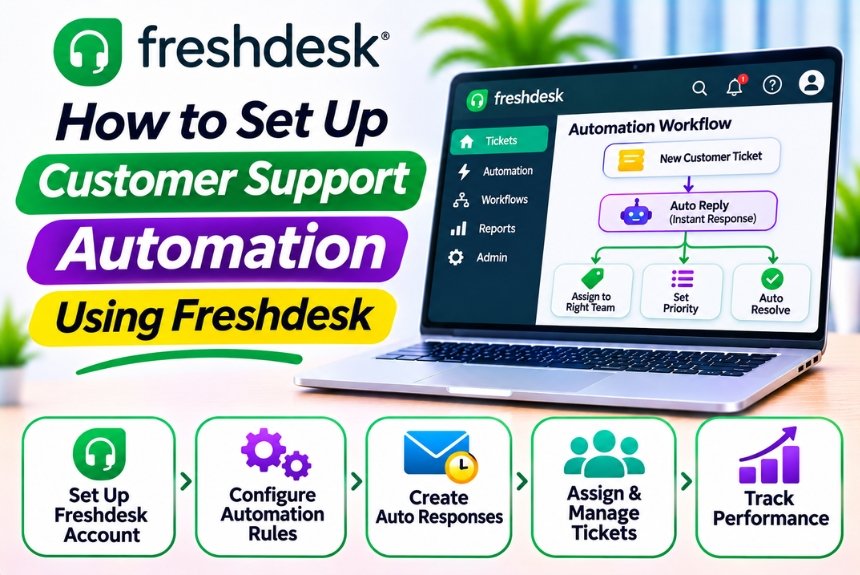
How to Set Up Customer Support Automation Using Freshdesk
Managing customer support manually can become challenging as a business grows. Support teams often receive hundreds of inquiries related to orders, refunds, technical issues, account access, and product information. Handling every request manually can increase response times, create repetitive workloads, and affect customer satisfaction.
Freshdesk helps businesses streamline customer support through ticket management, workflow automation, intelligent routing, notifications, and AI-powered capabilities. With the right automation setup, businesses can reduce manual tasks, prioritize customer requests, and improve the efficiency of their support teams.
In this guide, we will explain how to set up customer support automation using Freshdesk, including ticket automation, assignment rules, SLA management, escalation workflows, and practical examples for different businesses.
What Is Customer Support Automation?
Customer support automation refers to using software, predefined rules, and AI-powered tools to perform repetitive customer service tasks without requiring manual intervention for every action.
Instead of asking support agents to manage every ticket individually, automation allows businesses to define conditions and actions that execute automatically.
For example, when a customer submits a support ticket about a refund, the system can automatically:
- Identify the ticket based on its subject or content.
- Assign it to the billing or refunds department.
- Set the appropriate priority.
- Notify the responsible support agent.
- Apply a relevant response deadline.
- Escalate the ticket if it remains unresolved.
This helps support teams focus on resolving customer problems rather than spending time on repetitive administrative tasks.
What Is Freshdesk Automation?
Freshdesk is a customer support platform developed by Freshworks that helps businesses manage customer inquiries through a centralized ticketing system.
Its automation capabilities allow businesses to configure rules for ticket assignment, prioritization, notifications, status updates, escalation, and other support activities.
Freshdesk offers different automation capabilities depending on the subscription plan and product configuration.
Types of Automation Available in Freshdesk
| Automation Type | Purpose |
| Ticket Creation Rules | Automatically organize newly created tickets |
| Ticket Updates | Trigger actions when ticket information changes |
| Time-Based Automation | Execute actions after a specified period |
| SLA Management | Monitor response and resolution deadlines |
| Escalation Rules | Notify or reassign overdue tickets |
| Workflow Automation | Streamline repetitive support processes |
| AI-Powered Automation | Assist with categorization, responses, and resolution |
| Scenario Automation | Apply predefined actions to tickets manually or through supported workflows |
Understanding these automation types will help you create an effective customer support workflow.
Benefits of Customer Support Automation Using Freshdesk
Before setting up automation, it is important to understand how it can improve your support operations.
1. Faster Ticket Resolution
Automated ticket assignment and prioritization reduce the time agents spend reviewing and organizing incoming requests.
2. Reduced Manual Work
Automation can handle repetitive tasks such as assigning tickets, updating fields, sending notifications, and escalating requests.
3. Improved Customer Experience
Customers can receive faster acknowledgments, more consistent communication, and timely responses.
4. Better Ticket Organization
Automated categorization, tagging, and prioritization help support teams maintain an organized ticketing system.
5. Consistent Support Processes
Automation ensures that tickets follow predefined rules and service procedures.
6. Improved Agent Productivity
Support agents can spend more time solving customer problems instead of performing repetitive administrative activities.
7. Better SLA Management
Automated reminders and escalations help teams monitor response and resolution deadlines.
How to Set Up Customer Support Automation in Freshdesk
Let’s explore the step-by-step process of configuring customer support automation.
Step 1: Create and Configure Your Freshdesk Account
Before creating automation rules, you need a properly configured Freshdesk workspace.
Getting Started
- Visit the official Freshdesk website.
- Sign up for an account or log in to your existing workspace.
- Complete the initial setup process.
- Configure your business details.
- Add your support email address.
- Invite customer support agents.
- Configure basic ticket management settings.
Official website: Freshdesk
Once your account is ready, you can begin configuring automation.
Step 2: Organize Your Support Ticket Structure
Before implementing automation, establish a clear structure for managing support tickets.
Configure Ticket Fields
Freshdesk tickets contain information that helps agents understand and manage customer requests.
Common ticket fields include:
| Field | Purpose |
| Subject | Describes the customer’s issue |
| Description | Provides detailed information |
| Requester | Identifies the customer |
| Agent | Identifies the assigned support representative |
| Group | Defines the responsible department |
| Priority | Indicates the urgency of the request |
| Status | Tracks the progress of the ticket |
| Type | Categorizes the nature of the issue |
| Tags | Helps organize and identify tickets |
Create Support Groups
You can organize agents into groups based on their responsibilities.
Examples include:
- Technical Support
- Billing and Payments
- Sales Support
- Returns and Refunds
- General Customer Service
This structure makes automated ticket assignment more effective because the system can route requests to the appropriate department.
Step 3: Configure Ticket Creation Automation
Ticket creation automation helps organize tickets immediately after they enter your support system.
Freshdesk provides ticket creation rules through its automation or ticket management settings, depending on the current interface and plan.
Example: Automatically Assign Billing Tickets
Suppose customers submit inquiries about invoices and payment issues.
You can create an automation rule with the following configuration:
| Setting | Configuration |
| Rule Name | Billing Ticket Assignment |
| Condition | Ticket subject or description contains billing-related keywords |
| Action 1 | Assign ticket to Billing Support |
| Action 2 | Set priority to Medium |
| Action 3 | Add tag billing |
| Action 4 | Notify the assigned group |
How to Configure the Rule
- Open your Freshdesk administrator workspace.
- Navigate to the automation or ticket management settings.
- Select the appropriate ticket creation rule option.
- Create a new rule.
- Enter a descriptive name.
- Define the conditions that identify billing requests.
- Add the required actions.
- Save and activate the rule.
The exact navigation labels may vary depending on your Freshdesk version and subscription.
Important: Use specific conditions whenever possible. Broad keyword rules can incorrectly assign tickets that do not belong to the billing department.
Step 4: Set Up Automatic Ticket Assignment
Automatic assignment ensures that customer requests reach the correct agent or team without manual intervention.
Freshdesk supports different assignment methods, depending on your plan and configuration.
Common Assignment Methods
| Assignment Method | How It Works |
| Group-Based Assignment | Assigns tickets to a relevant support department |
| Round-Robin Assignment | Distributes tickets among eligible agents |
| Skill-Based Assignment | Routes requests based on agent expertise, where supported |
| Load-Based Assignment | Assigns tickets according to agent availability or workload, where supported |
| Manual Assignment | Allows supervisors to select the responsible agent |
Example: Technical Support Assignment
Suppose a customer reports a technical problem.
You can configure a rule that:
- Identifies tickets categorized as technical issues.
- Assigns them to the Technical Support group.
- Sets the priority based on the severity.
- Adds the tag technical_issue.
- Sends a notification to the assigned team.
For teams handling a large ticket volume, automated distribution can help maintain a balanced workload.
Step 5: Configure Ticket Prioritization Automation
Not every customer support request requires the same level of urgency.
Freshdesk allows businesses to organize tickets according to their priority and operational requirements.
Example Priority Structure
| Priority | Example Issue | Recommended Handling |
| Low | General product information | Standard queue |
| Medium | Account-related inquiry | Regular support workflow |
| High | Payment failure or major service issue | Faster response |
| Urgent | Critical outage or severe business disruption | Immediate attention |
How to Automate Priorities
You can create rules based on ticket fields, customer details, or other available conditions.
For example:
Condition: Ticket type is Incident and the relevant service is marked as critical.
Action: Set priority to Urgent and notify the responsible support group.
Be careful when automatically assigning high priority based only on keywords. A customer mentioning “urgent” does not always indicate a critical incident.
Step 6: Set Up Time-Based Automation
Time-based automation allows Freshdesk to perform actions when a ticket remains in a particular state for a specified duration.
This is especially useful for reminders, follow-ups, and overdue ticket management.
Example: Reminder for Pending Tickets
Suppose a ticket remains in Pending status for 24 hours without an update.
You can configure a time-based rule to:
- Identify tickets that have remained pending for the specified duration.
- Send a reminder to the assigned agent.
- Add a follow-up tag.
- Notify the relevant support group.
Example Automation
| Condition | Action |
| Ticket remains Pending for 24 hours | Notify assigned agent |
| Ticket remains Open without response | Send internal reminder |
| Ticket is overdue | Notify support supervisor |
| Ticket has not been updated | Add follow-up tag |
Time-based automation is useful for ensuring that customer requests do not remain unattended.
Important: Freshdesk automation conditions and timing options depend on the subscription plan. Verify the available conditions and execution frequency in your account.
Step 7: Configure SLA Automation
Service-Level Agreements (SLAs) define how quickly support teams should respond to and resolve customer requests.
Freshdesk allows businesses to establish SLA policies based on factors such as ticket priority, business hours, and other supported conditions.
Common SLA Metrics
| SLA Metric | Description |
| First Response Time | Time taken to provide the first response |
| Resolution Time | Time taken to resolve the ticket |
| Response Deadline | Target time for the next required response |
| Resolution Deadline | Target time for completing the request |
Example SLA Policy
| Priority | First Response Target | Resolution Target |
| Low | 24 business hours | 72 business hours |
| Medium | 8 business hours | 24 business hours |
| High | 2 business hours | 8 business hours |
| Urgent | 30 minutes | 4 business hours |
These are illustrative targets, not mandatory Freshdesk defaults. Businesses should define SLA commitments according to their actual service capacity and customer agreements.
How to Configure SLA Policies
- Open the Freshdesk administration settings.
- Navigate to the SLA management section.
- Create a new SLA policy.
- Define the applicable conditions.
- Set first-response and resolution targets.
- Specify business hours if required.
- Save the policy.
- Test the policy using sample tickets.
SLA automation helps support teams establish clear expectations and monitor performance consistently.
Step 8: Create Automated Escalation Rules
Escalation automation helps prevent tickets from remaining unresolved beyond their expected deadlines.
Example: Escalate Overdue Tickets
Suppose a high-priority ticket has not been resolved within the agreed timeframe.
You can create an escalation rule that:
- Identifies tickets approaching or exceeding their SLA deadlines.
- Notifies the assigned agent.
- Alerts the team leader.
- Reassigns the ticket if required.
- Updates the ticket priority where appropriate.
Example Escalation Workflow
| Condition | Automated Action |
| High-priority ticket is overdue | Notify support supervisor |
| Urgent ticket is unresolved | Alert responsible group |
| First response SLA is breached | Notify assigned agent |
| Resolution deadline is exceeded | Escalate to the next responsible level |
Escalation policies should be carefully designed to avoid excessive notifications and unnecessary reassignment.
Step 9: Automate Customer Notifications
Customer notifications help keep customers informed about the status of their support requests.
Freshdesk allows businesses to configure notifications and automated responses for supported ticket events.
Common Customer Notifications
| Event | Automated Notification |
| Ticket Created | Confirmation email |
| Ticket Assigned | Assignment-related update, where configured |
| Ticket Status Changed | Status notification |
| Agent Responds | Response notification |
| Ticket Resolved | Resolution confirmation |
| Customer Feedback Requested | CSAT survey, where enabled |
Example: Automatic Ticket Confirmation
When a customer submits a ticket, Freshdesk can send an acknowledgment confirming that the request has been received.
A useful acknowledgment should include:
- Confirmation of ticket creation
- Ticket reference number
- Expected response timeframe, if appropriate
- Instructions for providing additional information
- Support contact details
Best practice: Avoid promising a specific resolution time unless it is supported by your actual SLA policy.
Step 10: Use Scenario Automation for Repetitive Tasks
Scenario automation allows agents to apply a predefined set of actions to tickets when needed.
It can be useful for handling repetitive situations that occur frequently in customer support.
Example: Refund Processing Scenario
Suppose your support team frequently receives refund requests.
You can create a scenario that:
- Changes the ticket group to Returns and Refunds.
- Sets the appropriate ticket type.
- Updates the priority.
- Adds a refund-related tag.
- Inserts a predefined internal note or response, where supported.
Agents can then apply the scenario instead of manually updating every field.
Common Scenario Examples
| Scenario | Automated Actions |
| Refund Request | Assign group, add tag, update type |
| Technical Issue | Assign technical team, set priority |
| Shipping Inquiry | Add shipping tag, assign logistics group |
| Account Access | Route to account support |
| Product Complaint | Categorize ticket and notify responsible group |
Scenario automation is particularly useful when agents need to perform multiple actions consistently.
Step 11: Explore AI-Powered Customer Support Automation
Freshworks offers AI-powered capabilities through its Freddy AI ecosystem.
Depending on your Freshdesk product and subscription, AI can help automate or assist with customer support activities.
Freddy AI Capabilities
AI-Powered Chatbots: Help answer common customer questions and support self-service experiences.
Automated Ticket Categorization: Assist with identifying ticket categories, priorities, or other relevant information where supported.
Agent Assistance: Help agents generate response suggestions and access relevant information.
Conversation Summaries: Provide summaries of customer interactions to help agents understand ticket history.
Knowledge-Based Responses: Assist in identifying relevant information from available support content.
Example: AI-Assisted Support Workflow
A customer submits a ticket asking how to reset a password.
An AI-powered support workflow may:
- Identify the nature of the request.
- Suggest a relevant help article.
- Provide an automated response if the workflow supports it.
- Escalate the ticket if the customer still needs assistance.
- Help an agent review the conversation if escalation occurs.
AI capabilities vary by Freshworks product, subscription, and configuration. Review current feature availability before building your workflow around a specific AI function.
Step 12: Build a Customer Self-Service Knowledge Base
A knowledge base helps customers find answers to common questions without submitting support tickets.
Freshdesk provides knowledge management and self-service capabilities that can help businesses publish support articles and FAQs.
Common Knowledge Base Categories
- Getting Started
- Account Management
- Billing and Payments
- Orders and Shipping
- Returns and Refunds
- Technical Support
- Product Features
- Troubleshooting
How to Improve Self-Service
- Identify frequently asked customer questions.
- Create clear and helpful articles.
- Organize articles into relevant categories.
- Add screenshots or instructions where necessary.
- Link articles in automated responses.
- Review search queries and customer feedback.
- Update outdated information regularly.
A well-maintained knowledge base can reduce repetitive inquiries and improve customer satisfaction.
Step 13: Monitor Customer Support Automation Performance
Automation should be evaluated continuously to ensure that it improves support operations.
Freshdesk provides reporting and analytics capabilities that can help teams monitor customer support performance.
Important Support Metrics
| Metric | What It Measures |
| Ticket Volume | Number of incoming support requests |
| First Response Time | How quickly agents respond |
| Resolution Time | How quickly issues are resolved |
| SLA Compliance | Percentage of tickets meeting SLA targets |
| Customer Satisfaction (CSAT) | Customer feedback about support |
| Ticket Reopen Rate | Frequency of resolved tickets reopening |
| Agent Productivity | Support workload and performance |
| Automation Effectiveness | Reduction in manual tasks or improvements in workflow efficiency |
How to Improve Automation Performance
- Review incorrectly assigned tickets.
- Identify rules that trigger unnecessarily.
- Remove redundant automation.
- Monitor SLA violations.
- Review customer satisfaction feedback.
- Update ticket categories and conditions.
- Check whether agents are receiving too many notifications.
The objective is to make automation helpful rather than create additional complexity.
Freshdesk Automation Examples for Different Businesses
Customer support automation should be designed around the specific needs of a business.
1. eCommerce Customer Support
An online store can automate inquiries related to orders, shipping, returns, and refunds.
| Customer Request | Automation |
| Order Status | Assign to order support |
| Refund Request | Route to returns department |
| Shipping Delay | Add shipping tag and priority |
| Payment Issue | Assign to billing support |
| Product Complaint | Notify relevant support group |
2. SaaS Customer Support
A software company can automate technical support and account-related requests.
| Customer Request | Automation |
| Login Issue | Assign to account support |
| Bug Report | Route to technical team |
| Feature Request | Categorize and tag |
| Subscription Issue | Assign to billing support |
| Critical Outage | Escalate to incident response |
3. Digital Marketing Agency
A digital marketing agency can use automation to manage client inquiries and service requests.
| Client Request | Automation |
| SEO Inquiry | Assign to SEO team |
| Website Issue | Route to web development |
| Advertising Request | Assign to performance marketing |
| Billing Question | Route to accounts |
| Campaign Update | Notify account manager |
4. Educational Institution
Educational institutions can automate student and administrative inquiries.
| Inquiry | Automation |
| Admission Query | Assign to admissions |
| Fee Payment | Route to finance |
| Technical Issue | Assign to IT support |
| Course Information | Categorize and tag |
| Certificate Request | Assign to administration |
These examples demonstrate how Freshdesk automation can be adapted to different operational requirements.
Freshdesk Automation Best Practices
Implementing automation effectively requires careful planning and ongoing maintenance.
1. Start With Repetitive Tasks
Identify the tasks that consume the most time for your support team.
Automate common activities such as ticket assignment, notifications, and categorization before introducing complex workflows.
2. Keep Rules Simple
Too many overlapping rules can create unexpected behavior.
Use clear conditions and descriptive rule names so administrators can understand how each automation works.
3. Avoid Conflicting Rules
Multiple rules may update the same ticket field or trigger unnecessary actions.
Review existing rules before creating new ones.
4. Test Before Deployment
Use sample tickets to verify that automation works as expected.
Check whether tickets are assigned correctly, priorities are accurate, and notifications reach the intended recipients.
5. Maintain Human Oversight
Automation should support customer service agents rather than replace judgment in complex situations.
High-risk cases, sensitive customer issues, and unusual requests should be reviewed by appropriate team members.
6. Monitor Automation Regularly
Review automation performance and update rules as your business processes change.
7. Prioritize Customer Experience
The ultimate goal of customer support automation is to improve customer satisfaction.
Avoid workflows that send excessive notifications, delay human responses, or make it difficult for customers to reach a support agent.
Freshdesk Automation: Common Mistakes to Avoid
1. Automating Every Process Immediately
Trying to automate all support processes at once can make implementation unnecessarily complicated.
Solution: Start with a few high-impact workflows and expand gradually.
2. Using Broad Ticket Conditions
Generic keywords can result in incorrect categorization and assignment.
Solution: Combine multiple relevant conditions and review sample tickets before activating a rule.
3. Ignoring SLA Requirements
Automation without clear service-level expectations can lead to unnecessary escalations.
Solution: Establish realistic response and resolution targets before implementing SLA-based workflows.
4. Creating Too Many Notifications
Excessive notifications can overwhelm agents and supervisors.
Solution: Send notifications only when meaningful action is required.
5. Neglecting Automation Maintenance
Business processes, products, and customer needs change over time.
Solution: Review automation rules regularly and remove outdated conditions.
6. Depending Entirely on AI
AI-powered responses may occasionally be inaccurate or unsuitable.
Solution: Establish review processes and escalation paths for complex customer requests.
Freshdesk vs Other Customer Support Automation Tools
Freshdesk competes with several customer support platforms that offer ticketing and automation capabilities.
| Platform | Primary Strength | Best For |
| Freshdesk | Accessible ticketing and support automation | Small and medium-sized businesses |
| Zendesk | Advanced customer service workflows | Growing support organizations |
| HubSpot Service Hub | CRM-connected customer service | Businesses using HubSpot CRM |
| Zoho Desk | Customer support and workflow automation | Businesses using Zoho applications |
| Intercom | Conversational support and AI engagement | SaaS and digital businesses |
| Salesforce Service Cloud | Enterprise customer service workflows | Large organizations with complex CRM needs |
The best platform depends on your business size, support channels, automation requirements, integration needs, and budget.
Frequently Asked Questions
1. What is customer support automation in Freshdesk?
Customer support automation in Freshdesk uses predefined rules, workflows, time-based triggers, and AI-powered capabilities to perform repetitive support tasks such as ticket assignment, prioritization, notifications, and escalation.
2. Can Freshdesk automatically assign support tickets?
Yes. Freshdesk supports ticket assignment rules and other assignment capabilities that can route requests to appropriate support groups or agents based on configured conditions and available plan features.
3. What is time-based automation in Freshdesk?
Time-based automation performs actions when a ticket meets specific time-related conditions. It can be used for reminders, overdue ticket notifications, and escalation workflows.
4. Can Freshdesk automate SLA management?
Yes. Freshdesk supports SLA policies that define response and resolution targets. Related automation and escalation capabilities help teams monitor deadlines and manage overdue tickets.
5. Does Freshdesk support AI-powered customer service?
Yes. Freshworks offers Freddy AI capabilities for selected customer service workflows, including AI assistance, chatbots, and other automation features. Availability depends on the product and subscription.
6. Can Freshdesk send automatic responses to customers?
Yes. Freshdesk supports automated notifications and responses for supported events, such as ticket creation and updates. Businesses can configure these notifications based on their support processes.
7. Is Freshdesk automation suitable for small businesses?
Yes. Small businesses can automate repetitive tasks such as ticket assignment, acknowledgments, reminders, and categorization to improve support efficiency.
8. How does Freshdesk automation improve customer satisfaction?
Automation can reduce response delays, improve ticket organization, provide timely notifications, and ensure that customer requests reach the appropriate support team.
9. Does Freshdesk offer free customer support automation?
Freshdesk’s available plans and automation features may vary. Some entry-level options or trials may be available, but businesses should verify the current plan limitations and included automation capabilities.
10. What is the best way to start Freshdesk automation?
Start by identifying repetitive support tasks, organizing ticket categories, configuring basic assignment rules, and implementing notifications. Then introduce SLA management, escalation workflows, and advanced automation as needed.
Final Thoughts
Customer support automation is becoming increasingly important for businesses that want to improve response times, reduce manual workloads, and deliver consistent customer experiences.
Freshdesk provides a range of automation capabilities, including ticket creation rules, assignment workflows, time-based actions, SLA management, escalation, scenario automation, and AI-powered support features.
The most effective implementation begins with a clear understanding of customer support processes. Start with simple, high-impact workflows, monitor their performance, and gradually introduce more advanced automation.
With the right configuration, Freshdesk can help businesses build a more organized, efficient, and scalable customer support operation.
Explore more Freshworks tutorials, CRM guides, and customer support software reviews on NextBloggers to discover tools that can help improve your business workflows.
Leave a Reply