


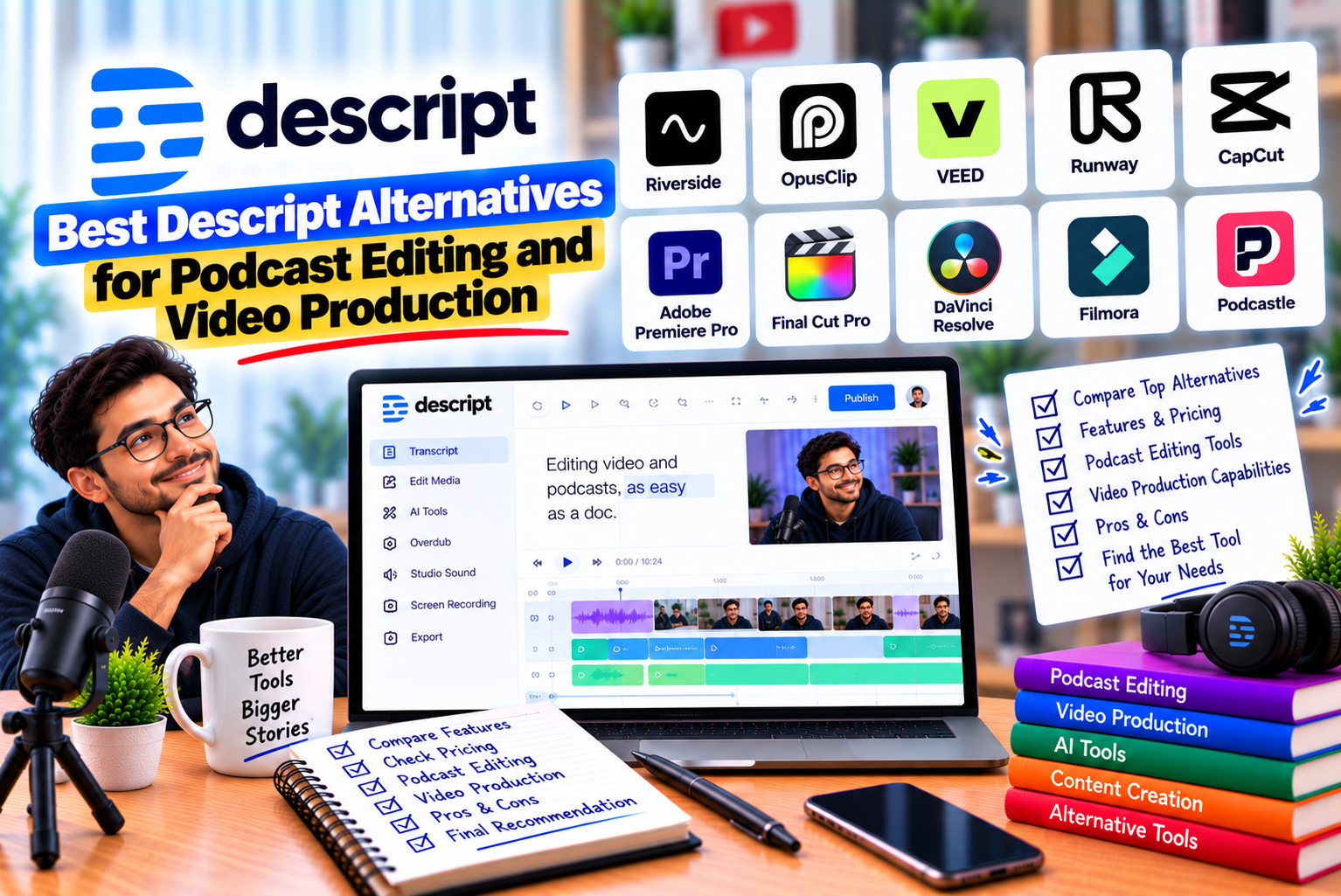
Best Descript Alternatives
Creating high-quality podcasts and videos requires more than simply recording content. Creators need reliable recording tools, accurate transcription, efficient editing, clean audio, engaging visuals, captions, and formats suitable for different publishing platforms. Managing these tasks efficiently can make a significant difference to production time and the quality of the final result.
Descript has become a popular choice because it combines transcription, text-based audio and video editing, AI-powered audio enhancement, screen recording, and content repurposing in one platform. Instead of manually searching through a timeline, users can edit spoken content by working with its transcript. This approach is particularly useful for podcasters, YouTubers, educators, marketers, and businesses producing interviews or tutorials.
However, Descript may not be the ideal solution for every creator.
Some users need better tools for recording remote interviews. Others want advanced video effects, professional colour grading, detailed audio mixing, or a completely free editing application. Social media creators may prefer software that makes it easier to add captions, transitions, animations, and trending effects. Meanwhile, audio-only podcasters might not need a complete video editor at all.
Fortunately, several alternatives can handle these individual requirements.
The best Descript alternatives include Riverside for remote podcast recording, Adobe Premiere Pro for professional video production, DaVinci Resolve for advanced editing with a powerful free version, Audacity for free audio editing, Camtasia for tutorials and screen recordings, and CapCut for short-form social media videos. Other browser-based tools can also help creators edit content, generate subtitles, and collaborate with teams.
The right choice depends on which Descript features you use most frequently, your production workflow, your budget, and the type of content you publish.
This guide compares the leading alternatives, explains their strengths and limitations, and helps you choose the right podcast editing or video production software for your needs.
What Is Descript, and Why Look for an Alternative?
Descript is an audio and video editing platform designed to simplify content production. Its distinctive approach allows users to work with a transcript rather than relying exclusively on a conventional editing timeline.
For example, if you record a 45-minute podcast interview, Descript can transcribe the conversation. You can then locate a particular sentence, remove unwanted sections, delete filler words, and rearrange spoken content using the transcript-based editing workflow.
Its capabilities also extend beyond transcription.
Depending on the plan and available features, Descript can help users:
- Record audio, video, and screen content.
- Transcribe spoken conversations.
- Edit audio and video using text.
- Remove filler words and unwanted pauses.
- Improve speech quality with AI audio processing.
- Generate captions and subtitles.
- Create short clips from longer recordings.
- Produce voiceovers and other AI-assisted content.
- Prepare videos for online publishing.
These features make Descript useful for creators who regularly work with spoken content.
Nevertheless, a combined platform is not always the best option for every production task.
1. You Need More Advanced Video Editing
Descript is convenient for editing interviews, presentations, tutorials, and talking-head videos. However, projects involving complex transitions, sophisticated visual effects, extensive colour grading, or detailed compositing may benefit from a dedicated professional editor.
Applications such as Adobe Premiere Pro and DaVinci Resolve provide more extensive timeline-based production capabilities.
2. Your Priority Is Remote Podcast Recording
If your podcast involves guests joining from different locations, recording quality is particularly important.
A dedicated remote recording platform can capture separate audio and video tracks for participants, giving editors more control during post-production. Riverside is particularly relevant for this workflow.
The important distinction is that recording quality and editing convenience are separate requirements. A platform that performs one exceptionally well may not be the best tool for every stage of production.
3. You Want a Free Audio Editing Application
Not every podcaster needs AI-generated clips, video templates, or an integrated recording studio.
If your primary requirement is editing spoken audio, removing unwanted sections, adjusting volume, and exporting finished episodes, Audacity offers a free desktop solution. It does not replace Descript’s full video workflow, but it can handle many audio-only production tasks.
4. You Produce Short-Form Social Media Videos
Creators publishing Instagram Reels, YouTube Shorts, and TikTok videos may prioritise captions, visual effects, transitions, templates, and vertical video formats.
CapCut is designed around accessible, visually oriented editing workflows. It can be particularly useful when the objective is to turn recorded footage into engaging social content rather than produce a long-form podcast.
5. You Create Tutorials and Training Videos
Businesses, educators, and software companies often need to record screens, demonstrate applications, explain processes, and produce instructional videos.
Camtasia focuses on screen recording and tutorial production. It is worth considering when your main output is a training library, product demonstration, or educational video rather than a podcast.
6. You Want More Control Over Your Editing Workflow
Some creators prefer desktop software that provides detailed control over individual audio tracks, video layers, transitions, effects, and export settings.
Others prefer browser-based tools that reduce installation requirements and make collaboration easier.
Choosing an alternative gives you an opportunity to select software that fits the way you actually work instead of paying for a collection of features you rarely use.
Best Descript Alternatives at a Glance
The following comparison highlights the most relevant alternatives for different podcast and video production workflows.
| Software | Best For | Main Strength | Free Option | Pricing Approach |
| Riverside | Remote podcasts and interviews | Remote recording and separate participant tracks | Yes, with limitations | Free and paid subscriptions |
| Adobe Premiere Pro | Professional video production | Detailed editing, effects, and post-production | Seven-day trial | Subscription |
| DaVinci Resolve | Advanced video and audio production | Editing, colour grading, effects, and audio post-production | Yes | Free version and paid Studio licence |
| Audacity | Audio-only podcast editing | Free recording and waveform editing | Yes, fully free | Free and open source |
| Camtasia | Tutorials and screen recordings | Screen capture and instructional video production | Trial or watermark-limited use | Annual plans |
| CapCut | Reels, Shorts, and social videos | Templates, effects, captions, and accessible editing | Yes | Free and paid plans |
| VEED | Browser-based video editing | Captions, subtitles, and online video production | Yes, with limitations | Free and paid plans |
| Kapwing | Collaborative online content creation | Browser-based editing and team workflows | Yes, with limitations | Free and paid plans |
Important: Free plans differ considerably. Some restrict export resolution, impose watermarks, limit transcription or recording time, or reserve advanced features for paid subscriptions. Check the relevant plan details before choosing a tool for a regular production workflow.
1. Riverside: Best for Remote Podcast Recording and Interviews
Best for: Podcasters, interviewers, video podcast creators, and businesses recording remote conversations.
Riverside is one of the strongest alternatives to consider when recording quality is more important than having every production feature in one application.
The platform is built around recording conversations remotely. It can capture separate audio and video tracks for participants, allowing editors to adjust speakers individually during post-production.
This approach is particularly valuable for interview-based podcasts, panel discussions, expert conversations, and video shows featuring guests who cannot attend the same physical location.
Key Features
Remote recording
Riverside allows hosts and guests to participate in recording sessions remotely. Its local recording approach is designed to preserve high-quality recordings independently of temporary internet connection problems.
Actual recording quality depends on equipment, browser or application support, settings, and the recording conditions.
Separate audio and video tracks
Recording participants on separate tracks gives editors greater flexibility. If one speaker is too quiet, has background noise, or needs a different audio adjustment, the editor can work on that participant’s recording independently.
Separate tracks also help when creating multicamera-style edits from a remote conversation.
Transcript-based editing
Riverside includes text-based editing capabilities, making it relevant to creators who like the general idea of editing spoken content through a transcript.
However, the available editing tools and limits depend on the current plan and product version.
AI-assisted content repurposing
Podcast producers can use its editing and content creation features to prepare recordings for distribution. This can reduce the effort involved in turning one interview into multiple deliverables.
Video podcast production
Riverside is particularly useful for creators publishing both audio and video versions of their podcasts. Instead of treating video as an entirely separate recording process, they can capture both formats during the same session.
Advantages of Riverside
- Designed specifically for remote recording.
- Separate tracks provide greater editing flexibility.
- Useful for interviews and multi-participant podcasts.
- Supports audio and video podcast workflows.
- Includes tools for editing and repurposing recorded content.
Limitations of Riverside
- Its primary strength is recording conversations, not replacing every feature of a professional video editor.
- Paid-plan limits may affect recording hours, export quality, and other capabilities.
- Complex visual effects and detailed colour grading may require another application.
- The total cost depends on the plan and the recording features you need.
Riverside vs Descript
The main difference is the emphasis of each platform.
Descript focuses on making spoken-content editing easier through transcription and text-based editing. Riverside places particular emphasis on recording remote conversations while also offering editing tools.
For a podcast with multiple remote guests, recording quality and separate tracks may be the deciding factors. For a creator who already has recordings and primarily wants to edit them by modifying a transcript, the decision requires a closer comparison of the current editing features.
Some creators may even benefit from using both: Riverside for recording and Descript or another editor for post-production.
Verdict: Choose Riverside when your podcast workflow begins with remote interviews and you want high-quality recordings that are easier to edit later.
Official website: Riverside
2. Adobe Premiere Pro: Best for Professional Video Production
Best for: Professional video editors, agencies, filmmakers, YouTubers, and marketing teams.
Adobe Premiere Pro is a professional video editing application designed for projects that require detailed control over footage, sound, transitions, graphics, and the final export.
Unlike a workflow centred primarily on transcript editing, Premiere Pro offers a comprehensive editing environment for arranging and refining video on a timeline.
This makes it suitable for everything from YouTube videos and branded content to interviews, documentaries, promotional videos, and more complex productions.
Key Features
Timeline-based editing
Premiere Pro gives editors detailed control over video clips, audio tracks, transitions, and the timing of individual elements.
This is useful when the final result requires precise pacing, multiple camera angles, B-roll footage, and carefully synchronised audio.
Text-based editing capabilities
Premiere Pro includes transcript-related editing features that can help editors create rough cuts from spoken content.
These features are useful for interview-heavy projects, although their workflow and capabilities are not identical to Descript’s document-style editing environment.
Audio editing and mixing
Editors can refine dialogue, balance sound levels, work with multiple audio sources, and integrate audio production into their video editing workflow.
For more specialised audio work, Adobe Audition or another dedicated audio application may still be useful.
Colour correction and visual effects
Premiere Pro provides tools for adjusting footage, creating transitions, incorporating graphics, and refining a video’s visual presentation.
It also integrates with other Adobe creative applications, which can be valuable for teams producing videos alongside graphics, animations, and promotional assets.
Team review and collaboration
Depending on the subscription and workflow, Adobe’s ecosystem can support collaborative review and approval. This is useful for agencies and businesses managing multiple stakeholders.
Advantages of Adobe Premiere Pro
- Extensive timeline editing capabilities.
- Suitable for complex, long-form video projects.
- Useful for professional YouTube and branded content.
- Integrates with other Adobe creative tools.
- Provides transcript-related editing features.
- Supports detailed audio and visual refinement.
Limitations of Adobe Premiere Pro
- It requires a paid subscription after the trial.
- The interface can be challenging for beginners.
- Professional workflows may require more time to learn.
- System performance depends on the complexity of the project and the computer’s hardware.
- It may be unnecessarily complex for someone who only needs to remove pauses from a podcast.
Adobe Premiere Pro vs Descript
Premiere Pro is the stronger candidate when the finished video needs detailed visual control and a professional post-production workflow.
Descript is often more convenient when the main task is editing spoken content, removing unnecessary words, and producing a straightforward video or podcast efficiently.
For example, a creator producing a weekly interview show with simple visuals may find Descript easier to work with. A production team creating a polished documentary-style YouTube video with multiple camera angles, B-roll, animations, and complex audio may prefer Premiere Pro.
The best choice depends on whether your workflow is primarily transcript-driven or timeline-driven.
Adobe Premiere Pro Pricing
Adobe’s official US pricing page lists the individual Premiere subscription at US$22.99 per month with an annual commitment billed monthly. A seven-day free trial is also available. Pricing and promotional offers vary by country and subscription arrangement. Check the official pricing page for the current offer in your region.
Official website: Adobe Premiere Pro
Verdict: Choose Premiere Pro if you need a professional video editor with detailed timeline control and room to grow into more advanced production work.
3. DaVinci Resolve: Best for Professional Editing Without a Required Subscription
Best for: Serious video creators, independent filmmakers, advanced YouTubers, and users who want powerful editing tools without committing to a monthly subscription.
DaVinci Resolve is a comprehensive video post-production application that combines editing, colour correction, visual effects, motion graphics, and audio post-production.
Its free version makes it particularly attractive to creators who want professional editing capabilities without paying for a recurring software subscription.
Unlike a specialised podcast editor, DaVinci Resolve is designed to handle the entire post-production process for a wide range of video projects.
Key Features
Professional video editing
The editing workspace supports arranging clips, trimming footage, working with multiple tracks, and refining the pacing of a video.
It can accommodate both straightforward YouTube content and more complex productions.
Colour grading
DaVinci Resolve is particularly well known for its colour-grading workflow.
Creators can adjust exposure, contrast, colour balance, and the overall visual appearance of footage. These tools are useful for making footage from different cameras look more consistent.
Visual effects and motion graphics
The application includes dedicated environments for visual effects and motion graphics. This can be useful for creators who need more than basic titles and transitions.
Fairlight audio post-production
Its audio workspace provides tools for editing, mixing, and refining sound.
For video podcasts, this means editors can work on dialogue, music, sound effects, and other audio elements within the same application.
AI-assisted features in Studio
The paid Studio edition adds capabilities such as additional effects, AI-assisted tools, and other advanced features. The precise feature set differs from the free edition, so check the official comparison before purchasing.
Advantages of DaVinci Resolve
- A substantial free version is available.
- Combines editing, colour, effects, and audio post-production.
- Suitable for professional and advanced creative workflows.
- The Studio edition is offered as a paid licence rather than requiring a standard monthly subscription.
- Supports Windows, macOS, and Linux.
Limitations of DaVinci Resolve
- The learning curve is steeper than that of many beginner-oriented editors.
- It is not primarily designed around Descript’s document-style podcast editing workflow.
- Some advanced AI features require the Studio edition.
- Complex projects may require a capable computer.
- Users focused only on transcript editing may find the software unnecessarily elaborate.
DaVinci Resolve vs Descript
Descript is built to reduce the effort involved in editing spoken content. DaVinci Resolve offers more extensive control over the entire visual and audio production process.
Imagine creating a 20-minute YouTube video from an interview.
With Descript, you might begin by editing the transcript, removing unwanted statements, and improving the speech.
With DaVinci Resolve, you might organise the camera footage, build a timeline, add supporting clips, refine colour, mix audio, and create a polished final sequence.
Both can produce an excellent result, but the editing process is different.
DaVinci Resolve Pricing
DaVinci Resolve offers a free version. Its official website currently displays DaVinci Resolve Studio at a discounted price of US$236, reduced from US$295. Discounts and regional prices can change, so confirm the current offer before purchasing.
Official website: DaVinci Resolve
Verdict: DaVinci Resolve is one of the strongest alternatives for creators who want comprehensive editing capabilities and prefer to avoid a mandatory monthly subscription.
4. Audacity: Best Free Alternative for Audio-Only Podcast Editing
Best for: Beginner podcasters, audio-only shows, students, independent creators, and users working with limited budgets.
Audacity is a free, open-source audio recording and editing application available for Windows, macOS, and Linux.
It is a particularly practical option for podcasters who do not need to produce a video version of every episode.
Instead of paying for a comprehensive audio-video platform, you can use Audacity to record or import audio, remove unwanted sections, adjust levels, apply effects, and export the finished episode.
Key Features
Audio recording
Audacity allows users to record audio and work with existing recordings.
This is useful for solo podcasts, narration, voiceovers, interviews recorded through other systems, and educational audio content.
Waveform editing
The waveform interface helps users identify pauses, unwanted noises, mistakes, and sections that need trimming.
You can select parts of a recording, remove unwanted material, and adjust the arrangement of audio.
Multitrack editing
Audacity supports working with multiple audio tracks.
For example, you can place the host’s voice on one track, a guest recording on another, and background music on a separate track.
This provides useful flexibility when producing an audio podcast.
Audio effects and processing
Users can apply audio effects and make adjustments to improve the listening experience.
Depending on the recording and processing choices, this can include adjusting levels, reducing certain types of noise, and refining the overall sound.
Plugin support
Audacity supports compatible third-party audio plugins, giving users additional options for sound processing and production.
Advantages of Audacity
- Free and open source.
- No mandatory paid subscription for the core application.
- Available on Windows, macOS, and Linux.
- Useful for recording and editing spoken audio.
- Supports multitrack editing and compatible plugins.
- Suitable for beginners learning audio production.
Limitations of Audacity
- It is not a complete video editor.
- Its primary workflow uses audio tracks and waveforms rather than Descript’s transcript-based editing approach.
- It does not replace Descript’s integrated video recording, video editing, and content repurposing features.
- Some audio improvements require manual adjustment or compatible plugins.
- Remote recording and guest management may require separate tools.
Audacity vs Descript
The difference is primarily about scope.
Descript combines several production tasks in one platform. Audacity concentrates on audio recording and editing.
Suppose you publish an audio podcast every week and only need to remove mistakes, balance the host and guest audio, add an introduction, and export the episode.
Audacity may provide everything you need without a recurring subscription.
However, if you also create video podcasts, automatically generate captions, edit videos from transcripts, and repurpose interviews into social media clips, you would probably need additional software.
Is Audacity Really Free?
Yes. Audacity’s official website describes it as free and open-source software for recording and editing audio. It is available for Windows, macOS, and Linux.
Official website: Audacity
Verdict: Choose Audacity if your primary goal is to produce high-quality audio podcasts without paying for a full video editing platform.
5. Camtasia: Best for Screen Recording, Tutorials, and Training Videos
Best for: Educators, trainers, software companies, instructional designers, and businesses producing product demonstrations.
Camtasia is designed for creating instructional videos, screen recordings, software demonstrations, and training materials.
It is particularly useful when the screen itself is the main subject of the video.
For example, if you need to explain how to use a CRM, demonstrate a website’s features, create an employee onboarding course, or record a software tutorial, Camtasia provides a workflow tailored to those tasks.
Key Features
Screen recording
Camtasia supports screen-based video creation, making it useful for capturing application demonstrations and step-by-step instructions.
Depending on the recording setup, creators can combine screen content with camera footage, narration, and other elements.
Video and audio editing
After recording, users can refine the footage, remove unnecessary sections, add annotations, and adjust the sequence to make the tutorial easier to follow.
Cursor and instructional effects
Tutorial creators often need viewers to understand where to click and what to look at.
Camtasia provides tools intended to make instructional content clearer, including cursor-related effects and visual annotations.
Text-based editing and transcription
TechSmith’s newer Camtasia plans include varying levels of AI-assisted functionality. Depending on the plan, this can include text-based editing, speech-to-text transcription, caption generation, and audio cleanup. Check the current plan comparison to determine which capabilities are included.
Training content production
Camtasia is useful for businesses building repeatable instructional materials. A company can use it to create software walkthroughs, product onboarding videos, and internal training resources.
Advantages of Camtasia
- Designed for screen recording and tutorials.
- Useful for software demonstrations.
- Supports instructional annotations and visual explanations.
- Can combine screen content, narration, and camera footage.
- Certain plans include AI-assisted editing and audio features.
- Suitable for repeatable business training workflows.
Limitations of Camtasia
- It is less focused on remote podcast recording than Riverside.
- It may not be the most economical option for users who only need occasional audio editing.
- Some advanced features are tied to specific subscription tiers.
- Professional cinematic production may be better suited to Premiere Pro or DaVinci Resolve.
Camtasia vs Descript
Descript is particularly useful when editing interviews, voiceovers, and other spoken content through a transcript.
Camtasia is more relevant when you need to demonstrate something on a screen.
Consider a company creating a tutorial about its accounting software. The final video may need screen capture, highlighted buttons, cursor movements, narration, callouts, and step-by-step instructions.
Camtasia is designed around this kind of production.
For a podcast discussing accounting trends, Descript or another podcast-oriented editor may be a better fit.
Camtasia Pricing
Camtasia uses annual plans, with features varying between Essentials, Create, and Pro. TechSmith’s published comparison identifies advanced text-based editing, audio cleanup, and related AI features among the capabilities included in higher-level plans. Its support documentation also describes the free editing experience as watermark-limited. Check the current official pricing page for the exact regional price and feature entitlement.
Official website: Camtasia
Verdict: Choose Camtasia when screen recording and instructional video production are central to your work.
6. CapCut: Best for Short-Form Social Media Video Production
Best for: Social media managers, influencers, short-form video creators, and businesses publishing Reels, Shorts, and TikTok content.
CapCut is a popular video editing application built around accessible editing tools, visual effects, templates, and social media-friendly formats.
It is especially useful for creators who publish frequently and need to turn raw footage into engaging short videos without building every edit from scratch.
Although it is not a direct replacement for every Descript feature, CapCut is a strong alternative when your main goal is visual editing and social media content production.
Key Features
Templates and visual effects
CapCut provides templates and effects that can help creators produce engaging videos quickly.
These are useful for promotional clips, product videos, short educational content, and social media posts.
Automatic captions
Captioning features can help make spoken content easier to follow, particularly when viewers watch videos without sound.
The availability and capabilities of specific AI tools can differ by device, region, and plan.
Vertical video editing
CapCut supports workflows suitable for vertical content, making it relevant for creators publishing on mobile-first social platforms.
Transitions and animations
Users can add transitions, text animations, overlays, and other visual elements to improve the presentation of a video.
AI-assisted tools
Depending on the current version and subscription, CapCut offers AI-assisted editing and content creation features. Some capabilities may require credits or paid access.
Advantages of CapCut
- Accessible editing workflow for beginners.
- Useful for short-form social media videos.
- Includes templates, effects, and transitions.
- Offers captioning and other AI-assisted capabilities.
- Provides free editing options.
- Supports workflows across different devices and platforms.
Limitations of CapCut
- It does not reproduce every part of Descript’s podcast-focused workflow.
- Advanced features and AI allowances may depend on the subscription.
- It is not a substitute for a dedicated remote recording studio.
- Complex long-form productions may require more specialised software.
- Some features and prices vary by region or platform.
CapCut vs Descript
The strongest choice depends on the content you produce.
If you create interviews, podcasts, tutorials, and talking-head videos that require frequent transcript editing, Descript may be more convenient.
If you primarily create short social videos with animated text, transitions, visual effects, and vertical layouts, CapCut may fit your workflow better.
For example, a creator might record a 30-minute interview and then create five short promotional clips.
CapCut can be useful for adding visual polish to those clips. However, selecting the best moments from the original interview may require a separate clipping or transcript-based editing workflow.
CapCut Pricing
CapCut’s official pricing page lists a Free plan, a Pro plan at US$19.99 per month, and an Ultra plan at US$79 per month. The page also lists a Teams option, with pricing displayed per seat. These prices may vary by country, account, subscription arrangement, and applicable offers. Confirm the price shown for your account before subscribing.
Official website: CapCut
Verdict: Choose CapCut if your priority is creating visually engaging short-form videos for social media.
7. VEED: Best for Browser-Based Video Editing and Captions
Best for: Marketing teams, content creators, educators, and businesses that prefer editing videos online.
VEED is a browser-based video editing platform that combines accessible editing tools with features for captions, subtitles, and online video production.
It is worth considering when you want to edit content without building a desktop-based post-production workflow.
For marketing teams, the ability to prepare videos, add captions, and create content for online distribution can be more important than having the deepest possible control over every timeline detail.
Key Features
Online video editing
VEED allows users to work with video through a browser-based interface.
This can be convenient for people who move between computers or collaborate with others.
Automatic subtitles and captions
Captioning is an important part of modern video production. VEED offers tools designed to help users generate and refine subtitles.
Accuracy depends on audio quality, pronunciation, background noise, and the language being transcribed. Automated captions should be reviewed before publishing.
Subtitle translation and localisation
For businesses producing content for different markets, subtitle and translation tools can help adapt videos for additional audiences.
The available languages and usage limits depend on the current plan and feature.
Social and marketing content
VEED can be useful for creating promotional videos, educational content, internal communications, and social media assets.
Browser-based accessibility
Because the workflow runs online, it can be easier to introduce to teams that do not want to install a full professional editing application on every computer.
Advantages of VEED
- Browser-based editing workflow.
- Useful caption and subtitle tools.
- Suitable for marketing and educational content.
- Can support localisation workflows.
- Convenient for creators who prefer online software.
Limitations of VEED
- Free exports may have restrictions.
- Advanced tools can depend on paid plans or usage allowances.
- It is not primarily designed for high-end cinematic post-production.
- Audio-only podcast producers may not need its video-focused feature set.
VEED vs Descript
VEED and Descript overlap in several areas, including video editing, captions, and AI-assisted content creation.
However, Descript is especially distinctive for transcript-based editing of spoken content. VEED may be a more convenient choice for users who want an online editor focused on preparing videos, adding subtitles, and creating marketing content.
Before switching, test both tools with the same sample recording. Compare transcript accuracy, caption correction, editing speed, export quality, and the total cost of the features you use.
Official website: VEED
Verdict: Choose VEED if you want a browser-based workflow for captions, subtitles, and general online video production.
8. Kapwing: Best for Collaborative Online Content Creation
Best for: Marketing teams, social media managers, educators, and creators working on shared content.
Kapwing is an online content creation and editing platform that can help teams produce videos, add subtitles, resize content, and prepare assets for different publishing platforms.
Its collaborative approach makes it relevant for teams that need to share projects and coordinate content production.
Key Features
Browser-based editing
Kapwing allows users to edit video content through an online workspace.
This can be convenient for teams that want to avoid installing complex desktop applications for every editing task.
Subtitle and caption tools
Creators can generate and edit subtitles to make videos more accessible and easier to understand.
As with other automated captioning tools, final transcripts should be reviewed for mistakes.
Content resizing
Marketing teams often need to adapt one video for several formats.
A horizontal video might need to become a vertical clip for short-form platforms, while another version may require a square layout.
Kapwing provides tools that can simplify these types of content adaptation tasks.
Collaborative workflows
Online workspaces can make it easier for teams to work on content and coordinate production.
Specific collaboration and export features depend on the current plan.
Advantages of Kapwing
- Online editing without a complex desktop setup.
- Useful for social media and marketing content.
- Includes subtitle-related tools.
- Supports adapting videos to different formats.
- Relevant for teams working collaboratively.
Limitations of Kapwing
- Free-plan limits may affect regular production.
- It does not offer the same depth of audio production as a dedicated audio editor.
- Professional projects may require a more comprehensive timeline editor.
- It may not be the best choice for creators who depend on advanced remote recording.
Kapwing vs Descript
Descript is particularly strong for editing recorded speech through its transcript.
Kapwing is worth considering when the workflow revolves around preparing, resizing, captioning, and collaborating on online video content.
A social media team that receives footage from several departments may value online collaboration and rapid content adaptation more than transcript-driven editing.
A podcast editor who spends most of the day correcting spoken content may prefer a different tool.
Official website: Kapwing
Verdict: Choose Kapwing if online collaboration and efficient production of marketing or social media videos are your main priorities.
Which Descript Alternative Is Best for Your Needs?
There is no single winner for every creator. The best software depends on the work you perform most often.
The following recommendations can help narrow down your options.
Best Descript Alternative for Podcast Editing
Recommended options: Riverside and Audacity.
Choose Riverside if you regularly record remote interviews and need separate participant tracks.
Choose Audacity if you primarily produce audio-only podcasts and want a free application for recording and editing audio.
These tools solve different problems. Riverside is especially relevant to remote recording, while Audacity is focused on audio editing.
Best Descript Alternative for Video Production
Recommended options: Adobe Premiere Pro and DaVinci Resolve.
Premiere Pro is a strong choice for editors who want extensive timeline control and an established professional editing workflow.
DaVinci Resolve is an excellent option for creators who want editing, colour grading, effects, and audio post-production in one application, with a substantial free version.
Both can support more complex projects than a lightweight social media editor, but they also require more time to learn.
Best Free Descript Alternative
Recommended options: Audacity and DaVinci Resolve.
Audacity is suitable for audio-only production. DaVinci Resolve is the more comprehensive option when you need video editing and additional post-production tools.
CapCut also offers a free plan that may be sufficient for some social media workflows.
The right choice depends on whether you need audio, video, or both.
Best Descript Alternative for YouTube
Recommended options: DaVinci Resolve, Adobe Premiere Pro, and CapCut.
The best option depends on the type of YouTube channel you operate.
- Talking-head videos and interviews: Descript or Premiere Pro.
- Highly edited educational videos: Premiere Pro or DaVinci Resolve.
- Shorts and vertical clips: CapCut.
- Cinematic travel and documentary videos: DaVinci Resolve or Premiere Pro.
- Audio-only podcast episodes: Audacity.
For a YouTube channel publishing several types of content, using one main editor and a specialised tool for occasional tasks may be more efficient than trying to force every workflow into one application.
Best Descript Alternative for Social Media Managers
Recommended options: CapCut, VEED, and Kapwing.
These tools are worth evaluating if your main responsibilities involve producing Reels, Shorts, promotional videos, captions, and content in different aspect ratios.
The final choice should depend on export requirements, team collaboration, caption accuracy, template availability, and the cost of the plan you need.
Best Descript Alternative for Screen Recording
Recommended option: Camtasia.
Camtasia is particularly relevant for software demonstrations, training videos, onboarding content, and educational tutorials.
If your content is mainly a person speaking to a camera, another editor may be more appropriate. If your content is a person demonstrating a process on a computer screen, Camtasia deserves serious consideration.
Descript Alternatives: Detailed Feature Comparison
The following table compares the alternatives by their primary purpose rather than treating every application as a direct replacement.
| Feature | Riverside | Premiere Pro | DaVinci Resolve | Audacity | Camtasia | CapCut |
| Remote podcast recording | Strong focus | Not its primary purpose | Not its primary purpose | Requires a separate recording setup for remote guests | Not its primary purpose | Not its primary purpose |
| Audio-only editing | Available within its workflow | Yes | Yes | Strong focus | Available | Available |
| Advanced video editing | Limited compared with professional editors | Strong | Strong | No | Tutorial-focused | Social-focused |
| Transcript-related editing | Yes | Yes | Some capabilities, including advanced Studio features | Not its primary workflow | Available in relevant plans | Feature availability varies |
| Colour grading | Not its primary strength | Yes | Strong | No | Basic video workflow | Social-focused controls |
| Screen recording and tutorials | Not its main focus | Editing imported recordings | Editing imported recordings | Audio only | Strong focus | Available workflows vary |
| Short-form social videos | Useful for repurposing | Yes | Yes | No | Possible | Strong focus |
| Free version | Yes, with limits | Trial | Yes | Yes | Watermark-limited trial experience | Yes |
| Best suited to | Remote podcasts | Professional editing | Comprehensive post-production | Audio podcasts | Tutorials and training | Social media |
Feature availability can change with product updates, subscriptions, and operating systems. Review official product documentation before making a purchasing decision.
How to Choose the Right Descript Alternative
Selecting editing software should begin with your production requirements, not with a feature list alone.
A tool may advertise dozens of capabilities, but if you only use three of them, the additional features may not justify its cost.
Use the following steps to identify the most appropriate option.
Step 1: Identify Your Primary Content Format
Start by identifying what you publish most frequently.
Do you produce audio podcasts, video interviews, YouTube videos, educational tutorials, or short social media clips?
Each format creates different technical requirements.
Audio podcasts require reliable recording, editing, sound balancing, and export options. Video podcasts add visual editing, captions, and camera footage. Social media content may need fast resizing, animations, and platform-specific formats.
Choose software that handles your primary format well before considering secondary features.
Step 2: Decide Whether You Need Recording or Editing
Recording and editing are separate stages of production.
If you regularly interview remote guests, recording quality and separate tracks may be more important than advanced visual effects.
If you already receive professionally recorded footage, you may not need built-in recording at all.
For example:
- Record remote interviews with Riverside.
- Edit audio-only episodes with Audacity.
- Produce complex videos with Premiere Pro or DaVinci Resolve.
- Create tutorials with Camtasia.
- Prepare short social videos with CapCut.
You can combine tools when the benefits outweigh the extra cost and file-handling effort.
Step 3: Determine Whether Transcript-Based Editing Is Essential
Transcript-based editing can save time when you work with long recordings and frequently remove unwanted speech.
However, not every editor needs to modify content through text.
If you mainly adjust footage, add graphics, and refine visual sequences, a timeline-based editor may be a better fit.
If your workflow involves reviewing interviews, deleting sentences, removing filler words, and rearranging dialogue, prioritise software with suitable transcript-editing features.
Do not assume that a tool offering automatic captions also supports editing the underlying audio or video directly through the transcript. These are different capabilities.
Step 4: Evaluate Audio Quality and Cleanup Requirements
Poor audio can undermine an otherwise excellent video.
Before selecting software, consider whether you need:
- Noise reduction.
- Dialogue volume adjustment.
- Equalisation.
- Compression.
- Filler-word removal.
- Audio synchronisation.
- Multitrack mixing.
- Voice enhancement.
Audacity is suitable for many audio-editing tasks, while professional video applications offer more extensive post-production environments.
Some platforms automate common audio improvements, but the results depend on the original recording. Strong background noise, clipping, distortion, and overlapping speech may still require manual work or a better recording setup.
Step 5: Check Export Quality and Publishing Requirements
Your chosen application should support the formats and quality levels required by your publishing platforms.
Before subscribing, check:
- Maximum export resolution.
- Supported frame rates.
- Available file formats.
- Audio export options.
- Watermark restrictions.
- Caption and subtitle formats.
- Vertical and square video support.
- Storage and upload limits.
If you produce professional client work, make sure the export settings meet the client’s requirements.
A free plan that limits resolution or adds a watermark may be suitable for testing but unsuitable for paid production.
Step 6: Compare the Total Cost
The lowest advertised subscription is not necessarily the least expensive option for your workflow.
A tool may require a higher-tier plan for advanced captions, additional recording time, collaboration, or watermark-free exports.
Calculate the cost of the features you actually need.
For example, a creator may use free software for audio editing and pay only for a video editor. Another may find that a single subscription saves enough production time to justify its price.
For occasional projects, a free application or short-term subscription may be more economical than maintaining several paid services.
Step 7: Test the Software With a Real Project
Do not evaluate an editor solely by watching a promotional demonstration.
Choose a representative recording and use it to test the entire workflow.
A useful trial project should include:
- A recording with at least two speakers, if relevant.
- Several mistakes or unnecessary pauses.
- A section with background noise.
- A few places where you need to insert B-roll or supporting visuals.
- Captions or subtitles.
- An export in your usual publishing format.
Measure how long it takes to complete the project, how much manual correction is required, and whether the exported result meets your standards.
This provides a more useful basis for comparison than counting features.
Can You Replace Descript With Free Software?
Yes, depending on the work you need to perform.
You do not necessarily need a single application that handles recording, transcription, audio cleanup, editing, and publishing.
A combination of free tools can cover many basic production tasks.
Example 1: Free Audio Podcast Workflow
A simple audio-only workflow could use:
- A recording application or a separate recording platform.
- Audacity for editing and sound adjustments.
- A compatible transcription service if you need a written transcript.
- A podcast hosting platform for distribution.
This approach reduces software costs but requires you to manage the separate stages yourself.
Example 2: Free Video Editing Workflow
For video production, DaVinci Resolve offers a comprehensive free editing environment.
You can import footage, edit a timeline, refine audio, adjust colour, and export the finished video.
CapCut’s free plan may also be sufficient for straightforward social media projects.
However, the availability of advanced AI tools, export settings, and other features should be checked against the current free-plan restrictions.
Example 3: Free Short-Form Content Workflow
A creator producing short clips from existing recordings could use:
- A recording or editing application to prepare the original footage.
- A free editor to cut and arrange the selected sections.
- A captioning tool or built-in caption feature.
- A final review process to correct captions and check framing.
The limitation is that finding the most useful moments in a long recording may require more manual effort if the chosen tools lack automated clipping or transcript-based editing.
The Main Trade-Off
Free software can reduce subscription expenses, but it may require additional time to move files between applications, correct captions, adjust audio, and prepare exports.
If your production volume is low, this trade-off may be worthwhile.
If you publish multiple episodes or videos every week, a paid tool that reduces repetitive work may provide better overall value.
Should You Use One Tool or Combine Multiple Applications?
For many creators, the best solution is not to find a perfect one-to-one replacement for Descript.
It is to build a workflow in which each tool performs a specific task.
A specialised application may outperform an all-in-one platform at a particular stage, but using several tools can also create extra complexity.
Consider the following workflows.
Workflow 1: Remote Video Podcast
Suggested combination: Riverside + a dedicated video editor when needed.
Use Riverside to record guests and capture separate tracks. Then use a suitable editor for detailed video production, captions, sound refinement, and final exports.
This is useful when recording reliability is more important than having every editing feature built into the recording platform.
Workflow 2: Audio-Only Podcast
Suggested combination: Recording software + Audacity.
Record the conversation, edit the audio in Audacity, balance levels, and export the episode.
If you also need a transcript, you can add a separate transcription tool.
This workflow can be inexpensive, although the amount of manual work depends on the quality of the original recording.
Workflow 3: Professional YouTube Production
Suggested combination: Recording equipment + DaVinci Resolve or Premiere Pro.
Record the footage, organise the source files, build the edit, refine the sound, and complete the colour and visual work in a professional editor.
A separate transcription or captioning service may be useful if the project contains extensive spoken content.
Workflow 4: Short-Form Social Media
Suggested combination: A long-form editor + CapCut or another social editor.
Edit the original video, identify suitable moments, and prepare short clips for social platforms.
A dedicated social editor can help with vertical framing, captions, transitions, and visual effects.
The workflow works best when the tools exchange files reliably and do not require unnecessary repeated exports.
Workflow 5: Software Training and Tutorials
Suggested combination: Camtasia + a separate audio or captioning tool if required.
Record the screen, add narration, edit the demonstration, and prepare a polished instructional video.
This approach is useful for repeatable training content where clarity and consistent presentation are more important than cinematic effects.
Common Mistakes to Avoid When Choosing a Descript Alternative
Switching editing software can improve productivity, but only if the new tool addresses the problem that caused you to consider switching.
Avoid these common mistakes.
Choosing a Tool Based Only on Its Price
A free application may have limited export options, lack the features you need, or require more manual work.
Compare the full workflow rather than focusing only on the subscription cost.
Confusing Automatic Captions With Transcript-Based Editing
Automatic captions display spoken words as text. Transcript-based editing goes further by allowing users to edit the underlying media through the transcript.
These are not interchangeable features.
If your current workflow relies on deleting sentences from a transcript to remove them from a recording, verify that the alternative supports this function.
Ignoring Recording Quality
No editing application can perfectly repair every recording problem.
A clear recording with good microphone placement is generally easier to edit than audio captured with clipping, strong echo, or overlapping voices.
If remote recording is your biggest challenge, evaluate the recording platform rather than selecting an editor solely for its post-production tools.
Overlooking Learning Time
Professional applications can offer more control but may require additional training.
A powerful editor is not automatically the best choice for someone who needs to publish simple videos quickly.
Consider how much time you can invest in learning the software.
Assuming Every Feature Is Included in the Cheapest Plan
AI credits, transcription allowances, recording hours, cloud storage, and export options may differ between subscriptions.
Read the current plan comparison carefully, especially if you publish content frequently.
Failing to Check Project Compatibility
Before switching, identify which files you need to preserve.
You may be able to export finished videos, audio files, and transcripts, but that does not mean the alternative can import the original project with all edits, tracks, and effects intact.
Keep backups of original recordings and project files until you have confirmed that your new workflow is working correctly.
How to Switch From Descript Without Losing Important Content
If you decide to move to another platform, prepare your files before cancelling or changing your subscription.
A structured migration can reduce the risk of losing important source material.
Step 1: Export Finished Videos and Audio
Save final MP4 videos, WAV or other required audio files, and any alternative formats you regularly publish.
Check the exported files to ensure they play correctly.
Step 2: Export Transcripts and Captions
If available, export transcripts as text files and captions as SRT or another format supported by your publishing workflow.
These files can be useful for repurposing content, correcting captions, and maintaining an archive of previous episodes.
Step 3: Preserve Original Recordings
Keep the original recordings, separate participant tracks, and other source assets you may need for future editing.
A final exported video is not a substitute for the original media when you need to make substantial changes later.
Step 4: Document Your Existing Workflow
List the editing steps you currently perform in Descript.
For example:
- Importing and transcribing recordings.
- Correcting transcripts.
- Removing filler words.
- Cleaning audio.
- Adding captions.
- Inserting supporting visuals.
- Creating short clips.
- Exporting final content.
Then identify which tool will handle each step in the new workflow.
Step 5: Test One Complete Project
Choose a representative project and recreate it in the alternative software.
Compare the final result, production time, export quality, and amount of manual work required.
Do not migrate an entire production library until you are confident that the new workflow meets your requirements.
Frequently Asked Questions About Descript Alternatives
1. What is the best Descript alternative?
The best alternative depends on your workflow. Riverside is a strong option for remote podcasts and interviews. Adobe Premiere Pro and DaVinci Resolve are suitable for more advanced video production. Audacity is ideal for free audio-only editing, while CapCut is useful for short-form social media videos.
2. Is there a free alternative to Descript?
Yes. Audacity provides free audio editing, DaVinci Resolve offers a comprehensive free video editing application, and CapCut has a free plan for social content. However, no single option should be assumed to reproduce every Descript feature without restrictions.
3. Which Descript alternative is best for podcast editing?
Riverside is worth considering if you record remote interviews and need separate participant tracks. Audacity is suitable for audio-only editing. The best choice depends on whether your main challenge is recording, post-production, or transcript-based editing.
4. Which Descript alternative is best for video editing?
Adobe Premiere Pro and DaVinci Resolve are strong choices for professional video editing. Premiere Pro offers an extensive editing workflow, while DaVinci Resolve combines editing, colour grading, visual effects, and audio post-production.
5. Is Audacity better than Descript?
Audacity can be better if you only need free audio recording and editing. Descript is more comprehensive for creators who need transcription, text-based editing, video production, and integrated AI-assisted tools.
6. Can Riverside replace Descript?
Riverside can replace parts of a Descript workflow, particularly remote recording and some editing tasks. However, the two platforms have different strengths. Compare their current transcript editing, audio processing, export, and recording limits before deciding whether Riverside can replace your existing setup completely.
7. Is DaVinci Resolve completely free?
DaVinci Resolve has a substantial free version. Blackmagic Design also sells DaVinci Resolve Studio, which adds advanced features. Check the official comparison to determine whether the free version meets your production requirements.
8. Which Descript alternative is best for YouTube creators?
For general and advanced YouTube production, consider DaVinci Resolve or Adobe Premiere Pro. For short-form videos and Shorts, CapCut may be more convenient. Podcast-style channels that depend heavily on transcript editing may still prefer Descript or a tool with similar capabilities.
9. Which Descript alternative is best for Instagram Reels?
CapCut is a strong option for Instagram Reels because it supports social-focused editing, templates, visual effects, and vertical video workflows. VEED and Kapwing are also worth evaluating for browser-based editing and captioning.
10. Which software is best for remote podcast recording?
Riverside is a strong candidate for remote podcast recording because it focuses on capturing separate participant tracks. Your final choice should also account for guest experience, recording allowances, audio quality, and the post-production tools you need.
11. Can I edit podcasts in Adobe Premiere Pro?
Yes. Premiere Pro can edit video podcasts, synchronise footage and audio, and work with dialogue. However, audio-only podcasters may find a dedicated audio editor more straightforward for simple production tasks.
12. Is CapCut suitable for long-form podcast editing?
CapCut can edit video content, including longer recordings, but its main strengths are visual editing and social media workflows. If you frequently edit long conversations through transcripts or need specialised podcast recording tools, compare it with podcast-focused alternatives.
13. Which Descript alternative is best for beginners?
CapCut can be accessible for beginners creating social videos, while Audacity is a practical starting point for audio-only podcasts. Riverside may be a good fit for remote interviews. The best starting point depends on the format you want to produce.
14. Is Camtasia a good alternative to Descript?
Camtasia is a good alternative for screen recordings, tutorials, and training videos. It is less directly suited to replacing every aspect of Descript’s podcast and transcript-based editing workflow.
15. Which alternative is best for professional video production?
Adobe Premiere Pro and DaVinci Resolve are both strong candidates. The decision depends on your editing preferences, existing software ecosystem, required features, budget, and willingness to learn a more advanced application.
16. Can I use multiple tools instead of Descript?
Yes. You can use Riverside for recording, Audacity for audio editing, and a separate video editor for visual production. A multi-tool workflow can provide greater flexibility, although it may involve additional file management and subscriptions.
17. Do Descript alternatives support automatic captions?
Several alternatives offer captioning or transcription features, including CapCut, VEED, and other video editing platforms. However, automatic caption generation is not the same as editing a recording directly through its transcript. Confirm the specific feature you need.
18. Will I lose my Descript projects if I switch?
You should not assume that another application can open Descript projects with every edit preserved. Export final media, transcripts, captions, and original recordings before switching. Keep a backup until you have verified that the new workflow works.
19. Is professional video editing software worth paying for?
It can be worthwhile if you produce videos regularly and need advanced editing, colour correction, effects, audio mixing, or professional export controls. If you only create simple clips occasionally, a free or lower-cost editor may be sufficient.
20. How should I choose between Descript and its alternatives?
Start by identifying the task that consumes the most time in your current workflow. If you need remote recording, evaluate Riverside. If you need advanced post-production, test Premiere Pro or DaVinci Resolve. If you mainly edit audio, consider Audacity. If you focus on social media, evaluate CapCut, VEED, or Kapwing. Test a real project before committing.
Final Verdict: Which Descript Alternative Should You Choose?
The best Descript alternative is the one that solves your most important production challenge without making the rest of your workflow unnecessarily complicated.
For remote podcasts and interviews, Riverside is a strong choice because of its recording-focused approach and separate participant tracks.
For advanced video production, Adobe Premiere Pro offers a comprehensive editing environment, while DaVinci Resolve is particularly attractive to users who want powerful post-production tools with a substantial free version.
For audio-only podcasting, Audacity provides a capable free solution. For screen recordings and instructional videos, Camtasia is worth considering. For short-form social media content, CapCut can make everyday editing tasks more accessible. Meanwhile, VEED and Kapwing offer browser-based workflows for creators and teams producing online content.
Before making a final decision, compare the features you actually use, the restrictions of each plan, the quality of the exported media, and the time required to complete a real project.
Remember that replacing Descript does not necessarily mean finding another application with the same collection of features. Sometimes, the most effective solution is a specialised tool that performs your most important task better.
For creators who publish frequently, the best software is ultimately the one that helps maintain consistent quality, reduces repetitive work, and supports a sustainable content production workflow.
External References
Use official product pages for the latest features, supported workflows, and subscription details.
- Descript — Product features and current plans.
- Riverside — Remote recording and podcast production.
- Adobe Premiere Pro — Professional video editing.
- DaVinci Resolve — Editing, colour grading, effects, and audio post-production.
- Audacity — Free audio recording and editing.
- Camtasia — Screen recording and tutorial production.
- CapCut — Social media video editing.
- VEED — Browser-based video editing and subtitles.
- Kapwing — Online content creation and editing.
Leave a Reply