


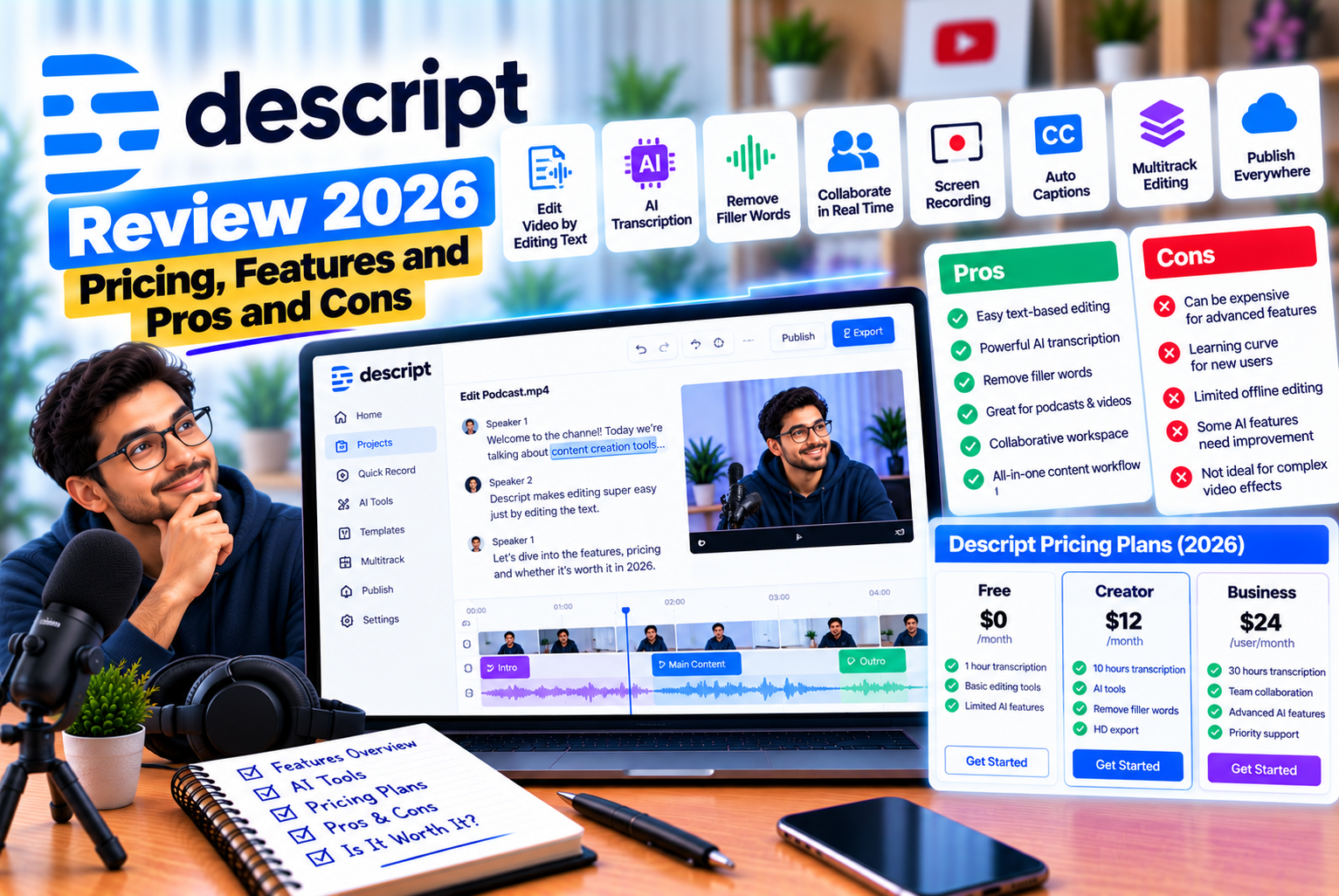
Descript Review 2026
Introduction
Editing videos and audio recordings can consume a significant amount of time, particularly for YouTubers, podcasters, educators, marketers, and businesses that publish content regularly. Removing mistakes, cleaning up audio, adding captions, organizing recordings, and producing short clips can turn a relatively simple recording into a lengthy editing project.
Traditional editing software generally relies on timelines, tracks, and visual editing controls. These tools offer extensive creative flexibility, but they can be challenging for beginners and time-consuming for creators who primarily work with spoken content.
This is where Descript takes a different approach.
Descript is an AI-powered audio and video editing platform that lets users edit recordings by editing their automatically generated transcripts. Instead of manually locating every mistake in a recording, you can select words or sentences in the transcript and remove the corresponding sections of audio or video.
The platform also includes transcription, AI-assisted editing, background-noise reduction, filler-word removal, captions, screen recording, voice generation, and tools for repurposing longer recordings into shorter content. Its AI co-editor, Underlord, can assist with editing tasks through natural-language instructions.
But is Descript worth paying for in 2026? Does its text-based editing approach actually save time? Which pricing plan makes sense for different creators, and what limitations should you understand before subscribing?
In this comprehensive Descript review, we examine its features, pricing, advantages, disadvantages, use cases, and alternatives to help you decide whether it is the right tool for your content production workflow.
What Is Descript?
Descript is an audio and video editor built around transcription and text-based editing. It is designed to make common editing tasks more accessible by allowing creators to work with a written representation of their recordings.
When you import supported media, Descript can generate a transcript. Editing that transcript can then change the corresponding media, making it easier to remove unwanted sections, rearrange spoken content, and prepare recordings for publication.
For example, suppose you record a 30-minute educational video and make several mistakes while explaining a concept. In a conventional editing workflow, you might need to locate each mistake on the timeline, cut the relevant section, and review the surrounding footage.
With Descript, you can locate the unwanted words in the transcript and remove them. The editor applies the corresponding changes to the recording, although you should review the result to ensure that the cuts sound natural and do not remove important context.
Descript is especially relevant for creators who work with interviews, talking-head videos, tutorials, podcasts, webinars, and other speech-heavy content.
Who Is Descript Designed For?
Descript can be useful for several types of users.
YouTubers: Edit talking-head videos, remove mistakes, create captions, and prepare clips for different platforms.
Podcasters: Transcribe interviews, remove unwanted speech, clean up audio, and organize conversations.
Content marketers: Produce product demonstrations, educational videos, promotional content, and social media clips.
Educators: Edit recorded lessons, prepare instructional videos, and improve accessibility with captions.
Businesses: Create internal training videos, presentations, product tutorials, and recorded communications.
Agencies and production teams: Collaborate on recordings, standardize content workflows, and use AI assistance to reduce repetitive editing work.
Descript is particularly appealing when editing spoken content is more important than creating complex visual effects.
Descript Pricing in 2026
Descript offers a free plan, paid plans for individual creators, a plan designed for business teams, and custom Enterprise arrangements.
Its pricing page uses per-person pricing, with different allowances for processed media and AI credits. The available features, limits, and billing options can change, so check the official Descript pricing page before subscribing.
The following is a pricing snapshot based on the published US-dollar rates available for this review.
| Plan | Monthly Billing | Annual Billing Equivalent | Included Media Hours per Month | AI Credits |
| Free | $0 | $0 | 1 hour | 100 one-time credits |
| Hobbyist | $24/month | $16/month | 10 hours | 400/month |
| Creator | $35/month | $24/month | 30 hours | 800/month |
| Business | $65/month | $50/month | 40 hours | 1,500/month |
| Enterprise | Custom | Custom | Customized | Customized |
Prices are in USD per person. Annual billing is generally cheaper than monthly billing. Taxes, regional pricing, promotional offers, and plan changes may affect the amount you pay.
1. Descript Free Plan
The Free plan allows users to try Descript’s core editing workflow without paying for a subscription.
It is useful for understanding how text-based editing works and determining whether the platform fits your production process.
Key allowances include:
- 60 minutes of processed media per month
- 100 AI credits provided as a one-time allowance
- Video exports up to 720p
- Limited access to AI tools
- Text-based editing
- Recording and transcription features
The free plan is best treated as a testing environment rather than a complete solution for high-volume content production.
Its media allowance can be restrictive if you regularly record long interviews or publish multiple videos every week. Export limitations and available AI actions may also affect your workflow.
Best for: Beginners, occasional creators, and anyone evaluating Descript before upgrading.
2. Descript Hobbyist Plan
The Hobbyist plan is designed for individual creators who need more editing capacity and watermark-free exports.
At the published annual-billing equivalent of $16 per month, it provides a more practical starting point for users who regularly produce spoken-word content.
Key features include:
- 10 hours of processed media per month
- 400 AI credits per month
- Watermark-free exports up to 1080p
- Access to Underlord AI editing features
- AI tools for tasks such as audio enhancement and filler-word removal
- Custom AI voice capabilities, subject to current plan limits
The Hobbyist plan may be sufficient for a creator producing several talking-head videos or podcast episodes each month.
However, creators who need 4K exports, larger AI allowances, or unrestricted access to advanced features should compare it with the Creator plan.
Best for: Individual YouTubers, podcasters, and marketers who need regular editing without the cost of a higher-tier plan.
3. Descript Creator Plan
The Creator plan is designed for users who need greater media capacity, more AI credits, and advanced creative features.
Its published annual-billing equivalent is $24 per month.
Key features include:
- 30 hours of processed media per month
- 800 AI credits per month
- Watermark-free exports up to 4K
- Full access to the Underlord AI co-editor and additional AI tools
- Access to the royalty-free stock media library
- The ability to purchase additional media hours and AI credits where supported
This plan is worth considering if you regularly produce longer recordings, work with higher-resolution video, or depend on several AI-assisted editing features.
For example, a YouTube creator publishing tutorials, product demonstrations, and weekly interviews may benefit from the increased processing allowance and 4K export support.
Best for: Frequent creators, professional YouTubers, and small production operations that need a broader set of editing capabilities.
4. Descript Business Plan
The Business plan is intended for teams and brands that need more production capacity and collaboration-related features.
Its published annual-billing equivalent is $50 per person per month.
Key features include:
- 40 hours of processed media per month
- 1,500 AI credits per month
- Watermark-free exports up to 4K
- Team-oriented Brand Studio capabilities
- Video translation and dubbing features
- Custom avatar features, subject to availability
- Priority support under the applicable plan terms
Business pricing should be evaluated in the context of the entire production team rather than just one editor.
For example, a marketing department producing product tutorials, training videos, and localized promotional content may benefit from shared brand assets and collaboration features.
Remember that per-person pricing can increase as additional editors are added.
Best for: Marketing teams, agencies, and businesses producing videos at scale.
5. Descript Enterprise
Enterprise is designed for organizations with requirements that extend beyond standard individual or team plans.
Pricing is customized according to the organization’s needs.
Potential benefits include:
- Customized media and AI allowances
- Enterprise-oriented administrative controls
- Single sign-on and identity-management capabilities
- Audit and security features
- Flexible procurement and billing arrangements
- Dedicated support and onboarding options
The exact package should be confirmed directly with Descript.
Best for: Large organizations that need centralized administration, customized controls, and a more structured production environment.
Which Descript Plan Offers the Best Value?
The right plan depends on how much content you process, which AI features you use, and the export quality you require.
| User Type | Suggested Starting Point | Main Consideration |
| Occasional creator | Free | Test the workflow and media limits |
| Solo creator publishing regularly | Hobbyist | Watermark-free exports and monthly capacity |
| Professional YouTuber | Creator | 4K exports and a larger AI allowance |
| Podcast production team | Creator or Business | Processing volume and collaboration needs |
| Marketing agency | Business | Team workflows and brand consistency |
| Large organization | Enterprise | Security, administration, and customized capacity |
Important: Descript uses media allowances and AI credits, so the subscription price is only part of the cost. Before purchasing, estimate how much media you process and how frequently you use credit-consuming AI features.
Descript Features: What Can You Actually Do With It?
Descript combines recording, transcription, editing, audio enhancement, and AI-assisted production in one environment.
Its main advantage is that many common tasks can be performed without relying entirely on traditional timeline editing.
Let’s examine its most important features.
1. Text-Based Video and Audio Editing
Text-based editing is Descript’s defining feature.
The platform converts speech into a transcript and connects the written words to the corresponding sections of the recording.
This lets you edit spoken content by working with text rather than searching manually through a timeline.
How Text-Based Editing Works
Imagine you record a product tutorial and accidentally repeat the same sentence twice.
Your transcript might contain:
“Open the dashboard and select Settings. Open the dashboard and select Settings. Then choose the account you want to update.”
You can remove the repeated sentence from the transcript, and Descript can remove the corresponding section of media.
The same approach can help with:
- Removing mistakes
- Cutting unnecessary pauses
- Shortening long explanations
- Rearranging spoken sections
- Removing repeated sentences
- Preparing interviews for publication
Advantages of Text-Based Editing
The biggest benefit is speed when working with speech-heavy recordings.
Instead of searching for every unwanted section visually, you can locate the words in the transcript.
It can also make editing more accessible to beginners who are comfortable working with documents but have limited experience with traditional video-editing software.
Limitations
Text-based editing is not equally useful for every type of video.
A cinematic production with complex visual transitions, multiple action sequences, motion graphics, and detailed color grading may require more traditional editing controls.
Transcript accuracy also matters. If the software misrecognizes a word, speaker, or sentence boundary, you may need to correct the transcript or locate the relevant section manually.
Verdict: Text-based editing is one of Descript’s strongest features for tutorials, interviews, podcasts, and talking-head videos.
2. AI Co-Editor: Underlord
Underlord is Descript’s AI co-editor. It helps users perform editing and content-production tasks through instructions rather than relying exclusively on manual controls.
Instead of manually completing every repetitive step, you can describe the outcome you want and let the AI assist with the editing process.
What Can Underlord Do?
Depending on the feature and your plan, Underlord can help with tasks such as:
- Removing filler words
- Selecting useful takes
- Shortening recordings
- Creating clips
- Improving the structure of a video
- Suggesting edits
- Assisting with content creation
Descript continues to develop its AI editing capabilities, so the exact actions and usage limits should be checked on its official features page.
Example: Editing a Long Tutorial
Suppose you have recorded a 25-minute tutorial explaining how to use a software product.
The recording contains repeated explanations, unnecessary pauses, and a few sections that could be shortened.
You might instruct Underlord to help remove repetitive material while preserving the main explanation.
After the AI suggests or applies edits, review the result.
Check that the revised video still includes every important step, that transitions are natural, and that the explanation remains accurate.
Is Underlord a Replacement for a Human Editor?
Not completely.
AI can reduce repetitive work, but editing still requires judgment.
You need to decide which information matters, how the video should flow, whether the pacing feels natural, and whether the finished content meets your standards.
Verdict: Underlord can be valuable for creators who want to accelerate routine editing, but AI-generated edits should always be reviewed before publication.
3. Automatic Transcription
Descript automatically converts supported audio and video recordings into text.
Transcription is central to the platform because it enables text-based editing and helps creators work with recorded conversations more efficiently.
Why Transcription Matters
A transcript can make it easier to:
- Edit spoken content
- Find specific statements
- Prepare subtitles
- Create written summaries
- Repurpose interviews into articles
- Identify useful quotations
- Organize long recordings
For example, a 60-minute podcast interview may contain several important discussions. Searching a transcript can be much faster than listening to the entire recording repeatedly.
Multilingual Transcription
Descript supports transcription in multiple languages, with its published pricing information listing support for 25 languages.
Actual transcription performance can vary depending on language, accent, recording quality, background noise, overlapping speakers, and technical terminology.
Creators working in multilingual environments should test the languages and accents relevant to their audience before depending on the platform for production.
Speaker Detection
Descript can help identify and label different speakers in supported recordings.
This is useful for interviews, podcasts, panel discussions, and other conversations involving multiple participants.
However, speaker labels should be checked, particularly when participants have similar voices or speak over one another.
Verdict: Automatic transcription is a major advantage for creators who frequently edit spoken content or repurpose recordings into other formats.
4. Studio Sound: AI Audio Enhancement
Poor audio quality can make even a visually attractive video difficult to watch.
Background noise, echo, inconsistent speech levels, and distracting environmental sounds can reduce the clarity of a recording.
Descript’s Studio Sound feature uses AI processing to improve the sound of speech and reduce unwanted noise.
What Studio Sound Does
Studio Sound is designed to:
- Reduce background noise
- Improve speech clarity
- Reduce some forms of echo
- Make voices sound more polished
- Simplify audio cleanup
The feature is particularly useful for creators recording in home offices, shared spaces, or environments without professional acoustic treatment.
Example: Improving a Home Recording
Suppose you record a tutorial from your home office. Your microphone captures your voice, but it also picks up computer fans and some room echo.
You can apply Studio Sound to improve the speech and reduce distracting background noise.
The result will depend on the original recording and the nature of the unwanted sounds.
Limitations of AI Audio Enhancement
AI processing is not a substitute for good recording practices.
Extremely noisy recordings, distorted audio, or speech recorded far from the microphone may remain difficult to repair.
Aggressive processing can also make voices sound unnatural.
For the best results, record in a quiet environment, position your microphone appropriately, and review the processed audio before publishing.
Verdict: Studio Sound can be particularly valuable for solo creators and podcasters who want cleaner speech without extensive manual audio processing.
5. Filler-Word and Retake Removal
Filler words such as “um,” “uh,” and repeated phrases can make a recording sound less polished.
Descript provides tools to identify and remove certain filler words and repeated speech.
It also offers functionality designed to help creators remove unwanted takes and tighten recordings.
Why Filler-Word Removal Is Useful
Consider a presenter who records a 15-minute tutorial.
The recording contains frequent pauses, repeated sentences, and several moments where the presenter restarts an explanation.
Manually removing every instance can take considerable time.
Descript can identify supported filler words and help remove them in fewer steps.
What to Review After Removal
Automatically deleting every filler word is not always the best editorial decision.
Natural pauses can help communication, and removing too many can make speech sound rushed.
After processing the recording, check:
- Whether sentences still sound natural
- Whether words have been cut off
- Whether pauses are still appropriate
- Whether edits create awkward transitions
- Whether the speaker’s intended meaning remains intact
Verdict: Filler-word removal is useful for polishing interviews, educational videos, and presentations, provided the final edit preserves a natural speaking rhythm.
6. AI Voice Generation and Regeneration
Descript offers AI speech capabilities that can generate spoken audio and, where supported, create a custom voice based on a user’s voice.
Its regeneration features can also help correct certain spoken mistakes by replacing a section of speech.
How Voice Regeneration Can Help
Imagine that you record a tutorial and discover that you mispronounced a product name in one sentence.
Re-recording the entire section may be inconvenient, especially if the recording setup has changed.
Depending on the feature and plan, Descript may allow you to correct certain speech through text-based regeneration.
This can help reduce the need for repeated recording sessions.
When AI Voice Features Are Useful
Potential use cases include:
- Correcting selected spoken mistakes
- Generating narration for supported workflows
- Creating voiceovers
- Producing accessible audio content
- Making certain revisions without recording the entire section again
Important Limitations
AI-generated speech may not perfectly reproduce natural emotion, timing, emphasis, or pronunciation.
Always listen to the final output, especially when it includes technical terms, names, numbers, or sensitive information.
Use voice-cloning features only with appropriate authorization and respect applicable privacy, consent, and platform requirements.
Verdict: AI speech generation can save time during revisions, but it works best when used selectively and reviewed carefully.
7. Automatic Captions and Subtitles
Captions make video content easier to follow, including for viewers watching without sound or people who benefit from reading along.
Descript can generate captions from transcribed speech and provides styling options for creating more visually engaging subtitles.
Caption Features
Depending on the workflow, creators can:
- Generate captions from transcripts
- Adjust caption wording
- Customize font and visual styling
- Highlight spoken words
- Position captions within the video
- Prepare content for social media
Why Captions Matter for Creators
Captions can improve accessibility and help viewers understand spoken information.
They are particularly useful for:
- Educational videos
- Social media clips
- Product demonstrations
- Interviews
- Presentations
- Short-form videos
However, automatic captions are not always perfectly accurate.
Review names, numbers, technical terms, punctuation, and other important details before exporting.
Verdict: Descript’s captioning features are useful for creators who want to produce accessible videos without building every subtitle manually.
8. Screen Recording and Remote Recording
Descript supports screen recording and remote recording workflows.
These features make it possible to capture software demonstrations, tutorials, presentations, interviews, and other types of content without assembling an entirely separate recording workflow.
Screen Recording
Screen recording is useful for demonstrating how to use software, navigate websites, complete workflows, or explain digital processes.
For example, a digital marketing educator can record a website audit, explain the findings, and then edit the spoken explanation through Descript’s transcript-based interface.
Remote Recording
Descript’s Rooms feature supports remote recording with separate participant tracks in supported workflows.
This is particularly useful for podcast interviews and collaborative video discussions.
Recording separate tracks can make it easier to edit individual speakers and manage audio differences during post-production.
When These Features Are Useful
Screen and remote recording can benefit:
- Software educators
- YouTubers producing tutorials
- Podcast hosts
- Online trainers
- Marketing teams
- Businesses creating training materials
Verdict: Recording capabilities make Descript more convenient for creators who want to record and edit spoken content within a connected workflow.
9. AI Clip Creation and Content Repurposing
Creators often need to turn one long recording into several shorter pieces of content.
A podcast episode, webinar, or tutorial may contain multiple sections that can be adapted into short videos for different platforms.
Descript provides AI-assisted clip-creation features that help users identify and prepare shorter segments from longer recordings.
How AI Clip Creation Works
You can begin with a longer recording and use supported tools to help identify sections that may work as standalone clips.
Potential outputs include:
- Short educational videos
- Interview highlights
- Podcast clips
- Social media videos
- Short product demonstrations
- Selected moments from webinars
The exact workflow depends on the feature, source media, and current plan.
Example: Repurposing a Podcast
Suppose you publish a 45-minute podcast discussing digital marketing.
Instead of distributing only the full episode, you could identify several self-contained discussions about SEO, email marketing, and content strategy.
Each segment could be reviewed and adapted into a short video with its own introduction, captions, and context.
This approach can help you produce more content from a single recording session.
Limitations
A section that performs well within a long conversation may not make sense when removed from its original context.
Review every clip to ensure that the opening is clear, the discussion is complete, and the selected segment does not misrepresent the speaker.
Verdict: AI clip creation is useful for creators who regularly repurpose long recordings into short-form content.
10. Eye Contact and Background Editing
Descript includes AI-assisted visual tools such as Eye Contact and Green Screen, subject to current plan access and feature availability.
These tools can help improve certain aspects of a video without requiring a fully equipped recording studio.
Eye Contact
Eye Contact is designed to adjust a presenter’s gaze so that it appears more aligned with the camera.
This can be useful when a presenter reads from notes or a script positioned near the camera.
However, the adjustment should remain subtle. Excessive processing can make eye movement appear unnatural.
Green Screen
The Green Screen feature can help remove or replace a video’s background without requiring a physical green screen in supported workflows.
It may be useful for presentations, tutorials, and videos recorded in visually distracting environments.
Limitations
AI background removal and gaze correction depend on the quality of the footage, lighting, camera position, and the subject’s movements.
These features may not be suitable for every shot, especially when the background contains complex edges or the subject moves frequently.
Verdict: These tools are useful extras for creators who want to improve the appearance of straightforward talking-head videos.
11. Video Translation and Dubbing
Descript offers translation and dubbing capabilities for supported workflows and plans.
These features can help creators adapt content for audiences who speak different languages.
For example, a business that publishes product tutorials in English may want to prepare localized versions for additional markets.
AI-assisted translation and dubbing can reduce some of the work involved in producing these versions.
However, translated content still needs human review.
Check terminology, pronunciation, meaning, timing, and cultural relevance before publishing. A technically correct translation may still sound unnatural or fail to communicate the intended message.
Verdict: Translation and dubbing may be valuable for teams producing content for multiple languages, but the final output should be reviewed by someone familiar with the target language and audience.
12. Stock Media, Templates, and Brand Studio
Descript provides access to supported stock media and creative resources, with availability depending on the subscription.
These resources can help creators improve videos without sourcing every visual element independently.
Stock Media
The stock library can provide resources such as video footage, images, GIFs, music, and sound effects for supported projects.
This may help with educational videos, presentations, and promotional content.
Always check the applicable licensing terms and usage restrictions before publishing stock assets.
Templates
Templates can help standardize recurring video formats.
For example, a company producing weekly tutorials may use consistent layouts for introductions, captions, lower thirds, and closing sections.
Brand Studio
Descript’s Brand Studio features support brand consistency in relevant plans and workflows.
For teams, this can help maintain a more consistent visual style across content produced by multiple editors.
Verdict: Stock resources, templates, and brand tools are useful for creators and teams that want to reduce repetitive design work.
Descript Pros and Cons
Descript offers a distinctive editing experience, but it is not the perfect solution for every type of content.
The following advantages and limitations summarize its main strengths.
Pros of Descript
- Easy-to-understand editing workflow
Editing through a transcript can feel more familiar to users who are comfortable working with written documents.
- Saves time on speech-heavy projects
Text-based editing, transcription, and filler-word removal can reduce the effort required to polish interviews, tutorials, and podcasts.
- Combines several tools
Recording, transcription, editing, captions, and audio enhancement are available within one platform.
- Useful AI assistance
Underlord and other AI features can help with repetitive tasks and selected creative workflows.
- Audio enhancement capabilities
Studio Sound can improve the clarity of speech in recordings that contain manageable background noise or echo.
- Supports content repurposing
Clip creation can help creators turn longer recordings into shorter content.
- Accessible to non-specialist editors
Users do not necessarily need extensive experience with traditional video-editing software to perform common speech-editing tasks.
- Useful for remote interviews
Supported remote recording workflows can help podcast hosts and teams capture conversations with separate participant tracks.
- Captioning support
Automatic transcription and captioning help creators prepare content for viewers who prefer or require subtitles.
- Multiple pricing tiers
A free plan allows users to test the platform before committing to a paid subscription.
Cons of Descript
- Media allowances can be restrictive
Creators who process many hours of footage may need a higher plan or additional capacity.
- AI credits introduce usage limits
Paid subscriptions include monthly AI allowances, so frequent use of credit-consuming features can affect the overall value.
- Not ideal for every editing style
Complex cinematic projects, elaborate motion graphics, and detailed visual effects may require other software.
- Transcription errors still occur
Poor recording quality, technical terminology, accents, and overlapping speakers can affect transcript accuracy.
- AI edits require review
Automated changes may remove important context, create unnatural transitions, or alter the intended pacing.
- Advanced features may require higher plans
Some tools, export options, and creative capabilities are limited by subscription.
- Subscription costs can add up for teams
Per-person pricing can increase the overall cost as more editors join a project.
- AI processing is not a substitute for recording quality
Studio Sound and related tools cannot reliably repair every severely distorted or poorly recorded file.
- Traditional editors may offer more specialized control
Creators working with complex timelines, effects, compositing, or advanced color grading may prefer a dedicated professional editor.
- Product features and allowances can change
Creators should verify the current plan limits, supported languages, and feature availability before building a production process around them.
Is Descript Easy to Use?
Descript is generally approachable for people who edit spoken content because its central editing method resembles working with a document.
Users who understand basic text editing can often learn how to remove words, shorten recordings, and make simple changes without mastering a complex timeline.
However, ease of use depends on the type of project.
Beginners
Beginners may appreciate the ability to remove unwanted speech by editing a transcript.
They can start with simple projects, such as short tutorials or talking-head videos, before exploring more advanced tools.
Experienced Editors
Experienced editors may appreciate the speed of transcription-based editing for rough cuts and dialogue cleanup.
However, they may still prefer specialized software for detailed timeline work, complex visual effects, and advanced color correction.
Podcasters
Podcasters can benefit from automatic transcription, speaker detection, audio cleanup, and the ability to locate specific statements in long conversations.
Marketing Teams
Marketing teams may value the combination of recording, editing, captions, templates, and brand-oriented workflows.
The most useful approach is to test Descript on a real project rather than judging it solely by its feature list.
Descript Performance and System Requirements
Descript’s practical performance depends on the computer, project size, media format, network conditions, and the features being used.
Before adopting it for a production workflow, consider the following factors.
Recording Quality
Better source recordings generally produce better transcripts and require less corrective editing.
Use a suitable microphone, minimize background noise, and avoid recording in highly echoing environments where possible.
Project Length
Long interviews and multi-speaker recordings may require more processing and can consume a larger portion of your monthly media allowance.
Check the included limits before importing a large archive.
AI Processing
Different AI features can have different processing requirements and credit costs.
Review the current allowance and test the features you intend to use most frequently.
Export Quality
If you need 4K video, make sure your subscription supports it.
A 1080p export may be sufficient for many social media workflows, but professional productions may require higher resolution.
Storage and Project Management
Video files can consume considerable storage.
Establish a process for organizing source media, project files, exported videos, and backups before scaling up production.
For current compatibility and technical details, consult the official Descript website and support documentation.
Descript vs Traditional Video Editing Software
Descript differs from traditional editing software primarily in how users approach editing.
Traditional editors commonly use timelines and tracks as the main workspace. Descript emphasizes the transcript for spoken content while also providing other editing controls.
| Comparison Factor | Descript | Traditional Timeline Editor |
| Main editing approach | Transcript-based editing with other editing controls | Primarily timeline-based editing |
| Speech editing | Particularly convenient for spoken content | Usually requires locating and editing the relevant timeline sections |
| Transcription | Integrated transcription features | Depends on the software and available integrations |
| Filler-word removal | Supported AI-assisted tools | May require manual editing or separate tools |
| Audio cleanup | Includes Studio Sound | Depends on the software and plugins |
| Complex visual effects | Not its primary strength | Specialized editors may offer more extensive control |
| Learning curve | Often approachable for speech-heavy projects | Varies by application and workflow |
| AI assistance | Underlord and other AI tools | Varies by application and available integrations |
| Content repurposing | Includes AI-assisted clip workflows | Depends on the software and workflow |
| Best use case | Podcasts, interviews, tutorials, and talking-head videos | Varies from basic editing to complex professional productions |
These categories overlap. Descript has timeline and visual editing capabilities, while traditional editors increasingly include transcription and AI features.
The practical question is whether transcript-based editing saves enough time in your specific workflow to justify using it.
Best Descript Alternatives
Descript is not the only option for audio and video editing. Several competing platforms may be better suited to particular requirements.
1. Adobe Premiere Pro
Best for: Professional video editing and complex visual projects.
Adobe Premiere Pro is a professional video editor with extensive timeline-based editing capabilities and AI-assisted features.
It may be a better choice for creators who need detailed control over complex sequences, transitions, effects, and integration with other creative applications.
Explore Adobe Premiere Pro.
2. CapCut
Best for: Short-form videos and accessible social media editing.
CapCut provides editing features designed for creators producing social media content, including supported captioning, templates, effects, and AI-assisted tools.
Its feature availability and pricing depend on the platform, region, and plan.
Explore CapCut.
3. DaVinci Resolve
Best for: Advanced editing, color grading, and professional production workflows.
DaVinci Resolve combines video editing, color correction, visual effects, and audio post-production capabilities.
It can be a strong option for creators who want extensive creative control, although its workflow may require more learning than a transcript-focused editor.
Explore DaVinci Resolve.
4. Riverside
Best for: Remote interviews and podcast recording.
Riverside focuses on recording remote conversations and producing audio and video content.
It may be worth considering if recording quality and remote guest workflows are more important to you than transcript-based editing alone.
Explore Riverside.
5. VEED
Best for: Browser-based video editing and captioning.
VEED provides browser-based editing, subtitles, and other tools for creating online video content.
It can be useful for creators who prefer a web-oriented workflow for straightforward editing tasks.
Explore VEED.
Which Alternative Should You Choose?
Your ideal alternative depends on your main requirement.
- Choose Adobe Premiere Pro if you need extensive editing control.
- Consider CapCut if your focus is short-form social content.
- Choose DaVinci Resolve if advanced color grading and production control are priorities.
- Consider Riverside if remote recording is central to your workflow.
- Explore VEED if you prefer browser-based editing and captioning.
Descript remains worth considering if your main objective is editing speech-heavy recordings quickly through transcripts.
Who Should Use Descript?
Descript is best suited to creators whose workflow involves substantial amounts of spoken content.
YouTubers
Descript can be useful for tutorials, reviews, commentary, interviews, educational videos, and other formats where speech is central.
It can reduce the effort involved in removing mistakes, generating captions, and preparing clips.
Podcasters
Podcasters can benefit from transcription, speaker detection, editing, audio enhancement, and repurposing tools.
The platform is especially relevant when a single recording needs to become a full episode, written material, and shorter clips.
Educators and Trainers
Educators can use Descript to edit recorded lessons, prepare captions, and create training content.
Text-based editing can be useful when lessons contain repeated explanations or unnecessary pauses.
Digital Marketing Teams
Marketing teams can use Descript to create product tutorials, campaign videos, webinars, and short social media content.
Templates and brand-oriented features may help standardize recurring content.
Agencies
Agencies producing multiple videos can benefit from a more connected workflow for editing, transcription, and content repurposing.
However, they should evaluate media allowances, team pricing, and collaboration requirements before committing.
Who Should Avoid Descript?
Descript may not be the best choice for every creator.
Creators Focused on Cinematic Editing
If your projects depend on complex transitions, visual effects, compositing, and detailed color grading, a dedicated professional editor may be more suitable as your primary application.
Users Who Need Extensive Editing Without Usage Limits
If you regularly process large quantities of footage or rely heavily on AI features, the included media hours and AI credits may become important cost considerations.
Creators Who Rarely Edit Speech
If most of your content consists of animation, silent footage, or highly visual sequences, transcript-based editing may provide fewer advantages.
Users Seeking a Completely Free Professional Workflow
The Free plan is useful for testing, but its media limits, AI allowance, and export restrictions may not meet every professional requirement.
Compare the free alternatives available for your specific workflow before subscribing.
How to Get the Most Value From Descript
If you decide to use Descript, a structured workflow can help you make better use of its features.
Step 1: Record Clean Audio
Start with the best recording you can produce.
Choose a quiet environment, position your microphone appropriately, and monitor your audio levels.
Good source material reduces the amount of corrective editing required later.
Step 2: Import and Transcribe Your Recording
Import your supported media and generate a transcript.
Review the transcript for mistakes, particularly names, technical terms, numbers, and sections where speakers interrupt one another.
Step 3: Create the First Edit
Remove obvious mistakes, repeated sentences, and unnecessary sections through the transcript.
Listen to the surrounding audio after making changes to ensure that the edits remain natural.
Step 4: Use AI Assistance Selectively
Use Underlord or other available AI features to help with repetitive editing tasks.
Review each change and undo any edits that damage the explanation or remove important context.
Step 5: Improve the Audio
Apply Studio Sound when the recording would benefit from noise reduction or speech enhancement.
Compare the processed audio with the original and avoid excessive processing.
Step 6: Add Captions
Generate captions and review them for accuracy.
Check punctuation, technical terms, names, and timing before exporting.
Step 7: Create Shorter Clips
Identify sections that can stand alone as useful pieces of content.
Ensure each clip has enough context to make sense to viewers who have not watched the full recording.
Step 8: Export at the Appropriate Quality
Choose an export resolution that matches your needs and subscription.
Review the final file before uploading it to YouTube or another platform.
Step 9: Review Your Usage
Track how much media and how many AI credits your projects consume.
If you consistently exceed your allowance, compare the cost of a higher plan with the cost of alternative editing workflows.
Is Descript Worth It in 2026?
Descript can be worth it if its editing approach addresses a recurring problem in your content workflow.
Its main value comes from combining transcription, text-based editing, audio enhancement, captions, and AI assistance in a connected platform.
For a creator who spends hours editing interviews, removing mistakes, preparing subtitles, and repurposing recordings, the time saved may justify the subscription cost.
For someone who edits only occasionally, needs extensive visual effects, or rarely works with speech, a different editor may offer better value.
When Descript Is Worth Paying For
A paid subscription may make sense if:
- You regularly publish videos or podcasts.
- You frequently edit spoken content.
- You need watermark-free exports.
- You want more processing capacity.
- You rely on audio enhancement and transcription.
- You frequently repurpose long recordings into shorter clips.
- Your time savings justify the monthly cost.
When the Free Plan May Be Enough
The Free plan may be sufficient if:
- You are learning how Descript works.
- You edit occasionally.
- Your recordings are short.
- You want to test text-based editing before committing.
- You do not need the advanced paid features.
Final Recommendation
Descript is a strong option for speech-heavy content production, especially for YouTubers, podcasters, educators, and marketing teams.
Its text-based editing approach can make routine editing tasks more accessible, while Underlord, Studio Sound, automatic transcription, and captioning can help reduce repetitive work.
However, the platform’s value depends on your editing style, media volume, AI usage, and need for advanced visual control.
Our verdict: Descript is worth testing if you regularly edit spoken content and want to streamline transcription, editing, and repurposing. Start with the Free plan, test it on a real project, and upgrade only if the available features and processing limits justify the cost.
Frequently Asked Questions
1. What is Descript used for?
Descript is an AI-powered audio and video editor used for recording, transcription, text-based editing, audio enhancement, captions, and content repurposing. It is particularly useful for podcasts, YouTube videos, interviews, tutorials, and other speech-heavy projects.
2. Is Descript free?
Yes. Descript offers a Free plan with limited media processing, a one-time AI-credit allowance, and restricted export quality. Paid plans provide higher allowances and additional features. Check the official pricing page for the latest limits.
3. How much does Descript cost in 2026?
The published US pricing snapshot used in this review lists Hobbyist at $24 monthly or $16 per month billed annually, Creator at $35 monthly or $24 annually, and Business at $65 monthly or $50 annually. Enterprise pricing is customized. Prices and allowances may change, so verify them before subscribing.
4. Is Descript good for YouTube videos?
Descript can be particularly useful for talking-head videos, tutorials, reviews, interviews, and educational content. Its transcript-based editing, captions, and audio-enhancement features can simplify many common editing tasks.
5. Is Descript good for podcast editing?
Yes. Descript offers transcription, speaker detection, text-based editing, audio enhancement, and tools for creating shorter clips. These features can help podcasters edit conversations and repurpose episodes.
6. What is Underlord in Descript?
Underlord is Descript’s AI co-editor. It can assist with editing and content-production tasks through instructions and supported AI workflows. The available actions and usage limits depend on the product version and subscription.
7. What is text-based editing in Descript?
Text-based editing lets you edit audio and video by modifying the transcript. Removing words or sentences can remove the corresponding sections of media, making it easier to edit spoken content without manually locating every cut on a timeline.
8. Does Descript remove filler words automatically?
Descript includes tools for identifying and removing supported filler words and repeated speech. Review the result afterward because removing too many words or pauses can make a recording sound unnatural.
9. Does Descript improve audio quality?
Descript’s Studio Sound feature is designed to reduce background noise and echo while improving speech clarity. Results depend on the original recording, so it is still important to record clean audio whenever possible.
10. Can Descript generate captions automatically?
Yes. Descript can generate captions from transcribed speech and offers styling options. Review the captions for errors, especially names, technical terminology, numbers, and punctuation.
11. Can Descript create short videos from long recordings?
Descript offers AI-assisted clip-creation features that can help identify and prepare shorter segments from longer recordings. Review each clip to ensure it is understandable outside the original context.
12. Does Descript support 4K exports?
The published plan comparison lists 4K exports on Creator and Business, while the Free plan is limited to 720p and Hobbyist supports 1080p. Confirm the current export limits on the official pricing page.
13. Does Descript support multiple languages?
Descript supports transcription in multiple languages, with its published pricing information listing 25 languages. Translation and dubbing capabilities are also available in supported workflows. Verify current language availability and test transcription quality for your specific language.
14. Is Descript better than Adobe Premiere Pro?
Neither is universally better. Descript is particularly convenient for speech-heavy projects and transcript-based editing, while Adobe Premiere Pro offers extensive timeline editing and professional creative controls. The better option depends on the complexity of your projects.
15. Is Descript suitable for beginners?
Yes. Its transcript-based editing approach can make common editing tasks easier to understand. Beginners should start with a short recording, learn the basic workflow, and review every automated edit before moving to larger projects.
16. What are the main disadvantages of Descript?
Its main limitations include media and AI-credit allowances, possible transcription errors, the need to review AI-generated edits, and less emphasis on complex visual effects than some professional editors. Paid plans may also become expensive for high-volume teams.
17. Does Descript use AI credits?
Yes. Descript’s current plans include AI credits that are used by supported AI features. Free users receive a one-time allowance, while paid plans include monthly credits. Check the current credit system and feature costs before relying on specific AI workflows.
18. Can Descript replace traditional video-editing software?
For many talking-head videos, tutorials, and podcasts, Descript may cover much of the required workflow. However, complex visual effects, advanced compositing, detailed color grading, and specialized production tasks may require another editor.
19. Which Descript plan is best for YouTubers?
Hobbyist may suit individual creators who need regular editing and watermark-free 1080p exports. Creator may be more suitable for users who need 4K exports, greater media capacity, and broader AI functionality. Choose based on actual usage rather than the number of advertised features.
20. Is Descript worth paying for?
Descript may be worth paying for if its text-based editing, transcription, audio cleanup, and AI tools save you enough time to justify the subscription. Start with the Free plan, test your normal workflow, and upgrade only when you need the additional capacity or features.
External References
For accurate product information, prioritize official documentation:
- Descript Pricing — Current plans, media hours, AI credits, and export allowances.
- Descript Features — Overview of transcription, text-based editing, Underlord, recording, and AI tools.
- Descript Studio Sound — Information about AI-assisted audio enhancement.
- Descript Help Center — Instructions, feature documentation, and troubleshooting guidance.
Leave a Reply